
Yes — SolarPunk lets you switch tutorials and hints off from Settings > General > Show Tutorial, and you can toggle them back on at any time.
If the constant pop-ups and on-screen prompts are getting in the way once you know your way around SolarPunk, you can hide them entirely. The toggle lives in the game’s General settings, takes about a minute to flip, and nothing about it is permanent. Here’s the exact path, start to finish, followed by what actually changes when you turn it off.
How to disable hints and tutorials in SolarPunk
STEP 1/7
Open SolarPunk to the main menu
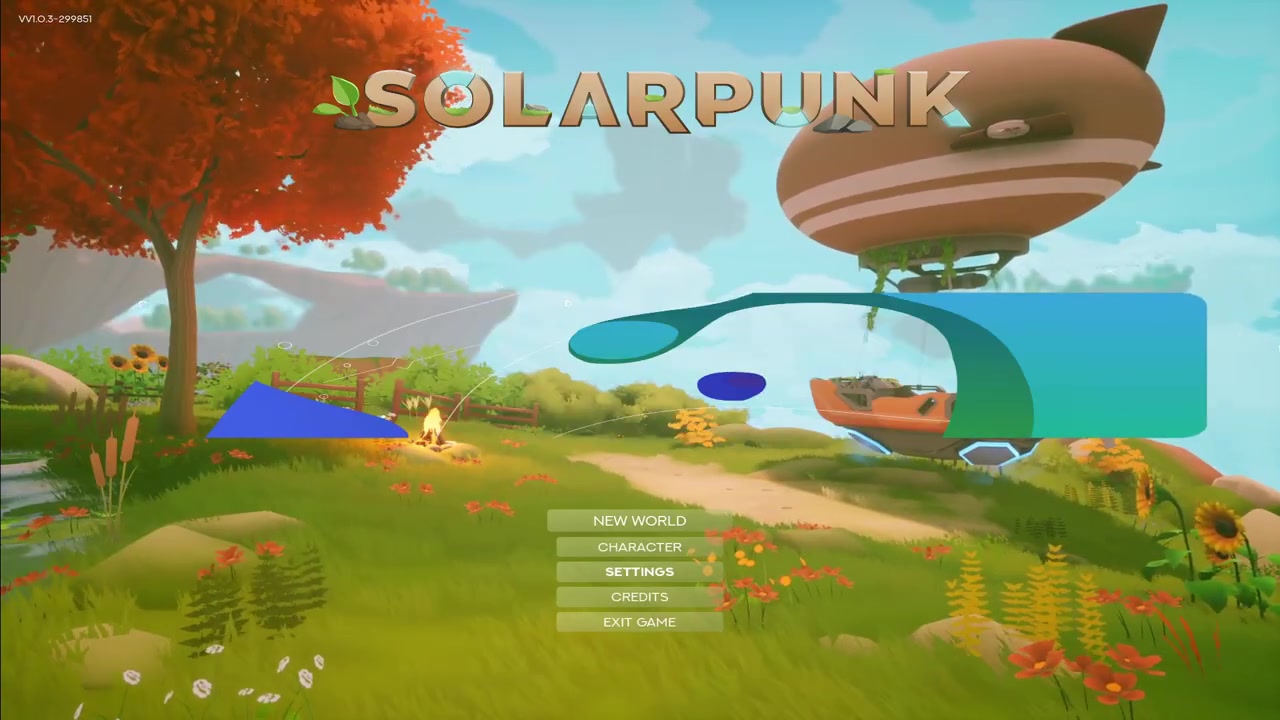
Launch the game on your device and let it load to the main menu, where you can carry on from wherever you last left off.
STEP 2/7
Open the Settings menu
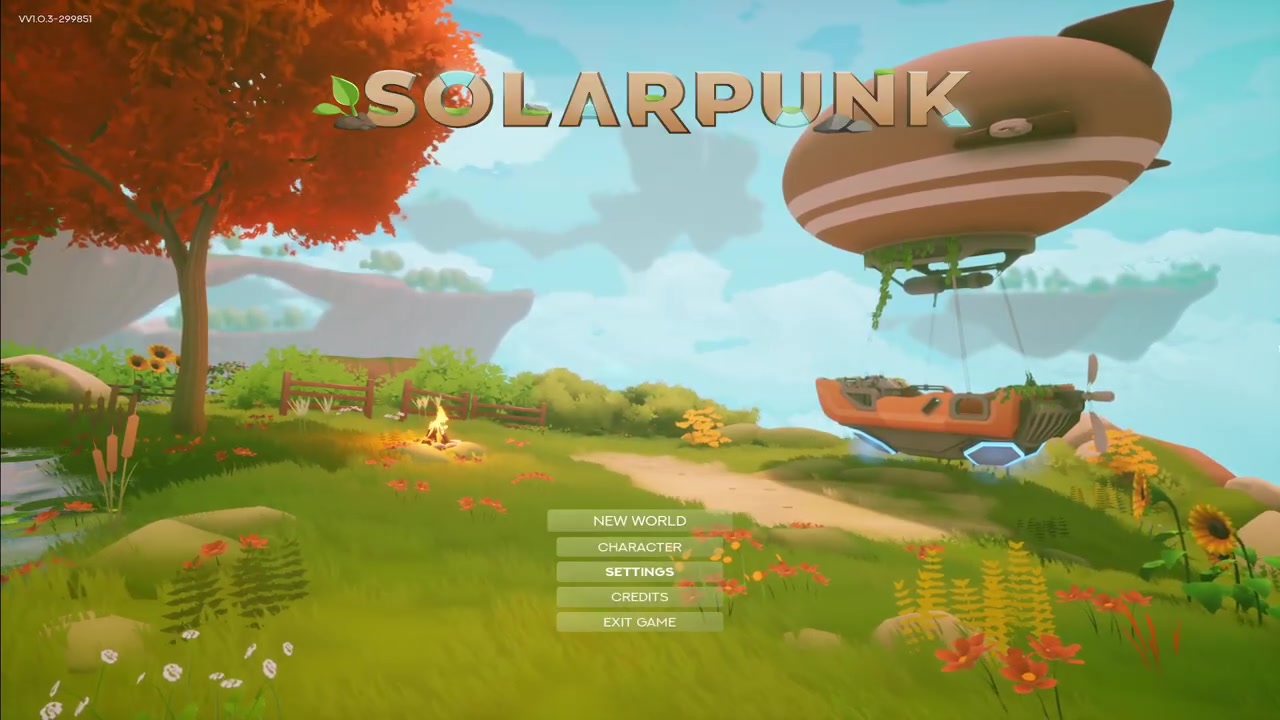
From the main menu, select Settings to reach the game’s options.
STEP 3/7
Go to the General tab
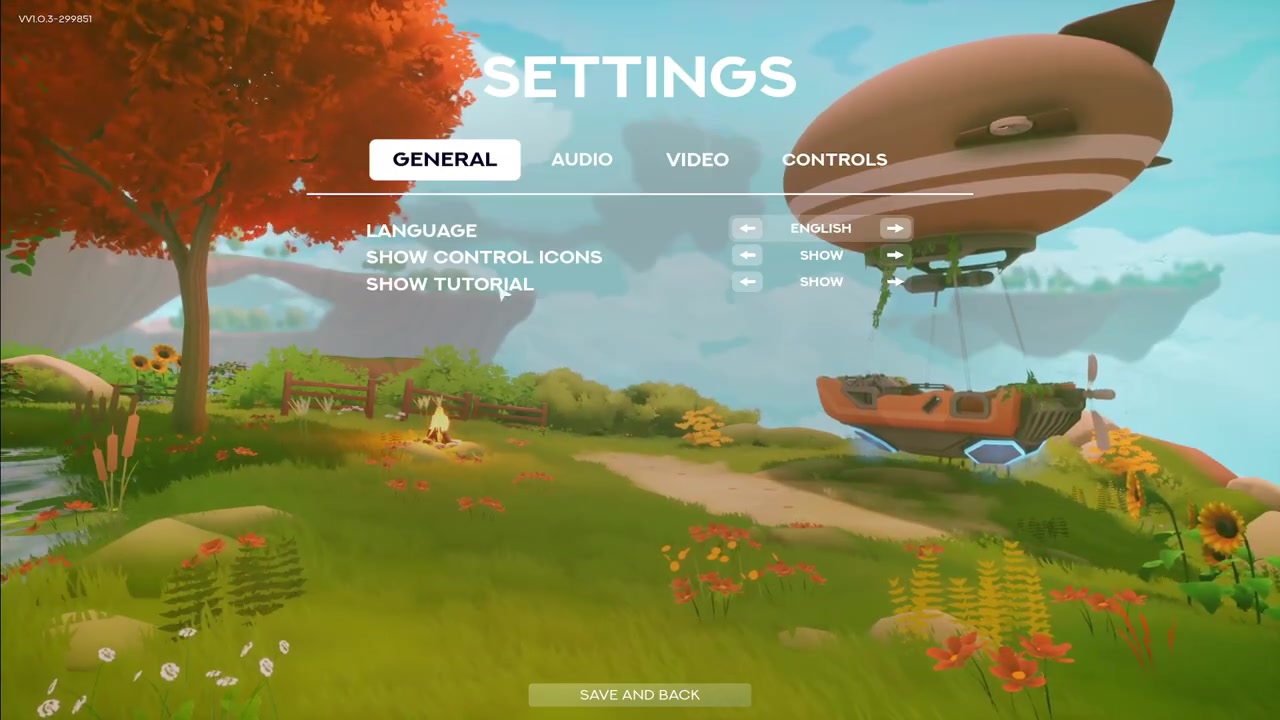
Inside Settings, switch to the General tab — this is where the tutorial option lives.
STEP 4/7
Find the Show Tutorial setting
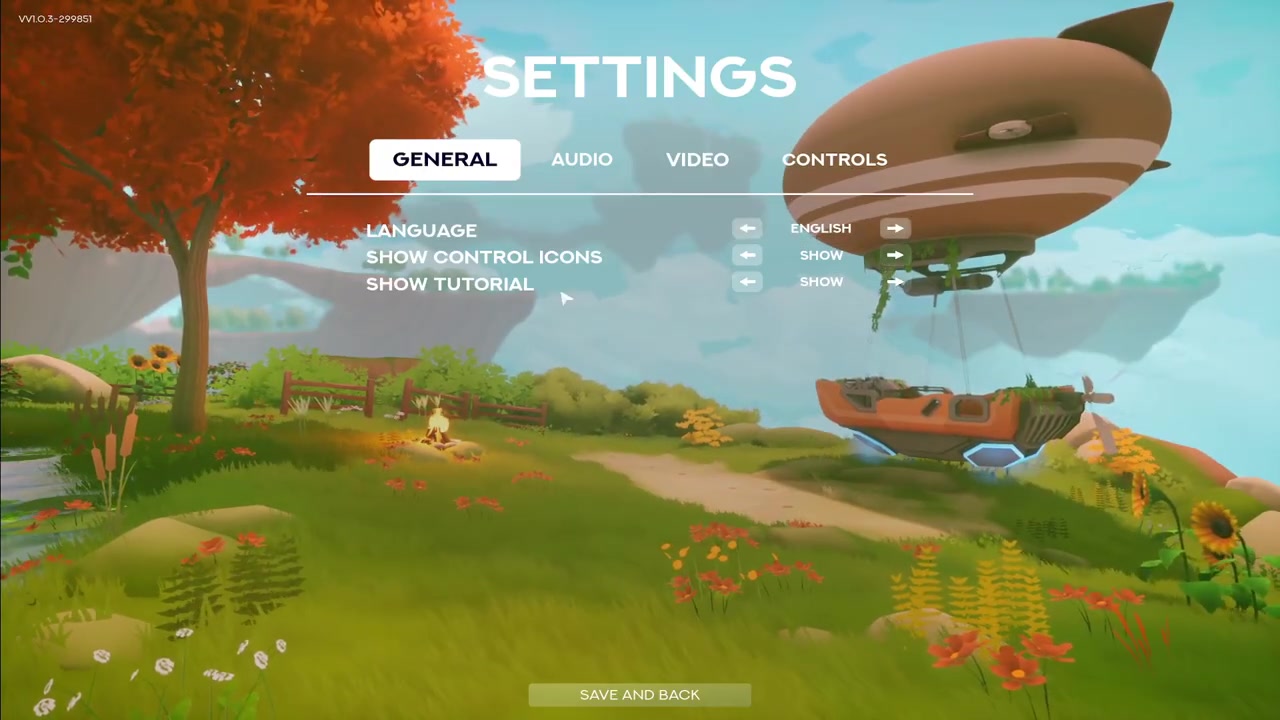
Look down the General list for the Show Tutorial entry.
STEP 5/7
Use the arrows to hide tutorials
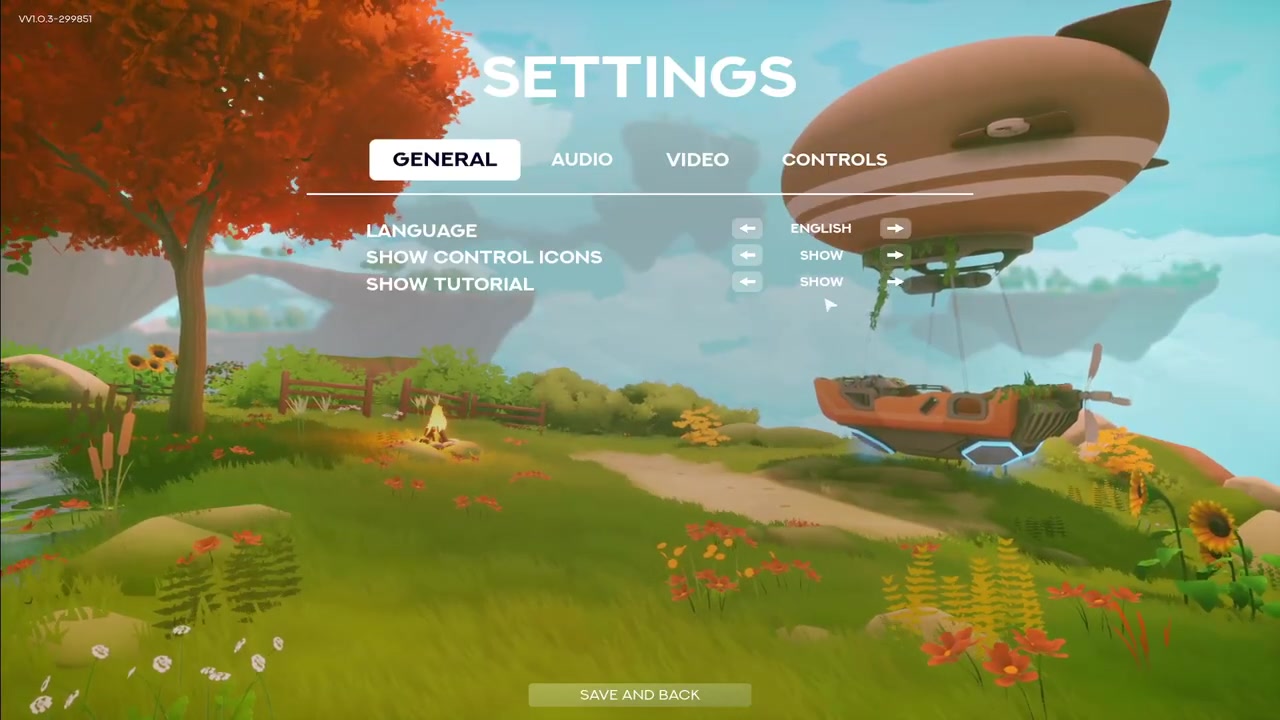
Press the left and right arrows beside Show Tutorial to switch between showing and hiding the tutorials and hints.
STEP 6/7
Save your change and back out
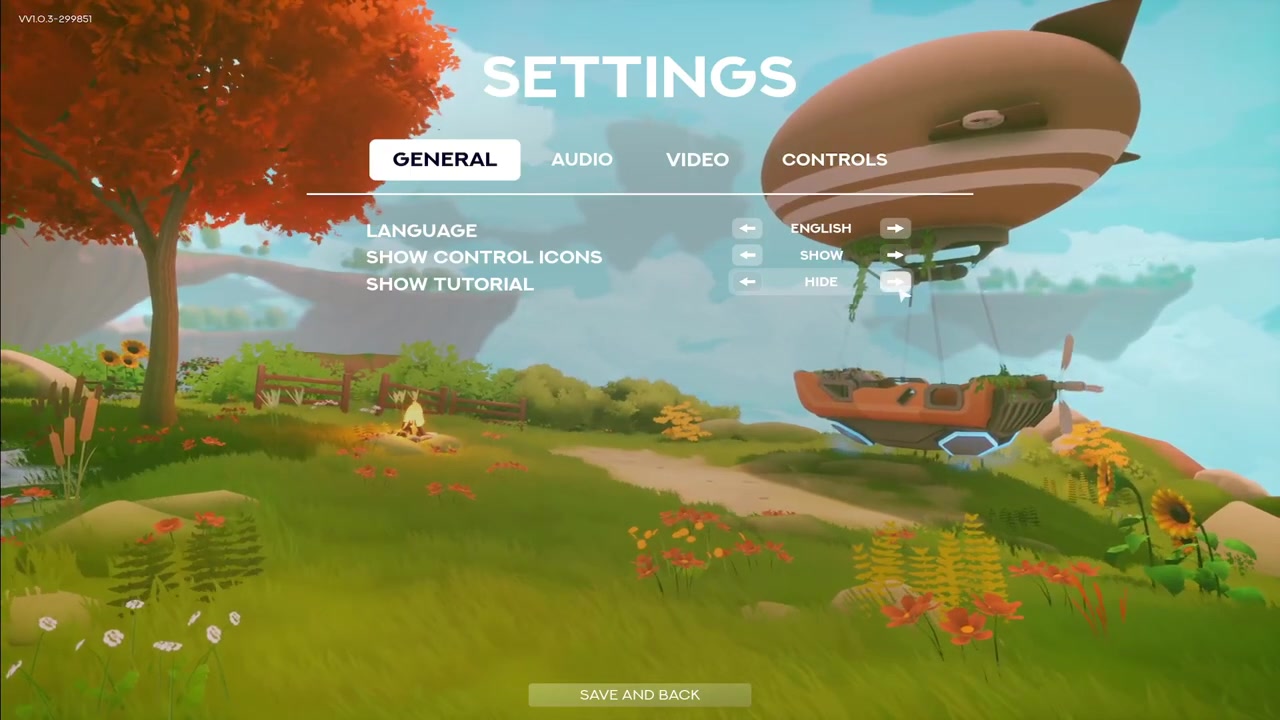
Once you’ve set it the way you want, select Save and then Back so the change sticks.
STEP 7/7
Return to your game
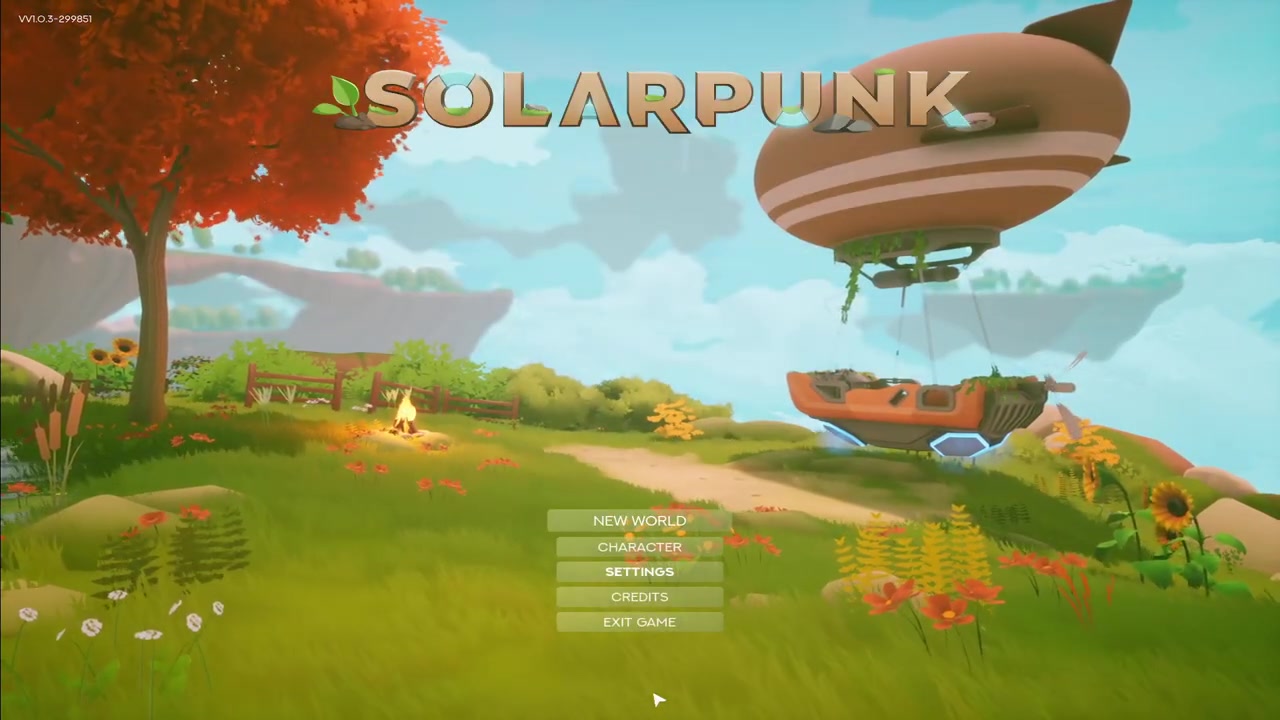
Start a new game or continue your existing one, and it will run with your chosen tutorial and hints setting.
Video help
Flipping the setting back on whenever you want
Nothing about this is a one-way door. Show Tutorial is a simple preference, so turning it off just hides the in-game guidance and HUD prompts — it doesn’t touch your save, your progress, or anything you’ve built. If you decide you want the hints back, you can switch them on again at any point by walking the same path: Settings > General > Show Tutorial, then nudge the arrows the other way and save.
Players who turn tutorials off tend to do it for a cleaner screen and a slightly tougher, less hand-held run once the early systems feel familiar. Treat it as a clutter-and-difficulty preference rather than a hard mode — what’s confirmed is that it hides the guidance, so set it to whatever makes the game more comfortable for you and change your mind freely.
Frequently Asked Questions
Can you turn the tutorials and hints back on after disabling them?
Yes. The setting isn’t locked once you change it. Head back to Settings > General > Show Tutorial, use the arrows to switch it back to showing, then Save and Back. You can flip it as often as you like.
Does turning off tutorials delete your progress or reset the game?
No. It’s only a display preference for the in-game guidance and prompts. Switching Show Tutorial off doesn’t reset, delete, or alter your save in any way — your world and progress stay exactly as they were.
Where exactly is the Show Tutorial setting?
From the main menu, open Settings, then the General tab. The Show Tutorial option is in that list, and the left and right arrows beside it control whether tutorials and hints are shown or hidden.

Leave a Reply