

Use the Customization Bench, select an eligible character, open Profile, choose Edit under Dossier, enter the new name, and press Escape to save it.
Key The rename control is tucked inside the character’s Dossier, away from the more obvious visual customization choices. Use it when an Operator’s current name no longer fits the squad you are building.
Which character names you can change

Full name editing is available for Hawks, custom Operators, and Operators recruited through the hiring system. Their first and last names can be changed from the Customization screen.
Authored story companions can have more limited customization, so editable name fields may not appear for every character. Select the Operator and check their Dossier to see which details are available.
How to rename a character at the Customization Bench in Star Wars Zero Company
The entire rename process takes place inside the selected Operator’s Profile.
STEP 1/6
Use the Customization Bench
Interact with the Customization Bench in the hangar to open the Customization screen.
STEP 2/6
Select the character
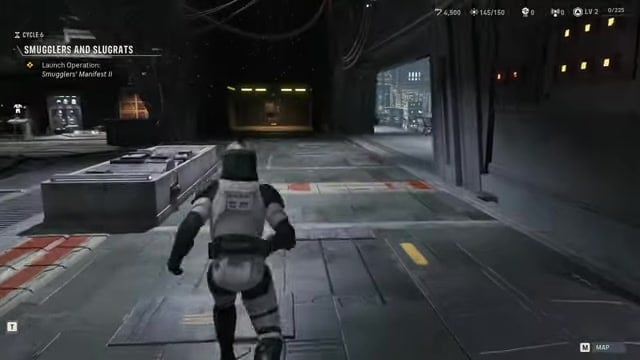
Choose the Operator you want to rename from the roster at the bottom of the screen.
STEP 3/6
Open Profile
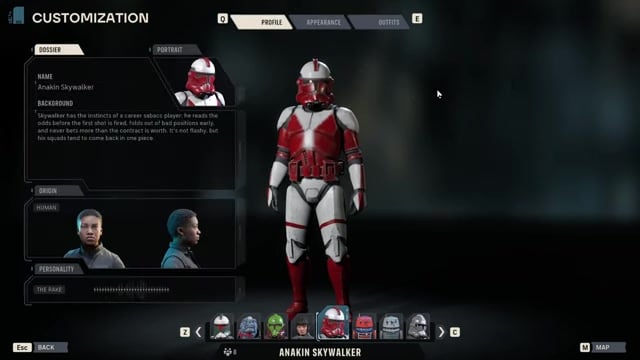
Click Profile in the top-left corner to display the character’s Dossier.
STEP 4/6
Edit the Dossier
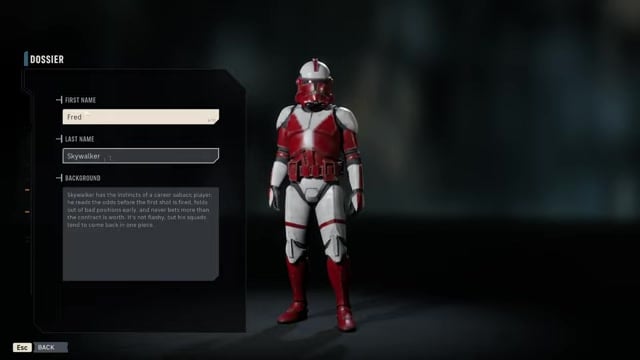
Click Edit under Dossier to open the editable character details.
STEP 5/6
Enter the new name
Replace the first name, then change or clear the last-name field as needed.
STEP 6/6
Save the changes
Press Escape to save the new name automatically.
For a one-word character name, clear the last-name field before saving.
Video help
Customize the background and portrait in Profile
The Profile menu also includes options for the character’s background and portrait. You can adjust either while working on the selected Operator’s details.





Leave a Reply