

On PC, you can remove Halo: Campaign Evolved’s film grain by creating an Engine.ini file, pasting the SystemSettings overrides into it, saving it, setting it to read-only, and relaunching the game.
Halo: Campaign Evolved uses a heavy grainy, green-tinted post-processing look on PC, and there is no normal in-game switch for it. The quick fix is to add a small Engine.ini override in the game’s local Windows config folder, then let the game load those settings on startup.
What the Engine.ini tweak changes

This is for Windows Key players who want a cleaner image without the forced film grain layer. The tweak targets the muddy greenish noise that can make the campaign look softer than it should, especially in darker scenes.
KEY!Using the full block below also removes chromatic aberration, so edges lose the smeared color fringe. It does not change your save, mission progress, difficulty, or controls; it only overrides a few visual post-processing values.
Before you edit the config file
| Item | What to use |
|---|---|
| Supported platform | Windows Key |
| Config path | C:\Users\your username\AppData\Local\Meteorite\Saved\Config\Windows |
| Target file name | Engine.ini |
| Explorer options | Show hidden files and File name extensions |
Close Halo: Campaign Evolved before editing the file, because the game may not read the new settings until it starts again. If Windows hides AppData or keeps disguising file extensions, turn those Explorer options on first so you can see the real folder and file name.
How to remove the film grain in Halo: Campaign Evolved
Create the missing Engine.ini file in the Windows config folder, paste the override block, then restart the game.
STEP 1/11
Open your user folder

Open File Explorer, go to Local Disk (C:), open Users, then open your Windows username folder.
STEP 2/11
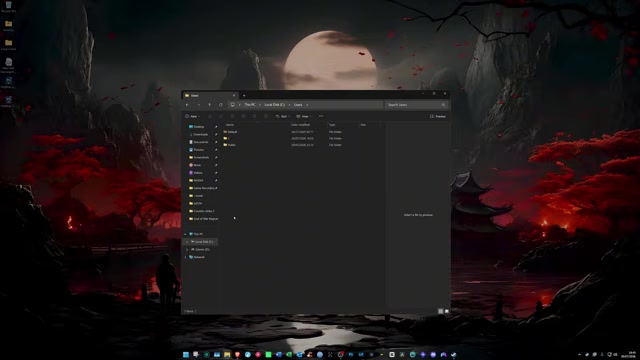
If AppData is missing, open the View menu or three-dot menu, choose Options, use the View tab, and set Hidden files and folders to Show.
STEP 3/11
Open AppData Local
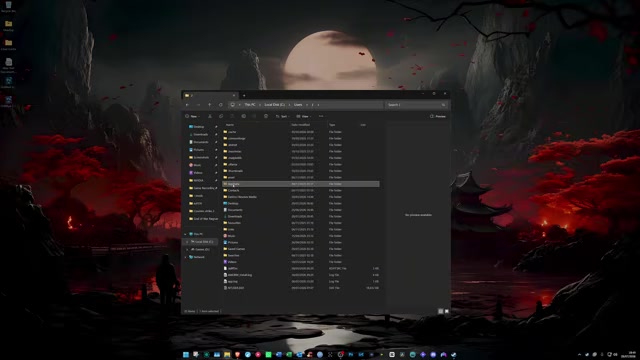
Open AppData, then open Local.
STEP 4/11
Find Meteorite
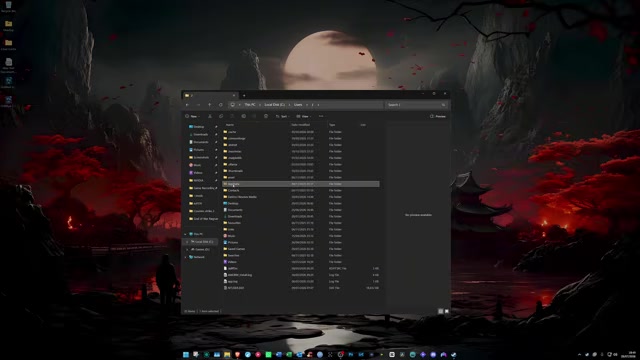
Search for and open the Meteorite folder.
STEP 5/11
Open the Windows config folder
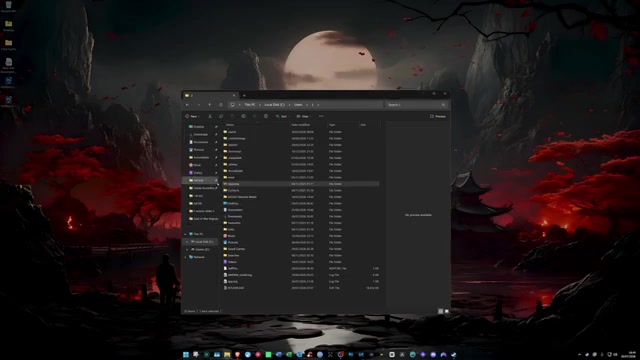
Open Saved, then Config, then Windows; seeing GameUserSettings.ini here means you are in the right folder.
STEP 6/11
Create a text document
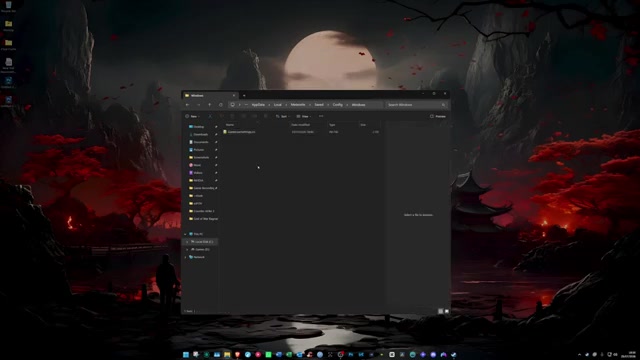
Right-click inside the folder, hover over New, and create a Text Document.
STEP 7/11
Rename it Engine.ini
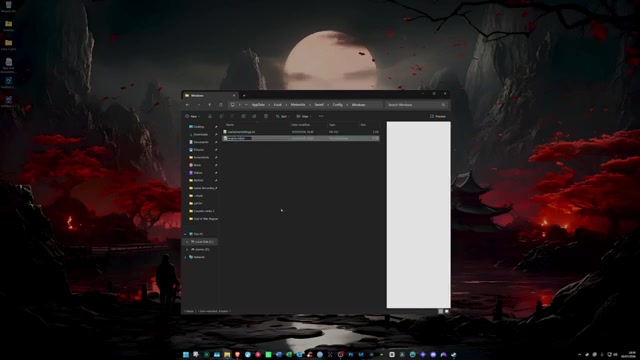
Rename the file exactly Engine.ini, not Engine.ini.txt.
STEP 8/11
Open Engine.ini
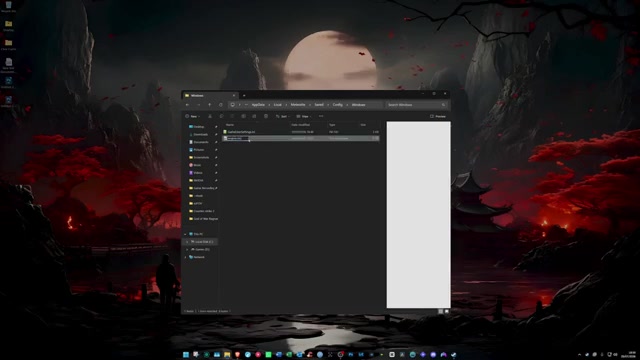
Open Engine.ini with Notepad or another plain text editor.
STEP 9/11
Paste the settings
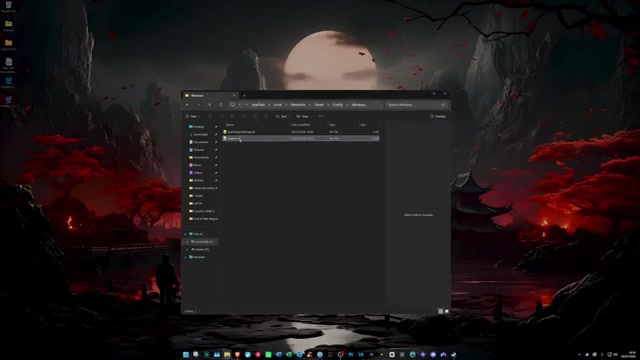
Paste the [SystemSettings] block listed below to disable film grain and chromatic aberration.
STEP 10/11
Save the file
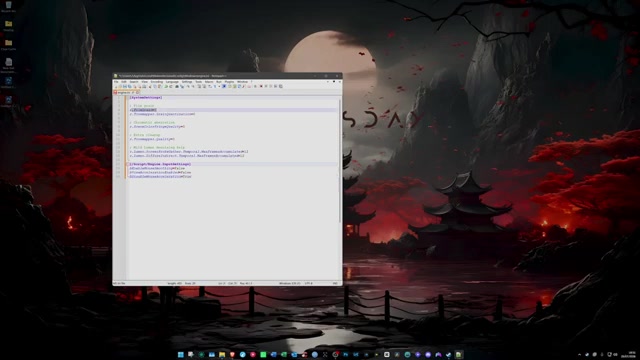
Press Ctrl + S to save, then set Engine.ini to Read-only in Properties before starting the game.
STEP 11/11
Relaunch and compare
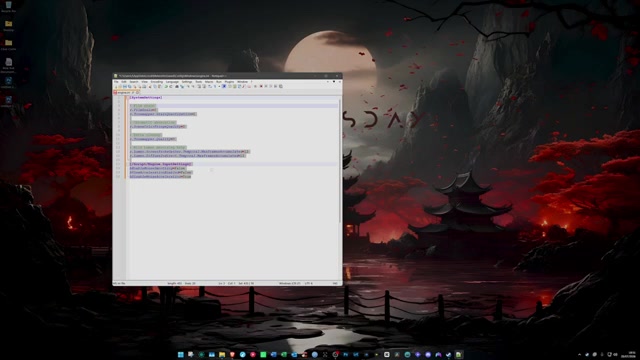
Launch Halo: Campaign Evolved and check the same checkpoint or mission area so the cleaner image is easier to spot.
Video help
Engine.ini settings for film grain removal
Paste this block into Engine.ini:
r.FilmGrain=0 removes the film grain layer. r.Tonemapper.GrainQuantization=0 cuts the tonemapper grain noise. r.SceneColorFringeQuality=0 turns off chromatic aberration.
Set Engine.ini to Read-only after saving so a settings reset or later game update is less likely to remove the override.
Fixes when Engine.ini does not work
| Problem | Fix |
|---|---|
| Wrong folder | Use AppData\Local\Meteorite\Saved\Config\Windows, not Documents or the install folder. |
| Engine.ini.txt extension | Turn on File name extensions and remove the hidden .txt ending. |
| Missing header | Keep [SystemSettings] above the three r. lines. |
| Game was still open | Close the game, save the file again, then relaunch. |
| File was not saved | Reopen Engine.ini and make sure the block is still present. |
| Settings were overwritten | Apply Read-only through file Properties after saving. |
Most failed attempts come down to Windows treating the new file as a text document or the file being placed one folder too high. Check the file name and folder path first before adding any extra graphics tweaks.
Console visual clarity limits

Xbox and PlayStation players cannot use this Engine.ini method because they do not have the same editable Windows config folder. On console, the only real option is to reduce perceived blur or noise through available video, resolution, and upscaling settings.
PC players who want more visual cleanup can look separately for motion blur or mouse smoothing tweaks, but those are separate changes. Keep this film grain fix small first, test it in-game, then add other overrides only if you need them.
Frequently Asked Questions
Is there an in-game Film Grain setting in Halo: Campaign Evolved?
No. The graphics menu does not include a separate Film Grain toggle, so the PC workaround uses Engine.ini.
Why can’t I see the AppData folder?
AppData is hidden by Windows. In File Explorer, open the View menu or three-dot menu, choose Options, open the View tab, then set hidden files and folders to show.
How do I make sure the file is Engine.ini and not Engine.ini.txt?
Enable File name extensions in File Explorer. If the file shows as Engine.ini.txt, rename it so only Engine.ini remains.
Does this also remove chromatic aberration?
Yes, as long as you keep r.SceneColorFringeQuality=0 in the block. Removing that line keeps the film grain changes but leaves chromatic aberration alone.
Can Xbox or PlayStation players use this method?
No. This method depends on editing a Windows Key config file, so it does not apply to Xbox or PlayStation versions.
More questions⤵
How do I undo the tweak?
Right-click Engine.ini, turn off Read-only, then delete the file or remove the three lines you added. Relaunch the game after changing it.




Leave a Reply