

You can start 2-player local split-screen campaign co-op in Halo: Campaign Evolved by choosing co-op from the main menu, connecting a second controller, signing Player 2 into a separate account, then starting a campaign mission.
The setup is menu-first and account-first: Player 2 has to join the Fireteam before the campaign loads. During the launch and early-access window around the July 28, 2026 global release, the first join can also trigger network and Microsoft account-linking screens.
Local split-screen requirements in Halo: Campaign Evolved
| Requirement | What you need |
|---|---|
| Player count | 2 players for local split-screen campaign co-op. |
| System | Xbox Series X|S or PlayStation 5 for the couch setup covered here. |
| Controllers | Two controllers, with Player 2’s controller powered on before joining. |
| Profiles | Player 2 signs into a different profile from Player 1. |
| Microsoft account | Required for Halo services; choose carefully because the linked account cannot be unlinked. |
| PlayStation profile | On PS5, Player 2 needs a PlayStation Network account linked to a Microsoft account before split-screen sign-in. |
| Menu | Start from Campaign/co-op or Play Co-op on the main menu. |
KEY!Local split-screen is campaign co-op for two players sharing one screen on one console. Start from the campaign/co-op menu before loading a mission, because Player 2 joins from the main menu flow rather than after gameplay has already begun.
The couch setup below is for Xbox Series X|S and PlayStation 5. On PC, use the online co-op path unless your build presents a local split-screen option.
Turn on Player 2’s controller before searching for the join prompt; if the controller is not connected, Player 2 Join may not appear.
How to play split-screen local co-op in Halo: Campaign Evolved
Start from the home screen and get both signed-in players into the Fireteam before launching the campaign.
STEP 1/9
Choose Play Co-op
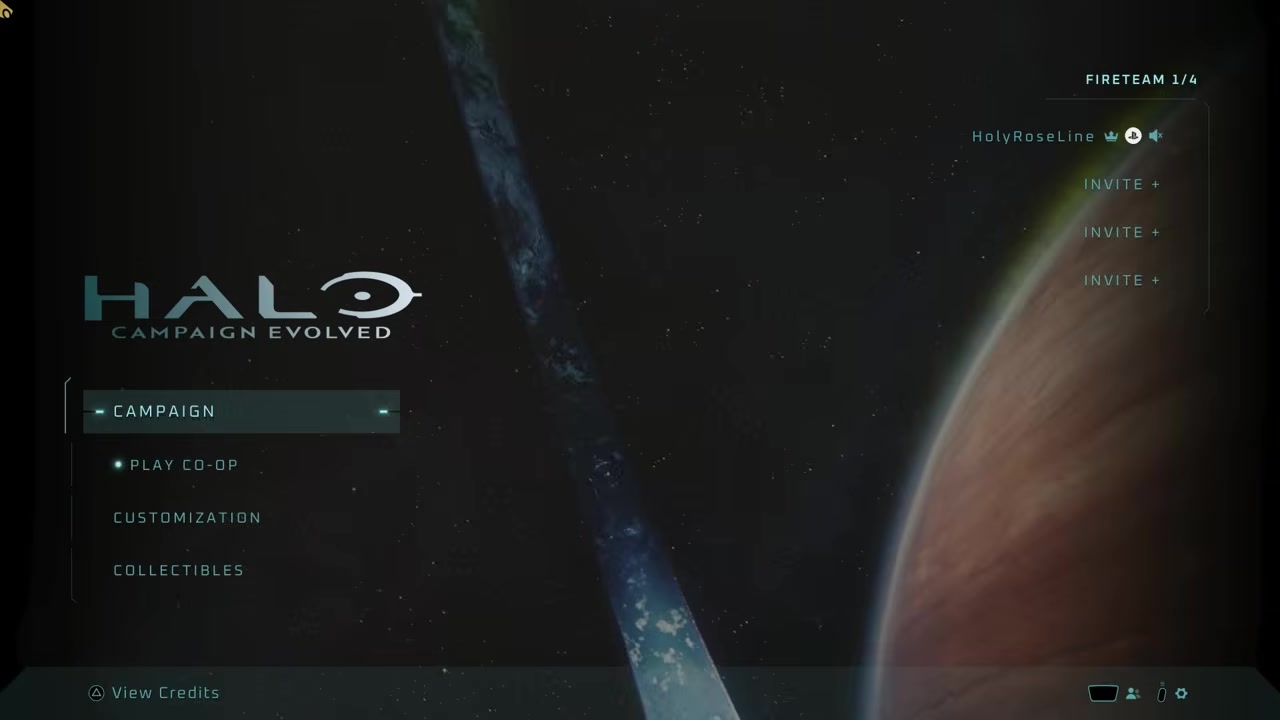
From the home screen, select Play Co-op to open the campaign co-op flow.
STEP 2/9
Turn on the second controller
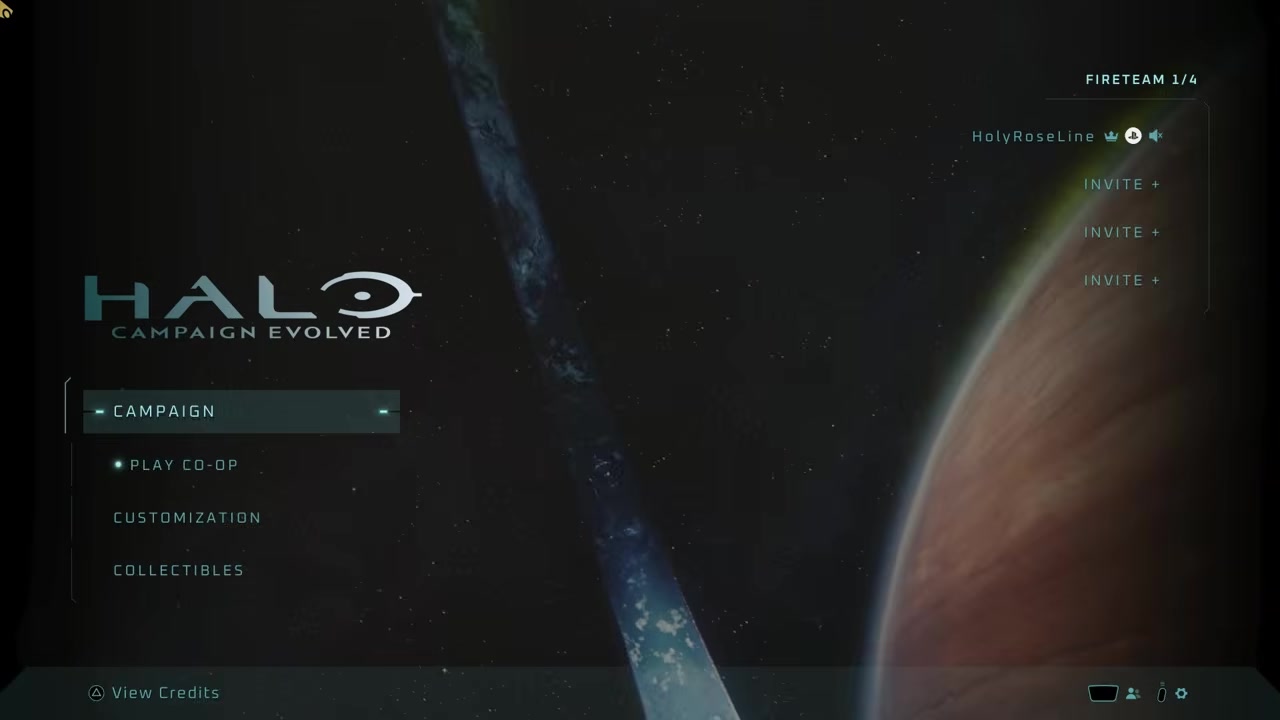
Power on Player 2’s controller so the game can detect a second local player.
STEP 3/9
Sign Player 2 into another account
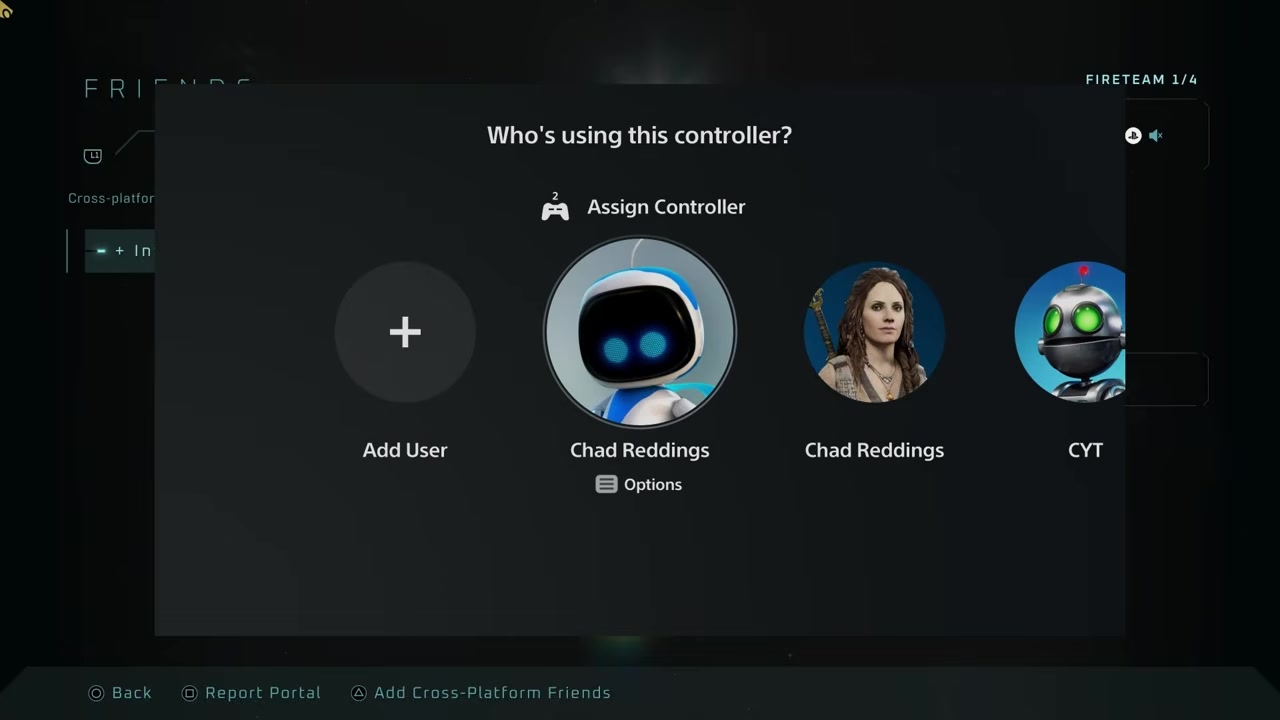
When prompted, choose a different profile for Player 2 instead of reusing Player 1’s account.
STEP 4/9
Press X or A to join
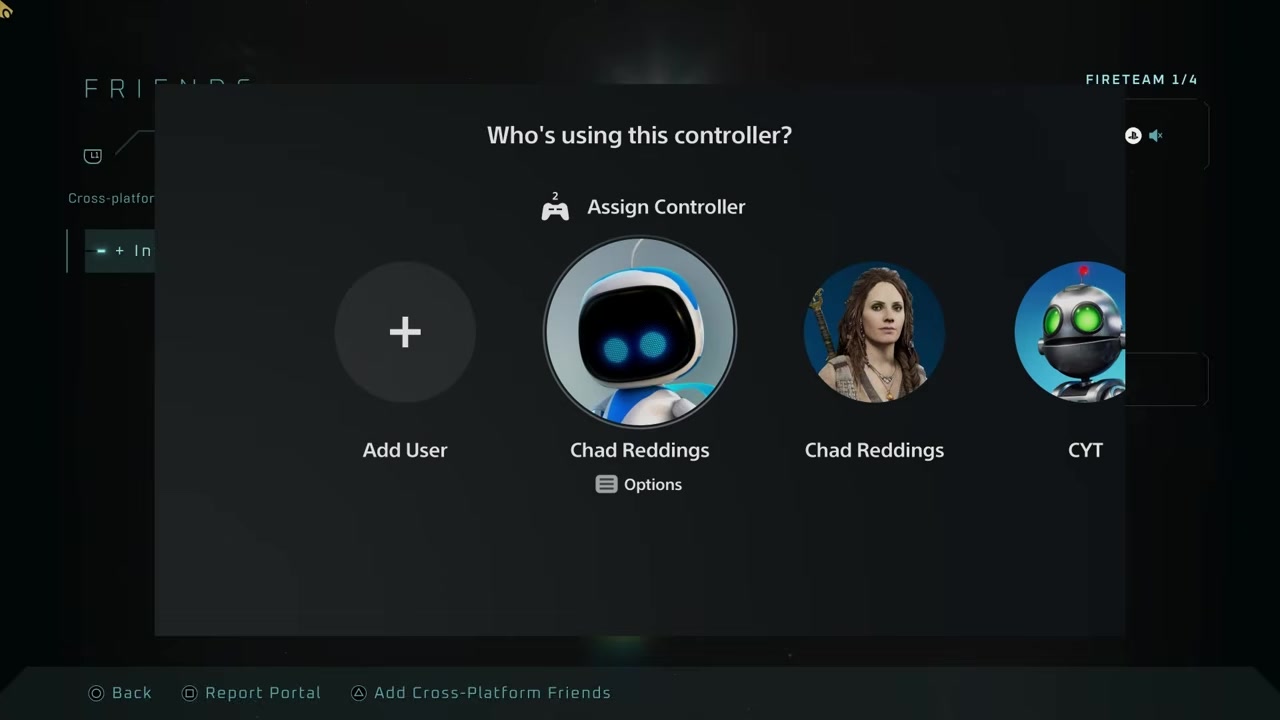
Press X on PlayStation or A on Xbox when the split-screen join prompt appears.
STEP 5/9
Let the first-time network check finish
If this is Player 2’s first join, allow the game to connect to the network before continuing.
STEP 6/9
Link the second account to Microsoft
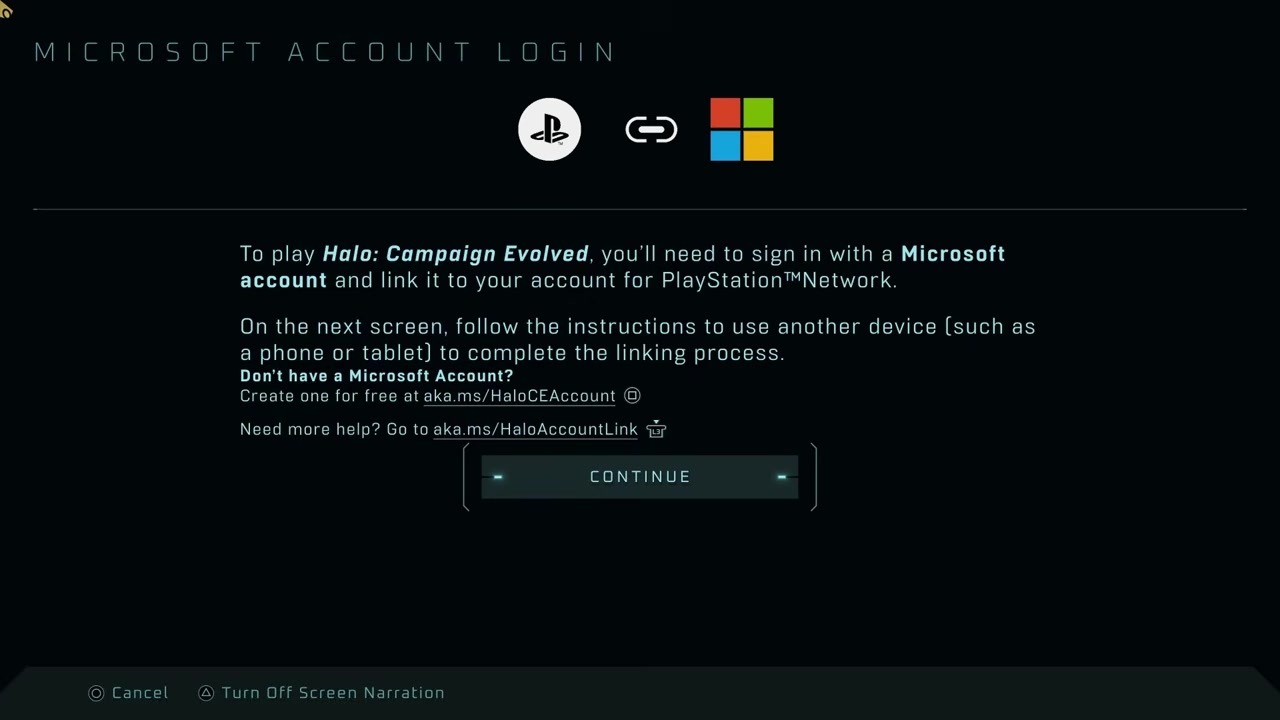
Complete the Microsoft account-linking prompt for Player 2 so Halo services can add them to the session.
STEP 7/9
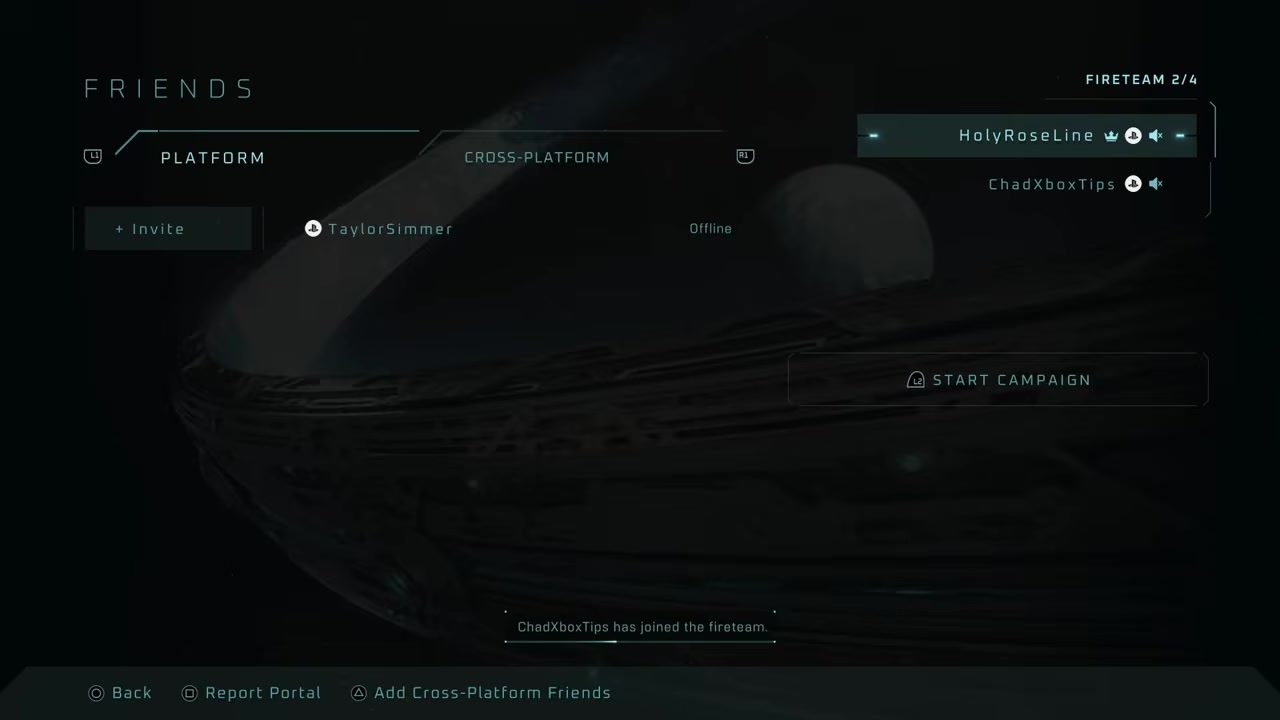
Check that both accounts are present
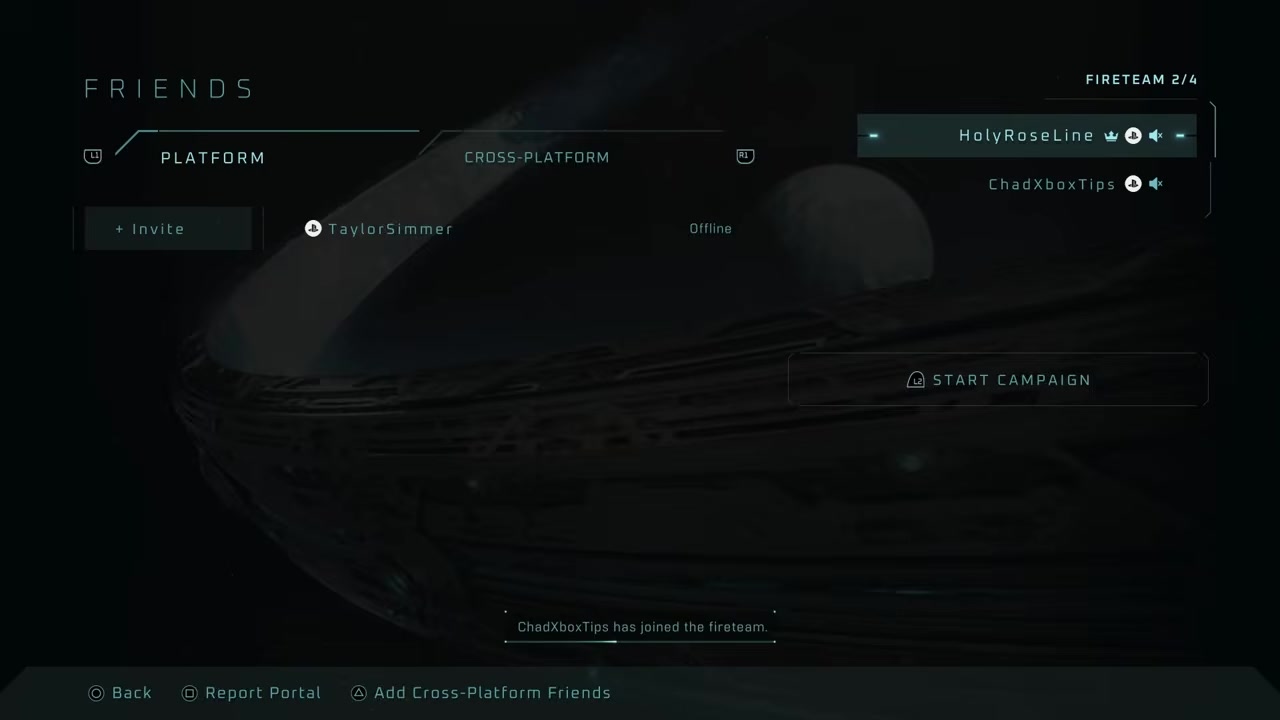
Wait until the Fireteam shows two signed-in accounts before starting the mission.
STEP 8/9
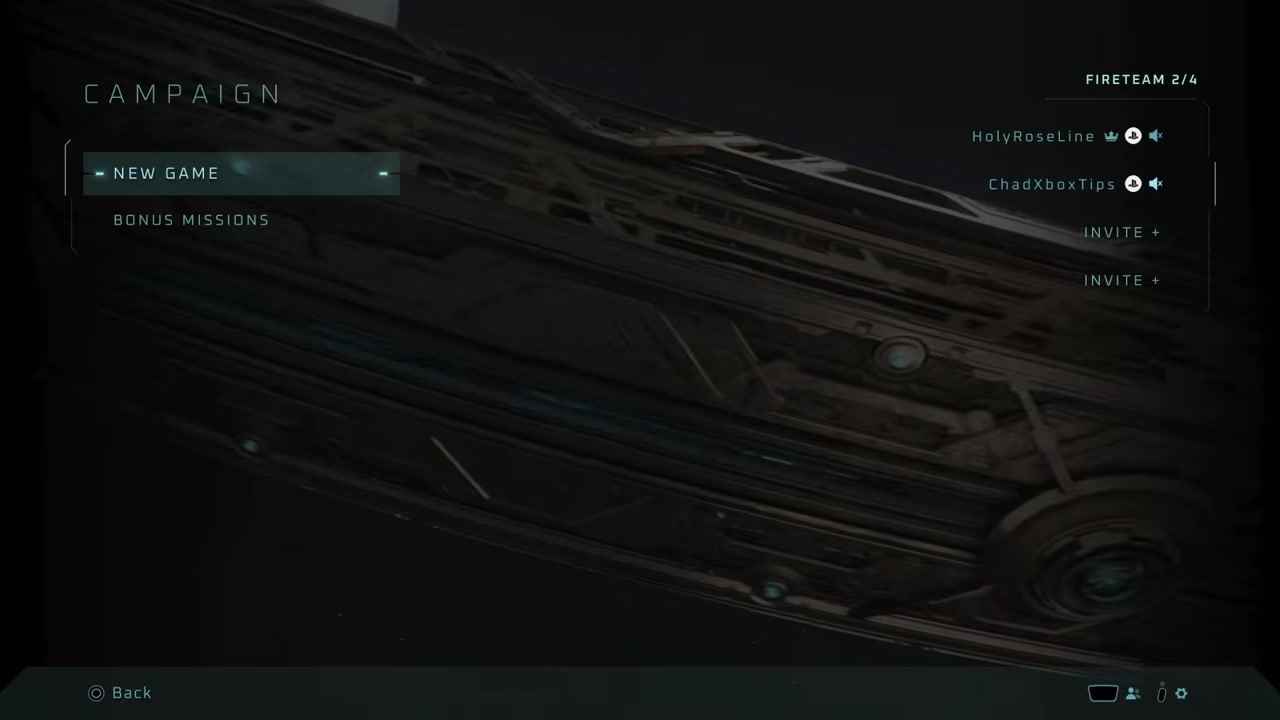
Start a campaign
Choose the campaign mission you want to play with both players still in the co-op lobby.
STEP 9/9
Join the game
Once the campaign loads, both players will be in local split-screen co-op.
Video help
If Player 2 cannot join in Halo: Campaign Evolved
If Player 2 Join does not show, check the physical setup first. The second controller has to be powered on and assigned before the main menu will offer the join prompt, so reconnect it and return to the co-op screen with Player 1’s controller.
If the prompt appears but Player 2 still does not enter the Fireteam, the profile is usually the blocker. Player 2 must use a different signed-in account; on PS5, that account also needs to be a PlayStation Network account linked to a Microsoft account for split-screen.
The first-time network screen is part of setup, not a switch to online co-op. Let it finish, complete Microsoft account linking for Player 2, and wait for both accounts to appear together before starting the campaign.
Once Player 2 is in, some menu access is limited. Player 2 can adjust controls, accessibility, and similar settings, but cannot change certain options such as Graphics Mode or access armor and weapon customization.

Local split-screen and online campaign co-op
| Mode | How it works |
|---|---|
| Local split-screen campaign co-op | Two players share one console and one screen; PS5 local play does not require PlayStation Plus. |
| Online campaign co-op | Up to 4 players play over the network across PC, Xbox Series X|S, and PS5 with cross-play and cross-progression through linked Microsoft accounts; PS5 online play requires PlayStation Plus. |
Use local split-screen when two players are in the same room and want to share one console. Use online campaign co-op when players are on separate systems or you want a larger Fireteam.
This setup is for campaign co-op, not competitive multiplayer playlists.
Frequently Asked Questions
Can you play Halo: Campaign Evolved split-screen on PC?
PC players should use online campaign co-op unless their build clearly offers a local split-screen option. The console couch setup above is for Xbox Series X|S and PlayStation 5.
How many players can play local split-screen co-op?
Two players can play local split-screen campaign co-op on one system. Larger co-op sessions use online co-op.
Does Player 2 need a separate account?
Yes. Player 2 needs a different signed-in profile, and the account has to be linked to a Microsoft account for Halo services.
Do you need PlayStation Plus for local split-screen on PS5?
No. Local split-screen on PS5 does not need PlayStation Plus, but online co-op does.
Why is the second-player join prompt not showing?
The usual cause is that the second controller is not connected or assigned yet. Power it on, return to the main menu, and look for Player 2 Join again.





Leave a Reply