
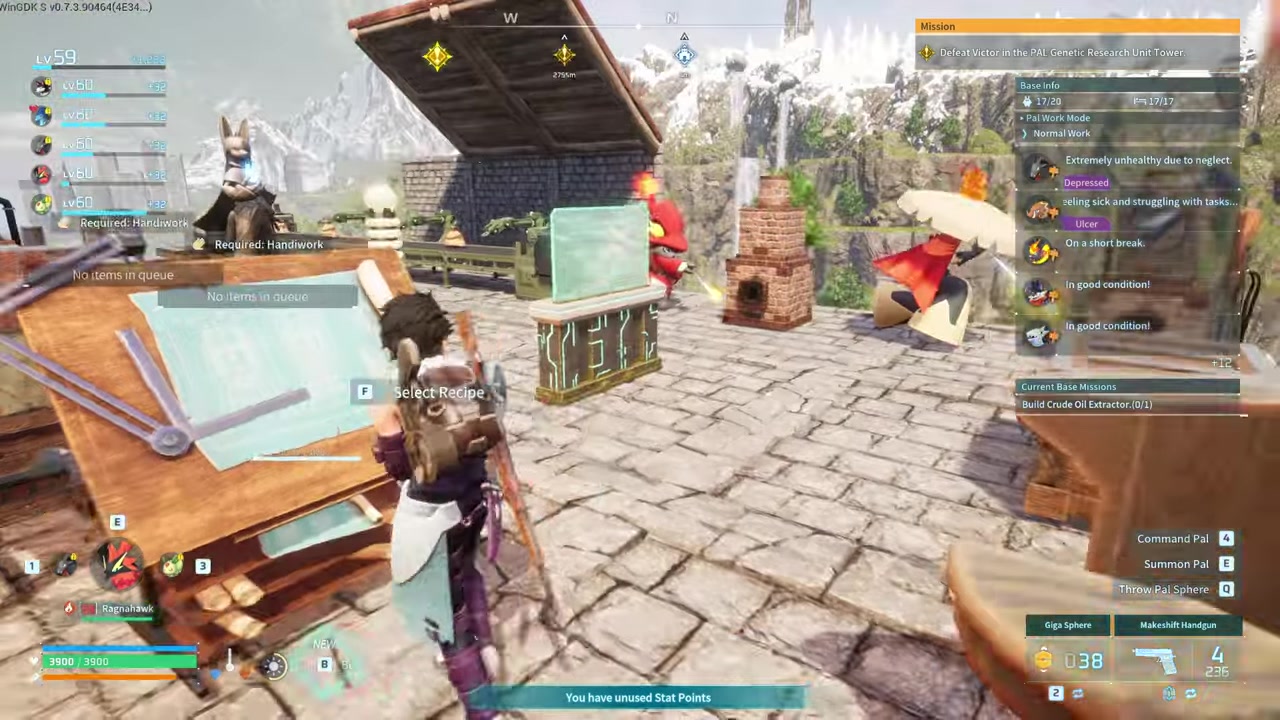
To move or destroy objects in Palworld, you must use Disassembly Mode in the Build Menu, which destroys the targeted object and refunds 100% of its materials so you can rebuild it elsewhere.
Palworld does not include a drag-and-drop move option for placed structures, which catches many players off guard when they first try to reorganize a base. The only way to relocate an object is to disassemble it and then rebuild it at the desired spot. Fortunately, disassembling an object refunds the full cost of its materials, letting you pick up and replace items without farming for new resources.
Disassemble is the only way to relocate structures
There is no move function for base objects in Palworld. Whether you want to shift a Workbench a few feet to the left or entirely reorganize your crafting layout, the game forces you to destroy the original structure and place a new one. When you use the dedicated Disassembly Mode, the targeted object is destroyed and all of its original crafting materials are deposited directly back into your inventory. You can then immediately rebuild the item wherever you like, though your Pals will need to construct it again.
How to disassemble and recover materials from a placed object
| Step | Actions | Default PC Key |
|---|---|---|
| 1 | Open the Build Menu | B |
| 2 | Enter Disassembly Mode | C |
| 3 | Aim at the target structure | Mouse |
| 4 | Confirm and destroy the object | Left Mouse Button |
STEP 1/4
Enter Build Mode
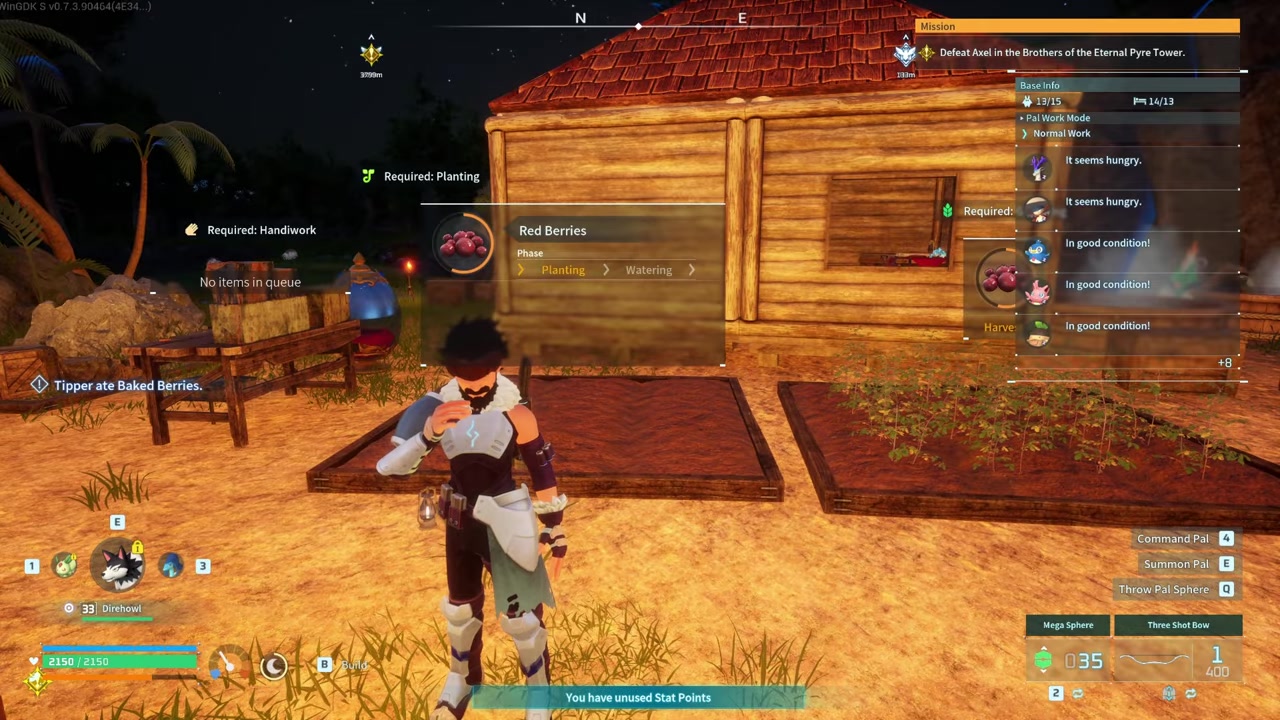
Open the Build Menu by pressing B on PC to view your construction options.
STEP 2/4
Select Disassembly Mode
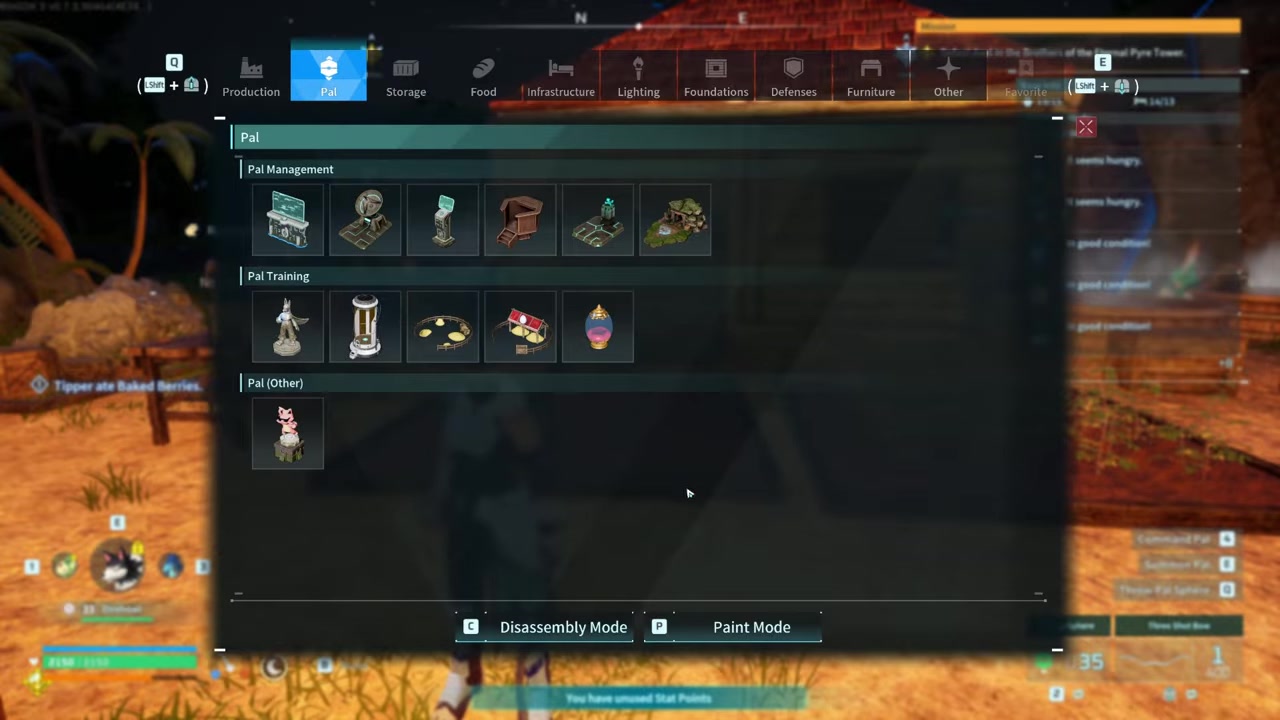
Press C to switch from the building menu to Disassembly Mode.
STEP 3/4
Target the object
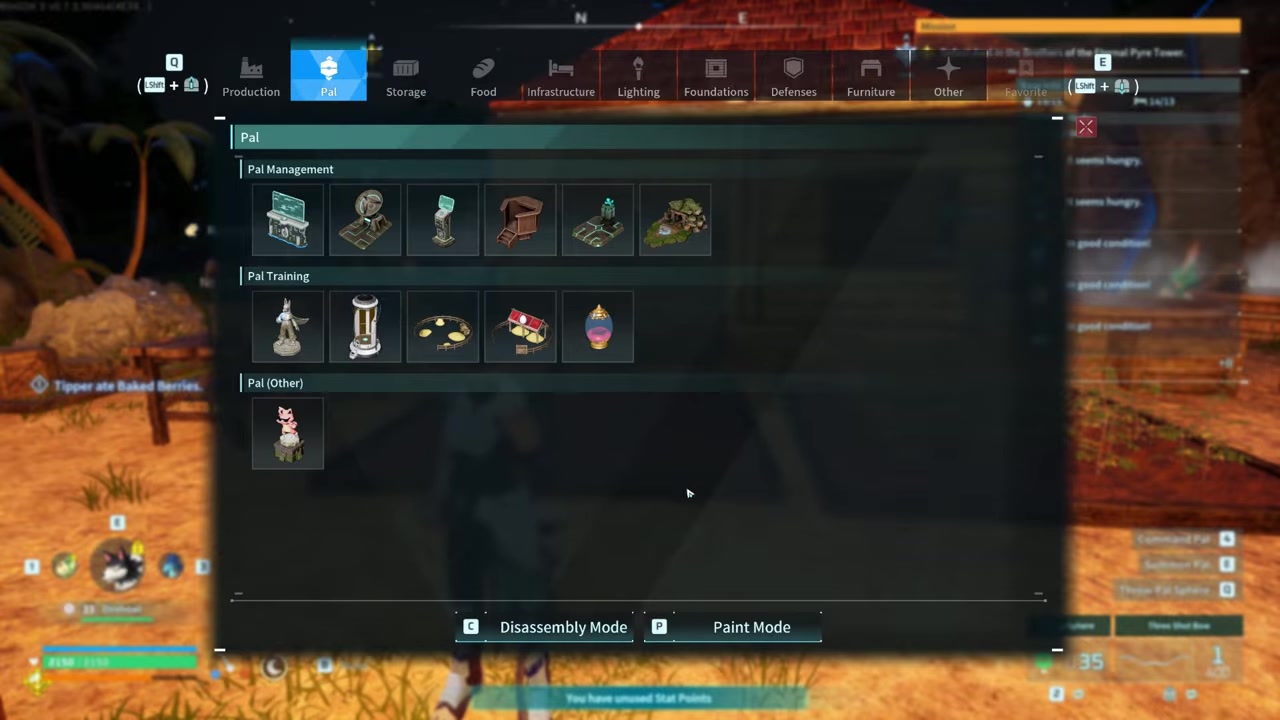
Aim your cursor at the structure you want to destroy to highlight it and preview the materials you will get back.
STEP 4/4
Confirm the disassembly
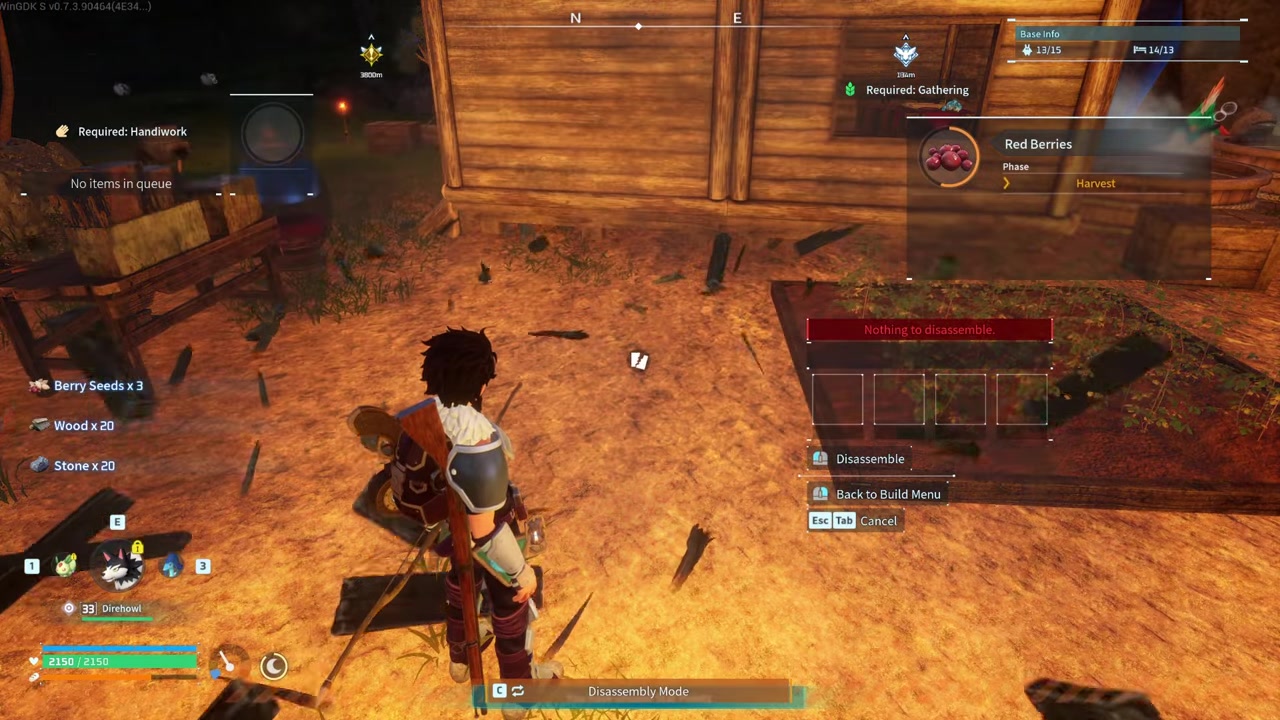
Click the Left Mouse Button to destroy the object and instantly refund 100% of its materials to your inventory.
Video help
Do not smash structures with weapons or Pals
Always use Disassembly Mode (B then C) instead of smashing objects with a Pickaxe, because manual destruction does not refund your crafting materials.
Handling bugged or stuck structures
Occasionally, a structure might bug out or become stuck in the terrain, preventing the standard disassembly prompt from registering. For these problem pieces, players have reported finding success by hitting them with weapons like a Pickaxe, Flamethrowers, or Rocket Launchers. Other anecdotal reports suggest holding Ctrl while deleting can force the game to remove the stuck object. These workarounds are unverified and may depend on your specific game version or platform, but they are worth trying if an object refuses to disassemble normally.
Relocating an entire base via Palbox placement
Moving an entire base is tied directly to the Palbox. Placing a Palbox at a new location establishes a new base, but your existing structures do not auto-move with it. Production buildings, farms, and defenses stay exactly where you originally built them. To relocate efficiently, you must disassemble your old structures to recover the materials, transport those materials to the new site, and rebuild everything from scratch.
Frequently Asked Questions
Do you get your materials back when you destroy an object in Palworld?
Yes. Using Disassembly Mode destroys the targeted object and refunds 100% of its materials directly to your inventory. While the exact refund percentage is unverified across every single object type, players consistently report getting a full material return.
Can you pick up and move structures without destroying them?
No. Palworld currently has no drag-and-drop move option for placed structures. The only way to relocate an object is to disassemble it and then rebuild it at the desired spot.
What happens to my buildings when I move my Palbox to a new base?
Your buildings stay behind. Placing a Palbox at a new location creates a new base, but existing structures do not automatically follow. You have to disassemble the old structures, transport the materials, and rebuild them at the new site.
Why can’t I destroy objects by hitting them with a pickaxe or weapon?
Manually smashing built items with tools or weapons is ineffective and does not refund materials. You must use the Disassembly Mode in the Build Menu to properly destroy structures and recover your crafting resources.
How do I destroy bugged or stuck structures that won’t disassemble?
For bugged pieces that resist normal disassembly, players report using weapons like a Pickaxe, Flamethrowers, or Rocket Launchers, or holding Ctrl while deleting. These methods are anecdotal and unverified, but they can serve as a fallback for stubborn objects.





Leave a Reply