
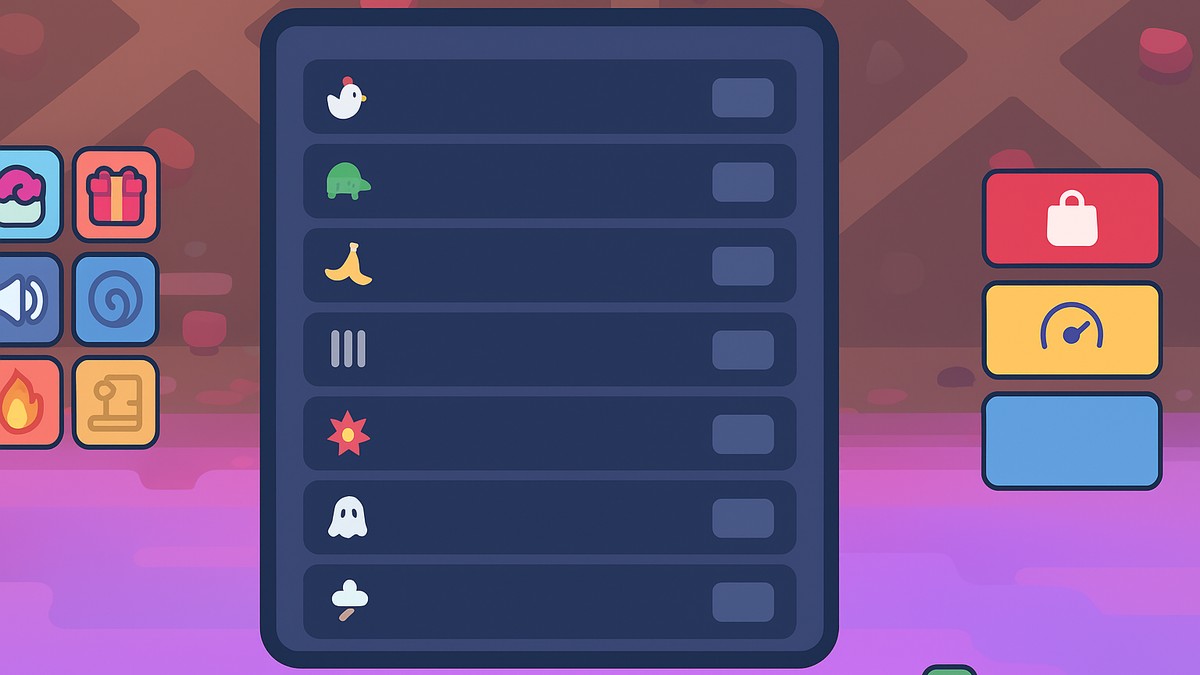
To enable TIKFINITY in +1 Speed Keyboard Escape Candy & Chocolate, click the TIKFINITY button in the top-right of the screen, open its menu, then click the top-left toggle until it turns on and shows green.
TIKFINITY is a built-in fun-effects system in +1 Speed Keyboard Escape Candy & Chocolate — once you flip it on, a set of keyboard hotkeys let you trigger transformations and gags like turning into a chicken, going super slow, or slipping on a banana. It lives behind a single button in the corner of the screen, and it costs nothing to use. Just don’t expect it to raise your Speed or Wins: everything it does is cosmetic or a deliberate self-handicap, not a progression boost.
How to turn on TIKFINITY in +1 Speed Keyboard Escape
Turning TIKFINITY on takes a single toggle inside its own menu — here’s the exact path from button to your first effect.
STEP 1/5
Click the TIKFINITY button
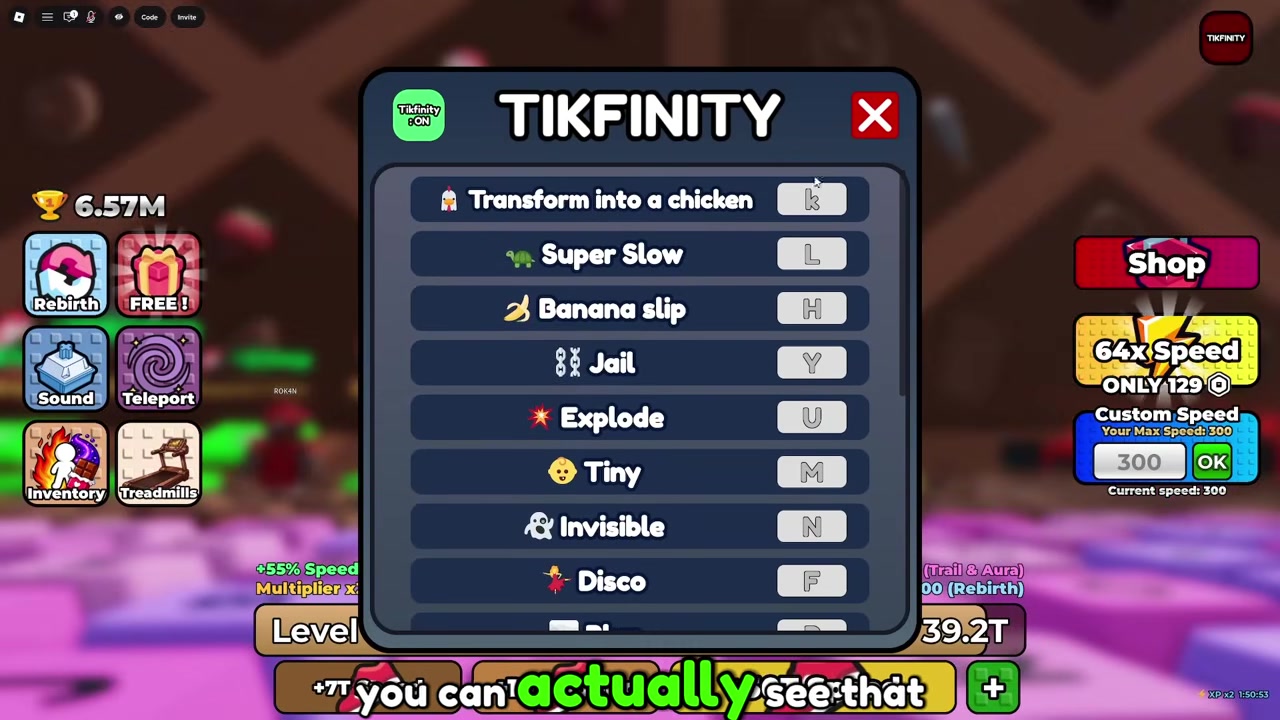
Look to the top-right of the screen and click the TIKFINITY button to open its menu.
STEP 2/5
Find TIKFINITY Off
In the top-left of the menu you’ll see a toggle that reads TIKFINITY Off.
STEP 3/5
Turn the toggle on
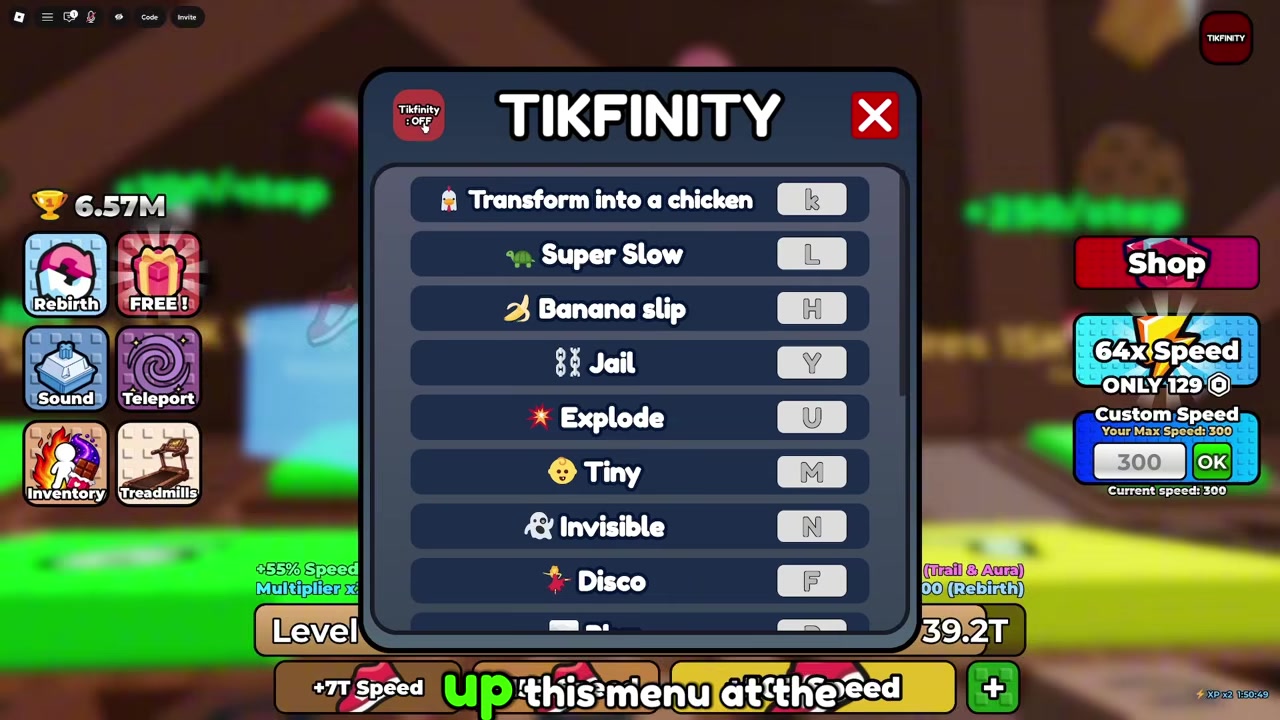
Click that toggle once to switch TIKFINITY on.
STEP 4/5
Check that it’s green
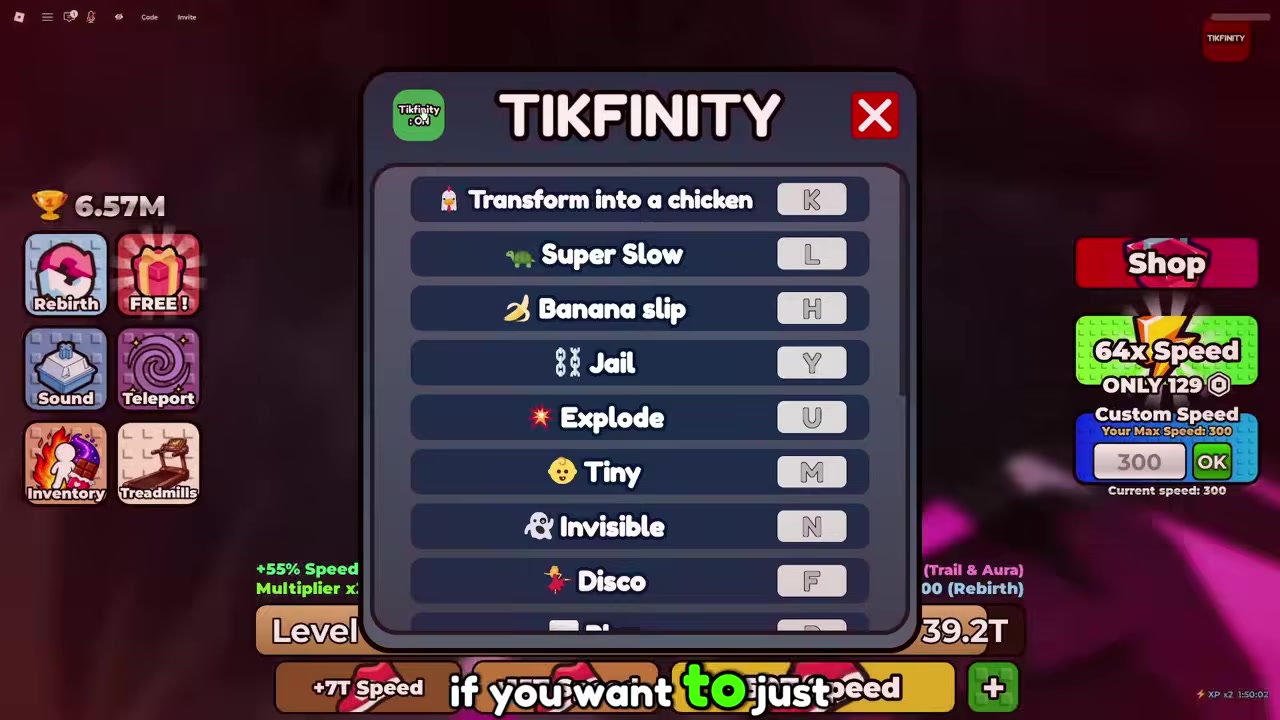
STEP 5/5
Press a keybind to test
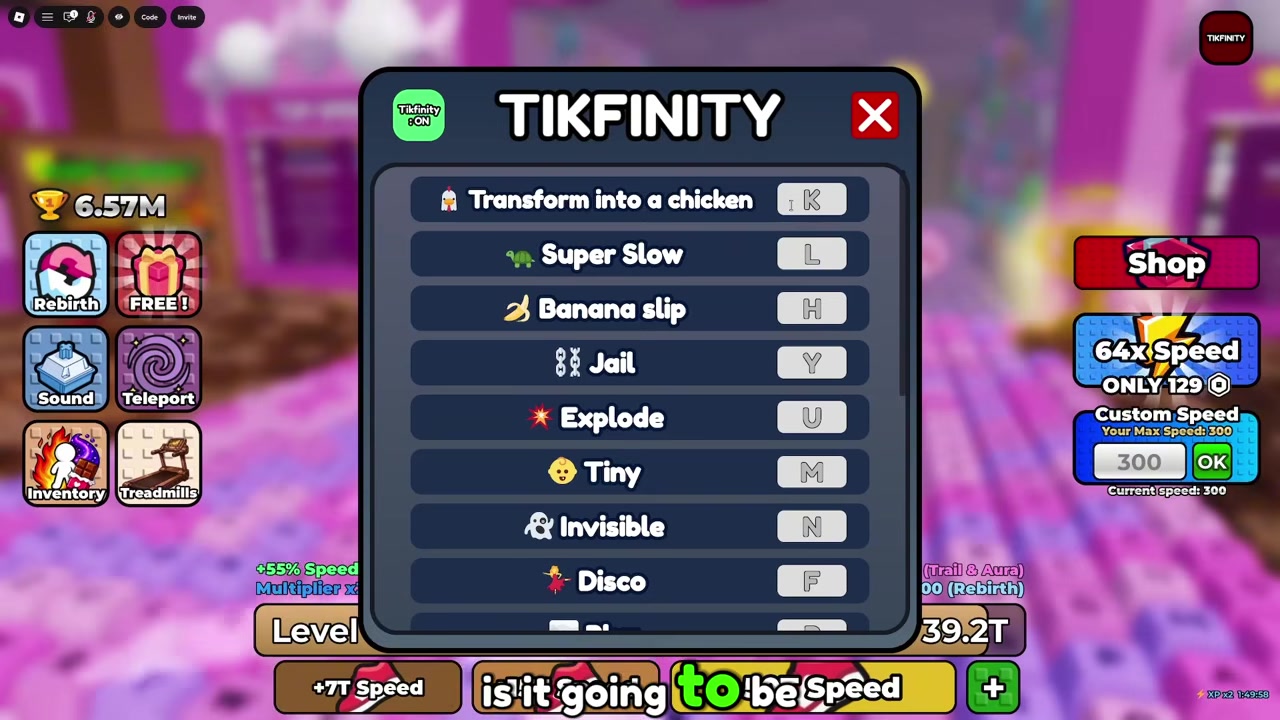
With it on, press any listed key such as K to trigger an effect and confirm it’s working.
Make sure the toggle turns green before you press anything — if it’s still showing off, none of the hotkeys will fire.
Video help
Using the TIKFINITY keybinds
| Key | Effect |
|---|---|
| K | Chicken |
| L | Super slow |
| H | Banana Slip |
| M | Tiny |
| N | Invisible |
Once the toggle is green, each effect is bound to its own key, so you trigger them straight from the keyboard while you run the candy keyboard stages. The demonstrated defaults cover the main gags: press K to transform into a chicken, L to move super slow, H for a banana slip, M to shrink tiny, and N to go invisible.
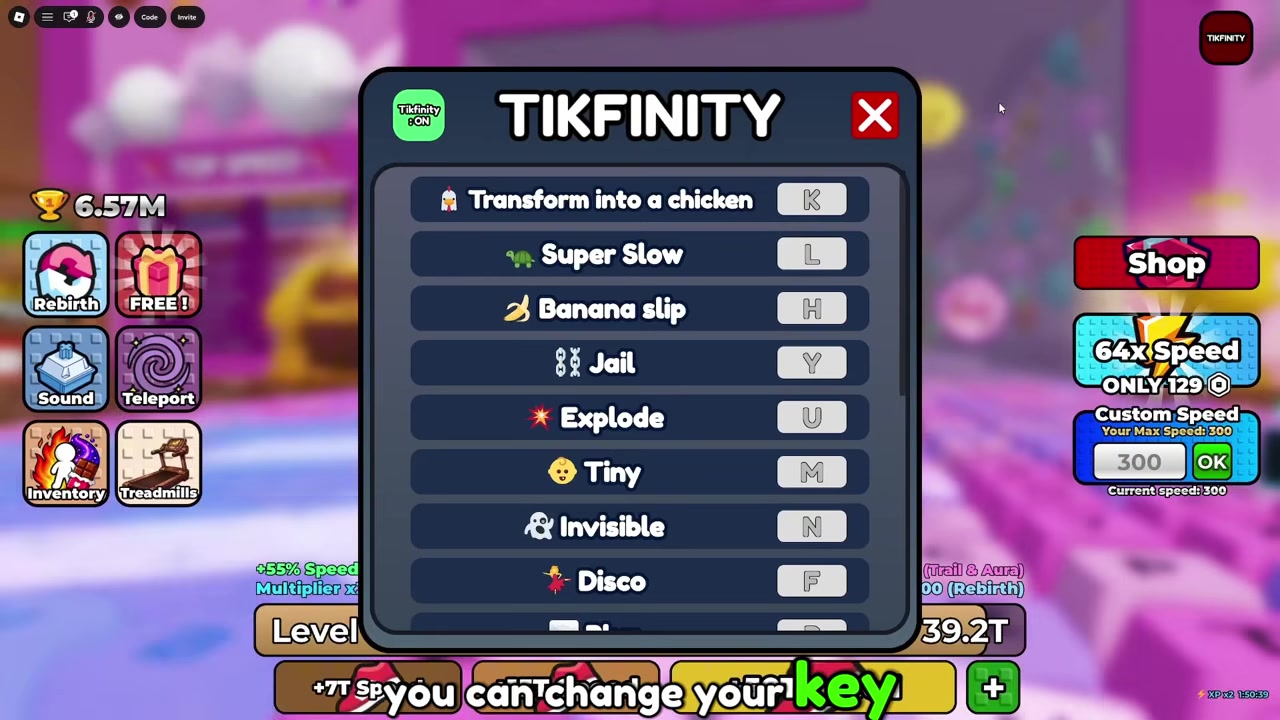
Those are the examples the menu shows off rather than the whole list — there are more effects on tap, including an earthquake and options like Disco, Explode and Jail, and their exact keys sit in the same menu. If the defaults don’t suit you, every keybind can be rebound: open the TIKFINITY menu and change any key to your own liking, then use your new bind in play.
Why TIKFINITY isn’t working
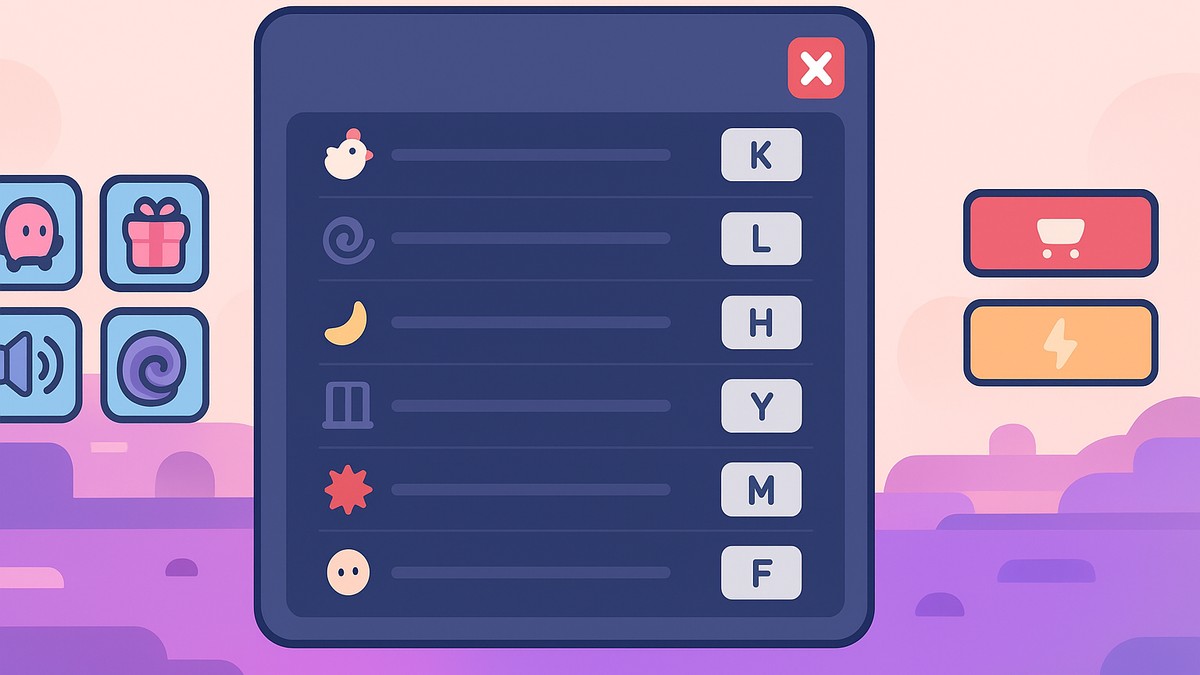
Almost every “it won’t work” case comes down to the toggle. If pressing keys does nothing, reopen the menu and check that the toggle is switched on and showing green — if it still reads TIKFINITY Off, the hotkeys stay dead no matter how many keys you mash.
The other common trip-ups are on the input side. If you clicked something else in the top-right and assumed the feature was broken, go back and open the actual TIKFINITY button. And if you rebound a key earlier, you have to press the new key, not the old default — pressing K won’t turn you into a chicken if you moved that effect to another bind.
Finally, check your expectations. TIKFINITY only produces fun transformations and debuffs, so if you turned it on hoping for a Speed, Wins or reward jump, nothing will change on that front — that’s working as intended, not a bug. On mobile and controller the button layout isn’t laid out the same way, so those exact steps can differ from the on-screen path above.
| Code | Reward |
|---|---|
| BYP4SS1 | Extra Speed |
It’s easy to mix up TIKFINITY with the game’s rewards, but they’re two separate systems. TIKFINITY handles the fun effects; actual boosts like extra Speed come through the game’s Code (Social Code) system, which is redeemed somewhere else entirely. You’ll find the Code button in the top-left corner of the screen — nothing about codes is entered through the TIKFINITY menu.
To redeem it, open the game, click Code in the top-left, paste BYP4SS1 into the “Paste here!” bar and press OK. That’s the route for the Extra Speed reward — keep it separate from the TIKFINITY toggle you set earlier.
Frequently Asked Questions
Where is the TIKFINITY button in +1 Speed Keyboard Escape?
It sits in the top-right corner of the screen during gameplay. Click the TIKFINITY button there to open its menu, then use the top-left toggle to turn it on.
Why are my TIKFINITY keybinds not doing anything?
Usually the toggle isn’t on — reopen the menu and make sure it’s switched on and showing green. If it is green and keys still do nothing, check whether you rebound that key earlier and are pressing the old one instead of your new bind.
Can TIKFINITY give Speed, Wins, or multipliers?
No. It only triggers fun effects like Chicken, Tiny, Invisible and Banana Slip — some of which, like going super slow, actually slow you down. For a real boost you want the game’s codes, not TIKFINITY.
Can I change the TIKFINITY keybinds?
Yes. Inside the TIKFINITY menu you can rebind any effect to a key of your choosing, then press that new key in play. After rebinding, remember the old default no longer triggers the effect.
Is the Code button the same as TIKFINITY?
No. The Code button in the top-left handles Social Codes and rewards such as the Extra Speed code BYP4SS1. TIKFINITY is a separate feature in the top-right and doesn’t redeem codes.







Leave a Reply