GIFs are crazy. GIFs are amazing. GIFs are everywhere.
GIFs, the animated lil videos have taken the internet by a storm. You find them floating on every social network – Facebook, Twitter, Tumblr. It would be safe to say that GIFs are used not only for personal use, but even brands prefer GIFs – Buzzfeed Media being the top-notch player.
GIFs – which convey emotions beautifully, are easily available on the internet. There are countless GIFs on the internet for every emotion that you can use in your posts.
But what if you want to create your own GIF? Next time while watching a video if you stumble upon a clip that you think might make a good GIF, don’t chicken out. 😛 We will tell you how to make GIFs from videos or images.
Also read: How to create video slideshow of photos on Android
How to make GIFs from a video or multiple images
If you thought that making a GIF was a troublesome process, you are wrong. The process to create GIFs is easy and uncomplicated.
First, you have to download a GIF creator app from the Google Play store. There are many apps on the Google Play store like GIF Maker by Kayak Studio, GIF edit maker video by enjoytimedev, GIFMaker, GIF me Camera.
I would recommend GIF Maker by Kayak Studio as the app is fast and does its job flawlessly. The app gives you multiple options to create a GIF. You can create a GIF from a new video, existing video, from multiple images, and from a video link. In addition to that, you can also edit the existing GIF with this app. Moreover, the app allows you to create a GIF from screen recorder. To modify the GIF, you can cut/crop the video and adorn it with labels/captions and stickers.
How to use GIF maker app
To use GIF Maker to create a GIF, follow the steps:
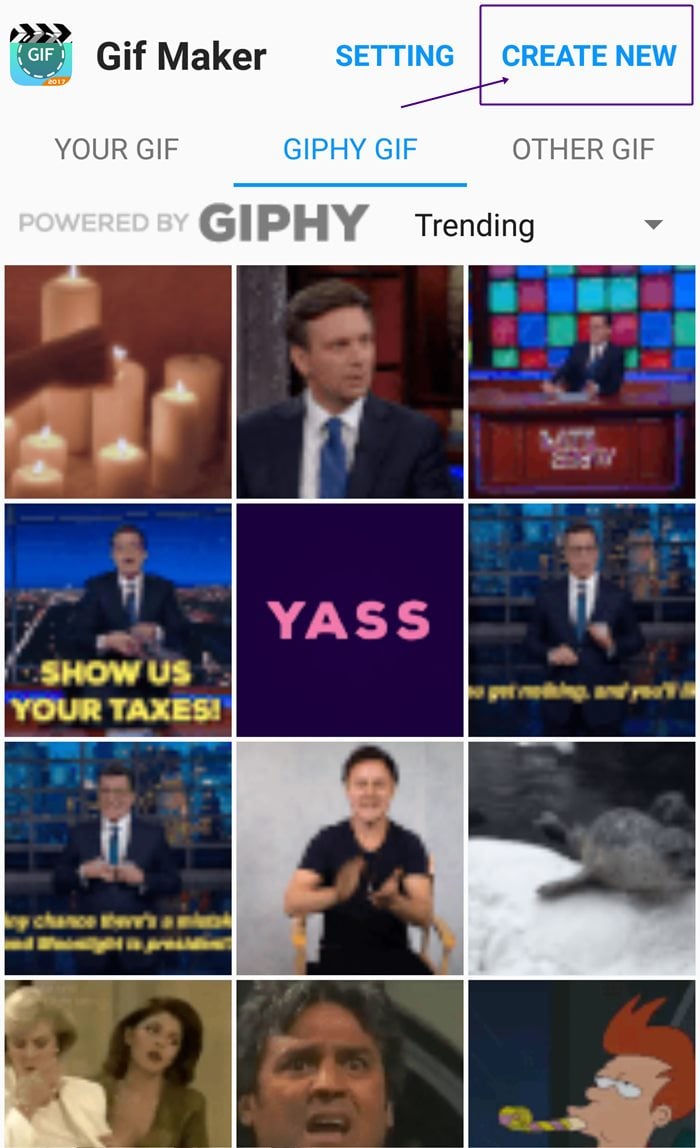
However, if you want to create a GIF from existing GIF on your phone or from GIPHY GIF, you will find the options on the first page itself.
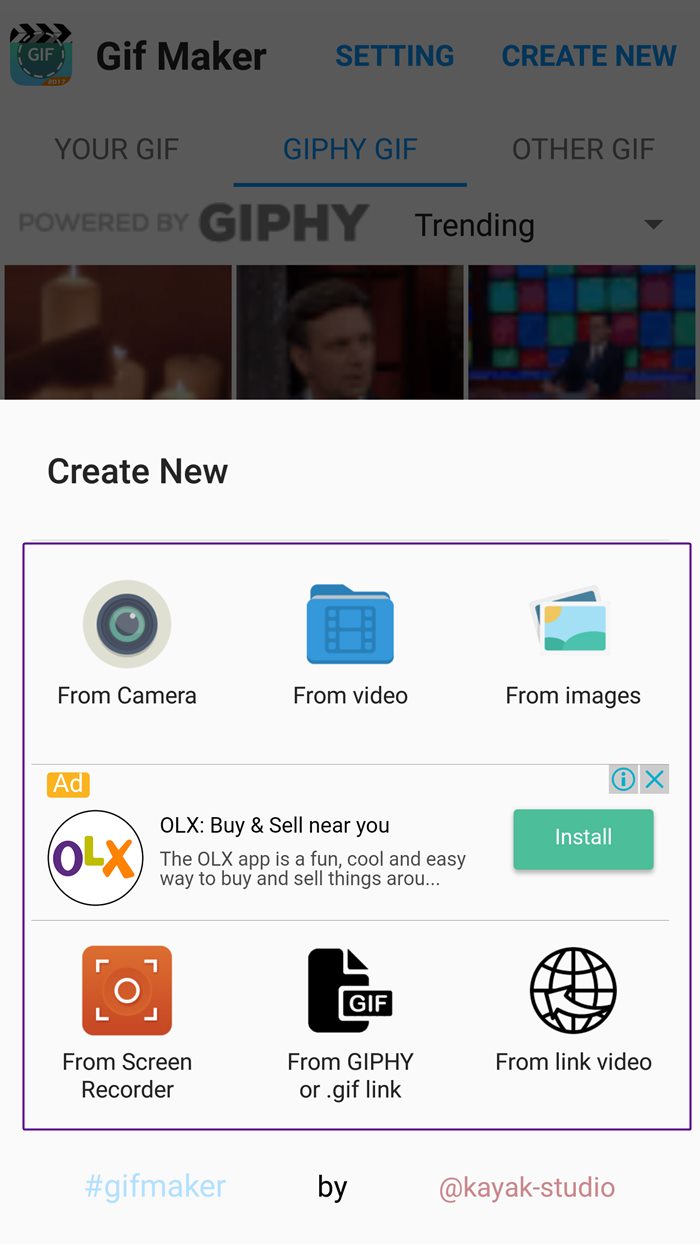
- From Camera: Create GIF from a new video.
- From Video: Create GIF from an existing video.
- From Images: Create GIF from multiple images.
- From Screen Recorder: Record your android screen and create a GIF.
- From GIPHY or .GIF link: Create a new GIF from existing GIFs either from GIPHY website or any GIF file with a GIF link.
- From Link video: Create GIF from any video link. The file need not be in .GIF format. The only requirement is it should be a video file – YouTube, .mp4 etc.
Choose a suitable option to create a GIF. For our tutorial, we have selected “From Video” option.

Also read: 8 cool new WhatsApp Status Tips and Tricks

However, you can further tweak your GIF with the extra settings provided by the app.
The Menu above the slider has the following three options:
- Remove Background: With this option, you can remove any background or part of an image.
- Crop: If you are not satisfied with the initial crop option, you can further crop it using this option.
- Manager: The manager option allows you to add or remove a particular image from the GIF.
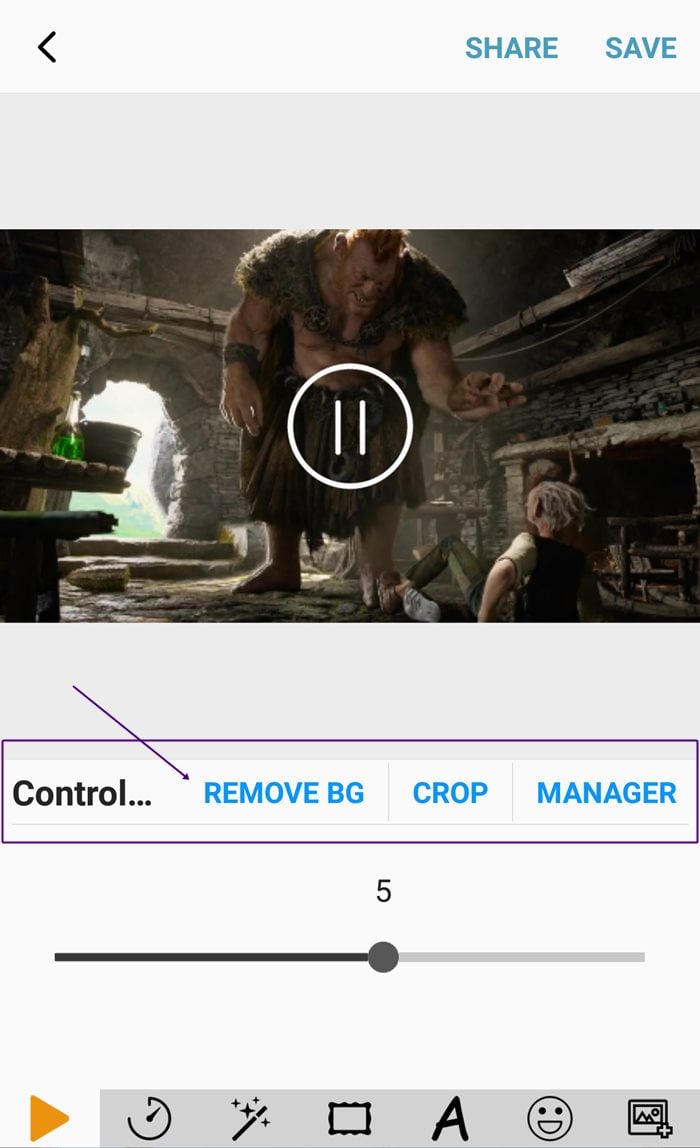
The Menu below the slider has following options:
- Speed: It allows you to adjust the frame rate of your GIF. You can increase or decrease the speed of GIF in this option.
- Effects: This option provides filters that you can apply to your GIF.
- Frame: To add a border or frame to your GIF, use this option.
- Label: You might have noticed the text at the bottom of the GIFs. This is where you can add text to your GIFs. You can change the color, font, and size of your text.
- Sticker: The app further allows you to add stickers to your GIF.
- Add Image: You can overlay an image on top of your GIF with this option. Further, you can combine two GIFs with this option.

Finally, when everything is done, hit the Save button at the top right corner – similar to step 6. To share your GIF you can either share it from the gallery or tap the Share button.
Now that you know how to create GIFs, use your skill to add new GIFs to the existing remarkable GIF library. 🙂

→Download GIF Maker by Kayak Studio Android app
Do you like GIFs? Was it easy to create the GIFs? Share your experience in the comments below.