
To switch Beast of Reincarnation to the English dub, go back to the Title Menu, open Settings, choose Language, and set the voice-over language to English.
If Beast of Reincarnation is already showing English text but the voices are not in English, you need the spoken-language setting rather than only the display-language setting. The fix starts from the Title Menu, not from your loaded save.
Change the voice language to English
Return to the Title Menu
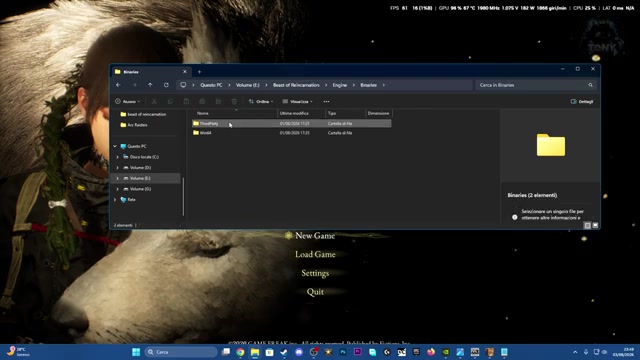
Back out to the Title Menu before changing the dub.
Open Settings
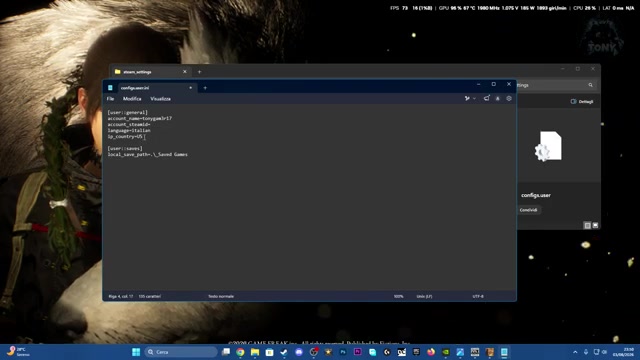
Choose Settings from the Title Menu.
Choose Language
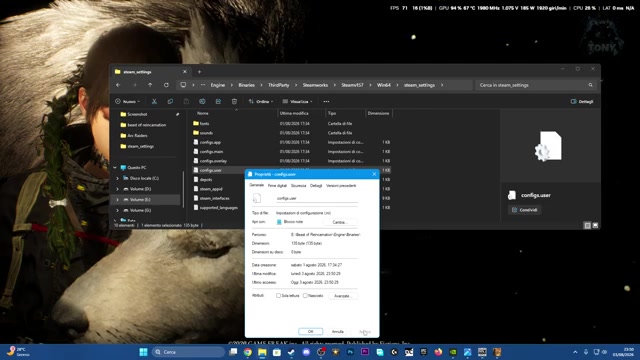
Open the Language screen.
Set voice-over to English
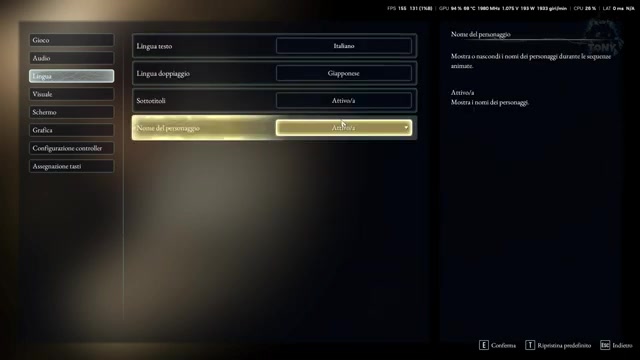
Change the voice-over language to English.
Return to the Title Menu before changing language; that is where the voice-over setting lives.
Why players miss the dub setting in a loaded save

After you have loaded a save, the Settings menu can make the Language option look less useful than it really is. In that in-game menu, language changes are for text, so they can affect menus and written dialogue without changing the voices.
KEY!The voice-over language is handled one layer earlier, from the Title Menu’s language settings. If you are hearing Japanese when you want English, leave the active session and change the dub before continuing.
Voice support versus text and subtitles
| Language | Support |
|---|---|
| English | Interface, full audio, subtitles |
| Japanese | Interface, full audio, subtitles |
| French | Interface, subtitles |
| German | Interface, subtitles |
| Spanish – Spain | Interface, subtitles |
| Korean | Interface, subtitles |
KEY!Beast of Reincarnation separates full audio from the written-language support used for the interface and subtitles. Use the voice-over setting for the dub, then use text/subtitle language for what appears on screen.
Choosing English or Japanese voices
Choose English voices if you want combat callouts and dialogue to land immediately while you play. It is the cleaner pick when you do not want to split attention between subtitles and real-time action.
Choose Japanese voices if you prefer the ruined-Japan tone to carry through the spoken performances. Treat it as a comfort and presentation choice: use the dub that makes scenes and fights easiest for you to follow.
Frequently Asked Questions
Can you change the English dub after starting Beast of Reincarnation?
Yes, but make the change from the Title Menu instead of the Settings screen you see after loading a save.
Why does the in-game Language option only change text?
The loaded-save menu is for readable text, while the spoken dialogue track is picked from the Title Menu language settings.
Does Beast of Reincarnation have Japanese and English voice acting?
Yes. English and Japanese are the two languages with full audio support.
Can you use English subtitles with Japanese voices?
Set Japanese as the voice-over language and English as the text/subtitle language when those options are offered separately on your platform.
Video help





Leave a Reply