
Open Preferences and use R1 or L1 to reach Player Creator, then scroll downward and select Edit Real Players. Choose a real licensed player; customization is limited to attributes, position, gear, and kit number.
Find your player through the roster filters. Pick a country and league to reach a team and its players, then choose someone to edit. Their kit and gear choices sit apart from their athletic settings.
How to edit a real player in FIFA 27
Find the player you want to change, edit their kit or ratings, and confirm your changes at the save prompt.
STEP 1/22
5%
Open the side icons
From the FIFA 27 home page’s main menu, flick the left analog stick left to highlight the side menu icons.
STEP 2/22
9%
Select Preferences
The gear icon at the bottom is Preferences, the last icon in the list. Select it to open settings.
STEP 3/22
14%
Real Players Creator
Move across the upper tabs with L1 or R1 until you reach Player Creator.
STEP 4/22
18%
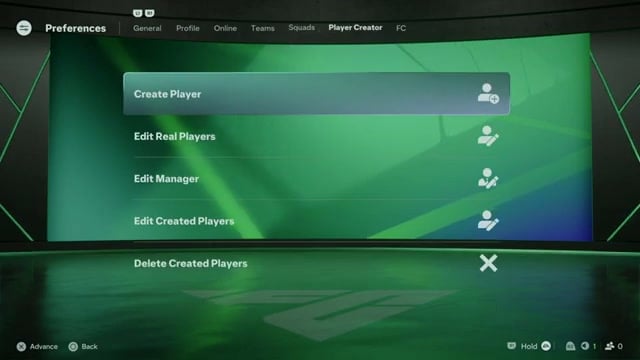
Open Edit Real Players
Scroll down the Player Creator list to Edit Real Players and select it.
STEP 5/22
23%
Choose a player category
Choose Male Player or Female Player for the type of player you want to edit.
STEP 6/22
27%
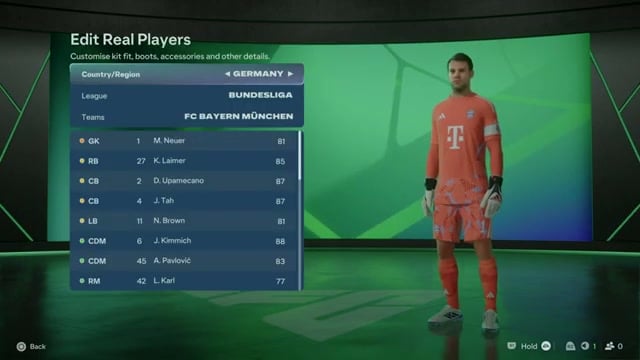
Set the country filter
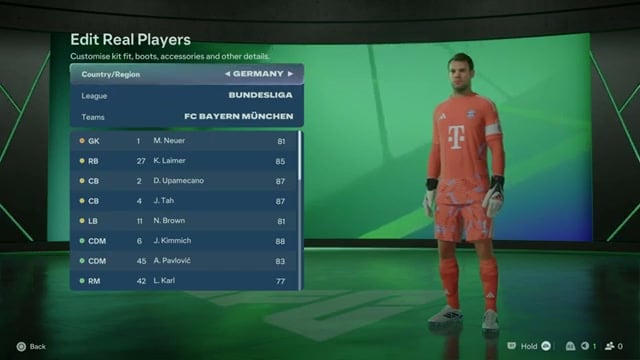
Find your player by their team’s country under Country/Region. For Ousmane Dembélé’s team, PSG, choose France, displayed as FRANCE.
STEP 7/22
32%
Set the league filter
Set League to the team’s league. The example puts Ousmane Dembélé in Ligue 1 McDonald’s League, displayed as LIGUE 1 MCDONALD’S.
STEP 8/22
36%
Select the team
Under Teams, find the club your player belongs to. For Ousmane Dembélé in this example, that’s PSG.
STEP 9/22
41%
Find and select the player
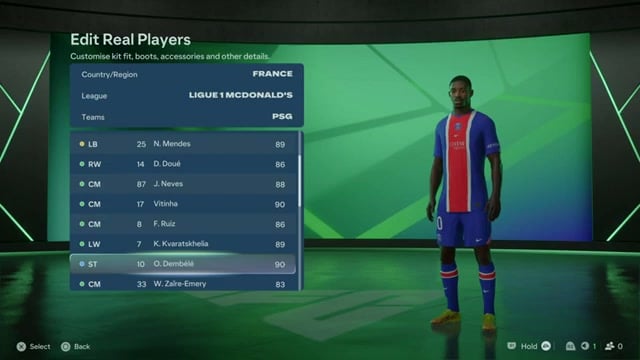
With the filters set, scroll down the squad list to your player and press Advance to select them. The example uses O. Dembélé in Ligue 1 McDonald’s.
STEP 10/22
45%
Change the kit number
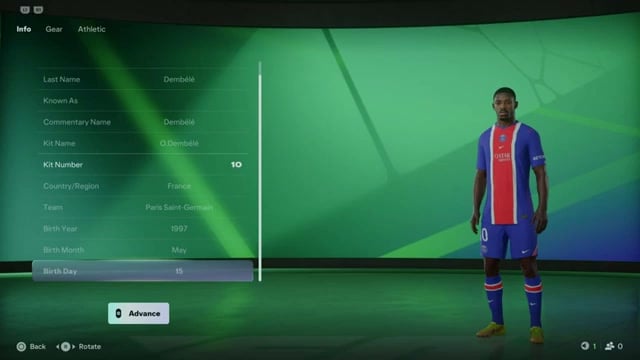
Want a different squad number? Open Kit Number within Info—it’s the only editable item there.
STEP 11/22
50%
Open Gear
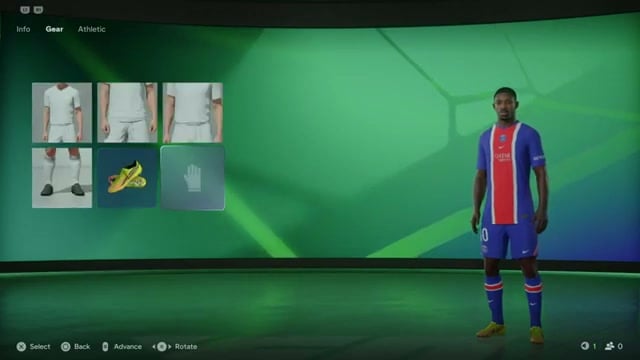
Press R1 to reach Gear, or move between tabs with L1. You can edit shoes, socks, gloves, kit feed, waist feed, and more through Boots, Socks, Gloves And Wrist, Kit Fit, Waist Fit, and Kit Sleeves.
STEP 12/22
55%
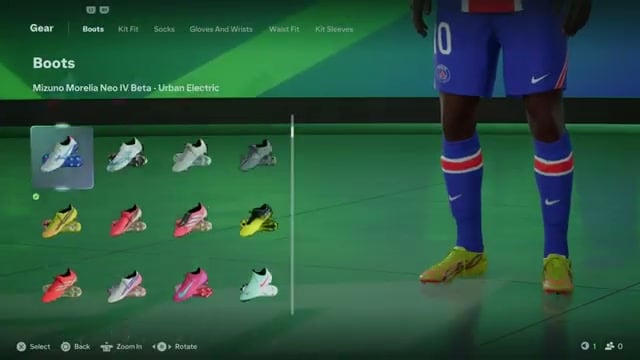
Browse boots
To replace your player’s footwear, open Boots and scroll until you find a pair you want. Licensed choices include Mizuno Morelia Neo IV Beta – Urban Electric, adidas Predator Pure Victory, and Nike Phantom Luna 2 Elite – Mad Energy.
STEP 13/22
59%
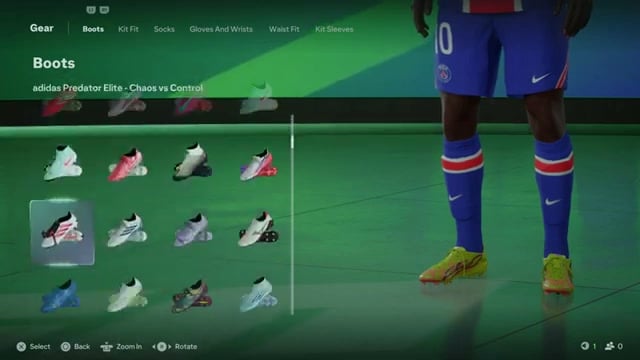
Choose a boot
Select your preferred footwear to make it the player’s new boot.
STEP 14/22
64%
Open Athletic
Finished with Gear? Press R1 to switch to Athletic; L1 also lets you move between these sections.
STEP 15/22
68%
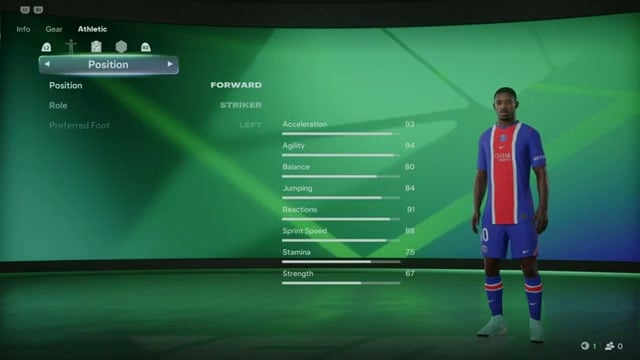
Change Position
Open Position to change where your player plays on the pitch, with goalkeeper, midfielder, and defender among the available assignments.
STEP 16/22
73%
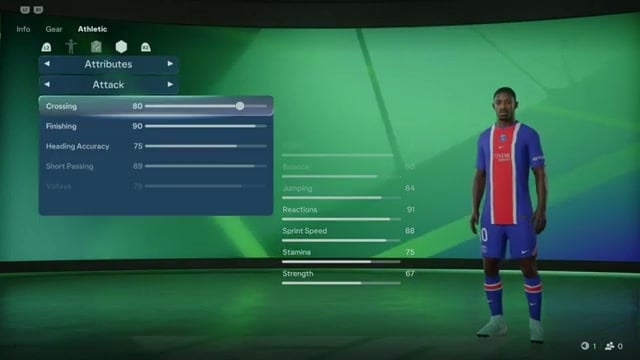
Open Attributes
Within Athletic, open Attributes to change your player’s ratings.
STEP 17/22
77%
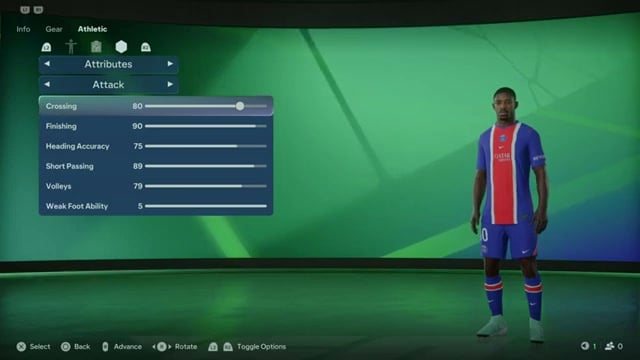
Adjust Attack
Attack uses sliders for attacking stats, so you can increase Crossing and Finishing or adjust whichever attacking attributes you want.
STEP 18/22
82%
Adjust Defending and Skill
You can edit Defending ratings and move Skill ratings up or down.
STEP 19/22
86%
Adjust Power
Under Power, adjust ratings such as Power Shot, Stamina, and Strength.
STEP 20/22
91%
Adjust other ratings
Your rating edits can extend to Movement and Mentality, with Reactions and Balance among the named attributes.
STEP 21/22
95%
Adjust goalkeeper ratings
If you’re making your player a goalkeeper, edit their Goalkeeper settings here.
STEP 22/22
100%
Open the save prompt
Ready to save? Press your controller’s Advance button to bring up the confirmation.
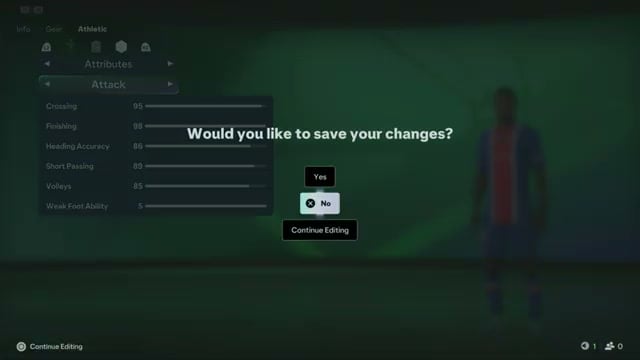 Open the save prompt | WebPro Education/YouTube
You can’t change most personal identity fields for a real licensed player. Their name, commentary name, and birth date stay locked, and you can’t edit height or weight either. Body changes are unavailable in Athletic.
Frequently Asked Questions
Which modes are listed for edited real players?
You can use edited real players in Career Mode, Tournaments, and Kick Off.


Leave a Reply