Migrating to a newer phone could be exciting and at the same time, challenging as well. That is because setting up a new device that works right for you is an uphill task and the first part of that is save the phone numbers and contact info of all the people that you talk to on your new device.
Why back up contacts
During the early part of the 2000s, mobile phones weren’t as widely used as they are now and there weren’t a whole lot of phone numbers to save then. Most of us, if you were born before the 2000s, had those numbers memorized right down to the last digit. With the inception of smartphones and the cheaper they became, we had to save contact info of more and more people to the point where we no longer remember a single contact.
Thankfully, Android offers multiple methods to backup contacts and restore them onto your newer phone or in case you lost your old phone. You can export all of your contacts to an external source and import them later on your primary device whenever you wish to.
How to back up contacts
Google offers its own ways to backup contacts and so does most of the Android phone manufacturers who add a version of their own software over Android. If that’s not enough, Google Play is full of third-party app alternatives for backing up contacts to restore later.
In this article, we’ll guide you through some of the easy ways to back up your contacts and help you stay prepared for the next time you port to a new device.
Back up using Android sync


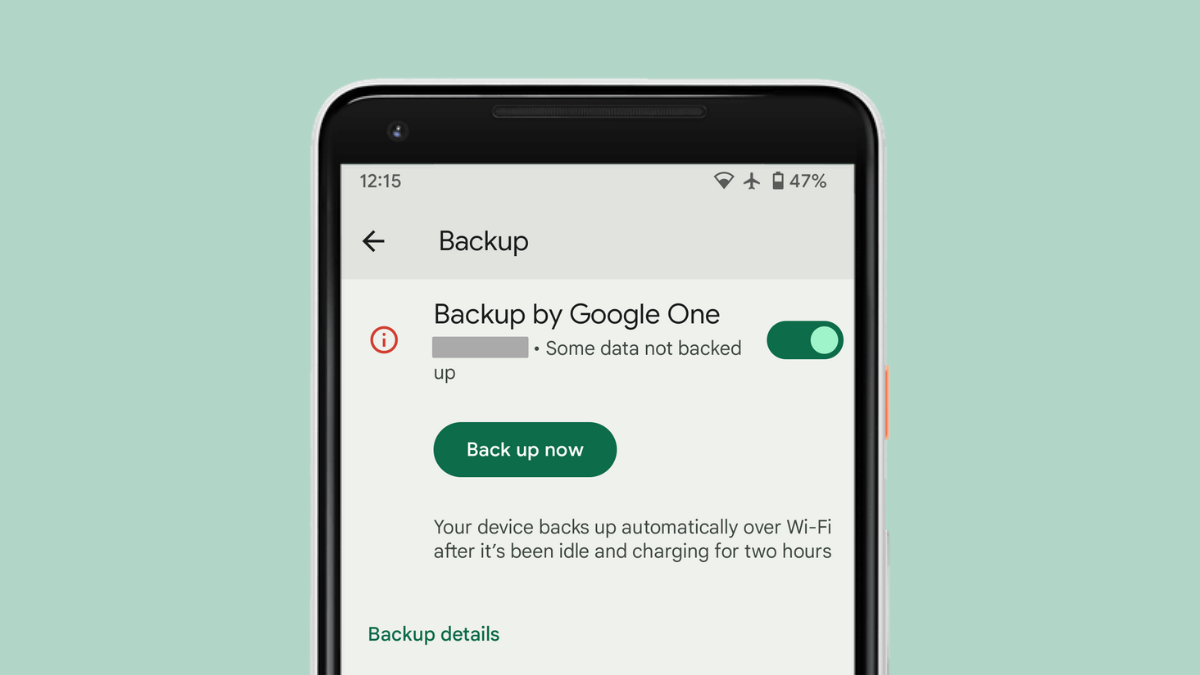
Your contacts will now be automatically backed up on your Google account from time to time.
Export VCF using Contacts app


- Downloads folder: By default, you’ll be taken to the Downloads folder to save the contacts in VCF format. Tapping on Save will then store the VCF file in this folder.

- Another folder on the phone: If you do not wish to save the file in the Downloads folder, you can change that by tapping the 3-dot menu at the top right and selecting Show Internal Storage. From there, you can tap on the hamburger icon at the top left, navigate to the location you want to save the file to and tap the Save button at the bottom right.


- Google Drive: Besides storing the contacts backup locally, you can save the file online and what better way to do it than on Google Drive. Tap on the hamburger menu on the top left and select Drive. Navigate to the desired location on Google Drive and tap on Save.


While the two methods from above can work wonders, you can also choose a third-party app to back up all your contacts just in case you forgot the password to your Google account. This can also be considered as the primary way to backup contacts if you’re using an Android phone without Google or you don’t trust Google with your data, especially your contacts.
Back up using Super Backup & Restore


The app will prompt you asking you to grant access to your contact list.

- Backup all: This option creates a backup of all the contacts saved on your phone.

- Backup contacts with phone numbers: You can save contact info that has a phone number associated with it. This declutters your current contact list by avoiding those contacts which have an email ID listed inside them.


Back up using Contact Backup


In the next screen, you will be given choices for how you want to save the contact info.

- Email: Checking the box adjacent to Email will let you backup your contacts and send them to you via email. Emailing the backup can only be done when the backup is saved in VCF format.

- Device Memory: By selecting the Device memory as your backup destination, you can save the contacts backup within the internal/external storage of your phone. Selecting this option will also let you save contacts in PDF format in addition to the VCF option.

- Print: By checking the Print box, you can directly print a list of your contacts and the output file will be saved as PDF.


Your contacts will nor start getting backed up and then will be saved to the destination that you selected.


- Head back to the app’s home screen.
- Tap on Contact Share.

- Tap Send.

Back up using OEM software
Some devices come with their own custom skins over Android that’s designed by the company selling them. These custom Android-based software come with its own tools including a contact backup method. If your phone is running on One UI, OxygenOS and others, you can backup your contacts without needing to download third-party software to do the same.
Samsung’s Contacts App
OnePlus Switch
Your contacts will now be backed up.
MIUI Contacts app on Xiaomi phones
- Export to storage: Tap on this to export and save the VCF file on your internal or external storage.
- Export to SIM: By tapping here, you can export your contacts to your SIM card but it’s important to note that the capacity of the SIM card will be limited.
Let us know if you need any help in backing up contacts on your Android device.