

To add emotes in FC 27 Grounds, hold L1, open Edit Emotes, assign available animations to wheel slots, and save your changes.
Your emote wheel in FC 27 Grounds lets you add emotes for other players to see. Edit Emotes opens character customization, where you choose an emote to add. Highlighting it should show its preview. Use the left analog stick to pick where it belongs on the wheel.
How to add available emotes in FC 27 Grounds
Pick the emotes you want on your wheel, then save your choices before heading back to the Grounds.
STEP 1/9
11%
Enter the Grounds
Open the game, then enter the Grounds to get started.
STEP 2/9
22%
Open the emote wheel
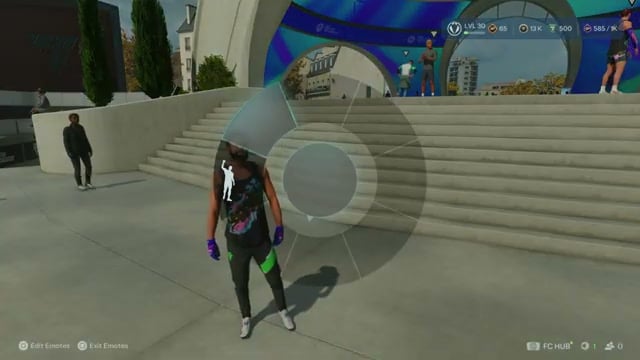
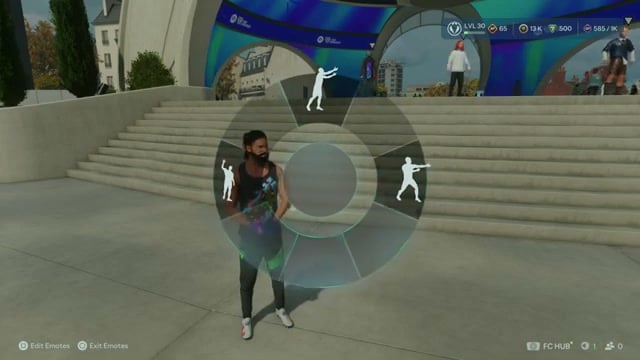
Keep L1 held down while you’re in the Grounds. It’s your emote button, and it opens a circular wheel with an Edit Emotes prompt.
STEP 3/9
33%
Open character customization
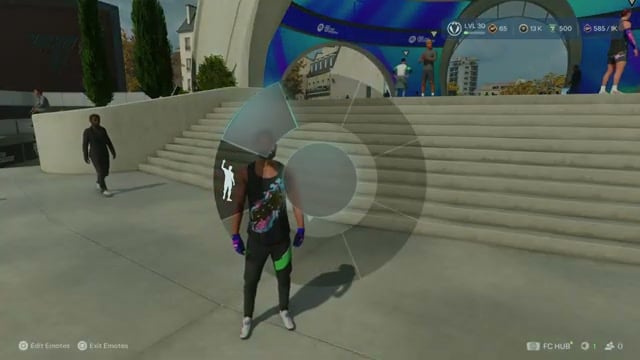
Press Square for Edit Emotes on the wheel to open character customization.
STEP 4/9
44%
Find and preview an emote
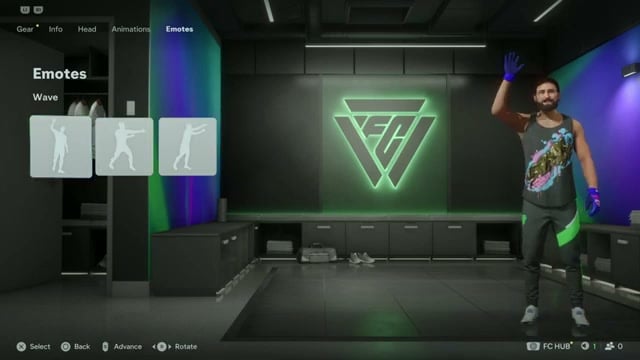
Use arrow one or L1 to reach the emote section; R1 also moves between customization categories. Choose the Emotes tab and highlight an emote you want to add to watch your character demonstrate it. Wave is selected by default, with The Rope second and Come Play! third.
STEP 5/9
56%
Select the emote
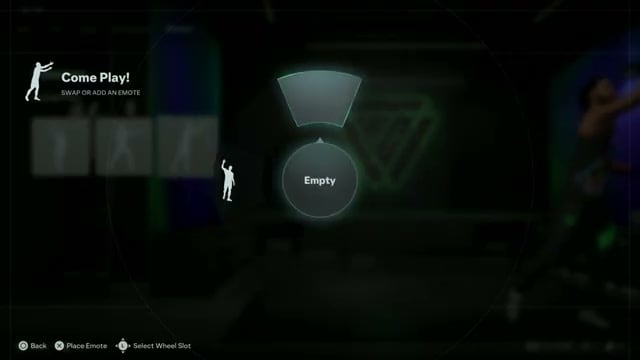
Press X on your chosen emote to open the SWAP OR ADD AN EMOTE wheel. The bottom prompts explain the controls: Select Wheel Slot uses the left analog stick, while Place Emote uses X to equip it.
STEP 6/9
67%
Place it on the wheel
Use the left analog stick to pick an unoccupied position marked Empty. Press X to confirm that slot and add your chosen emote.
STEP 7/9
78%
Add another available emote
Go back to the main emote list to look for more. If you’ve got a lot of emotes, select another you want, pick its wheel position with the left analog stick and confirm by selecting it or pressing X.
STEP 8/9
89%
Open the save confirmation
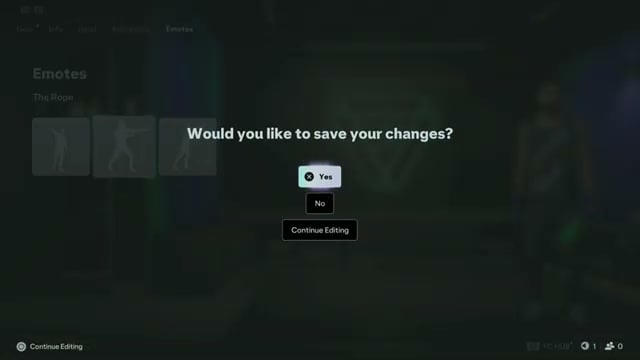
Once you’ve placed the emotes you want, press Options, labeled Advance, to save. The dialog asks “Would you like to save your changes?” Choosing No discards your edits; the bottom prompt Continue Editing lets you stay in the editor.
STEP 9/9
100%
Check the wheel in the Grounds
After saving and applying your changes, return to the Grounds in FC 27. Hold L1 again to open the wheel and see your added emotes, including Come Play! and The Rope.




Leave a Reply