

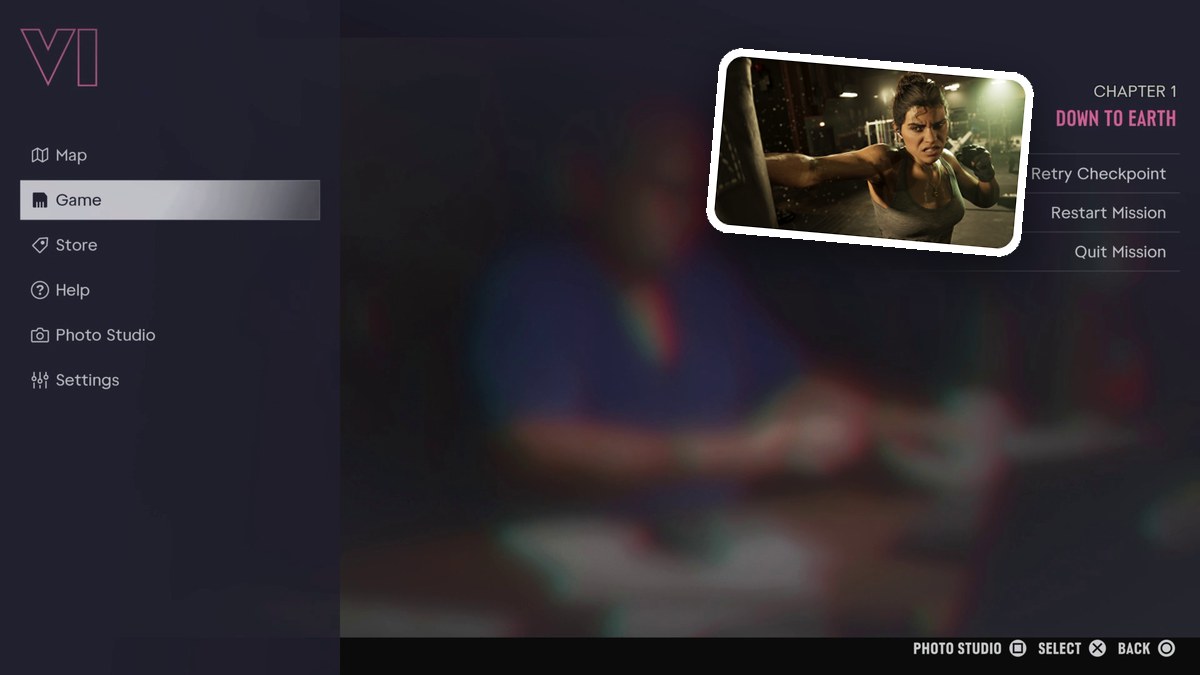
To load a save in Grand Theft Auto VI, open the pause menu, choose Game > Load Game, select your save, confirm Yes, and wait for gameplay.
The Load Game menu lists your saved files, letting you choose which save to return to. The game’s console listings include PlayStation 5 and Xbox Series X|S.
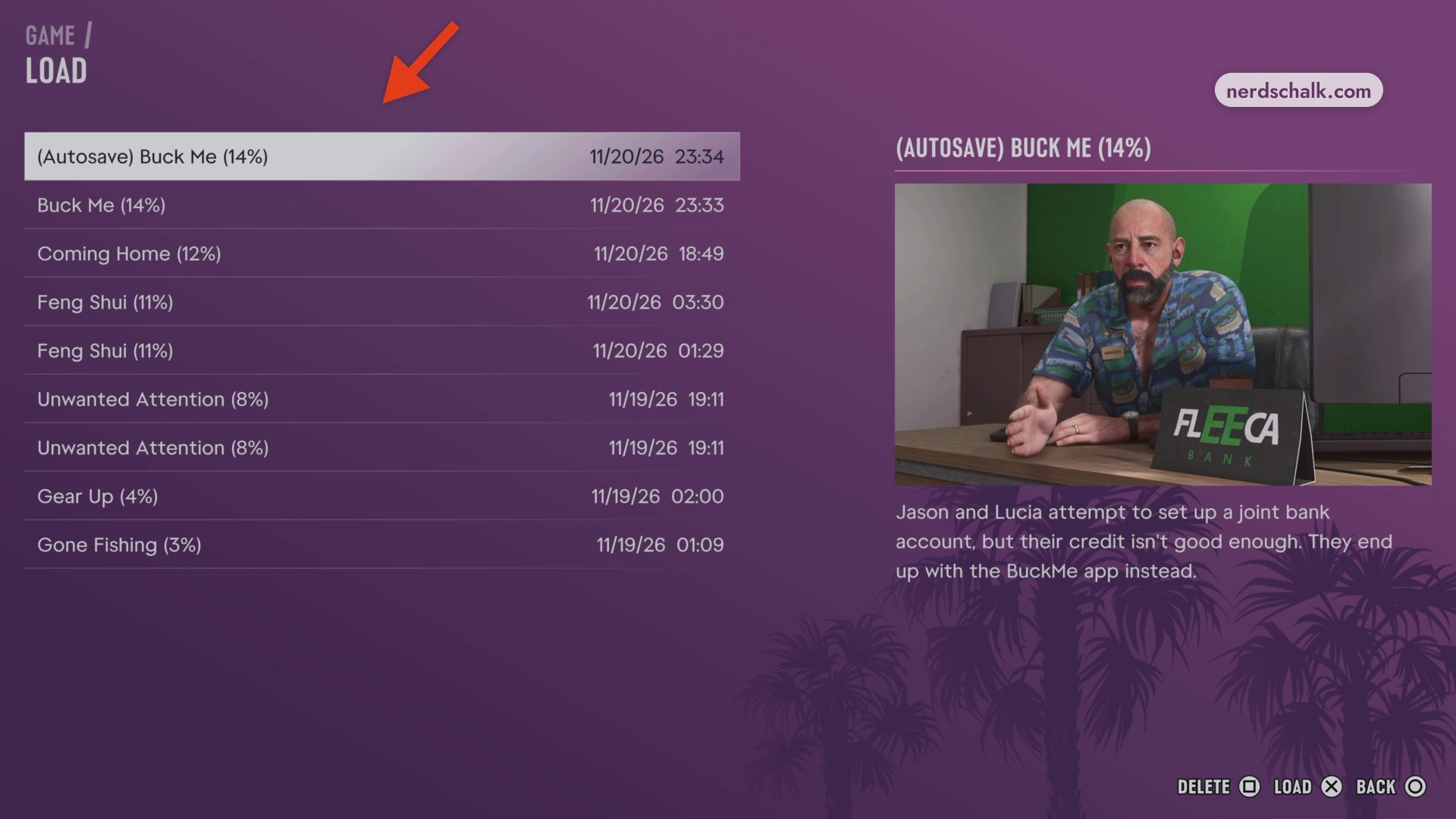
Avoid pressing Square when loading a save. Pressing Square deletes a save. The menu also offers a DELETE control.
How to load a saved game in Grand Theft Auto VI
Open the Game menu
Open the pause menu and move down to Game. The pause menu also offers Retry Checkpoint and Restart Mission.
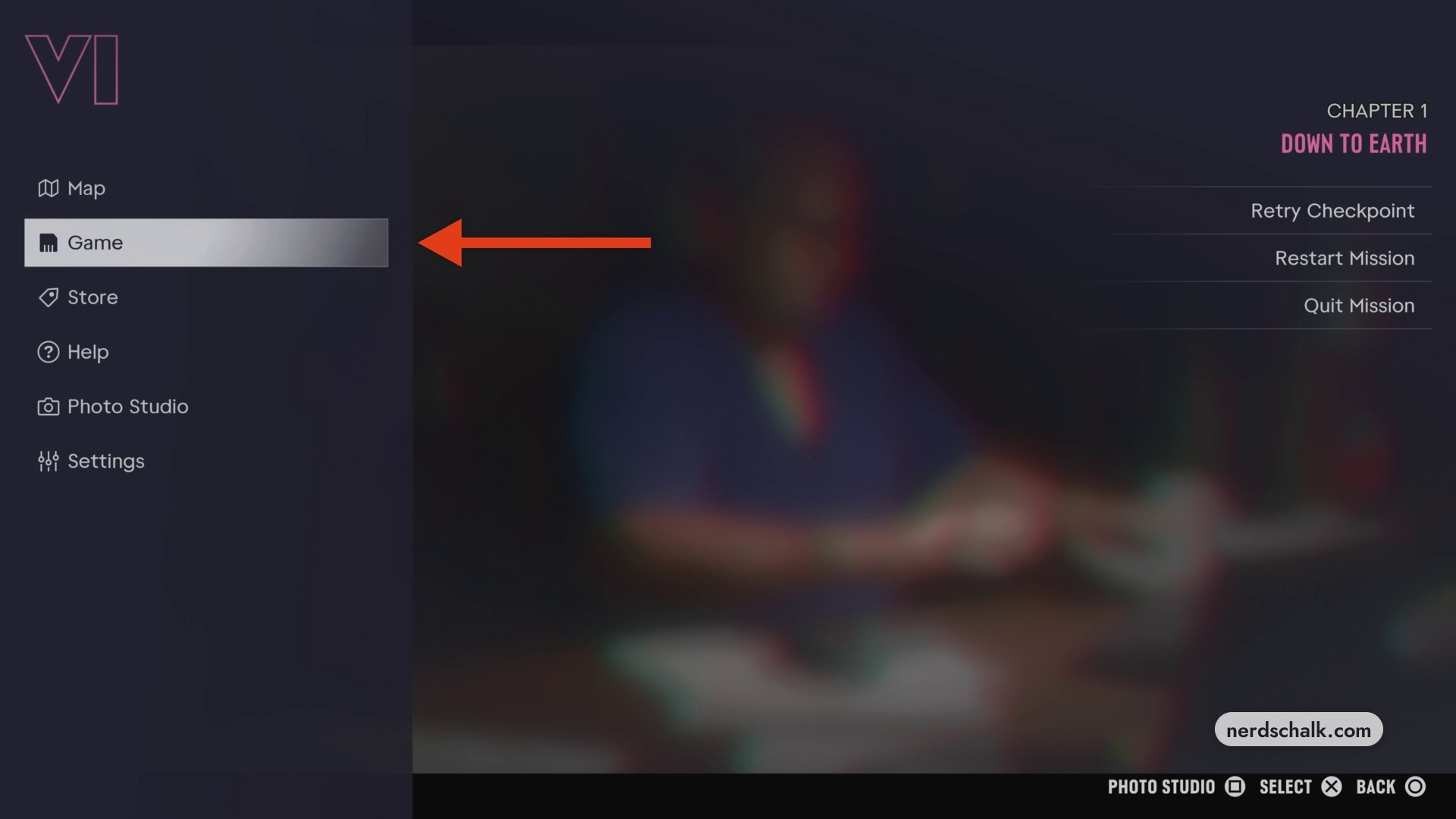
Choose Load Game
Highlight Load Game and press Select to open your saves.
Select your save
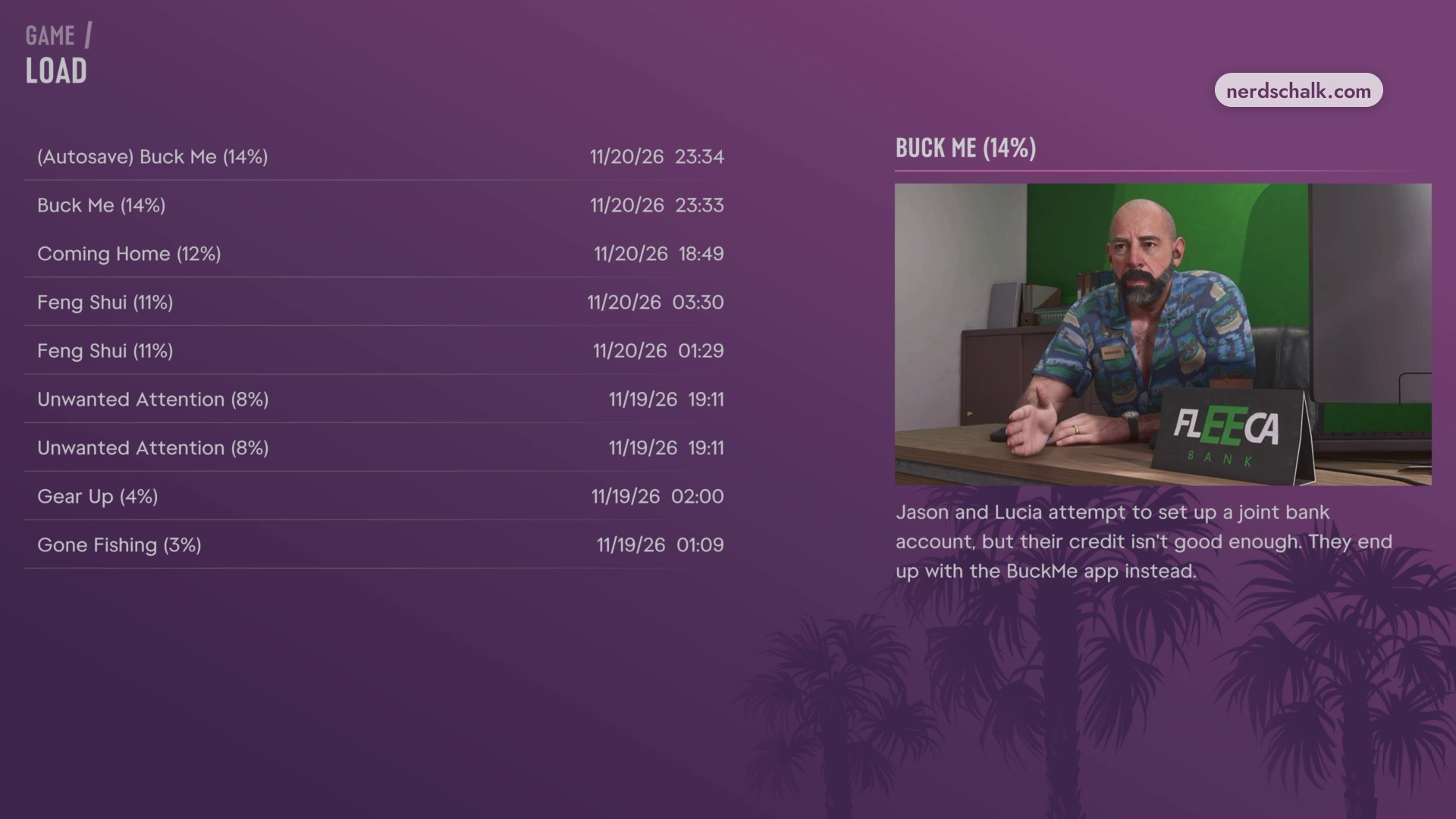
Browse the files and use each entry’s timestamp and progress percentage to identify the save you want. Highlighting a file displays its mission summary preview. Choose your file with the LOAD action. An example entry is (Autosave) Buck Me (14%).
Confirm the load
Choose Yes at the confirmation prompt to begin loading the selected save.
Resume gameplay
Wait for the loading screen to finish. The load is complete when you regain control of your character.
Related Grand Theft Auto VI guides
Leave a Reply