
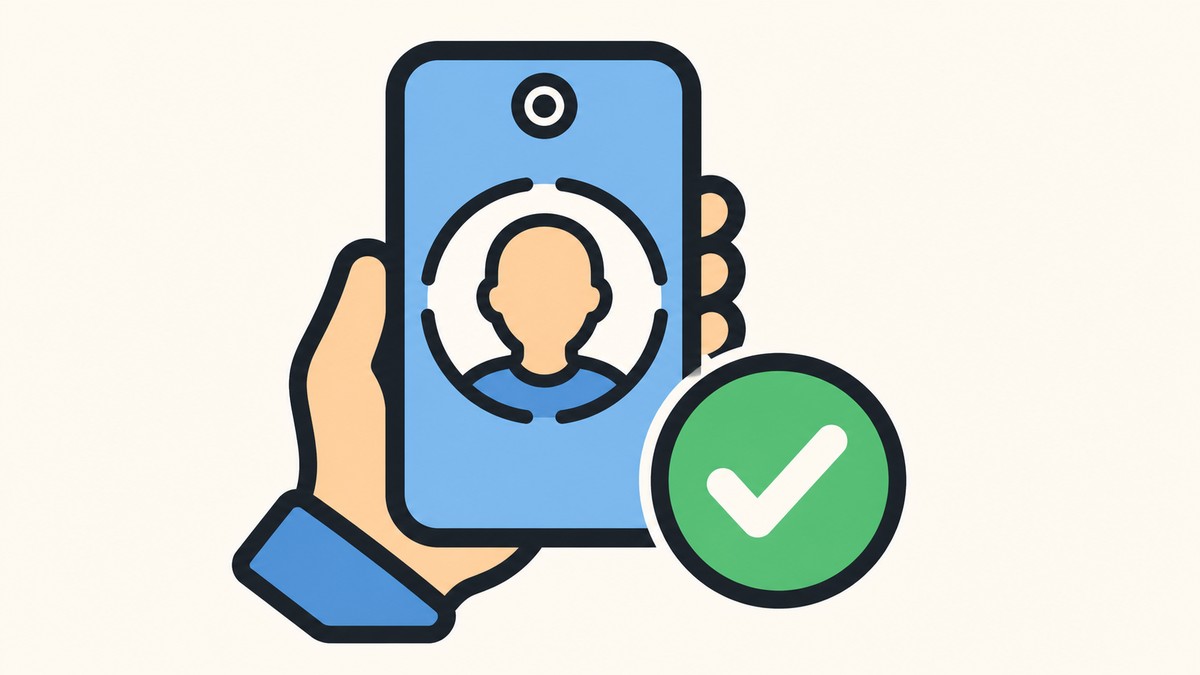
Google selfie video sign-in is a new optional backup method that lets eligible Google Account users record a short guided selfie video now, then use a matching live selfie later to regain access if they are locked out.
Google rolled out selfie video as a new way to get into your Google Account, aimed squarely at the moment you’re locked out or don’t have your usual phone or computer nearby. You record a short reference video today; if you ever can’t sign in the normal way, you take a fresh selfie and Google matches it against the one you saved. It sits alongside passkeys and recovery contacts as another door back into your account — not a new lock on the front of it.
- What selfie video sign-in actually does
- How the feature works, from record to recovery
- How to check if your account is eligible
- What setting it up involves
- Lighting and framing that help your video pass
- Privacy, storage, and deleting your video
- Rollout limits and accounts left out for now
- Frequently Asked Questions
What selfie video sign-in actually does
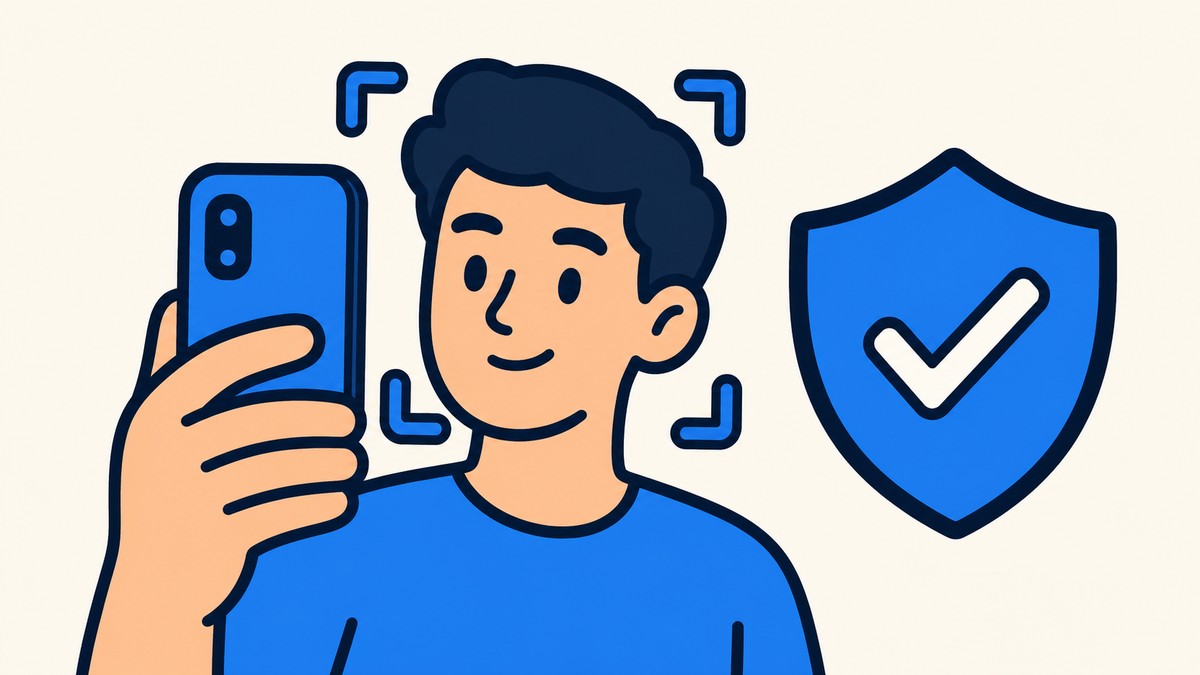
The whole point is account access when you’re stuck: you’ve been locked out, or you’re away from the device you normally sign in on. In that situation you record a live selfie and Google uses it to confirm you’re really you. It’s worth being clear about what it isn’t — this is not a face-unlock feature for logging into your phone every day. It’s a backup you set up once and reach for only when your usual methods let you down.
How the feature works, from record to recovery
| Stage | What happens |
|---|---|
| Set up reference video | You record a short guided video; Google captures multiple face angles and saves it as your reference. |
| Later recovery attempt | If you’re having trouble signing in, you’re asked to record a new live selfie. |
| Live selfie comparison | The new video is matched against your saved reference to confirm it’s really you. |
| Security checks | Guided movements prove you’re live on camera, while standard checks screen for deepfakes and suspicious sign-ins. |
Setup and recovery are two halves of the same idea. When you enroll, you look at your device’s camera and complete a few short, guided head movements so Google can capture your face from multiple angles. That becomes your saved reference video. Later, if you’re having trouble signing in, you record a new selfie and Google compares it to the reference to confirm it’s you before letting you back in.
The guided movements aren’t just for capturing angles — they’re a liveness check. Because you have to physically turn your head on cue, a static photo or a pre-made clip can’t stand in for a live person, which is how Google screens out fake photos and deepfake videos. On top of that match, Google runs its standard checks to detect and block suspicious sign-in attempts.
How to check if your account is eligible
The fastest check is Google’s own shortcut: go to g.co/signin-selfie. If your account qualifies, it takes you straight into setup; if it doesn’t, it shows a not-available state. The option also lives in your Google Account settings under Security, in the “How you sign in to Google” area — though exactly where it appears can shift as the feature rolls out.
What setting it up involves
Per Google, setup is quick. You look at your device’s camera and complete a few short, guided head movements so it can capture your face from several angles. Later, if you’re locked out, you record another live selfie and Google matches it against the saved one, asking you to move slightly to prove the video is live. Google notes you can switch to a phone if your current device doesn’t have a suitable camera.
Google hasn’t published a click-by-click walkthrough, and the in-app flow can differ by device and region, so treat the on-screen prompts as the definitive guide when you set it up.
Lighting and framing that help your video pass
| Do | Avoid |
|---|---|
| Keep your eyes, nose, and mouth clearly visible | Sunglasses, masks, or hats that cover your face |
A little prep before you hit record saves you from a rejected video. The recording needs a clean, well-lit look at your face, and Google is strict about what else is in the frame — even a face in a photo on the wall behind you can trip it up. Sort out the shot below before you start, and the guided capture goes through on the first try.
Privacy, storage, and deleting your video
Google’s framing is that the selfie video is yours and stays under your control. It’s recorded and stored only with your consent, and it’s encrypted at rest so it’s protected even when it isn’t being used. By default it’s used only to help you sign in — nothing else happens with it unless you specifically opt into additional uses.
If you change your mind, the video isn’t stuck on your account. You can remove it any time from the Video Verification settings in your Google Account — open that page and delete the selfie you want gone.
Rollout limits and accounts left out for now
| Account or situation | What to expect |
|---|---|
| Google Workspace account | Not available at the moment. |
| Child account | Not available at the moment. |
| Advanced Protection Program account | Not available at the moment. |
| Eligible account not showing it yet | Availability is still expanding, so the option may turn up later. |
Selfie video is arriving gradually rather than switching on for everyone at once, so a personal account that doesn’t show it yet may simply be waiting its turn. Google hasn’t shared a detailed rollout schedule, so there’s no firm date for when it reaches every eligible account. A few account types also don’t get the option at this stage — that’s the current picture, not necessarily a permanent one.
Frequently Asked Questions
Can I add selfie video sign-in after I’m already locked out?
Does selfie video replace my password or passkey?
Can I delete my saved selfie video later?
Why do I have to move my head during setup and sign-in?
Why doesn’t my Google Account show the Selfie video option?
Video help

Leave a Reply