

Open Preferences → Teams → Club Transfers, choose the player’s current club and player, then select and confirm the destination club.
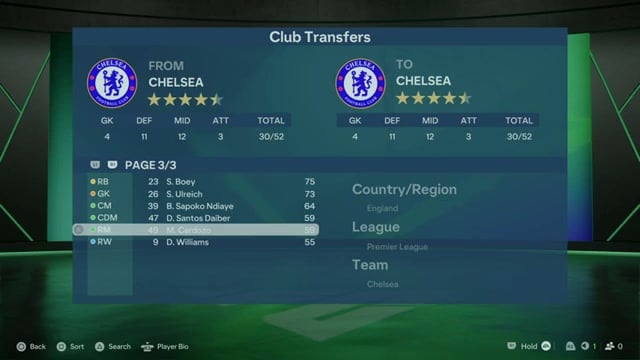
The example moves M. Cardozo from FC Bayern München to Chelsea. Club Transfers makes the move immediately, even though the clubs are in different countries.
Where this starts
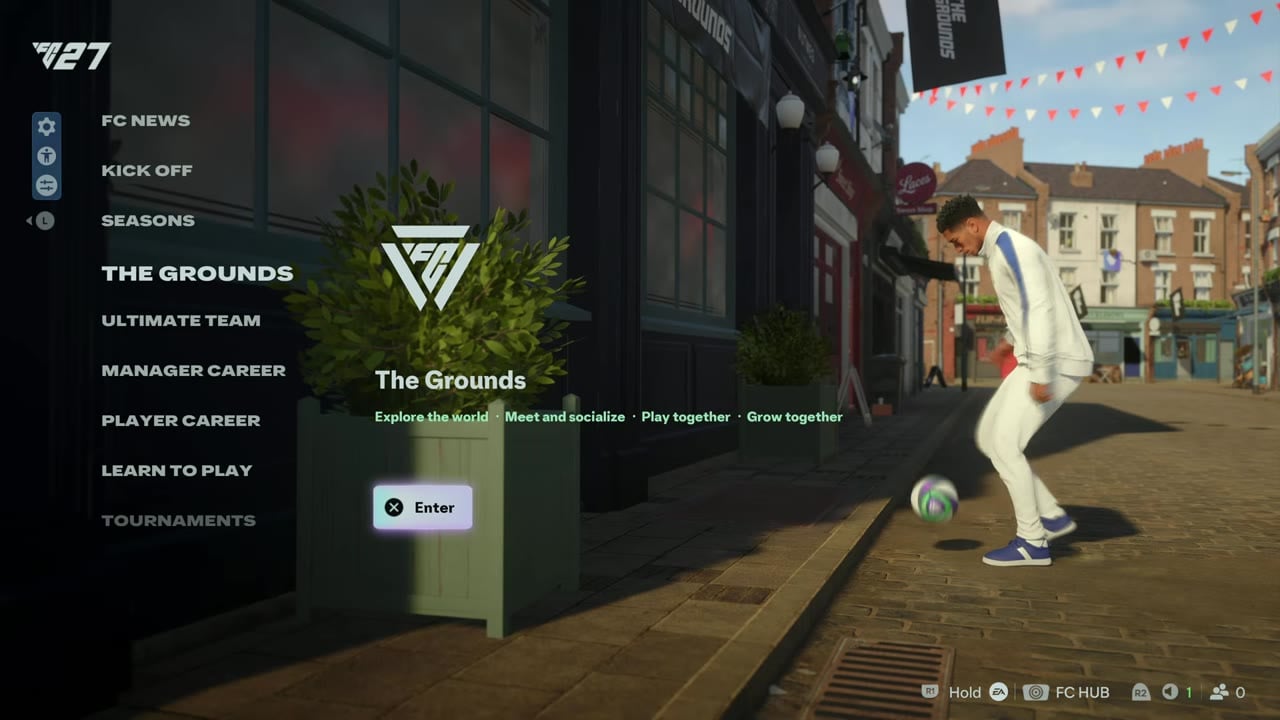
You start on the FC 27 homepage in THE GROUNDS.
Your checklist
of 10 done
How to move a player to another club in EA Sports FC 27
Start at the home screen and follow the transfer through to the receiving club.
STEP 1/10
10%
Open the side icons
Move the left analog stick left from the home screen to reveal the side icon bar.
STEP 2/10
20%
Open Preferences
Scroll to the bottom icon and press X on Open Preferences.
STEP 3/10
30%
Switch to Teams
In Preferences, use L1 or R1 to reach the Teams tab.
STEP 4/10
40%
Enter Club Transfers
Move down to Club Transfers and press X.
STEP 5/10
50%
Choose the current club
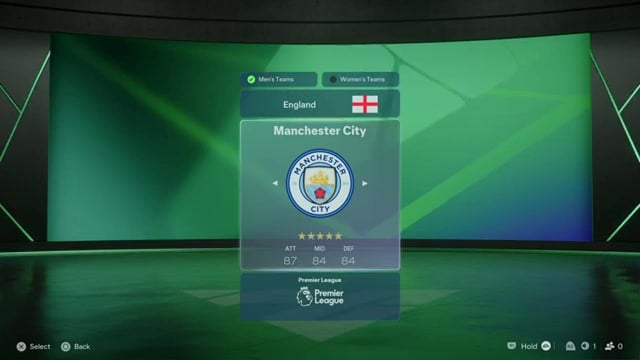
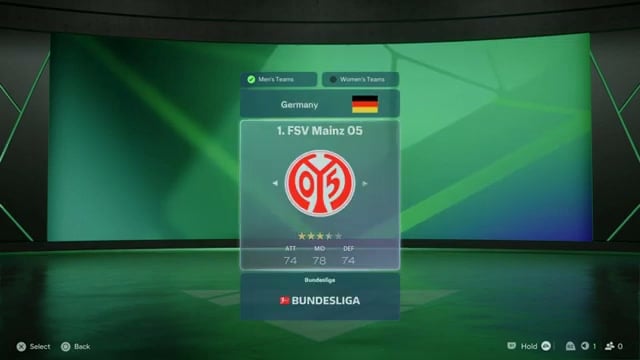
Browse the clubs with the D-pad or analog stick and press X on FC Bayern München. The club selector offers Men’s Teams and Women’s Teams filters.
STEP 6/10
60%
Find the player
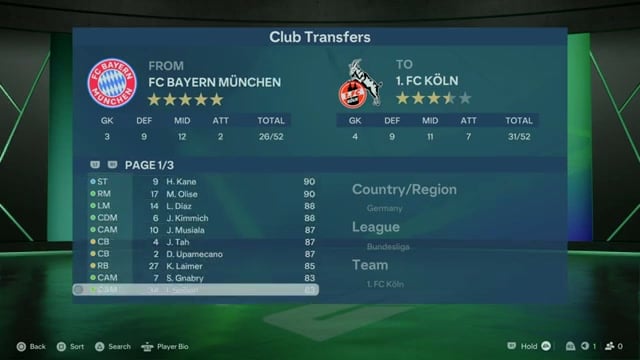
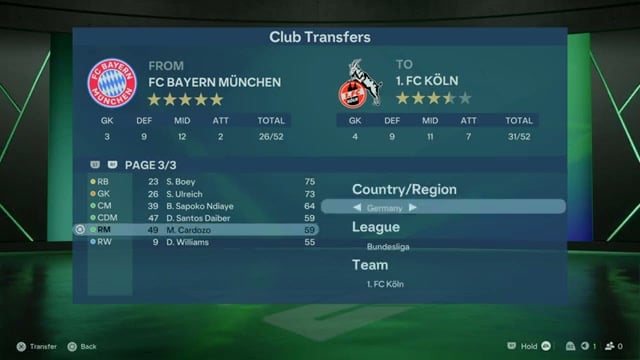
Scroll through the source squad on the left, using L1 and R1 to change roster pages. The example reaches page three and highlights M. Cardozo.
STEP 7/10
70%
Select M. Cardozo
Press X on M. Cardozo. The destination controls on the right have Country/Region, League, and Team fields.
STEP 8/10
80%
Choose the destination country
Set Country/Region to England for the Chelsea transfer.
STEP 9/10
90%
Choose the destination league
Set League to Premier League.
STEP 10/10
100%
Complete the transfer
Set Team to Chelsea and press X. The header changes to TO CHELSEA as M. Cardozo moves there; the GK, DEF, MID, ATT, and TOTAL squad counts update as players move.
Leaving Club Transfers takes you back to Preferences.
How it ends
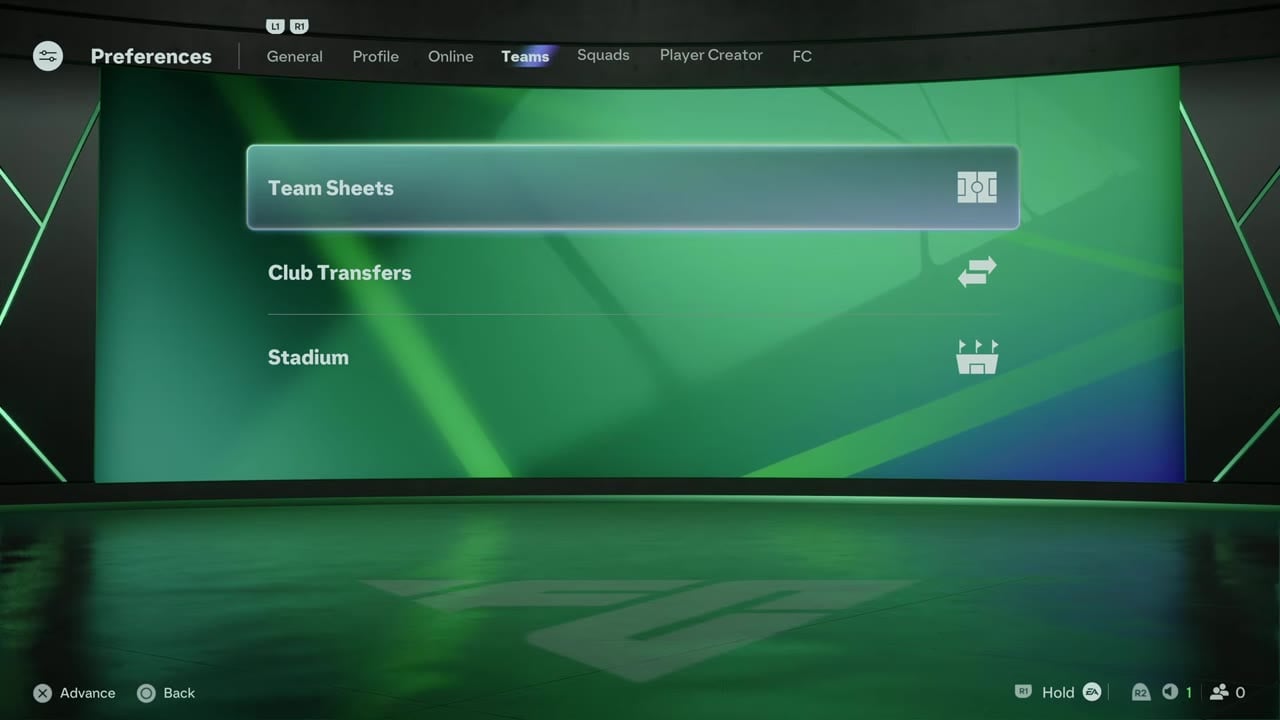
You finish in the Preferences Teams menu, where you see Team Sheets, Club Transfers, and Stadium options.
Stuck?
How do you choose a destination in another country?
Hint 1
Select the player before choosing the destination.
Hint 2
Choose the destination country before the league.
Show the answer
Select M. Cardozo, choose the destination country, then choose the destination league and complete the transfer.
Cross-country moves and Free Agents
You can use Club Transfers to move players between clubs in different leagues and countries, as with the Bayern-to-Chelsea move. Currency and budgets don’t restrict these moves. To release a player, choose Free Agents as the destination through the Country/Region and League choices.
Quick questions
Which button do you press to transfer a player on PlayStation?
You press Cross to transfer a player.
Which button do you use to search for a player on PlayStation?
You use Triangle to search.





Leave a Reply