What to know
- Shell skins are cosmetic variants that change the appearance of your playable Shells in Marathon.
- You can access skins through the Shells menu or Loadout customization screen.
- Each Shell has its own set of unlockable skins.
- Skins are equipped from the Customize option inside the Shell selection menu.
Customizing your character is one of the easiest ways to personalize your experience in Marathon. Each playable Shell represents a unique runner with its own abilities and style, and the game allows you to alter how these characters look through Shell skins. These skins do not change gameplay stats or abilities, but they let you visually distinguish your character during matches and express your progression in the game.
If you want to switch to a different appearance for your Shell, the process only takes a few moments once you know where the customization menu is located.
Quick overview of changing shell skins
| Feature | Details |
|---|---|
| Customization Type | Cosmetic Shell skins |
| Where to Access | Shells menu or Loadout screen |
| Gameplay Effect | None (visual only) |
| Requirements | Own or unlock the skin |
| Customization Area | Shell Customize menu |
| Applies To | Individual Shell characters |
In Marathon, Shell customization is tied directly to the character selection interface. You can reach it either from the main menu’s Shells tab or through the Loadout screen where equipment and characters are managed.
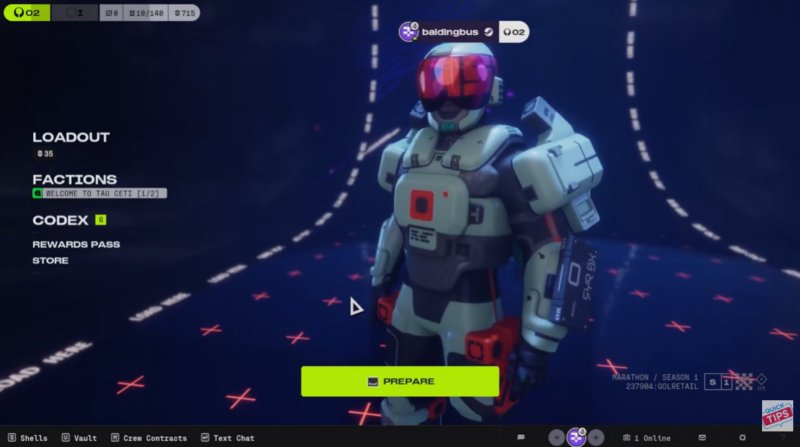
When you enter the Shell menu, you will see all the runners you currently have available. Each Shell has its own customization panel, which contains the skins you have unlocked for that specific character. If you have multiple skins unlocked, you can preview them instantly before equipping one.
Because skins are tied to individual Shells rather than shared across all characters, you must select the specific Shell first before accessing its skin options.
How to change shell skins in Marathon
Step 1
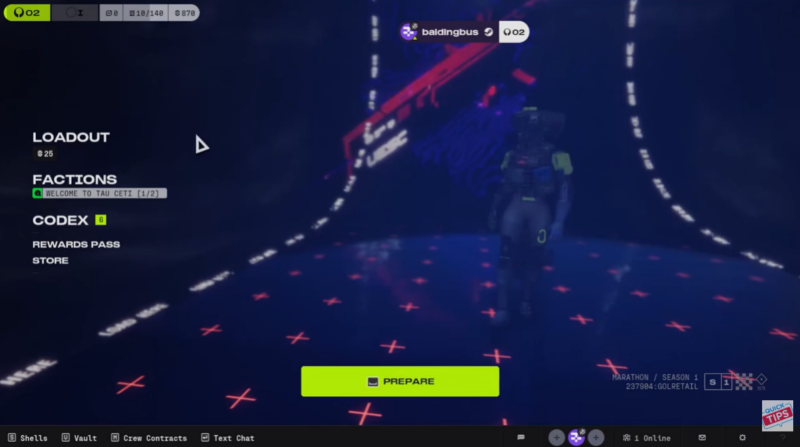
From the main menu, locate the Shells option in the bottom-right corner of the screen. This opens the character selection interface.
Step 2
Alternatively, open the Loadout menu, then navigate to Shell Select or Customize. Both paths lead to the same Shell selection screen.
Step 3
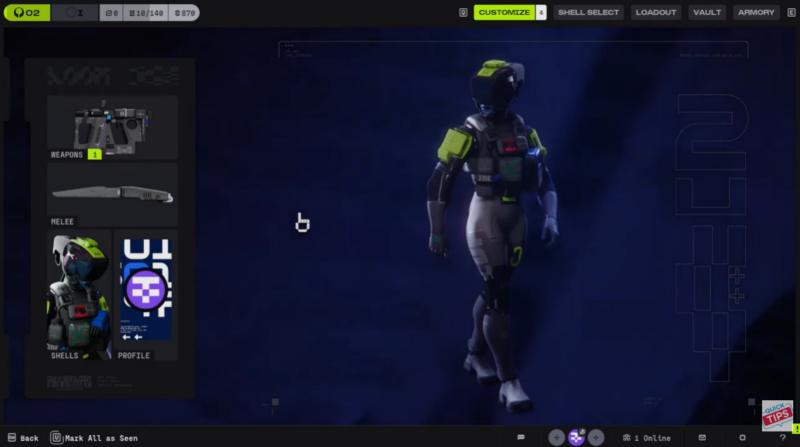
Choose the Shell you want to modify. This will display the character’s current appearance and available customization options.
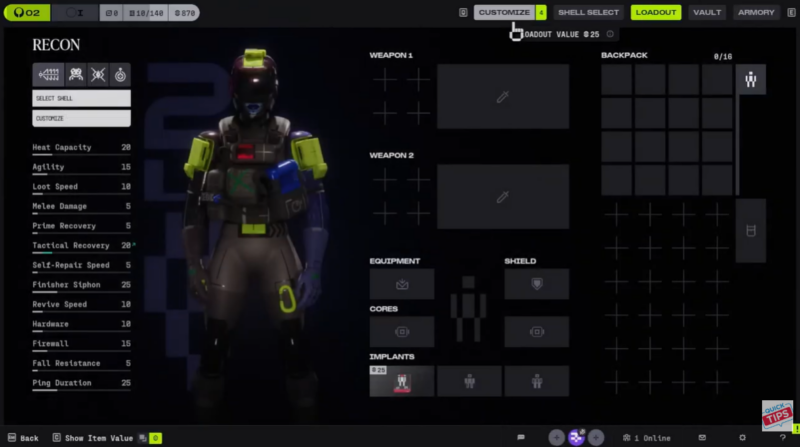
Step 4
Select the Customize option for that Shell. This opens the full appearance menu.
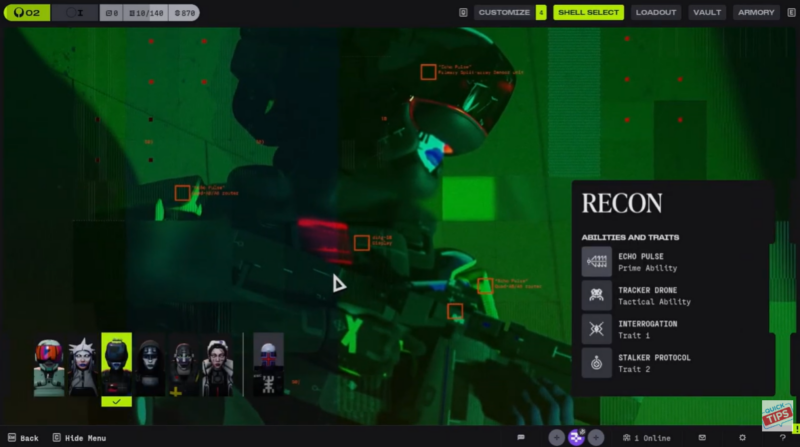
Step 5
Inside the customization screen, select the Shell again to view all the skins you have unlocked for that character.
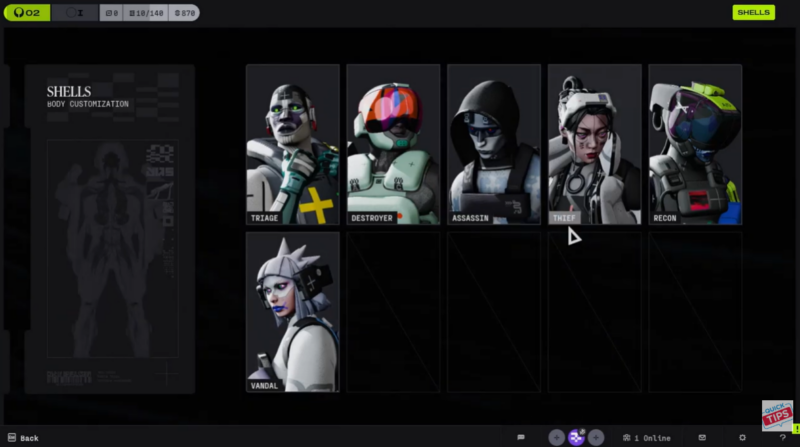
Step 6
Browse the available skins, preview them if needed, and equip the one you want to use. The change applies immediately once selected.
Understanding how shell skins work
Shell skins in Marathon are strictly visual cosmetics. They do not alter the Shell’s abilities, weapons, or gameplay performance. Their purpose is to allow players to express their style while maintaining fair gameplay.
Many skins become available through progression systems, events, or unlock rewards, while others may appear through seasonal content. Once unlocked, they remain permanently available for that Shell in the customization menu.
Because each Shell has a unique design, skins are tailored specifically to that character’s model and aesthetic. This means you might have multiple skins for one Shell while another may only have the default appearance until additional skins are unlocked.
Why changing skins can still be useful
Even though Shell skins are cosmetic, they still provide a few practical benefits. Customizing your Shell can make your character easier for you to visually identify during intense matches. It also allows you to show off event rewards, progression milestones, or rare skins that you have earned.
For many players, skins also serve as a way to differentiate between multiple loadouts or favorite characters, making the game feel more personalized.
Customizing your Shell appearance and expeditions
Changing Shell skins in Marathon is a quick customization option available directly from the character selection interface. By navigating to the Shells menu or Loadout screen, selecting a Shell, and opening the Customize tab, you can instantly preview and equip any skins you have unlocked. While these skins don’t change gameplay mechanics, they offer a simple way to personalize your runner and stand out visually during matches.