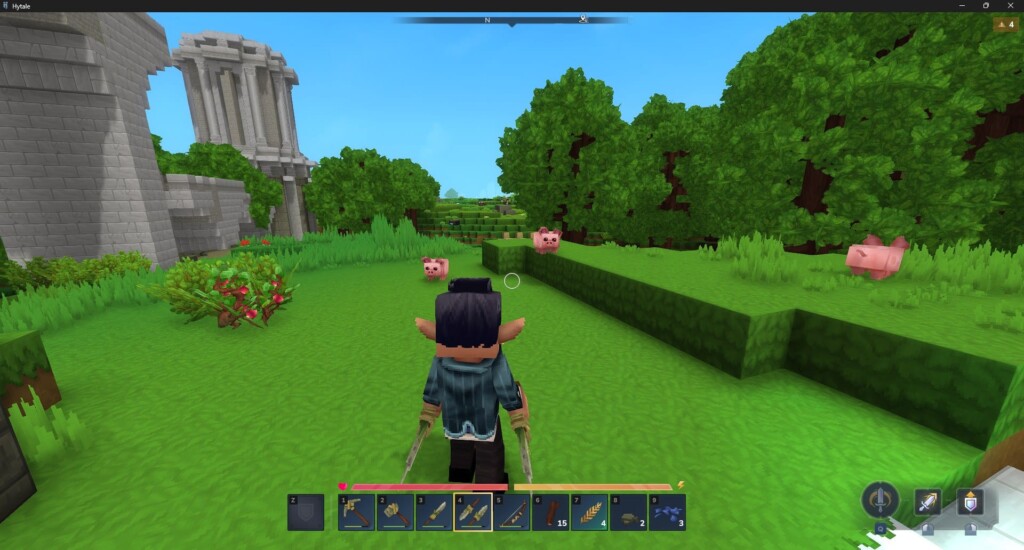
What to know
-
Install using the official Linux Flatpak from Hytale’s site in Desktop Mode for native SteamOS compatibility.
-
Lacks built-in controller support, so use community Steam layouts emulating keyboard/mouse or connect external peripherals.
-
Performance hits 40-60 FPS on low-medium settings; tweak render distance and VSync for smooth play.
-
Add to Steam library post-install for Gaming Mode access and custom controller configs.
You can enjoy Hytale‘s sandbox adventures on your Steam Deck with some setup, turning Valve’s handheld into a portable block-breaking machine. Community efforts have refined controls and performance tweaks since the early 2026 Early Access launch.
| Aspect | Details |
|---|---|
| Compatibility | Playable via Linux native; not officially verified |
| Installation Method | Flatpak installer from hytale.com |
| Controls | Community Steam layouts (K/M emulation) |
| Performance | 40-60 FPS low-medium; excellent battery |
| Requirements | Matches Deck specs; no anti-cheat issues |
How to install Hytale on Steam Deck
Switch to Desktop Mode by holding the power button and selecting it.
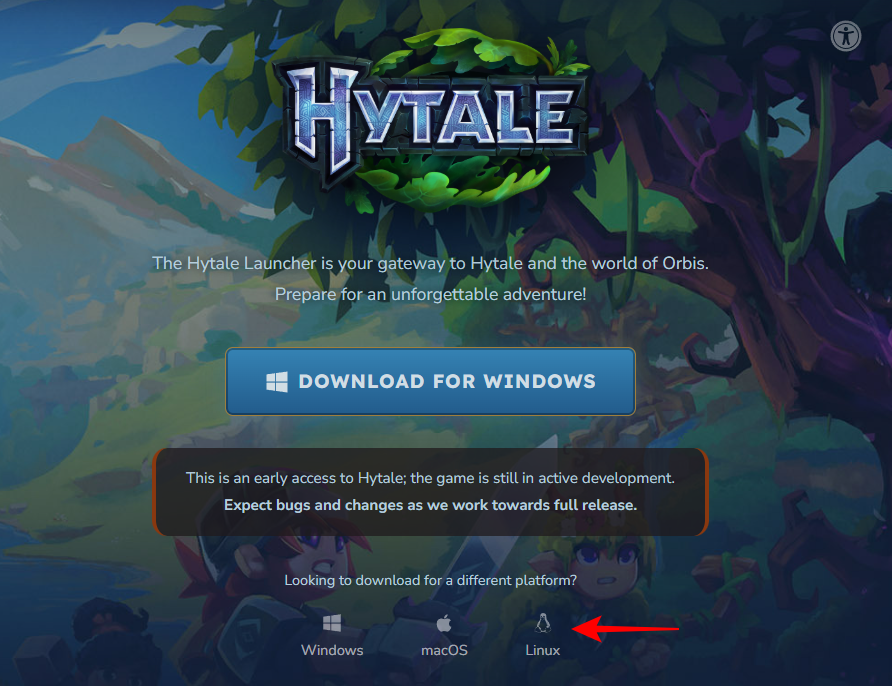
Download the Linux launcher from Hytale’s site, then install via Discovery store using “Install from local bundle.”
Log in, download the game, close it, and add the shortcut to Steam from Applications menu. Return to Gaming Mode to launch seamlessly.
How to set up controls on Steam Deck
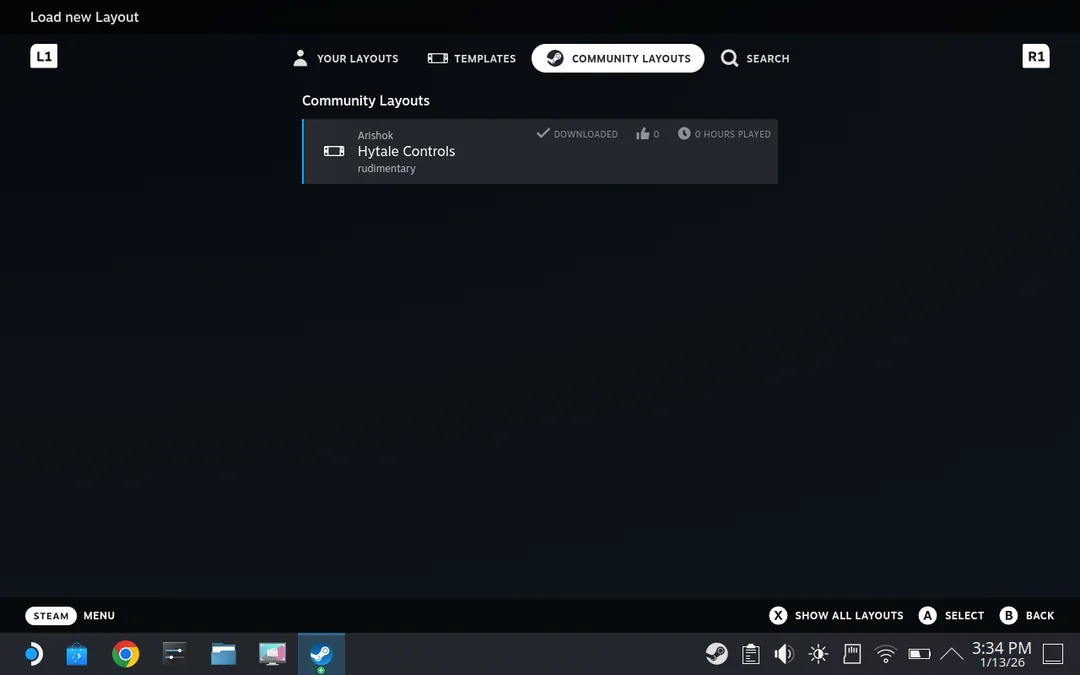
Hytale emulates keyboard/mouse by default. In Steam, click the controller icon on the Hytale entry, search community layouts for “Hytale,” and apply one inspired by Minecraft—left stick for movement, right for camera, D-pad for extras.
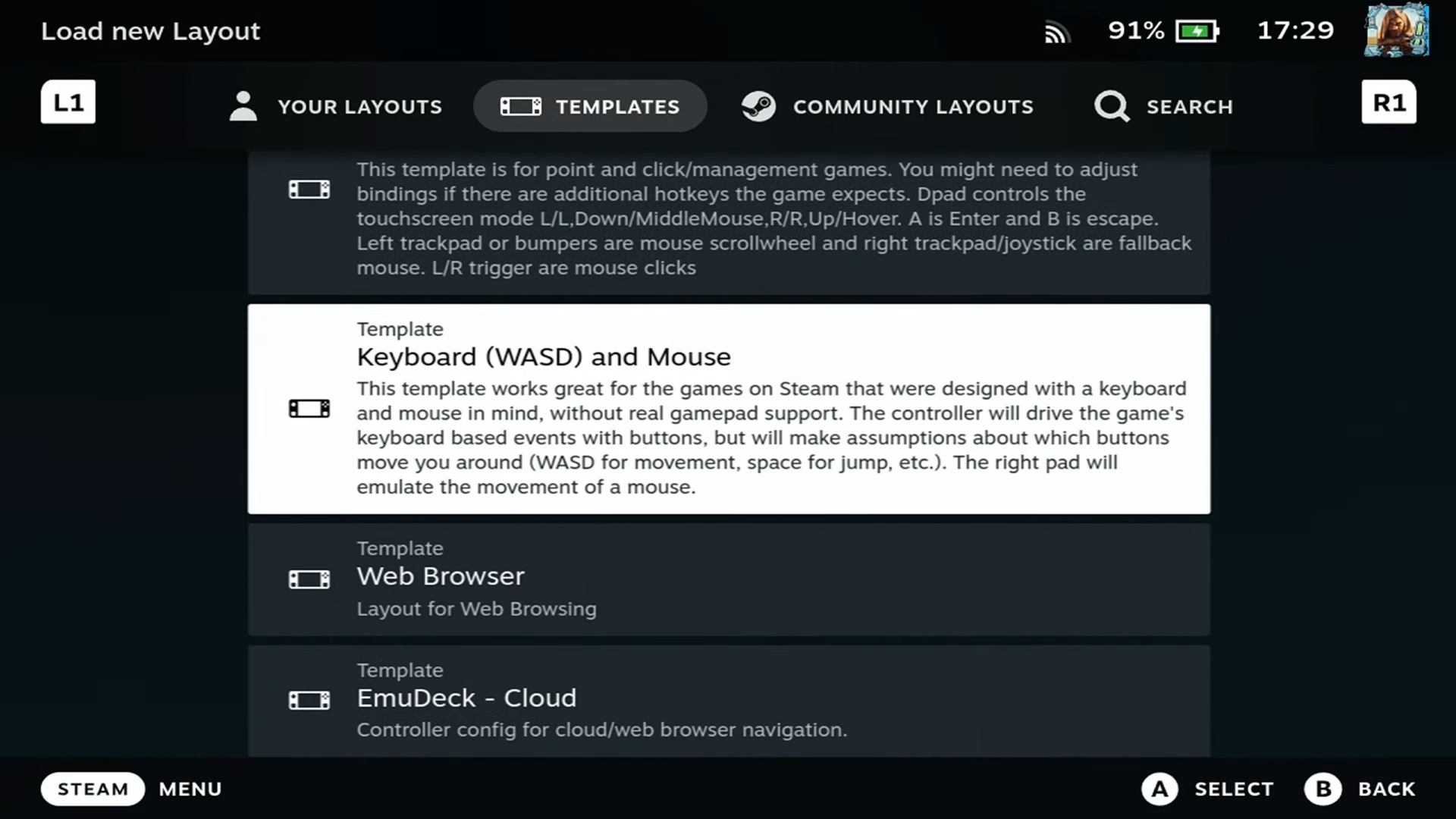
Alternatively, you can also check out the Template – Keyboard (WASD) and Mouse.
Step 1: Access controller settings
Launch Hytale in Gaming Mode, open controller config via the overlay (QAM button), select layout template “Gamepad with Joystick Trackpad.”
Step 2: Map core actions
Assign left joystick to WASD, right stick/trackpad to mouse look, A/B/X/Y to jump/attack/use/crouch. Set L3 + RT/R2 for quick inventory moves.
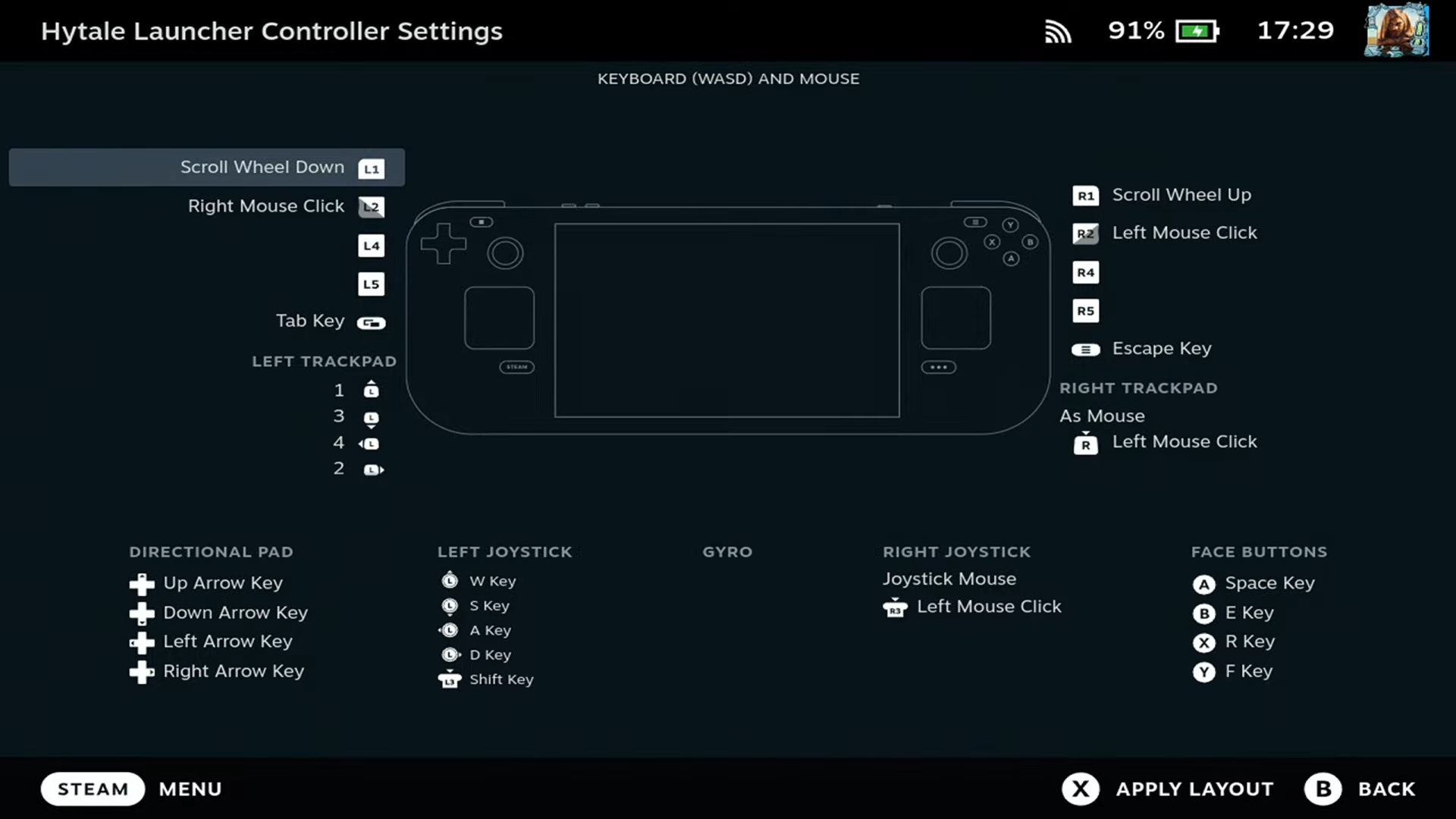
Step 3: Fine-tune in-game
In Hytale settings, adjust mouse sensitivity, toggle run/crouch. Test in a world; bind virtual menu to left trackpad if needed.
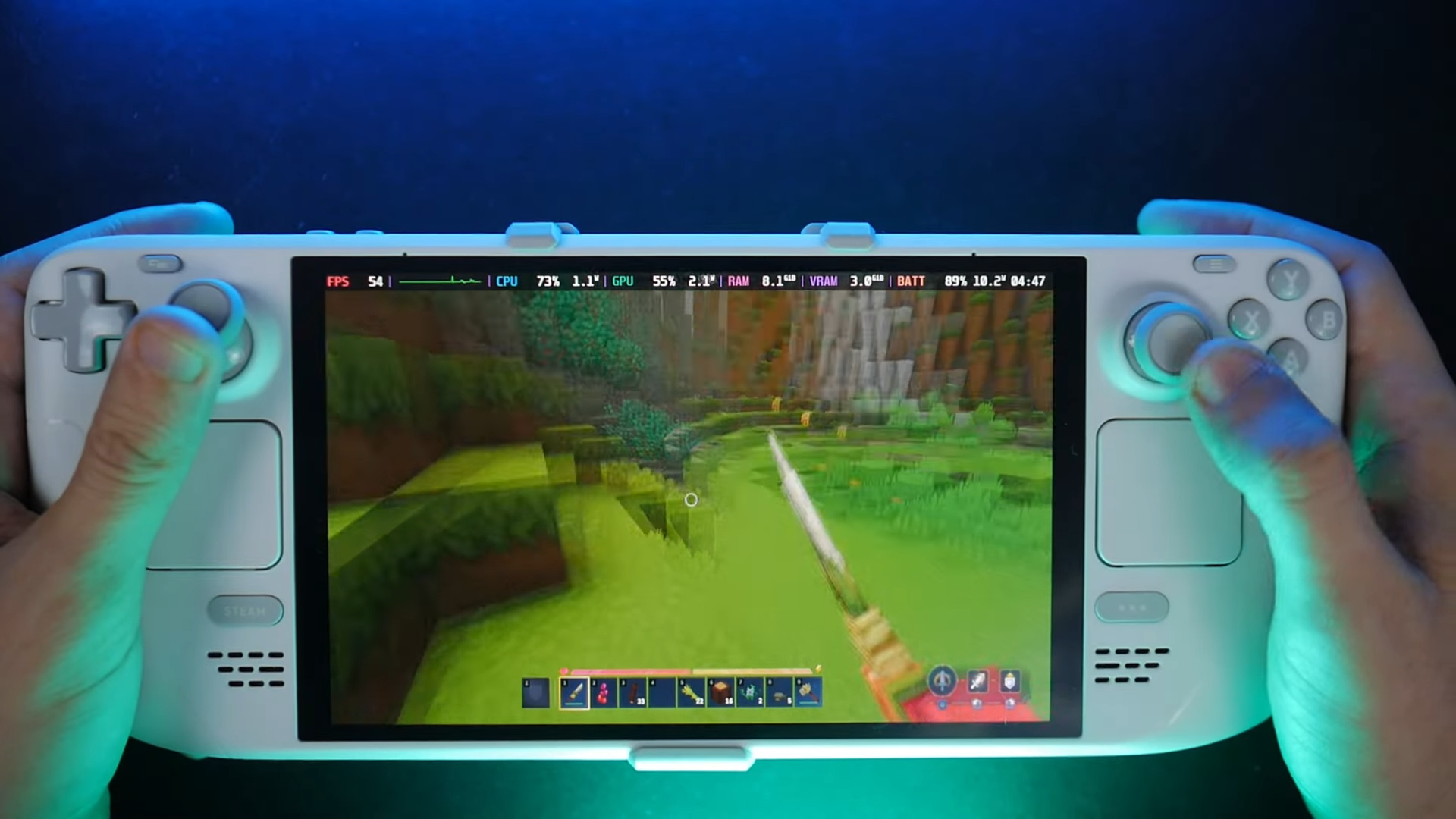
Step 4: Optimize performance
Lower render distance/shadows, cap FPS at 60, enable VSync. Community reports steady playables.
| Action | Default/Recommended Mapping |
|---|---|
| Move | Left stick (WASD) |
| Look | Right stick/trackpad |
| Jump | A button |
| Attack/Place | Right trigger/X-Y |
| Inventory | Left trackpad menu |
| Quick Stack | L3 + RT/R2 |
Best settings for smooth gameplay
Set graphics to low-medium: disable heavy shadows/effects, medium textures, 1080p resolution scaled down. Pair with 40 FPS limit for 2-3 hour battery sessions.
With these steps, you transform your Steam Deck into a Hytale powerhouse, ready for crafting and exploration anywhere. Experiment with layouts to match your style, and watch for official updates.