
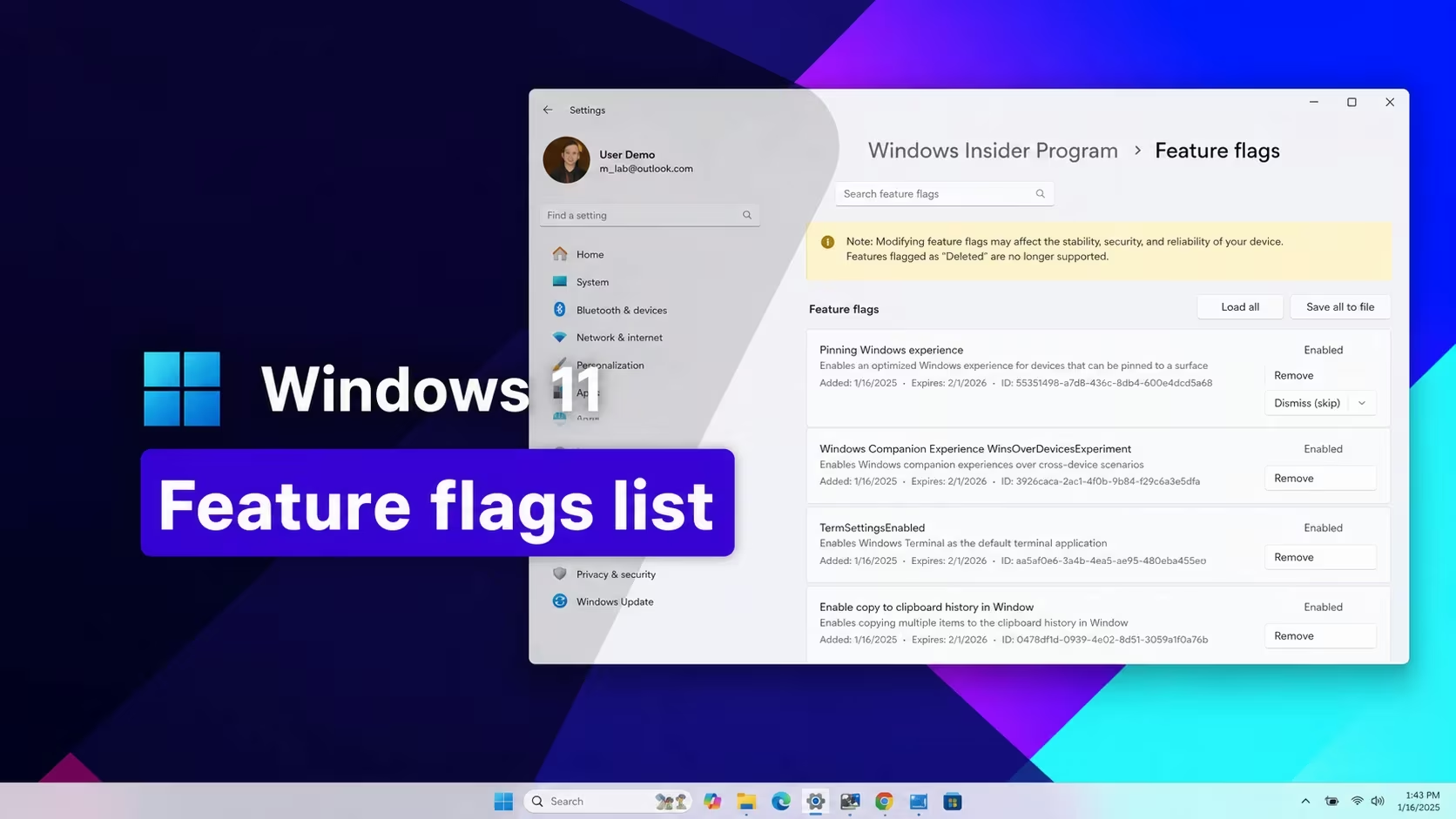
ViveTool is a command-line utility that flips on hidden features inside Windows 11 before Microsoft rolls them out to everyone. Each feature is tied to a numeric ID, and entering the right ID unlocks things like Start menu redesigns, taskbar changes, File Explorer tweaks, and entire monthly feature bundles tied to specific cumulative updates.
Working Windows 11 ViveTool Codes
You can enable any of these feature IDs right now on a supported build. Some entries use multiple IDs together because the feature needs several related flags turned on at once.
61161268
Feature bundle for the October 2026 update (KB5124010)
61161244
Feature bundle for the September 2026 update (KB5124008)
61754985
New Start menu resize and customization settings
62762248
Updated Windows Search settings
59213768
Taskbar positioning in Settings (top, left, right, or bottom)
60813048
Customizable context menu settings
61090762
Option to make the taskbar smaller
59728252
Modern boot-style animation on sign-in, shutdown, and restart screens
27829265,61457898
Modernized mouse pointer indicator with a keep-visible-until-dismissed option
61160789
Feature bundle for the August 2026 update (KB5121003)
58989177
Feature bundle for the July 2026 update (KB5101650)
58989092
Feature bundle for the June 2026 update (KB5094126)
58989092,60716524,48433719,61391826
Low Latency Profile, which briefly boosts the processor to full speed to shorten app launch times
58989070
Feature bundle for the May 2026 update (KB5089549)
58989021
Feature bundle for the April 2026 update (KB5083769)
58989002
March 2026 bundle covering the network speed tester, camera pan and tilt controls, updated Settings dialogs, and Extract All for non-Zip archives
57741219
New Protected Print Mode dialogs in Settings
55994763
Redesigned Widgets settings page
58988972
Feature bundle for the February 2026 update (KB5077181)
57048237
Feature bundle for the December 2025 update
59162732,55994763
Widgets redesign
41356296
New taskbar auto-hide behavior
45690266
Cloud file search inside File Explorer
59265307
Redesigned About page in Settings
57882334
Share any open taskbar window
53343270
Device info card in Settings (limited to the United States)
57048231
Feature bundle for the November 2025 update
47205210
New single-page Start menu design
48433719
Battery percentage option on the taskbar
57048226
Feature bundle for the October 2025 update
57048218
Feature bundle for the September 2025 update
57048216
Feature bundle for the August 2025 update
61014711
File Explorer’s new KB, MB, GB file size view in Details
51406324,60288851,48433719,58989092,58989177,61160789,61161244,61161268,61161283,61161304,61754985,61225604,61596616,61596617,61596618,61596619
Administrator Protection option under Account protection in Windows Security
How to redeem codes in Windows 11 ViveTool
Entering a ViveTool code isn’t a menu click, it’s a command you type. Here’s how you turn a feature ID into a working feature on your desktop.
vivetool /enable /id:CODE, replacing CODE with the feature ID you want. For entries with multiple numbers separated by commas, include all of them after /id: in the same command.You’ll know a code worked once the corresponding menu, screen, or setting actually appears where it didn’t before, for example a resizable Start menu, a new taskbar option, or the Administrator Protection toggle showing up under Account protection in Windows Security.
Note: The feature bundle IDs are tied to specific cumulative updates (KB numbers), so your PC needs to be on that update or a later one before the ID will do anything.
How to get more Windows 11 ViveTool codes
New feature IDs show up whenever Microsoft ships a fresh cumulative update through Windows Update, since each monthly release tends to bundle its own hidden flags. Checking the update history in Settings after a Patch Tuesday release is the most reliable way to spot when a new bundle ID becomes relevant to your build.
Feature IDs tied to the Windows Insider Program also tend to surface first for testers on Dev and Beta channel builds before reaching the stable release, so features often exist as an ID well before most people can use them.
Are these codes free to use?
Yes. ViveTool itself is free, and every feature ID just toggles a switch that’s already built into your Windows installation. You aren’t unlocking paid content, you’re just turning on code that Microsoft hasn’t flipped on by default yet.
Some IDs only apply to a specific build or update, so double-check that your version of Windows 11 matches what a bundle ID targets before assuming it didn’t work.






Leave a Reply