What to know
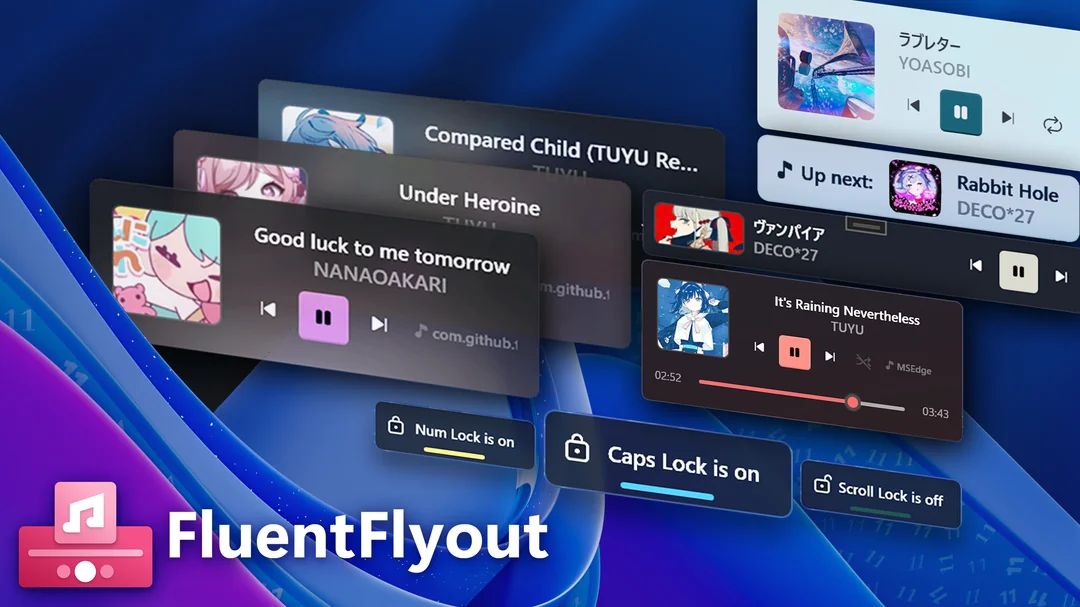
- FluentFlyout delivers modern audio flyouts, taskbar widgets, and lock key indicators using Fluent 2 design for seamless Windows 11 integration.
- Recent updates include real-time taskbar audio visualizers, multi-monitor support, and customizable playback controls.
- Available free on GitHub or via Microsoft Store (with premium features); open-source with active community contributions.
- Users praise its polish, theme matching, and compatibility with tools like Windhawk, though some note minor setup hurdles.
Windows 11’s native customization options feel very underwhelming. But that is where third-party apps step in to save the day. If you’re looking to spruce up the taskbar with media controls or have status flyouts that are actually useable, there’s nothing like FluentFlyout.
FluentFlyout steps in where Windows 11’s default media and status flyouts fall short, offering a polished alternative that feels like it came straight from Microsoft. You get smooth animations, Mica/Acrylic effects, and deep customization without cluttering your desktop.
What does FluentFlyout do?
The app triggers pop-up flyouts for volume changes, media keys, or lock toggles, displaying album art, track title, artist, and controls like play/pause, shuffle, repeat, and seek sliders.
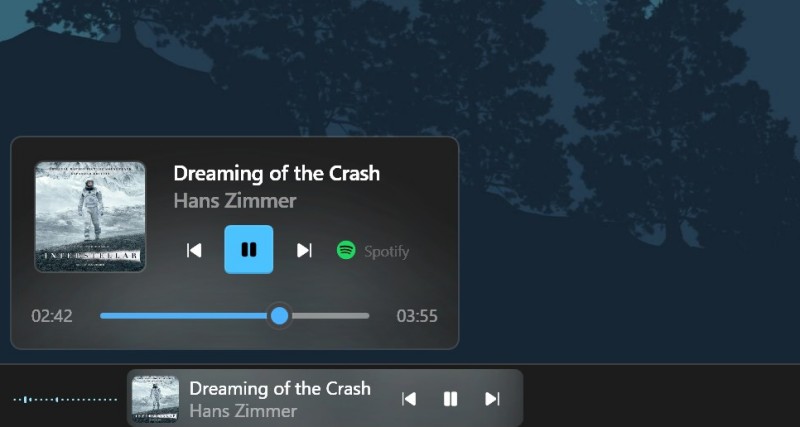
An “Up Next” view previews the following track as one ends, keeping your flow uninterrupted. Lock key flyouts show Caps Lock, Num Lock, and Scroll Lock status instantly.
Taskbar enhancements (for a small price)
FluentFlyout can also place a compact media widget directly on your taskbar for quick access. While the latest addition, a real-time audio visualizer widget, pulses with your music next to it, customizable for position and style.
| Feature | Description | Customization Options |
|---|---|---|
| Media Widget | Shows cover art, title, progress on taskbar | Position (left/center/right), padding |
| Visualizer Widget | Real-time audio waves | Monitor selection, blur opacity |
| Flyout Backdrop | Mica or Acrylic blur | Adjustable opacity, theme matching |
If you have multiple monitors, you can also now pick which screen shows widgets and flyouts. On top of that, playback controls integrate right there. However, these taskbar widget options are locked behind a small price.
Installation
Grab FluentFlyout from the Microsoft Store for auto-updates and ease—recommended for most.
To get all the available features, including widgets, we highly recommend purchasing them in the app (a small, one time fee to support the developers).
For the full open-source version, download the .msixbundle from GitHub releases (v1.4.1 as of March 2025), but first install the provided .cer certificate to trusted roots via admin settings. Access settings via the tray icon to tweak positions, timeouts, and languages (now over a dozen supported).
What’s great about FluentFlyout!
FluentFlyout is more than just eye-candy for your desktop (though that alone may be enough for some). Its flyouts tell you when you’ve enabled Caps Lock, pressed Insert, or Scroll Lock.
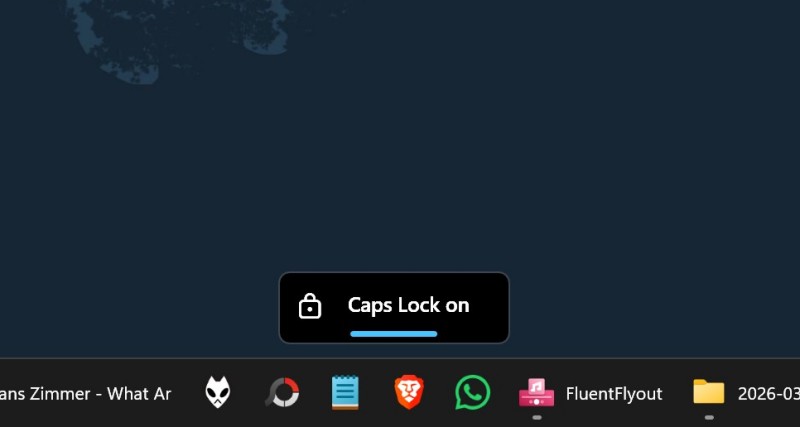
While the media flyout shows the media info when you press any media key (like volume up/down and play/pause).
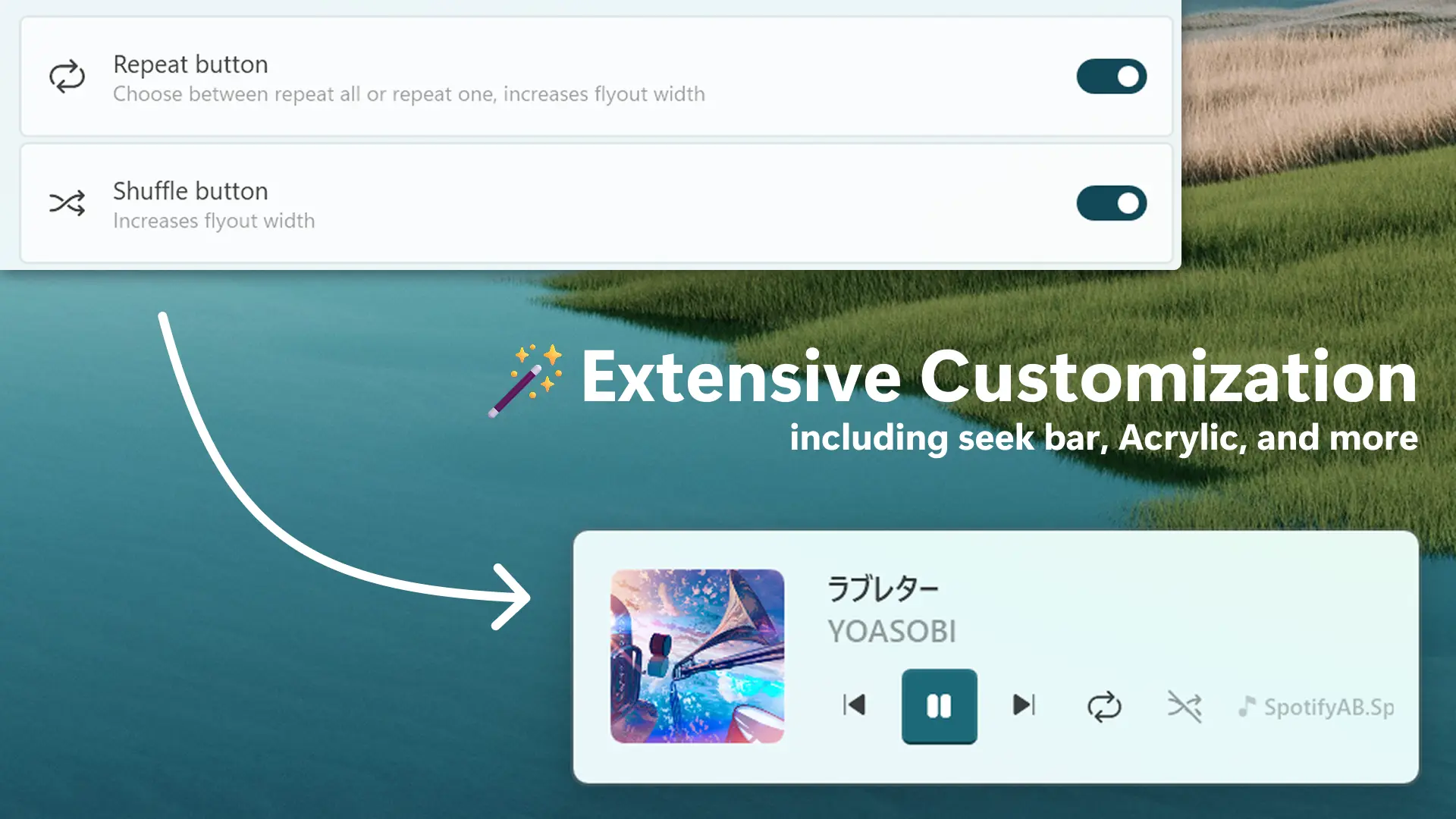
If you get the paid features, the media player widgets on the taskbar are wonderful to look at with tons of customization features to boot.
FluentFlyout turns routine media interactions into a fluid, modern experience tailored to your setup. At $3 for the optional features, it’s a steal through and through.