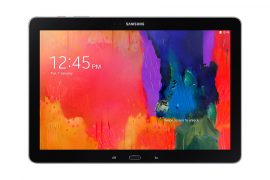
Samsung has started rolling out the Android 5.1.1 Lollipop update for its Galaxy Tab 12.2 Pro LTE today, build no. being T905XXUBOI1, skipping the Android 5.0 update altogether. The previous Android version of Galaxy Tab Pro 12.2 LTE was Android 4.4.2. Guess the Tab Pro 12.2 LTE users will be pretty happy today.
This is more than a year after Galaxy Tab Pro is getting an update. By all accounts, it should also be fixing the Stagefright bug on the tablet. If you haven’t received the OTA update yet, yhen you can download the update from below and install it using our installation guide given below.
Downloads
- Oi1 firmware — Link | File: T905XXUBOI1_T905OXABOH8_NEE.zip (1.27 GB)
- Odin PC software — Link | File: Odin3_v3.10.6.zip (1.6 MB)
Supported devices
- SAMSUNG GALAXY TAB PRO 12.2 LTE, model no. SM-T905
- Don’t try this on any other Galaxy Tab whose model no. is not SM-T905
- Don’t try on any other device whatsoever!
Disclaimer: Installing an official firmware through Odin doesn’t void your device’s warranty, but it remains an unofficial process and thus you need to be cautious of it. In any case, you only are responsible for your device. We won’t be liable if any damage occurs to your device and/or its components.
Backup important files stored on your device before proceeding with the steps below, so that in case something goes wrong you’ll have backup of all your important files. Sometimes, Odin installation may delete everything on your device!
Step-by-step Guide
- Power off your Note 4, Wait 6-7 seconds after screen goes off.
- Press and hold the three buttons Volume down + Power + Home together until you see warning screen.
- Press Volume Up to continue to download mode.

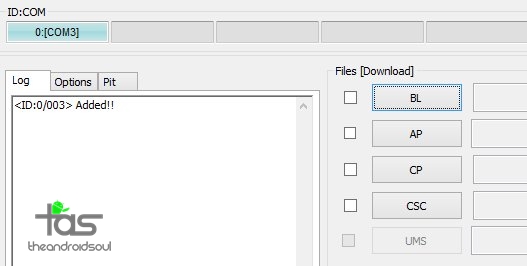
- You cannot proceed until you get the Added!! message, which confirms that Odin has recognized your device.
- If you don’t get Added!! message, you need to install/re-install drivers again, and use the original cable that came with device. Mostly, drivers are the problem (look at step 2 above).
- You can try different USB ports on your PC too.

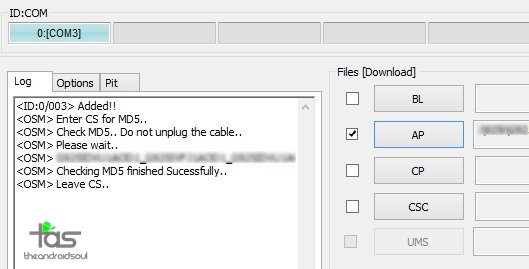
- Info: When you load files, Odin checks the md5 of firmware file, which takes time. So, simply wait until that’s done and the firmware file is loaded. Don’t worry if Odin gets unresponsive for a while, it’s normal. Binary size will also show up in Odin.

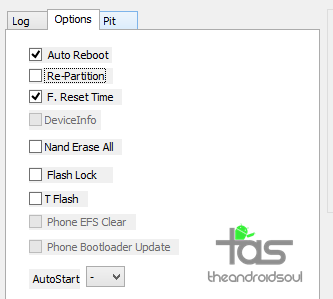
- If Odin gets stuck at set up connection, then you need to do steps 6 to 11 again. For this, close Odin, disconnect your Galaxy Tab Pro 12.2 LTE then start from step 6 again.
- Or, if you get FAIL in the top left box, you need to try flashing again, as stated just above.


That’s it. Enjoy your T-Mobile Galaxy Tab Pro 12.2 LTE on the latest Android 5.1.1 update with OI1 firmware!