

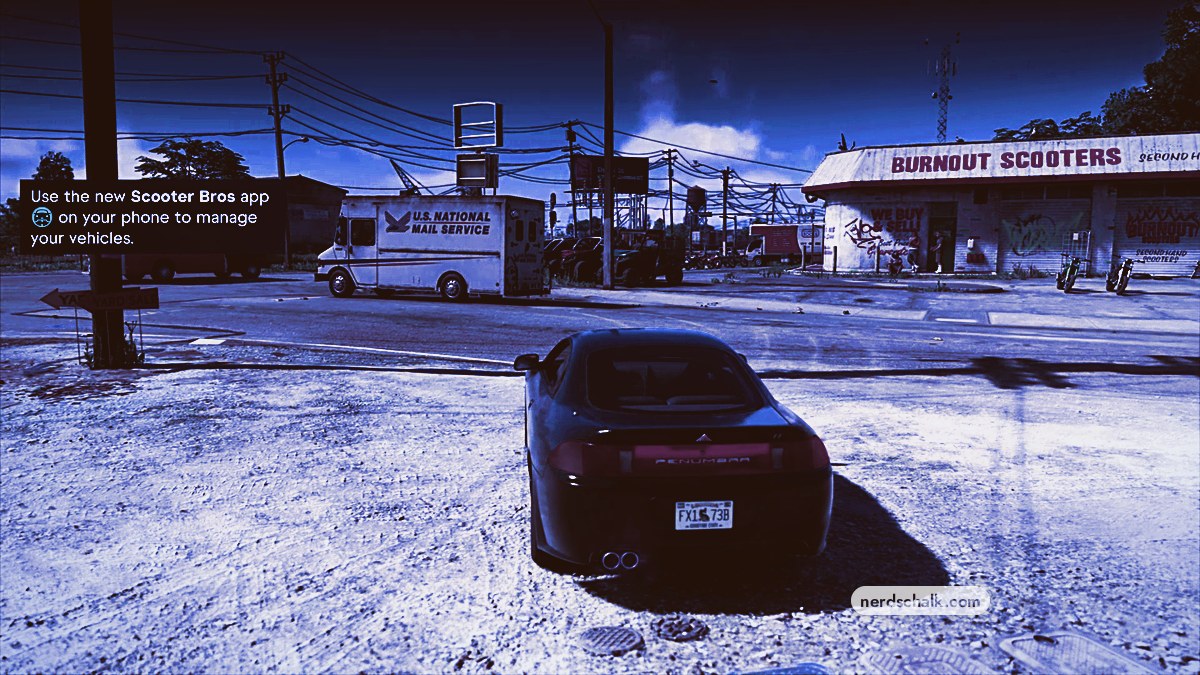
To respray your new personal vehicle, speak to Moses at Watkins Auto Parts, open Respray and apply a paint color.
Changing your car’s color reduces recognition, and Watkins Auto Parts offers both paint changes and vehicle registration. Grand Theft Auto VI is listed for PlayStation 5 and Xbox Series X|S. This guide covers choosing your paint, registering the car as yours and driving it outside.
How to respray your new personal vehicle in Grand Theft Auto VI
Speak to Moses
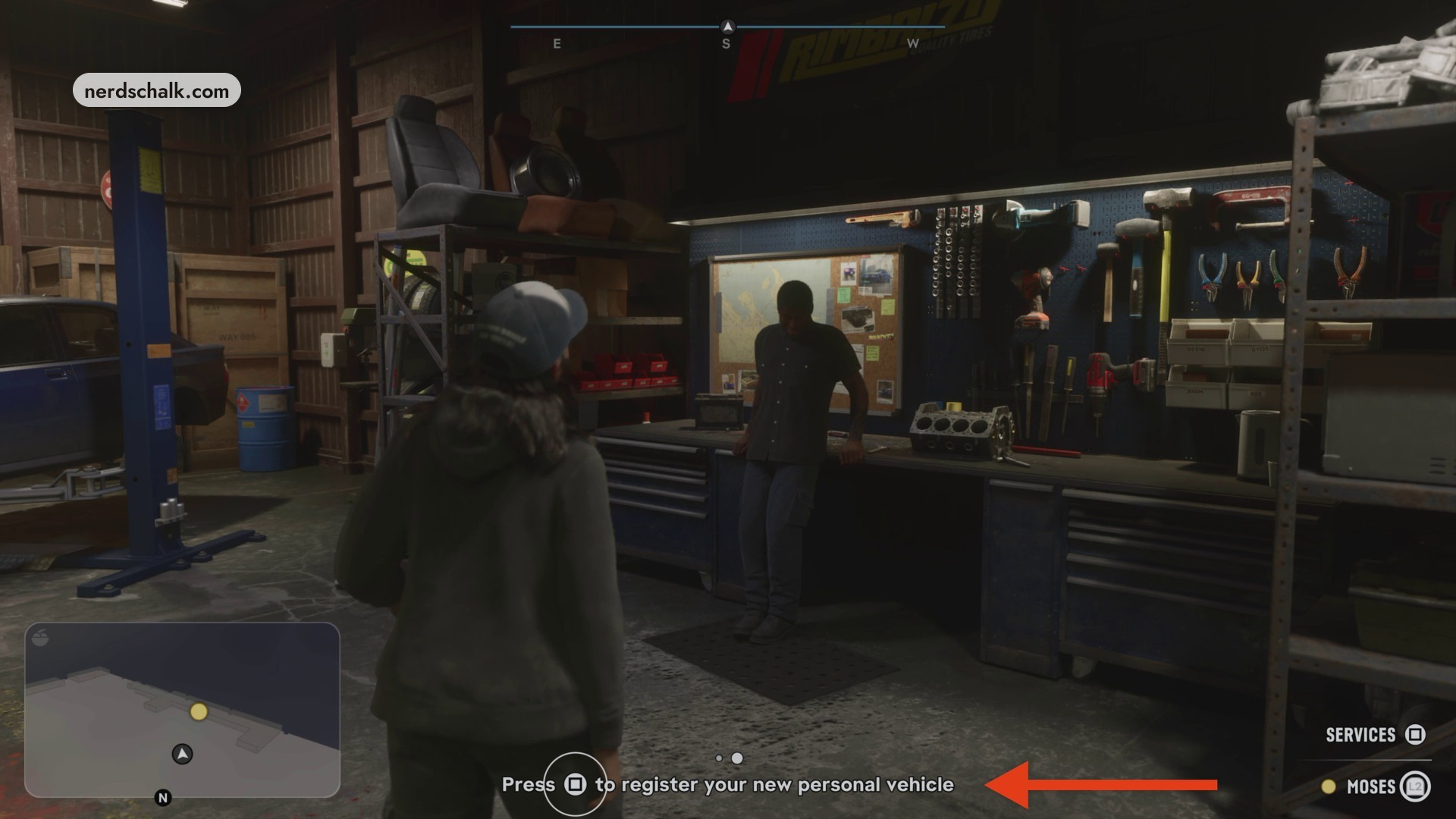
Approach Moses beside the workbench inside the garage. While facing him, use the displayed registration interaction prompt to open the vehicle modification menu. Lucia speaks with him here before the car is registered.
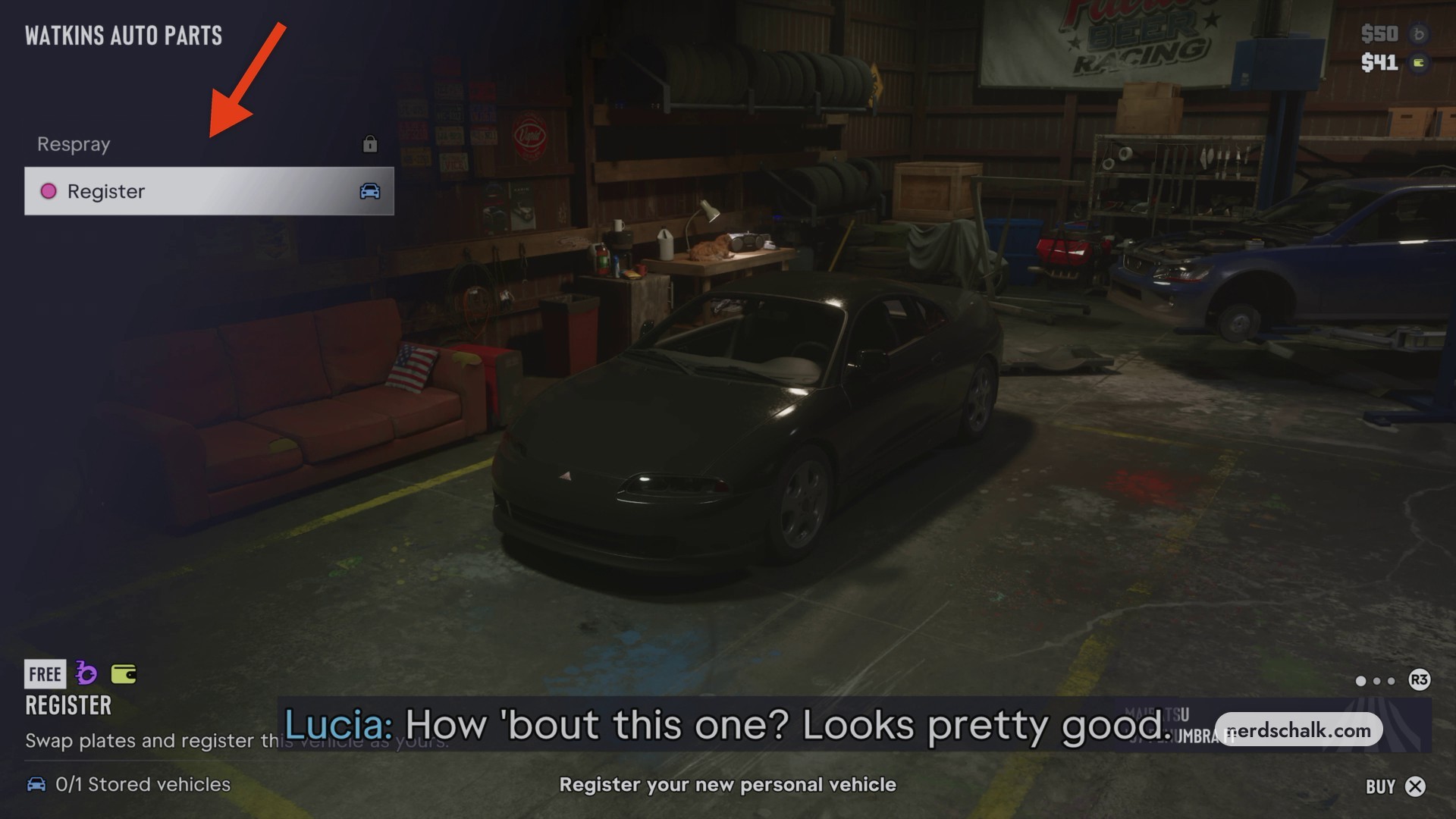
Open Respray
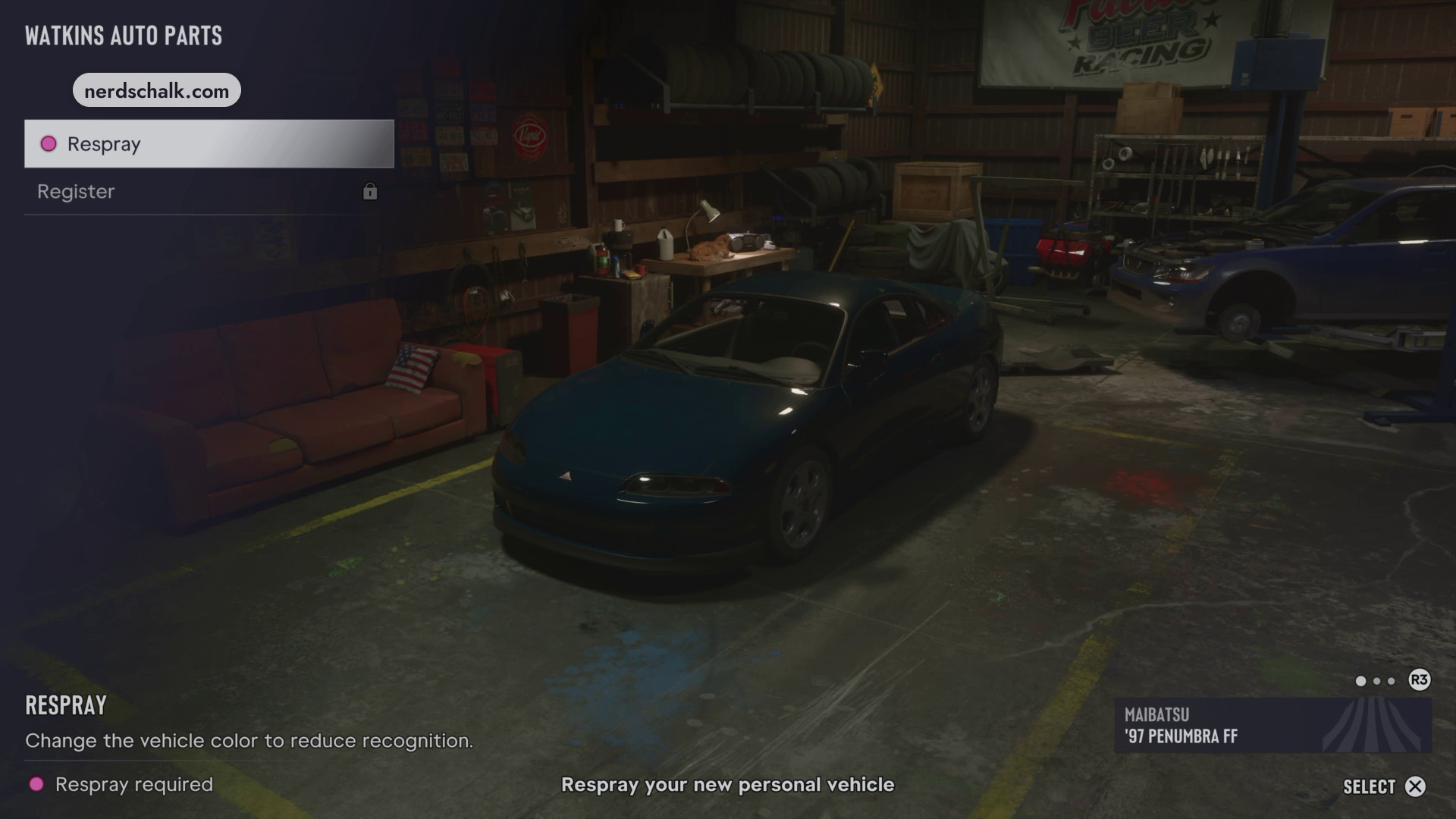
Choose Respray in the Watkins Auto Parts menu to view the available paint colors. The menu includes a SELECT control.
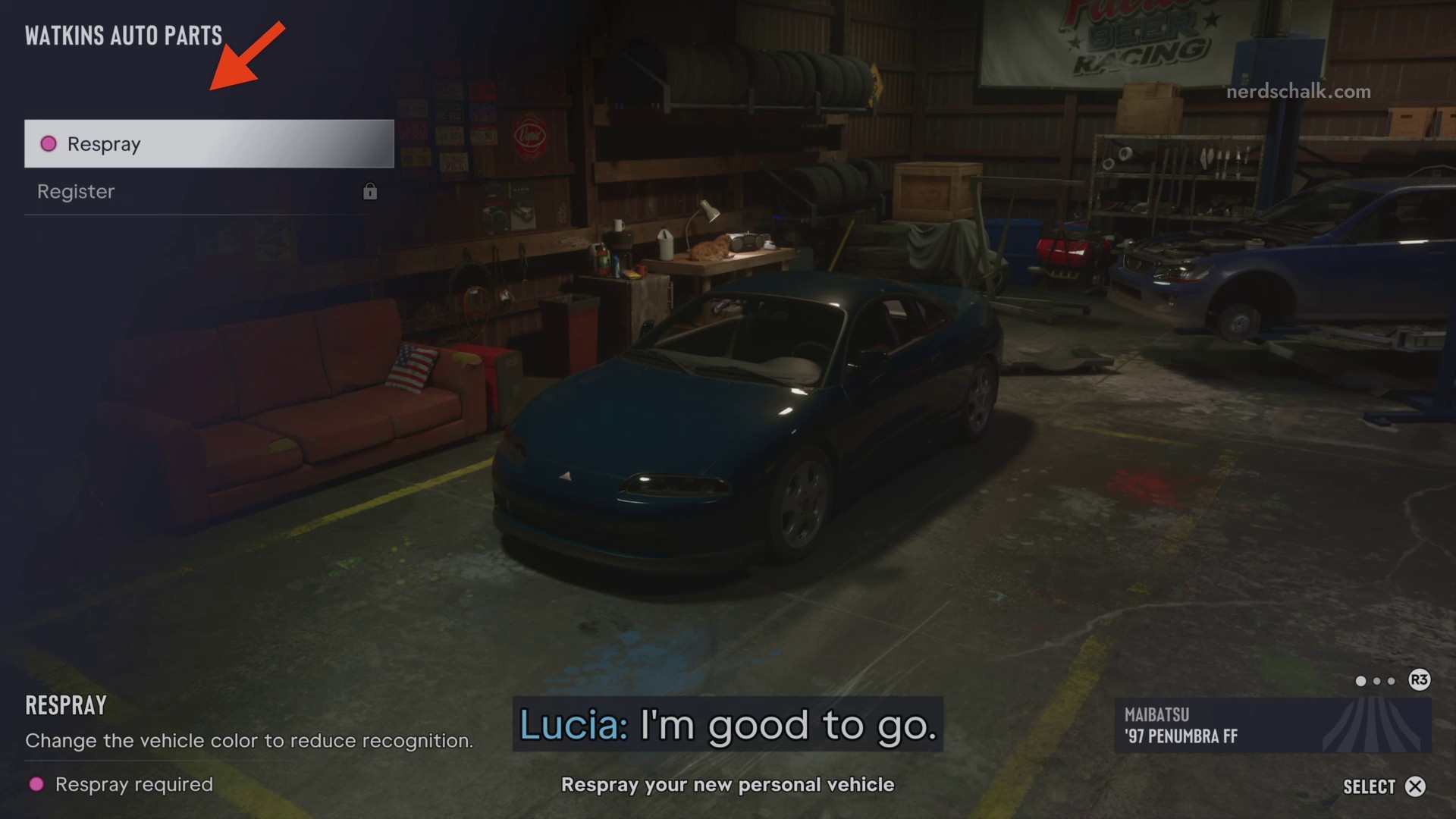
The workshop menu shows Respray; choose it to open the palette.
Choose and apply your paint
Browse the palette and select your preferred color. The paint screen includes a BUY control. For a black finish, select BLACK; the respray price for this vehicle is FREE.
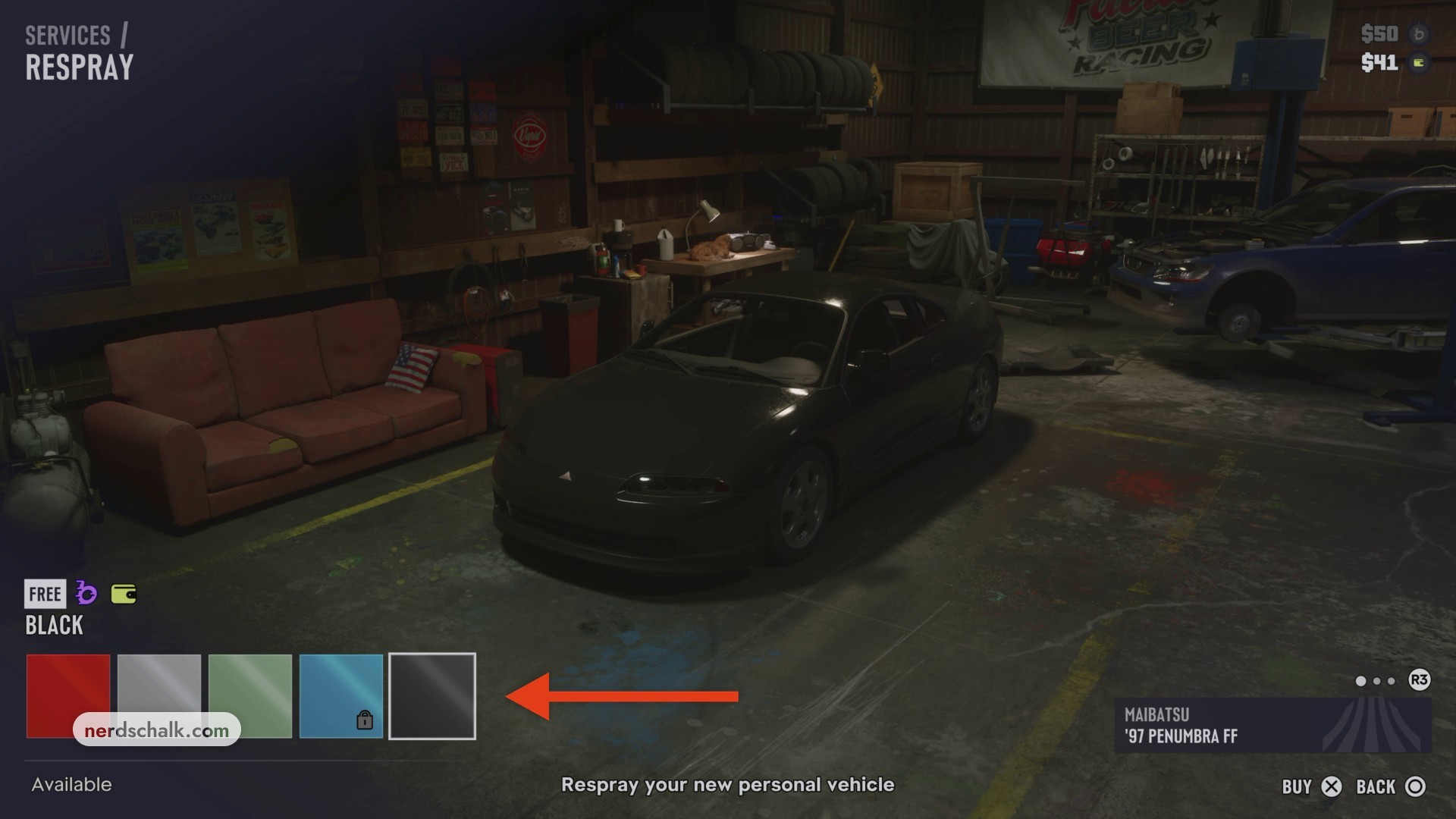
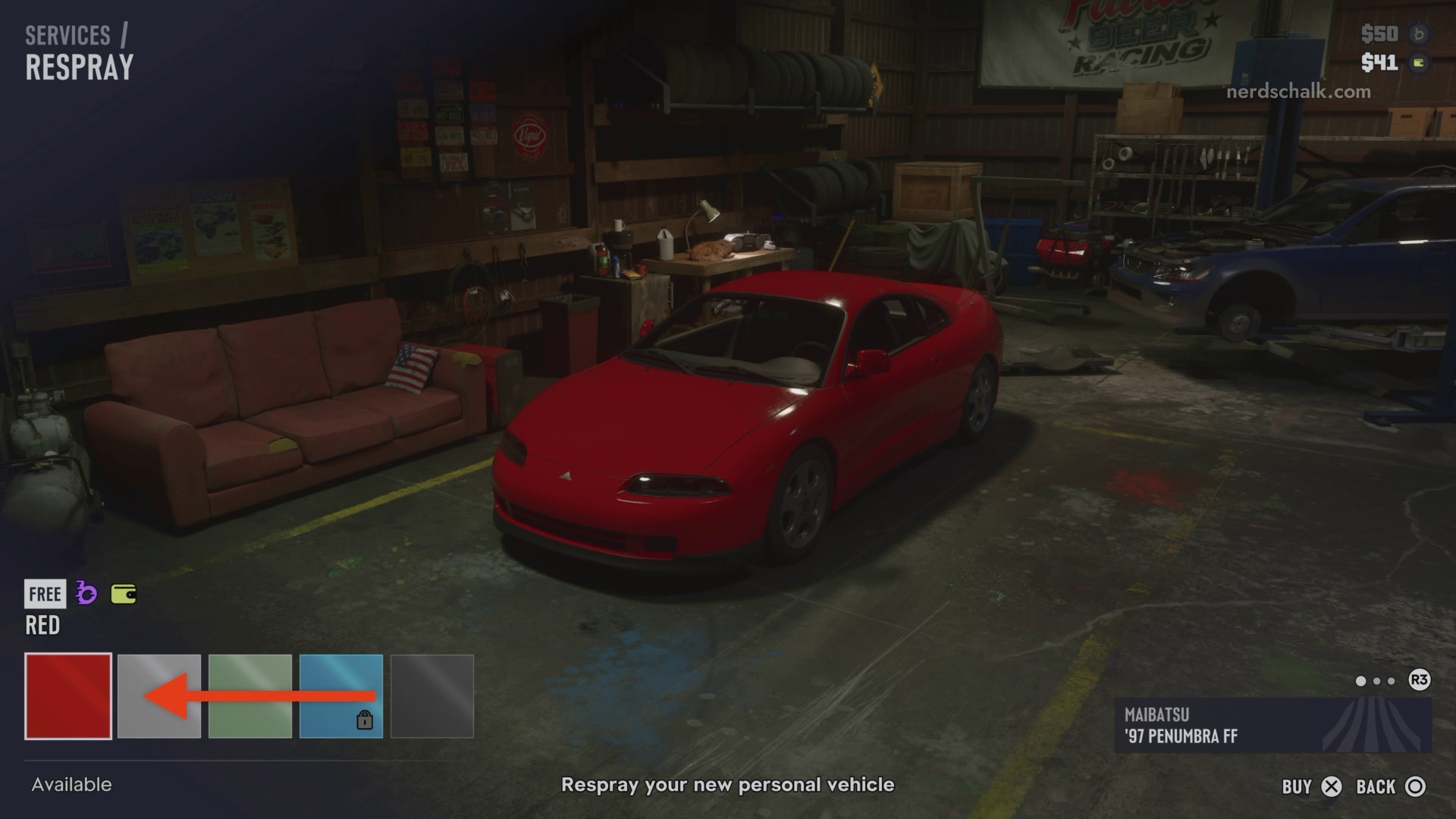
Red is also available in the palette, so browse the swatches to choose your preferred finish.
Register your vehicle
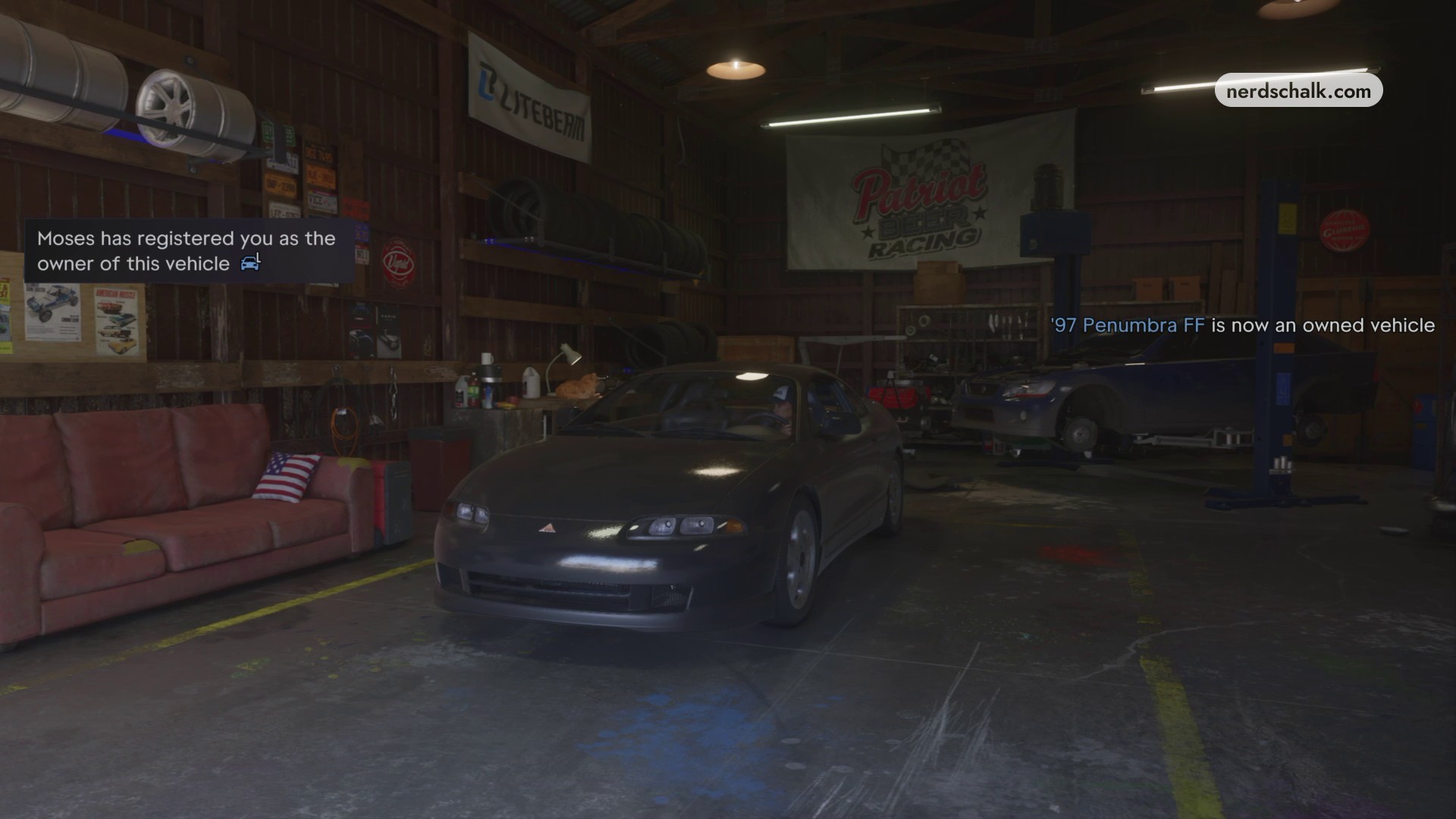
Return to the main menu, select Register and activate its BUY control. The paint screen also has a BACK control. Registration swaps the plates and makes the car your personal vehicle; its displayed price for this Penumbra FF is FREE. Completion brings two notifications: “Moses has registered you as the owner of this vehicle” and “‘97 Penumbra FF is now an owned vehicle.” The on-screen text reads 0/1 Stored vehicles.
Both ownership notifications appear here; look for them to know registration is complete.
Drive outside
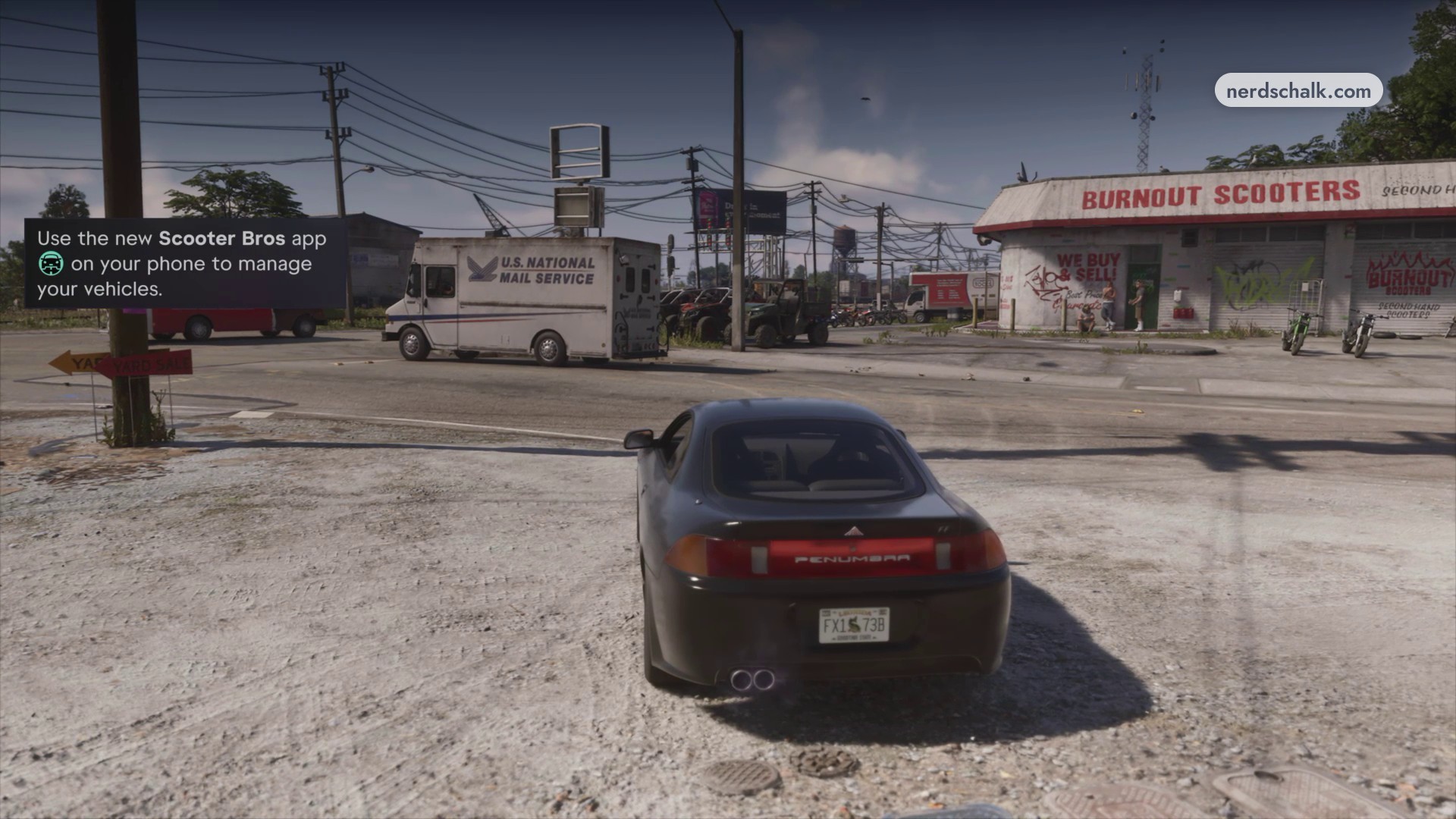
Take the repainted car through the garage bay and onto the dirt yard. Outside, you can see the finished black exterior.
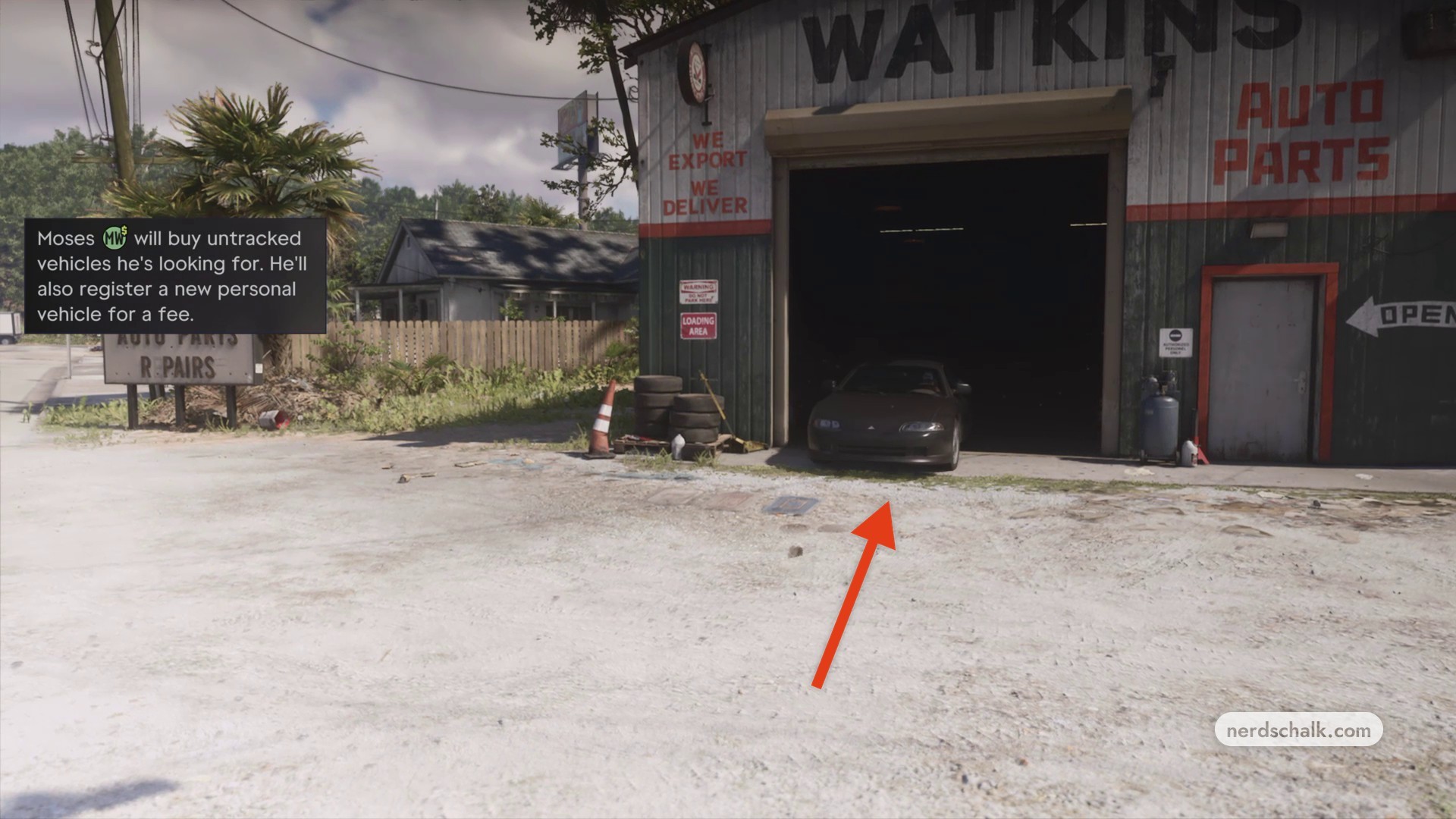
The open garage bay leads onto the yard; drive through this exit to leave the workshop.
Respray required
Moses buys untracked vehicles he’s looking for and offers new personal-vehicle registration for a fee.
Once you’re outside, the phone prompt points you to the new Scooter Bros app to manage your vehicles.
Related Grand Theft Auto VI guides
Leave a Reply