
You’re probably visiting this page because you’ve run into a drivers problem on your Nexus 7 while working with either adb, fastboot or just while connecting the device to PC for transferring files. It’s annoying to know that you’ve a drivers issue on your PC, and it gets even annoying when you can’t get it installed right.
Anyway, Google has been kind in providing USB drivers for all Nexus devices. And in most cases they work just fine. But however, it’s not an .exe file that a noob user could install without any help. So follow the guide below to get the proper drivers installed for your Nexus 7.
Note: The driver below would also work perfectly for following devices:
- LG Nexus 4
- LG Nexus 5
- Asus Nexus 7
- Asus Nexus 7 2013
Download driver
Download the Google USB Driver from this → link.
Once downloaded. Extract the downloaded “.zip” file to your computer and remember the folder location of extracted contents of the zip file.
Nexus 7 Driver installation
- Connect your Nexus 7 to the PC
- Open device manager on your PC
- Windows 7 & 8 users → search for Device Manager from Start (or Start screen) and click to open.
- Windows XP users → here’s how to.
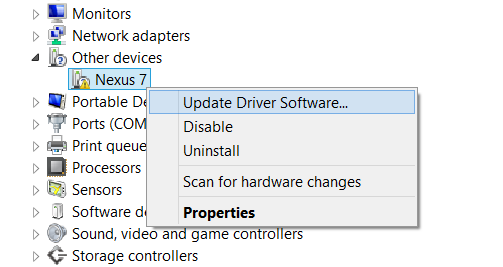
- You will see list of all devices attached to your computer in the device manager. Just find Nexus 7 (it’ll most probably be in the Other devices list with a yellow exclamation mark) and Right-click and select Update Driver Software…
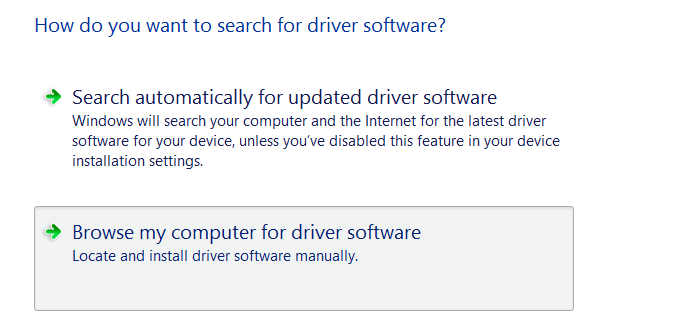
- Select Browse my computer for driver software in the next window
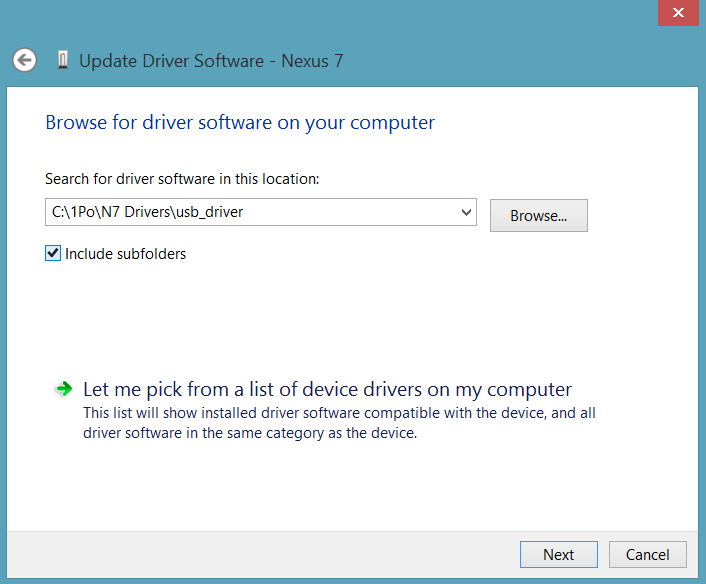
- Now click the Browse… button and select the folder where you extracted the downloaded Google USB Driver zip file (filename: latest_usb_driver_windows.zip). Do NOT select the zip file, select the folder where the contents of the zip file are extracted. And keep the Include subfolders box checked
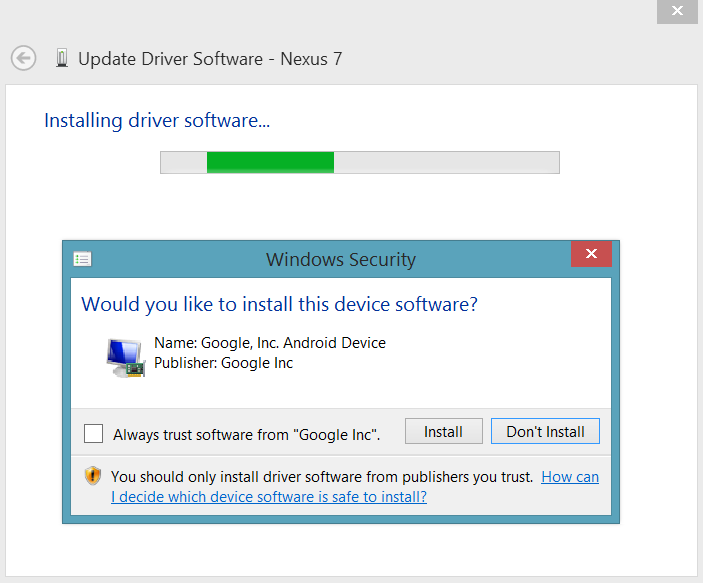
- During the installation (as a security check) Windows may ask your permission to install the drivers published by Google Inc. Click Install

- Once the installation is complete you’ll see a refreshed list of devices on the Device manager screen showing Nexus 7 driver installed successfully

Nexus 7 ADB and Bootloader drivers?
Well, the guide above is same for installation of Bootloader and ADB drivers as well. The Google USB Drivers file is universal. So if you’re running into Bootloader or ADB specific driver issues, just try the guide above and your computer would be fine. And make sure you connect your Nexus 7 in that particular mode to be able to install drivers for it.
For ADB driver
- First enable USB Debugging on your Nexus 7
- Now connect your Nexus 7 to your computer with a USB cable and follow then drivers installation guide above
For Bootloader/Fastboot driver
- Put your Nexus 7 in bootloader/fastboot mode:
- Switch off your Nexus 7
- Hold Volume Up Key + Volume Down Key and then press the Power button
- You’ll see a Android robot. And the first line on the bottom left corner would read FASTBOOT MODE in red
- Now connect your Nexus 7 to your computer with a USB cable and follow then drivers installation guide above
[l1]
TROUBLESHOOTING TIPS!
It may happen that drivers get successfully installed on your computer, and yet you are unable to get your Nexus 5 connected to your computer. It can be easily resolved, follow the steps below:
- Connect your phone to computer with a USB cable and open Device manager on your computer
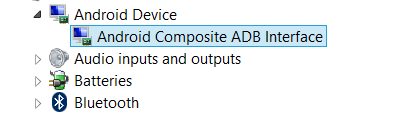
- Right click on the ‘Android Composite ADB Interface‘ entry and select uninstall
- In the uninstall pop-up that appears, tick ‘Delete the driver software for this device‘ checkbox and press the ‘Ok’ button.
- Disconnect your phone from your computer
- Disable USB debugging on your Nexus 7 from your phones Settings > Developer options > un-tick ‘USB debugging’ checkbox
- Put your phone in MTP mode
- Connect it back to your computer, and let the computer re-install drivers automatically. If it doesn’t re-installs driver, try toggling the ‘USB debugging’ option on your phone
- If it still fails to completely recognize your device in all three modes — MTP, ADB and Fastboot. Then try installing the drivers again following the guide above
Other tips:
- Connect your device to other USB ports on the computer
- Try different USB cables. The original cable that came with your device should work best, if not — try any other cable that’s new and of good quality
- Reboot computer
- Try on a different computer



111 responses to “Nexus 7 2013 Drivers Installation Guide”
Thank you!
Thank you!
Thank you!
My issue is that it just says “windows could not find a driver for your device”. Even after pointing to the correct folder.
Disconnect the USB from the device.
On the device, go to Settings -> Developer Options, and click Revoke USB debugging authorizations.
On the device, go to Settings -> Storage -> USB Computer Connection (available on the drop down menu at the top right of your screen). Verify that Media device (MTP) is checked.
Reconnect the device, and it should install successfully without a problem. If not, attempt to update the driver manually and point Windows to the usb_drivers folder of your SDK.
Credit to Lo-Tan on Stack Overflow for this one, it worked perfectly for me
Worked like charm !!!!
http://blog.kikicode.com/2013/10/installing-android-adb-driver-in.html
My issue is that it just says “windows could not find a driver for your device”. Even after pointing to the correct folder.
Disconnect the USB from the device.
On the device, go to Settings -> Developer Options, and click Revoke USB debugging authorizations.
On the device, go to Settings -> Storage -> USB Computer Connection (available on the drop down menu at the top right of your screen). Verify that Media device (MTP) is checked.
Reconnect the device, and it should install successfully without a problem. If not, attempt to update the driver manually and point Windows to the usb_drivers folder of your SDK.
Credit to Lo-Tan on Stack Overflow for this one, it worked perfectly for me
Worked like charm !!!!
http://blog.kikicode.com/2013/10/installing-android-adb-driver-in.html
My issue is that it just says “windows could not find a driver for your device”. Even after pointing to the correct folder.
Disconnect the USB from the device.
On the device, go to Settings -> Developer Options, and click Revoke USB debugging authorizations.
On the device, go to Settings -> Storage -> USB Computer Connection (available on the drop down menu at the top right of your screen). Verify that Media device (MTP) is checked.
Reconnect the device, and it should install successfully without a problem. If not, attempt to update the driver manually and point Windows to the usb_drivers folder of your SDK.
Credit to Lo-Tan on Stack Overflow for this one, it worked perfectly for me
Worked like charm !!!!
http://blog.kikicode.com/2013/10/installing-android-adb-driver-in.html
Same issue as pb1
Finally I got the correct answer to this dilemma, my older N7 was not so difficult. Thank you.
Same issue as pb1
Same issue as pb1
Finally I got the correct answer to this dilemma, my older N7 was not so difficult. Thank you.
Finally I got the correct answer to this dilemma, my older N7 was not so difficult. Thank you.
Same issue as PB1 and dan.
Same issue as PB1 and dan.
Same issue as PB1 and dan.
Same issue as the others.. That’s lame.
Same issue as the others.. That’s lame.
Same issue as the others.. That’s lame.
Doesn’t work for me as well (Win7 64). The dialog “Would you like to install…” shows that the driver is not properly signed (WHQLed), only self-signed. Such drivers don’t work on 64bit versions of Windows… 🙁
Doesn’t work for me as well (Win7 64). The dialog “Would you like to install…” shows that the driver is not properly signed (WHQLed), only self-signed. Such drivers don’t work on 64bit versions of Windows… 🙁
Doesn’t work for me as well (Win7 64). The dialog “Would you like to install…” shows that the driver is not properly signed (WHQLed), only self-signed. Such drivers don’t work on 64bit versions of Windows… 🙁
If you need the drivers to work in fast boot mode, boot the device into fastboot, and the device should appear in the Windows Device Manager. My device had the MTP drivers installed, but I could not connect to the device in fastboot mode. This fixed it!
If you need the drivers to work in fast boot mode, boot the device into fastboot, and the device should appear in the Windows Device Manager. My device had the MTP drivers installed, but I could not connect to the device in fastboot mode. This fixed it!
If you need the drivers to work in fast boot mode, boot the device into fastboot, and the device should appear in the Windows Device Manager. My device had the MTP drivers installed, but I could not connect to the device in fastboot mode. This fixed it!
Thanks so much! This is the only guide that actually helped me!
Thanks so much! This is the only guide that actually helped me!
Thanks so much! This is the only guide that actually helped me!
Yeap. Same issues as PB1. windows could not find driver software for your device
it’s not working…i tried 20 times but my windows can’t find the driver
Yeap. Same issues as PB1. windows could not find driver software for your device
Yeap. Same issues as PB1. windows could not find driver software for your device
it’s not working…i tried 20 times but my windows can’t find the driver
it’s not working…i tried 20 times but my windows can’t find the driver
I thought I was doing it wrong but I’m not the only one having this problem. I tried everything but no success… ‘Windows can’t find the driver”…
not sure what to think about it (running win 7/64),
when installing got the message that “windows has determined that the best driver software is already installed and is up to date – MTP USB Device” ???
The driver provider – Microsoft
date : 6/21/06
driver version : 6.1.7600.16385
digital signer : microsoft windows
and the google USB driver was not installed …
not needed….??
any ideas?
I thought I was doing it wrong but I’m not the only one having this problem. I tried everything but no success… ‘Windows can’t find the driver”…
I thought I was doing it wrong but I’m not the only one having this problem. I tried everything but no success… ‘Windows can’t find the driver”…
not sure what to think about it (running win 7/64),
when installing got the message that “windows has determined that the best driver software is already installed and is up to date – MTP USB Device” ???
The driver provider – Microsoft
date : 6/21/06
driver version : 6.1.7600.16385
digital signer : microsoft windows
and the google USB driver was not installed …
not needed….??
any ideas?
not sure what to think about it (running win 7/64),
when installing got the message that “windows has determined that the best driver software is already installed and is up to date – MTP USB Device” ???
The driver provider – Microsoft
date : 6/21/06
driver version : 6.1.7600.16385
digital signer : microsoft windows
and the google USB driver was not installed …
not needed….??
any ideas?
Its simple: put your device in PTP mode, wait for Windows to fail to auto-install. Then point to the ‘usb_driver’ folder.
Its simple: put your device in PTP mode, wait for Windows to fail to auto-install. Then point to the ‘usb_driver’ folder.
Its simple: put your device in PTP mode, wait for Windows to fail to auto-install. Then point to the ‘usb_driver’ folder.
leonard, did as advised but windows didn’t fail to auto-install, and did install PTP ? driver automatically, google USB still not installed. any other ideas? would disabling/renaming? or uninstalling microsoft driver help?
leonard, did as advised but windows didn’t fail to auto-install, and did install PTP ? driver automatically, google USB still not installed. any other ideas? would disabling/renaming? or uninstalling microsoft driver help?
leonard, did as advised but windows didn’t fail to auto-install, and did install PTP ? driver automatically, google USB still not installed. any other ideas? would disabling/renaming? or uninstalling microsoft driver help?
I don’t have “other devices.”
Changing USB cable or USB Port on your computer could help. If you’re struggling with drivers for ADB or Bootloader/Fastboot, know that you need to enable ADB first Or boot into bootloader mode first and then connect your Nexus 7 to your computer be able to see “Other devices” section in Device manager.
I don’t have “other devices.”
Changing USB cable or USB Port on your computer could help. If you’re struggling with drivers for ADB or Bootloader/Fastboot, know that you need to enable ADB first Or boot into bootloader mode first and then connect your Nexus 7 to your computer be able to see “Other devices” section in Device manager.
I don’t have “other devices.”
Changing USB cable or USB Port on your computer could help. If you’re struggling with drivers for ADB or Bootloader/Fastboot, know that you need to enable ADB first Or boot into bootloader mode first and then connect your Nexus 7 to your computer be able to see “Other devices” section in Device manager.
Thanks!! this works!!
Thanks!! this works!!