
[toc]
NEXUS 5 DRIVER INSTALLATION GUIDE
[/toc]
You’re probably visiting this page because you’ve run into a drivers problem on your Nexus 5 while working with either adb, fastboot or just while connecting the device to PC for transferring files. It’s annoying to know that you’ve a drivers issue on your PC, and it gets even annoying when you can’t get it installed right.
Anyway, Google has been kind in providing USB drivers for all Nexus devices. And in most cases they work just fine. But however, it’s not an .exe file that a noob user could install without any help. So follow the guide below to get the proper drivers installed for your Nexus 5.
METHOD 1: LG UNITED MOBILE DRIVER
As an anonymous user pointed out in comments section below, the LG Nexus 5 is a 100% LG device, only sold and marketed by Google. So support for the device will completely fall in the hands of LG, which goes to explain why Google hasn’t included driver support for Nexus 5 in Google USB Driver yet.
Anyway, the LG United Mobile Driver supports the Nexus 5, and has been reported working fine. You may want to try it out if other methods aren’t helping your case.
DOWNLOAD LG NEXUS 5 UNITED MOBILE DRIVER
LG United Mobile Driver v3.10.1 → DOWNLOAD LINK (Mirror link)
File name: LGUnitedMobileDriver_S50MAN310AP22_ML_WHQL_Ver_3.10.1.exe
File size: 10.9 MB
INSTALLING LG UNITED MOBILE DRIVER
- Disconnect your Nexus 5 from your computer
- Run/Start the LG United Mobile Driver’s .exe file that you downloaded from the downloads section above.
- Follow the on-screen instructions that the software gives you while installing drivers
- Once LG United Mobile Drivers has finished installing, connect your Nexus 5 to the computer. It should get detected.
[ad1]
METHOD 2: UNIVERSAL NAKED DRIVER
Looks like the Google USB driver package isn’t supporting Nexus 5 at the moment. So another good option to get drivers installed would be the Universal Naked Driver package. It has been recently updated with support for adb and fastboot drivers for Nexus 5.
DOWNLOAD UNIVERSAL NAKED DRIVER
Download the Universal naked driver from the link below and extract the zip file (using 7-zip, preferably) to a separate folder on your computer.
Universal naked driver 0.73 → DOWNLOAD LINK (Mirror link)
File name: Universal_Naked_Driver_0.73.zip
File size: 8.3 MB
STEP-BY-STEP GUIDE
Make sure to first remove any previously installed drivers for your Nexus 5 (whether working or not) before installing the universal naked drivers
Remove previously installed drivers
Skip this if you’re sure that you don’t have any previously installed driver for your Nexus 5.
- Connect your Nexus 5 to the PC
- Open device manager on your PC
- Windows 7 & 8 users → search for Device Manager from Start (or Start screen) and click to open.
- Windows XP users → Google it!
- You will see list of all devices attached to your computer in the device manager. And if any drivers for Nexus 5 are installed, right click on the entry and select ‘Uninstall‘, then ‘Ok‘ to confirm.
└ If there are no previous drivers installed for your Nexus 5, then you’ll find your device name in in the ‘Other devices‘ list with a yellow exclamation mark
Windows 8 users: Disable Driver Signature Enforcement
Skip this step if you’re not using Windows 8!
Windows 8 and 8.1 users need to disable the driver signature enforcement feature to be able to install the universal driver package.
- Open/click ‘Settings‘ from the slide-in panel on your Windows 8 PC which appears when you hover your mouse over the right corners of your computer’s screen, then click on Change PC settings/More PC settings
- Now select General tab, then scroll down to the bottom and select ‘Restart now‘ under Advanced start-up heading
- Select ‘Troubleshoot‘ » then Advanced Options » then Windows Startup Settings
- Then click ‘Restart‘
Install Universal Naked Driver
- Connect your Nexus 5 to the PC
- Open device manager on your PC
- Windows 7 & 8 users → search for Device Manager from Start (or Start screen) and click to open.
- Windows XP users → Google it!
- You will see list of all devices attached to your computer in the device manager. Just find Nexus 5 (it’ll most probably be in the Other devices list with a yellow exclamation mark) and Right-click and select Update Driver Software…

- Select Browse my computer for driver software in the next window
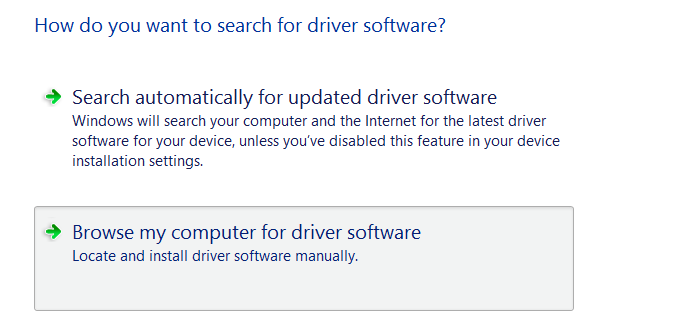
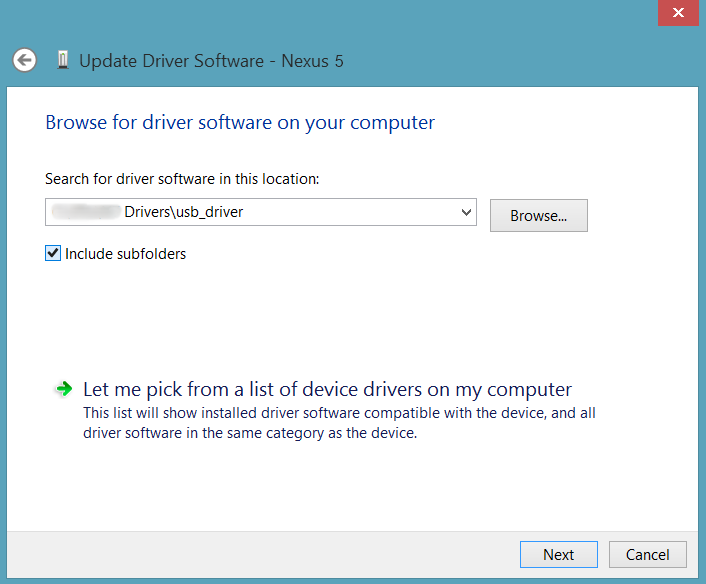
- Now click the Browse… button and select the folder where you extracted the downloaded Universal Naked Driver zip file (filename: Universal_Naked_Driver_0.73.zip). Do NOT select the zip file, select the folder where the contents of the zip file are extracted. And keep the Include subfolders box checked

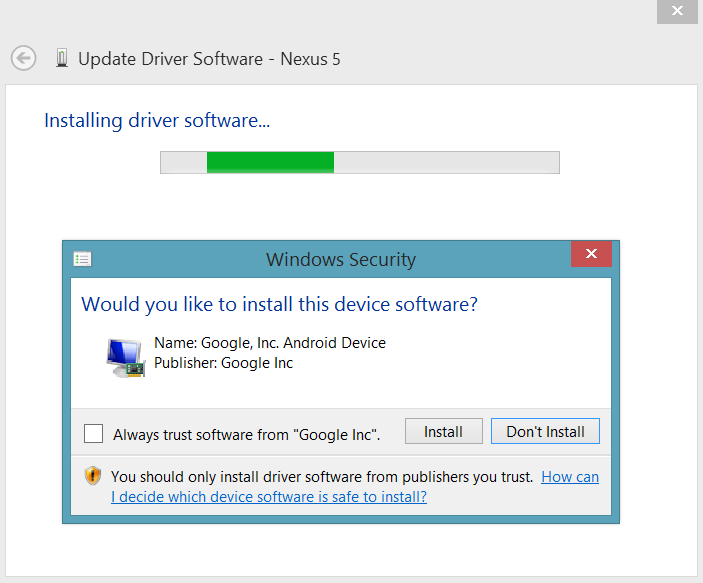
- During the installation (as a security check) Windows may ask your permission to install, just click Install
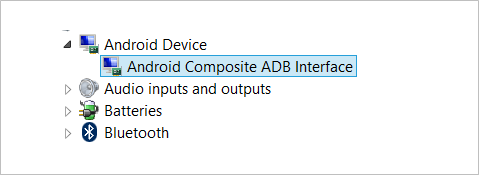
- Once the installation is complete you’ll see a refreshed list of devices on the Device manager screen showing Nexus 5 driver installed successfully
METHOD 3: GOOGLE USB DRIVER
Support for Nexus 5 hasn’t been added to Google USB Drivers yet, but the Nexus 4 drivers that are included in the Google USB Driver package are reportedly working for the Nexus 5 as well.
DOWNLOAD DRIVER
Download the Google USB Driver from this → link.
└ Once downloaded. Extract the downloaded “.zip” file to your computer and remember the folder location of extracted contents of the zip file.
NEXUS 5 DRIVER INSTALLATION GUIDE
- Connect your Nexus 5 to the PC
- Open device manager on your PC
- Windows 7 & 8 users → search for Device Manager from Start (or Start screen) and click to open.
- Windows XP users → Google it!
- You will see list of all devices attached to your computer in the device manager. Just find Nexus 5 (it’ll most probably be in the Other devices list with a yellow exclamation mark) and Right-click and select Update Driver Software…
└ Screenshot - Select Browse my computer for driver software in the next window
└ Screenshot - Now click the Browse… button and select the folder where you extracted the downloaded Google USB Driver zip file (filename: latest_usb_driver_windows.zip). Do NOT select the zip file, select the folder where the contents of the zip file are extracted. And keep the Include subfolders box checked
└ Screenshot - During the installation (as a security check) Windows may ask your permission to install the drivers published by Google Inc. Click Install
└ Screenshot - Once the installation is complete you’ll see a refreshed list of devices on the Device manager screen showing Nexus 5 driver installed successfully
└ Screenshot
[l1]
Nexus 5 ADB and Bootloader/Fastboot drivers?
Well, the guide above is same for installation of Bootloader and ADB drivers as well. So if you’re running into Bootloader or ADB specific driver issues, just try the guide above. And make sure you connect your Nexus 5 in that particular mode to be able to install drivers for it.
For ADB driver
- First enable USB Debugging on your Nexus 5
- Then connect your Nexus 5 to your computer with a USB cable and follow the drivers installation guide above
For Bootloader/Fastboot driver
- Put your Nexus 5 in bootloader/fastboot mode:
- Power off your device and wait for 5-10 seconds until the device is fully switched off.
- Press and hold Volume Down + Power button together and release them as soon as you see the bootloader screen.
└ You’ll see an Android robot. And the first line on the bottom left corner would read FASTBOOT MODE in red
- Now connect your Nexus 5 to your computer with a USB cable and follow then drivers installation guide above
TROUBLESHOOTING TIPS!
It may happen that drivers get successfully installed on your computer, and yet you are unable to get your Nexus 5 connected to your computer. It can be easily resolved, follow the steps below:
- Connect your phone to computer with a USB cable and open Device manager on your computer
- Right click on the ‘Android Composite ADB Interface‘ entry and select uninstall
- In the uninstall pop-up that appears, tick ‘Delete the driver software for this device‘ checkbox and press the ‘Ok’ button.
- Disconnect your phone from your computer
- Disable USB debugging on your Nexus 5 from your phones Settings > Developer options > un-tick ‘USB debugging’ checkbox
- Put your phone in MTP mode
- Connect it back to your computer, and let the computer re-install drivers automatically. If it doesn’t re-installs driver, try toggling the ‘USB debugging’ option on your phone
- If it still fails to completely recognize your device in all three modes — MTP, ADB and Fastboot. Then try installing the drivers again following the drivers installation guide above (preferably Universal Naked Driver or Google USB Driver)
Other tips:
- Connect your device to other USB ports on the computer
- Try different USB cables. The original cable that came with your device should work best, if not — try any other cable that’s new and of good quality
- Reboot computer
- Try on a different computer
That’s all.
Feedback us!
Let us know which drivers method worked best for you in the comments section below.
Your suggestions are most welcomed!




147 responses to “Nexus 5 Driver (ADB and Fastboot) Installation Guide”
thank you!
thank you!
For the Universal Naked Driver you could try adding:
;LG Nexus 5
%GoogleNexus5ADBInterface% = USB_Install, USBVID_18D1&PID_4EE2&REV_0232&MI_01
%GoogleNexus5ADBInterface% = USB_Install, USBVID_18D1&PID_4EE2&MI_00
%GoogleNexus5BootLoaderInterface% = USB_Install, USBVID_18D1&PID_4EE2&REV_0232
%GoogleNexus5BootLoaderInterface% = USB_Install, USBVID_18D1&PID_4EE2
to the [Google.NTx86] & [Google.NTamd64] sections in android_winusb.inf
and also:
; Google Nexus 5
GoogleNexus5BootLoaderInterface = “Google Nexus 5 BootLoader Interface”
GoogleNexus5ADBInterface = “Google Nexus 5 ADB Interface”
to the [Strings] section
except delete amp; The comments box here has changed the ampersands into their HTML codes
For the Universal Naked Driver you could try adding:
;LG Nexus 5
%GoogleNexus5ADBInterface% = USB_Install, USBVID_18D1&PID_4EE2&REV_0232&MI_01
%GoogleNexus5ADBInterface% = USB_Install, USBVID_18D1&PID_4EE2&MI_00
%GoogleNexus5BootLoaderInterface% = USB_Install, USBVID_18D1&PID_4EE2&REV_0232
%GoogleNexus5BootLoaderInterface% = USB_Install, USBVID_18D1&PID_4EE2
to the [Google.NTx86] & [Google.NTamd64] sections in android_winusb.inf
and also:
; Google Nexus 5
GoogleNexus5BootLoaderInterface = “Google Nexus 5 BootLoader Interface”
GoogleNexus5ADBInterface = “Google Nexus 5 ADB Interface”
to the [Strings] section
except delete amp; The comments box here has changed the ampersands into their HTML codes
For the Universal Naked Driver you could try adding:
;LG Nexus 5
%GoogleNexus5ADBInterface% = USB_Install, USBVID_18D1&PID_4EE2&REV_0232&MI_01
%GoogleNexus5ADBInterface% = USB_Install, USBVID_18D1&PID_4EE2&MI_00
%GoogleNexus5BootLoaderInterface% = USB_Install, USBVID_18D1&PID_4EE2&REV_0232
%GoogleNexus5BootLoaderInterface% = USB_Install, USBVID_18D1&PID_4EE2
to the [Google.NTx86] & [Google.NTamd64] sections in android_winusb.inf
and also:
; Google Nexus 5
GoogleNexus5BootLoaderInterface = “Google Nexus 5 BootLoader Interface”
GoogleNexus5ADBInterface = “Google Nexus 5 ADB Interface”
to the [Strings] section
except delete amp; The comments box here has changed the ampersands into their HTML codes
I tried alot… why does it says like this in the second method???? plz help
..
I tried alot… why does it says like this in the second method???? plz help
should i uninstall samsung hd ata device? bcz last time i tried to do this my computer restarted… i really searched all over the place to connect my phone to pc and transfer files but i cant do it in any way… no storage options are shown, either in mtp or ptp
I tried alot… why does it says like this in the second method???? plz help
I tried alot… why does it says like this in the second method???? plz help
..
..
I tried alot… why does it says like this in the second method???? plz help
I tried alot… why does it says like this in the second method???? plz help
should i uninstall samsung hd ata device? bcz last time i tried to do this my computer restarted… i really searched all over the place to connect my phone to pc and transfer files but i cant do it in any way… no storage options are shown, either in mtp or ptp
should i uninstall samsung hd ata device? bcz last time i tried to do this my computer restarted… i really searched all over the place to connect my phone to pc and transfer files but i cant do it in any way… no storage options are shown, either in mtp or ptp
THANK YOU SO MUCH, WORKED PERFECTLY!
THANK YOU SO MUCH, WORKED PERFECTLY!
THANK YOU SO MUCH, WORKED PERFECTLY!
guys my windows 8.1 laptop and connect to my nexus 5.adb detects the device but as soon as im in recovery, adb cant find the device?
Try flashing a different recovery on your phone, and see that can help.
im stock.unrooted and no custom recovery.i think i’ve got the update installed by using my windows 7 laptop…windows 8.1 argggggggggggg
Need modem port enable (and also Diag Port to detect in QPST) drivers for windows 7 system when i connect G Nexus 5 device… Please help me out? All the above methods are for enabling ADB Interface, this thing is done on my system, after accepting RA key on the phone UI.
Need modem port enable (and also COM Port) drivers for windows 7 system when i connect G Nexus 5 device… Please help me out? All the above methods are for enabling ADB Interface, this thing is done on my system. Method 2 worked for that.
Need modem port enable (and also COM Port) drivers for windows 7 system
when i connect G Nexus 5 device… Please help me out? All the above
methods are for enabling ADB Interface, this thing is done on my system.
Method 2 worked for that.
LG GOOGLE NEXUS 5 drivers for Modem detection on PC??
guys my windows 8.1 laptop and connect to my nexus 5.adb detects the device but as soon as im in recovery, adb cant find the device?
Try flashing a different recovery on your phone, and see that can help.
im stock.unrooted and no custom recovery.i think i’ve got the update installed by using my windows 7 laptop…windows 8.1 argggggggggggg
guys my windows 8.1 laptop and connect to my nexus 5.adb detects the device but as soon as im in recovery, adb cant find the device?
Try flashing a different recovery on your phone, and see that can help.
im stock.unrooted and no custom recovery.i think i’ve got the update installed by using my windows 7 laptop…windows 8.1 argggggggggggg
Need modem port enable (and also COM Port) drivers for windows 7 system when i connect G Nexus 5 device… Please help me out? All the above methods are for enabling ADB Interface, this thing is done on my system. Method 2 worked for that.
Need modem port enable (and also Diag Port to detect in QPST) drivers for windows 7 system when i connect G Nexus 5 device… Please help me out? All the above methods are for enabling ADB Interface, this thing is done on my system, after accepting RA key on the phone UI.
Need modem port enable (and also COM Port) drivers for windows 7 system
when i connect G Nexus 5 device… Please help me out? All the above
methods are for enabling ADB Interface, this thing is done on my system.
Method 2 worked for that.
LG GOOGLE NEXUS 5 drivers for Modem detection on PC??
ANY LINKS WHICH HELP OUT THE BELOW QUERIES??
Need modem port enable (and also COM Port) drivers for windows 7 system when i connect G Nexus 5 device… Please help me out? All the above methods are for enabling ADB Interface, this thing is done on my system.
Method 3 worked for that after accepting RA key on the phone UI.
Need modem port enable (and also COM Port) drivers for windows 7 system when i connect G Nexus 5 device… Please help me out? All the above methods are for enabling ADB Interface, this thing is done on my system.
Method 3 worked for that after accepting RA key on the phone UI.
ANY LINKS WHICH HELP OUT THE BELOW QUERIES??
If the installer tells you that it couldn’t find the drivers in the folder you selected when trying to install any drivers using the “Browse for driver software…” option, go back and select the “Let me pick” option, then click “Have Disk…” and navigate to the folder you originally tried to install from and select the .inf file that’s present.
It worked for me, hope it works for you.
If the installer tells you that it couldn’t find the drivers in the folder you selected when trying to install any drivers using the “Browse for driver software…” option, go back and select the “Let me pick” option, then click “Have Disk…” and navigate to the folder you originally tried to install from and select the .inf file that’s present.
It worked for me, hope it works for you.
If the installer tells you that it couldn’t find the drivers in the folder you selected when trying to install any drivers using the “Browse for driver software…” option, go back and select the “Let me pick” option, then click “Have Disk…” and navigate to the folder you originally tried to install from and select the .inf file that’s present.
It worked for me, hope it works for you.
So for some reason device manager shows Google nexus 5 adb interface instead of android composite ADB. Also in the fastboot mode device manager shows google 4 nexus adb interface when it should be nexus 5. I tried playing around with the android_winusb.inf file but nothing seems to change. what can i do?
So for some reason device manager shows Google nexus 5 adb interface instead of android composite ADB. Also in the fastboot mode device manager shows google 4 nexus adb interface when it should be nexus 5. I tried playing around with the android_winusb.inf file but nothing seems to change. what can i do?
So for some reason device manager shows Google nexus 5 adb interface instead of android composite ADB. Also in the fastboot mode device manager shows google 4 nexus adb interface when it should be nexus 5. I tried playing around with the android_winusb.inf file but nothing seems to change. what can i do?
Worked fine for me. At the and with Google drivers I managed to get the wright response after the fastboot devices command. Thanks very much!!
Suggestion: Please add to the tips how you can check with the fastboot command and that result is a list with the Serial number. I was expecting something like Nexus5 or so, and only the next day I realized the “strange” figure could be of my own phone!
Worked fine for me. At the and with Google drivers I managed to get the wright response after the fastboot devices command. Thanks very much!!
Suggestion: Please add to the tips how you can check with the fastboot command and that result is a list with the Serial number. I was expecting something like Nexus5 or so, and only the next day I realized the “strange” figure could be of my own phone!
Worked fine for me. At the and with Google drivers I managed to get the wright response after the fastboot devices command. Thanks very much!!
Suggestion: Please add to the tips how you can check with the fastboot command and that result is a list with the Serial number. I was expecting something like Nexus5 or so, and only the next day I realized the “strange” figure could be of my own phone!
Worked fine for me. At the and with Google drivers I managed to get the wright response after the fastboot devices command. Thanks very much!!
Suggestion: Please add to the tips how you can check with the fastboot command and that result is a list with the Serial number. I was expecting something like Nexus5 or so, and only the next day I realized the “strange” figure could be of my own phone!