- What to know
- Preparing your iPhone for Live Translation
- How to set up Live Translation for Phone Calls
- Integrating Live Translation with AirPods
- How to enable Live Translation in Messages
- Using Live Translation in FaceTime
- Troubleshooting Common Issues with turning on live translation on your iPhone on iOS 26
- Live translation on iOS 26 is fun!
What to know
- Live Translation in iOS 26 uses Apple Intelligence for on-device, real-time translation of speech and text in apps like Messages, FaceTime, Phone, and with compatible AirPods.
- It supports languages including English, French, German, Portuguese (Brazil), Spanish, Japanese, Korean, and Chinese (Simplified), but availability varies by region and device.
- Requires an iPhone 15 Pro or later running iOS 26, with Apple Intelligence enabled; AirPods integration works on AirPods 4 (ANC), Pro 2, or Pro 3 with latest firmware.
- Not available in the EU for AirPods features due to regional restrictions, and translations prioritize privacy by processing entirely on-device.
Live Translation in iOS 26 brings seamless, real-time language support right into your everyday conversations, whether you’re texting a friend abroad or chatting on a call. Powered by Apple Intelligence, this feature translates speech and text without needing an internet connection, keeping your data private. As of September 16, 2025, iOS 26 has just rolled out, making it easier than ever to bridge communication gaps on your compatible iPhone. You’ll find it integrated across key apps, and you can even pair it with AirPods for hands-free use.
Preparing your iPhone for Live Translation
Before diving into app-specific setups, ensure your device meets the requirements and has the necessary downloads. This step keeps everything running smoothly and offline-capable.
First, confirm compatibility: Your iPhone must be a 15 Pro or newer model, updated to iOS 26. Apple Intelligence, which powers the feature, is available only on these devices.
How to update to iOS 26

How to enable Apple Intelligence
How to download offline language packs
Live Translation works best offline, so download language files to avoid interruptions.


How to set up Live Translation for Phone Calls
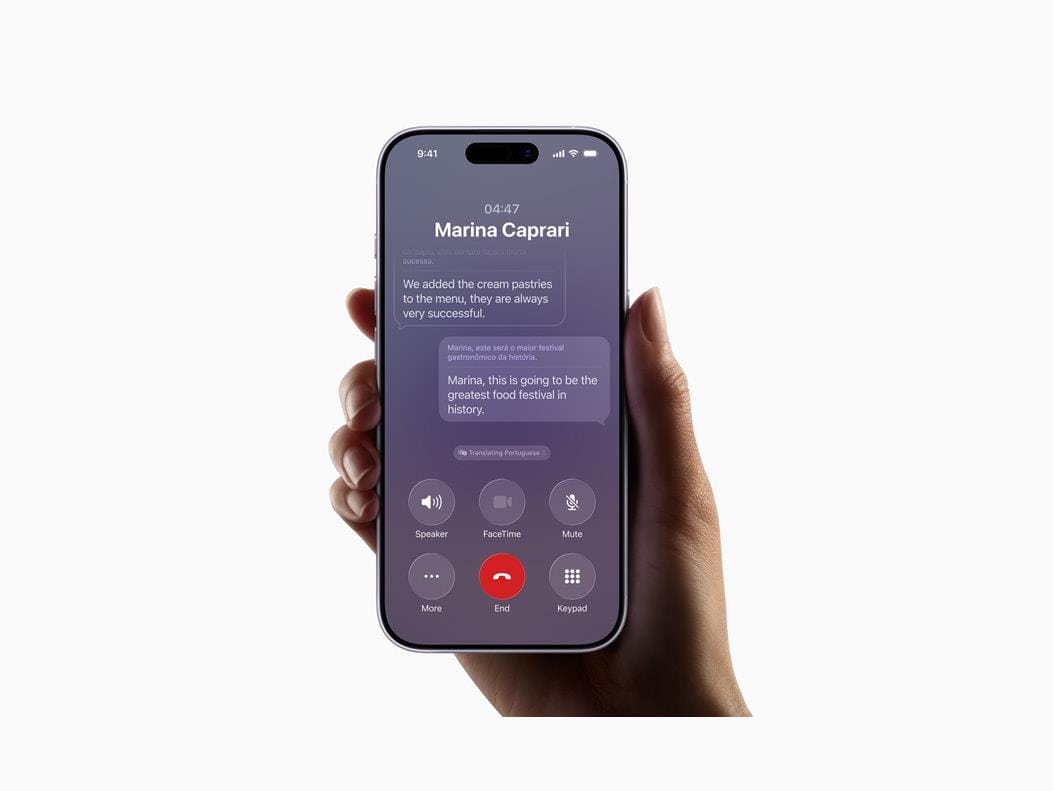
This extends to regular calls, translating speech in real-time—even to landlines. Your words appear translated on-screen for the other person, and theirs are spoken aloud to you.
How to enable it during a call


It works on iPhone, and now extends to iPad and Mac via the Phone app in iPadOS 26 and macOS 26.
Integrating Live Translation with AirPods
Pair your AirPods for in-person or call-based translation without holding your iPhone. Compatible models include AirPods 4 with Active Noise Cancellation, AirPods Pro 2, or AirPods Pro 3 (with latest firmware). This isn’t available in the EU.
How to update AirPods firmware
How to start Live Translation with AirPods
| Feature | Supported Apps | Languages | Device Requirements | Regional Notes |
|---|---|---|---|---|
| Text Translation | Messages | English, Chinese (Simplified), French, German, Italian, Japanese, Korean, Portuguese (Brazil), Spanish (Spain) | iPhone 15 Pro+ with iOS 26 | Full global availability |
| Speech Translation (Calls/FaceTime) | Phone, FaceTime | English (UK/U.S.), French (France), German, Portuguese (Brazil), Spanish (Spain) | iPhone 15 Pro+ with iOS 26 | One-on-one calls only; works with any call type |
| AirPods Integration | In-person, Calls | Same as above (beta for some) | AirPods 4 (ANC), Pro 2/3 + iPhone 15 Pro+ | Not available in EU; firmware update required |
How to enable Live Translation in Messages
You can translate incoming and outgoing texts automatically in individual or group chats, making multilingual conversations effortless. This works for supported languages like English, Chinese (Simplified), French, German, Italian, Japanese, Korean, Portuguese (Brazil), and Spanish (Spain).
How to turn on automatic translation in a chat


If you receive a message in another language without auto-translate enabled, long-press the bubble and select Translate for one-off use.
Using Live Translation in FaceTime
For video calls, Live Translation provides real-time captions and spoken audio in your language, but it’s limited to one-on-one calls in select languages: English (UK/U.S.), French (France), German, and Portuguese (Brazil), Spanish (Spain).
How to activate it during a FaceTime call
No pre-setup is needed beyond enabling Apple Intelligence, but ensure both parties have good audio for best results.
Troubleshooting Common Issues with turning on live translation on your iPhone on iOS 26
If Live Translation isn’t working, try these steps to get back on track.
For accuracy, note that results can vary by accent or context—Apple continues to refine this with iOS updates.
Live translation on iOS 26 is fun!
You’ve now got the tools to enable and use Live Translation, turning your iPhone into a versatile communicator across languages. As iOS 26 evolves, keep an eye on software updates for expanded language support and improvements—it’s a game-changer for global connections.