
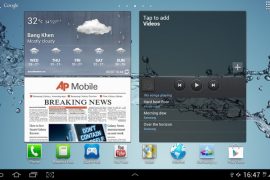
After making people wait for many months, Samsung recently started rolling out the Android 4.0 for their existing line of tablets, starting with the Galaxy Tab 7.7 P6800, bringing all the Ice Cream Sandwich features such as improved multitasking, better data management, a new interface, and more.
The update for the Galaxy Tab 7.7 – firmware XXLQ1 – is available online for manual flashing, in case the update hasn’t reached your device yet or if you do not want to wait for it to arrive. And the guide below will help you flash the Android 4.0.4 update on your tablet.
Important! Keep in mind that this firmware is ONLY for the Galaxy Tab P6800, which is the Wi-Fi+3G variant. It will NOT work on the P6810 aka the Wi-Fi-only variant.
Read on to find out how you can manually update your Galaxy Tab 7.7 to Android 4.0.
Compatibility
This ROM and the guide below are compatible only and only with the Samsung Galaxy Tab 7.7, model number P6800. It’s not compatible with any other device. Check your device model in Settings » About tablet.
Warning!
The methods and procedures discussed here are considered risky and you should not attempt anything if you don’t know exactly what you are doing. If any damage occurs to your device, we won’t be held liable.
How to Update Galaxy Tab 7.7 P6800 to Android 4.0 XXLQ1 Firmware
- First, download and install Kies on your computer in order to install the drivers for the tablet. After installing Kies, however, make sure Kies is NOT running. Exit it from the Taskbar at the bottom if it is running as it can interfere with the flashing process.
- To be sure you don’t lose data, backup your Apps and important data — bookmarks, contacts, SMS, APNs (internet settings), etc. This Android backup guide would help you.
Important! Don’t forget to at least make a backup of your APN settings, which you can restore later if your data connection does not work after installing the ROM. Use the backup guide to find out how. - Download the XXLQ1 Android 4.0.4 firmware:
Download Link | Filename: XXLQ1_OXALQ1_ATO.rar - Extract the XXLQ1_OXALQ1_ATO.rar file to get a folder with this file inside — P6800OXALQ1_P6800XXLQ1_HOME.tar.md5, which you will be using in Odin’s PDA box to be flashed on phone.
- Download Odin 1.85 from → here.
Filename: Odin3-v1.85.zip - Extract the contents of the Odin3-v1.85.zip file to a folder.
- Now, turn off your Galaxy Tab 7.7, then boot into Download Mode. To do so, press and hold the Volume Down + Power buttons till the screen turns on, then let go of the power button but KEEP holding the Volume Down button till you get a caution prompt asking you whether you want to enter download mode. Here, let go of the volume down button then press the Volume Up button to confirm and enter download mode.
- Open Odin (from step 3) — double-click the Odin3 v1.85.exe that you got after extracting the file Odin3-v1.85.zip.
- Connect your tablet to the computer. You should get the message “Added!” under Odin’s message box in the bottom left. If you don’t get this message, then probably there is a problem with drivers. Check that Kies is properly installed (but again, make sure it is not actively running even in the taskbar). Also try to switch to another USB port – preferably a USB port on the back if using a desktop computer.
- In ODIN, click the PDA tab, then select the file you obtained in step 4 — P6800OXALQ1_P6800XXLQ1_HOME.tar.md5.
- Important! Do not make any other changes in Odin except selecting the required file in PDA as given in step 9. Leave all other options as they are. Do NOT check the Re-partition option.
- Now, hit the START button to start flashing the XXLQ1 Android 4.0 firmware on your Galaxy Tab 7.7. After the flashing is complete, the tablet will automatically reboot. You’ll also get a PASS message in ODIN. You can now safely disconnect your tablet from the computer. What to do if Odin gets stuck: If ODIN gets stuck and doesn’t seem to be doing anything, or you get a FAIL message (with red background) in ODIN, disconnect the phone from the PC, close ODIN, remove battery, re-insert it, turn tablet on in Download mode again, and do the procedure again from Step 7.
- If you run into any roadblocks while flashing the firmware, let us know and we’ll help you out.
Your Galaxy Tab 7.7 has been successfully updated to Android 4.0.4 Ice Cream Sandwich. Let us know how it works for you, in the comments below.




334 responses to “ICS Android 4.0.4 Update for Samsung Galaxy Tab 7.7 P6800 [Guide]”
It’s works very nice in my Samsung Galaxy Tab 7.7. Thank you…..
Tank you, it’s Ok for me, to. Good tutorial
For me it worked like charm…thanks a lot
It’s works very nice in my Samsung Galaxy Tab 7.7. Thank you…..
It’s works very nice in my Samsung Galaxy Tab 7.7. Thank you…..
Works perfectly! Cheers!
Tank you, it’s Ok for me, to. Good tutorial
Tank you, it’s Ok for me, to. Good tutorial
For me it worked like charm…thanks a lot
For me it worked like charm…thanks a lot
Works perfectly! Cheers!
Works perfectly! Cheers!
Couldn’t boot before and can’t boot after flashing 4.0.4. During boot stops showing “Samsung GALAXY Tab 7.7”. After putting it off, battery charging is shown. PC gives message “Doesn’t recognise USB.-…”. Flashed 4.0.4 two times, same failure. 7.7 can’t remove battery. What next????
Couldn’t boot before and can’t boot after flashing 4.0.4. During boot stops showing “Samsung GALAXY Tab 7.7”. After putting it off, battery charging is shown. PC gives message “Doesn’t recognise USB.-…”. Flashed 4.0.4 two times, same failure. 7.7 can’t remove battery. What next????
Couldn’t boot before and can’t boot after flashing 4.0.4. During boot stops showing “Samsung GALAXY Tab 7.7”. After putting it off, battery charging is shown. PC gives message “Doesn’t recognise USB.-…”. Flashed 4.0.4 two times, same failure. 7.7 can’t remove battery. What next????
I did the update, but now I have no wifi connection. Does anyone know why?
Same thing.
I disabled mobile data connection and WiFi. Then I switched to flight mode. Then I restarted the tablet. After that I switched off flight mode and turned on WiFi. This worked for me. Maybe just restarting the tablet is enough. But in other cases with android phones I used this method to get the radio back to normal when just restarting wouldn’t work.
EVeryone is not lucky as you are and but with my tab now only Mobile data works fine.
Wifi drops after booting in some seconds. very odd problem
my tab has been rooted, will i be able to update it?
works perfect. But had some issues until reset my device
After I flashed to ICS 4.0.4 I have lost root access.
Now, when I try rooting again (recovery mode) it says:
E: Signature verification failed
I copied the file (root.zip) to the SD again, and again. Same problem.
Has anyone had this problem?
kurioso
You have to go back to HC, install the root.zip and then upgrade to ICS.
Check this out
http://forum.xda-developers.com/showthread.php?t=1487991
CWM is available in this thread http://forum.xda-developers.com/show….php?t=1542897
Flash it with Odin, Mobile Odin or Heimdall. Just open it in PDA like you would with a full rom, it will detect that it’s just the recovery.
Then get the CWM installable SuperSU package from Chainfire’s thread here http://forum.xda-developers.com/show….php?t=1538053
Then boot to CWM recovery (VolUp+Power) and flash the SuperSU zip.
I did the update, but now I have no wifi connection. Does anyone know why?
Same thing.
I disabled mobile data connection and WiFi. Then I switched to flight mode. Then I restarted the tablet. After that I switched off flight mode and turned on WiFi. This worked for me. Maybe just restarting the tablet is enough. But in other cases with android phones I used this method to get the radio back to normal when just restarting wouldn’t work.
EVeryone is not lucky as you are and but with my tab now only Mobile data works fine.
Wifi drops after booting in some seconds. very odd problem
I did the update, but now I have no wifi connection. Does anyone know why?
Same thing.
I disabled mobile data connection and WiFi. Then I switched to flight mode. Then I restarted the tablet. After that I switched off flight mode and turned on WiFi. This worked for me. Maybe just restarting the tablet is enough. But in other cases with android phones I used this method to get the radio back to normal when just restarting wouldn’t work.
EVeryone is not lucky as you are and but with my tab now only Mobile data works fine.
Wifi drops after booting in some seconds. very odd problem
my tab has been rooted, will i be able to update it?
my tab has been rooted, will i be able to update it?
works perfect. But had some issues until reset my device
works perfect. But had some issues until reset my device
After I flashed to ICS 4.0.4 I have lost root access.
Now, when I try rooting again (recovery mode) it says:
E: Signature verification failed
I copied the file (root.zip) to the SD again, and again. Same problem.
Has anyone had this problem?
kurioso
You have to go back to HC, install the root.zip and then upgrade to ICS.
Check this out
http://forum.xda-developers.com/showthread.php?t=1487991
After I flashed to ICS 4.0.4 I have lost root access.
Now, when I try rooting again (recovery mode) it says:
E: Signature verification failed
I copied the file (root.zip) to the SD again, and again. Same problem.
Has anyone had this problem?
kurioso
You have to go back to HC, install the root.zip and then upgrade to ICS.
Check this out
http://forum.xda-developers.com/showthread.php?t=1487991
CWM is available in this thread http://forum.xda-developers.com/show….php?t=1542897
Flash it with Odin, Mobile Odin or Heimdall. Just open it in PDA like you would with a full rom, it will detect that it’s just the recovery.
Then get the CWM installable SuperSU package from Chainfire’s thread here http://forum.xda-developers.com/show….php?t=1538053
Then boot to CWM recovery (VolUp+Power) and flash the SuperSU zip.
CWM is available in this thread http://forum.xda-developers.com/show….php?t=1542897
Flash it with Odin, Mobile Odin or Heimdall. Just open it in PDA like you would with a full rom, it will detect that it’s just the recovery.
Then get the CWM installable SuperSU package from Chainfire’s thread here http://forum.xda-developers.com/show….php?t=1538053
Then boot to CWM recovery (VolUp+Power) and flash the SuperSU zip.
Update went smoothly and quickly thanks to your instructions 🙂
Update went smoothly and quickly thanks to your instructions 🙂
Update went smoothly and quickly thanks to your instructions 🙂
Works perfectly for me!Thank you!
Works perfectly for me!Thank you!
Works perfectly for me!Thank you!
WOW… it’x perfect! 🙂
Hi, my tab is successfully added to ordin and i have started the update but it was stuck at ‘setupconnection’ in the ordin message. May I know if this is normal and how long does it take to be updated? Thank you.
WOW… it’x perfect! 🙂
WOW… it’x perfect! 🙂
Hi, my tab is successfully added to ordin and i have started the update but it was stuck at ‘setupconnection’ in the ordin message. May I know if this is normal and how long does it take to be updated? Thank you.
Hi, my tab is successfully added to ordin and i have started the update but it was stuck at ‘setupconnection’ in the ordin message. May I know if this is normal and how long does it take to be updated? Thank you.
Successfully updated my 7.7 tab to 4.0.4 version. I’m a Romanian user and it works perfect. Go out and make the upgrade!!!
it’s works very nice in my Samsung Galaxy Tab 7.7. Thank you
Just flash to ICS. Very simple guideline and the procedure just run smoothly. Thank you very much!!
Guys could anyone made the update test Arabic support on it. Just try this website http://www.kherna.com and send screenshot to me please 😀
Successfully updated my 7.7 tab to 4.0.4 version. I’m a Romanian user and it works perfect. Go out and make the upgrade!!!
Successfully updated my 7.7 tab to 4.0.4 version. I’m a Romanian user and it works perfect. Go out and make the upgrade!!!
it’s works very nice in my Samsung Galaxy Tab 7.7. Thank you
it’s works very nice in my Samsung Galaxy Tab 7.7. Thank you