
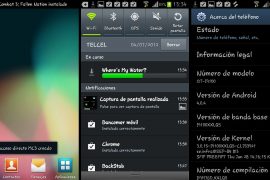
The disappointing news a few days ago that the Galaxy S2 will not be getting updated to Android 4.0.4 and will be stuck at 4.0.3 has been null and voided by an actual Android 4.0.4 firmware that has leaked for the phone — XXLQ5. Android 4.0.4 is quite smoother and faster and more stable than 4.0.3, so people stuck on the not-so-smooth 4.0.3 on the Galaxy S2 will be very happy.
Keep in mind that XXLQ5 is a leaked hence unfinished firmware, and while it may work without any major problems, it may have a few bugs and issues. There are reports that the firmware is quite smoother than previous ones without any noticeable problems, so it is completely usable as a daily driver.
Read on to find out how you can update your Galaxy S2 to Android 4.0.4 with the XXLQ5 firmware.
Compatibility
This firmware and the guide below are compatible only and only with Galaxy S2, model number I9100. It’s not compatible with the I9100G or any other device. Check your device’s model number in: Settings » About phone.
Warning!
The methods and procedures discussed here are considered risky and you should not attempt anything if you don’t know completely what it is. If any damage occurs to your device, we won’t be held liable.
How to Install XXLQ5 Android 4.0.4 Firmware on Galaxy S2 i9100
- This procedure will wipe all your apps, data and settings (but it will NOT touch your SD cards, so don’t worry about those). Backup your Apps and important data — bookmarks, contacts, SMS, APNs (internet settings), etc. This Android backup guide would help you.
Important! Don’t forget to at least make a backup of your APN settings, which you can restore later if your data connection does not work after installing the ROM. Use the backup guide to find out how. - It’s important you’ve the proper drivers for the phone installed. If you have installed Samsung’s Kies software, you already have the drivers, so download them only if you haven’t installed Kies.
Download links: 32 bit (x86) Windows | 64-bit (x64) Windows - Download the firmware.
Download XXLQ5 | Filename: I9100XXLQ5_I9100OXALQ5_OXA.zip | Size: 387 MB - Extract the downloaded zip file once to get the following files (you might see the file name end with .tar instead of .md5 as the file extension is usually hidden, so it’s normal):
- I9100_CODE_I9100XXLQ5_CL753921_REV02_user_low_ship.tar.md5
- GT-I9100-MULTI-CSC-OXALQ5.tar.md5
- MODEM_I9100XXLQ5_REV_02_CL1165929.tar.md5
- u1_02_20120326_emmc_EXT4_8GB.pit [ignore this one]
- Download Odin 1.85 from → here.
Filename: Odin 1.85.zip | Size: 199 KB - Extract the contents of the Odin 1.85.zip file to a folder.
- Disconnect your phone if it’s connected to PC, then switch it off.
- Now, put the Galaxy S2 in Download Mode — press and hold these keys together: Volume Down + Home + Power. A Warning! screen will come up; press Volume Up key to continue to enter Download Mode.
- Open Odin — double-click the Odin3 v1.85.exe that you got after extracting the file Odin 1.85.zip.
- Connect your phone to PC now. You should get the message “Added!” under Odin’s message box in the bottom left.
If you don’t get this message, then probably there is a problem with drivers. Make sure you’ve proper drivers installed (check step 2). Also, uninstall Kies from the Control Panel as well (this will leave the drivers on the computer but remove Kies which can interfere with the procedure). - In ODIN, do the following:
- Click on PDA and select I9100_CODE_I9100XXLQ5_CL753921_REV02_user_low_ship.tar.md5 (from step 4.1)
- Click on PHONE and select MODEM_I9100XXLQ5_REV_02_CL1165929.tar.md5.
- Click on CSC and select GT-I9100-MULTI-CSC-OXALQ5.tar.md5.
- Important! Do not make any other changes in Odin except selecting the required files as given in step 11. Leave all other options as they are. Your ODIN screen should look this after making necessary changes (the COM# in the yellow box may be different which is normal):

- Now, hit the START button to start flashing the firmware. When the flashing is complete, your phone will automatically reboot — and when you see the Samsung logo, you can safely unplug the cable. Plus, you’ll get a PASS (with green background) message in the left-most box at the very top of the Odin. What to do if Odin gets stuck: If ODIN gets stuck and doesn’t seem to be doing anything, or you get a FAIL message (with red background) in ODIN, disconnect the phone from the PC, close ODIN, remove battery, re-insert it, turn phone on in Download mode again, and do the procedure again from Step 9.
- If you run into any roadblocks while flashing the firmware, let us know and we’ll help you out.

XXLQ5 firmware, based on Android 4.0.4 Ice Cream Sandwich is now up and running on your Galaxy S2 i9100. Try it out and let us know how it works for you, in the comments below.




239 responses to “ICS Android 4.0.4 Update for Samsung Galaxy S2 International Version i9100”
i dont get the added message. what should i do?
hi, my installation stops at 90% where it is installing Hidden.img, i’ve repeated the step a few times but to no avial. any help please?
hi, my installation stops at 90% where it is installing Hidden.img, i’ve repeated the step a few times but to no avial. any help please?
Great guide!
should it really take so long for the phone to start after installing?
HI, could you help me…..i’m always getting this message…look the picture below
dude turn all kies drivers off, and enable usb debugging.
Great guide!
should it really take so long for the phone to start after installing?
Great guide!
should it really take so long for the phone to start after installing?
HI, could you help me…..i’m always getting this message…look the picture below
dude turn all kies drivers off, and enable usb debugging.
HI, could you help me…..i’m always getting this message…look the picture below
dude turn all kies drivers off, and enable usb debugging.
thanks its working 5n thanks a lot
thanks its working 5n thanks a lot
thanks its working 5n thanks a lot
i cannot extract file RAR.. this file need a password!!
i cannot extract file RAR.. this file need a password!!
i cannot extract file RAR.. this file need a password!!
i have done upgrading but my call voice not goiung n coming plzz tell me about this issue
i have done upgrading but my call voice not goiung n coming plzz tell me about this issue
i have done upgrading but my call voice not goiung n coming plzz tell me about this issue
it’s working perfectly
many thanks dear
it’s working perfectly
many thanks dear
it’s working perfectly
many thanks dear
here you get ICS 4.0.4 XXLQ6 stock rom for s2 with steps to install
http://www.adityandroid.com/2012/10/update-galaxy-s2-i9100-to-android-404.html
here you get ICS 4.0.4 XXLQ6 stock rom for s2 with steps to install
http://www.adityandroid.com/2012/10/update-galaxy-s2-i9100-to-android-404.html
here you get ICS 4.0.4 XXLQ6 stock rom for s2 with steps to install
http://www.adityandroid.com/2012/10/update-galaxy-s2-i9100-to-android-404.html
I just installed the ICS 4.0.4 on my S2 and it seems to run fine. Internet is much faster, google map is much more refined. Looks good, so far. I used the European version, therefore there is no Indonesian language. But that is OK, used English most of the time. Great job and thanks. Will let you know if it saves battery.
I just installed the ICS 4.0.4 on my S2 and it seems to run fine. Internet is much faster, google map is much more refined. Looks good, so far. I used the European version, therefore there is no Indonesian language. But that is OK, used English most of the time. Great job and thanks. Will let you know if it saves battery.
I just installed the ICS 4.0.4 on my S2 and it seems to run fine. Internet is much faster, google map is much more refined. Looks good, so far. I used the European version, therefore there is no Indonesian language. But that is OK, used English most of the time. Great job and thanks. Will let you know if it saves battery.
I did everything just as it says,
But everything keeps crashing
What to do?!
I did everything just as it says,
But everything keeps crashing
What to do?!
I did everything just as it says,
But everything keeps crashing
What to do?!