
Personalizing your device is one of the joys of owning an Android smartphone. With the Arc Search app, you now have the option to change its app icon directly from within the app, allowing you to match its appearance to your personal style or home screen theme. Here’s a detailed guide on how to set a custom app icon for Arc Search on Android.
How to Change the Arc Search App Icon
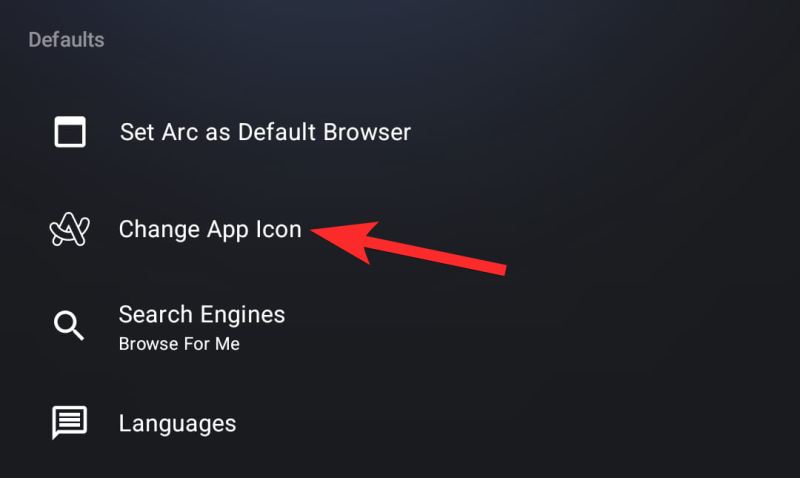
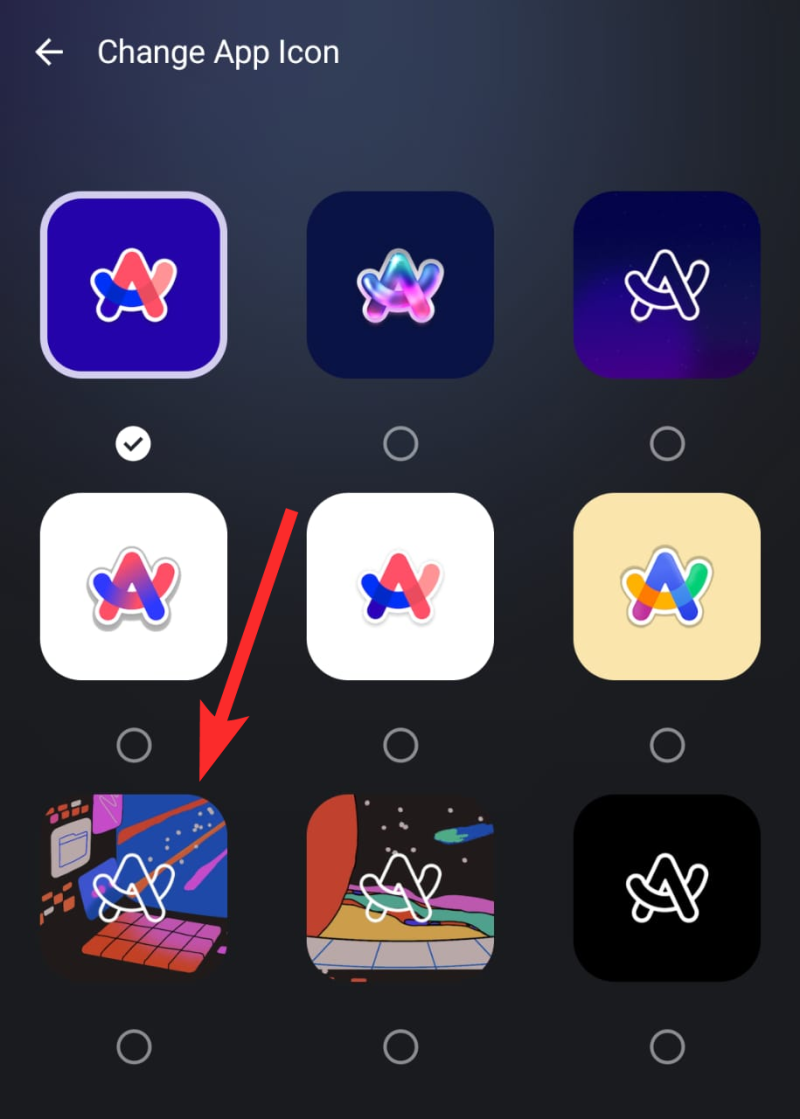
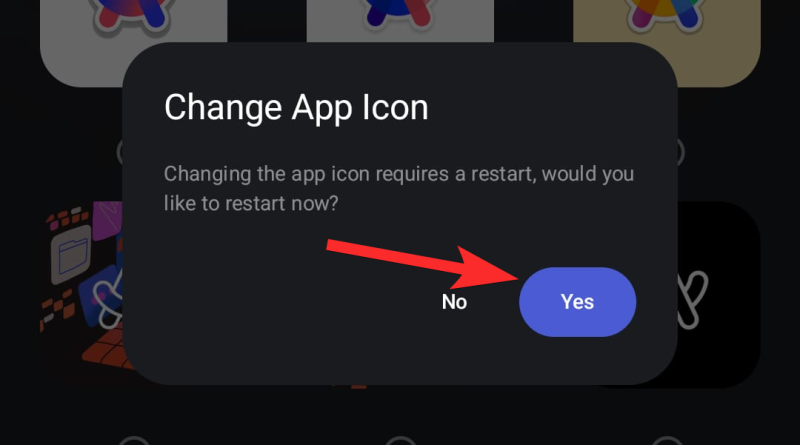
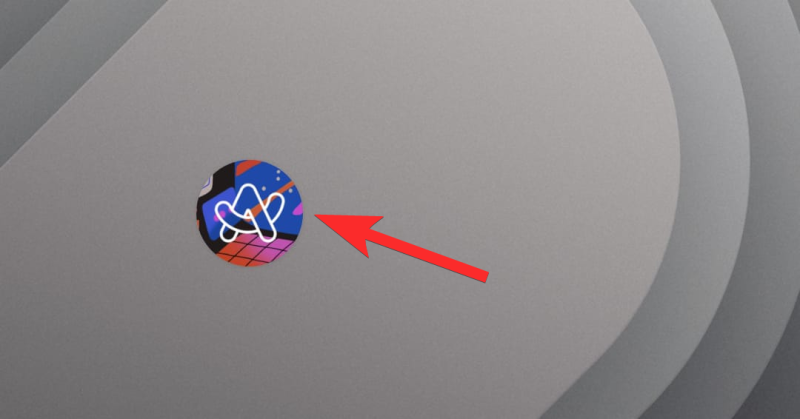
You can now change the Arc Search app icon from the Arc Search app. Here’s how you can do it,
Video Guide:
Step-by-step guide with screenshots:

How to Revert to the Default Icon
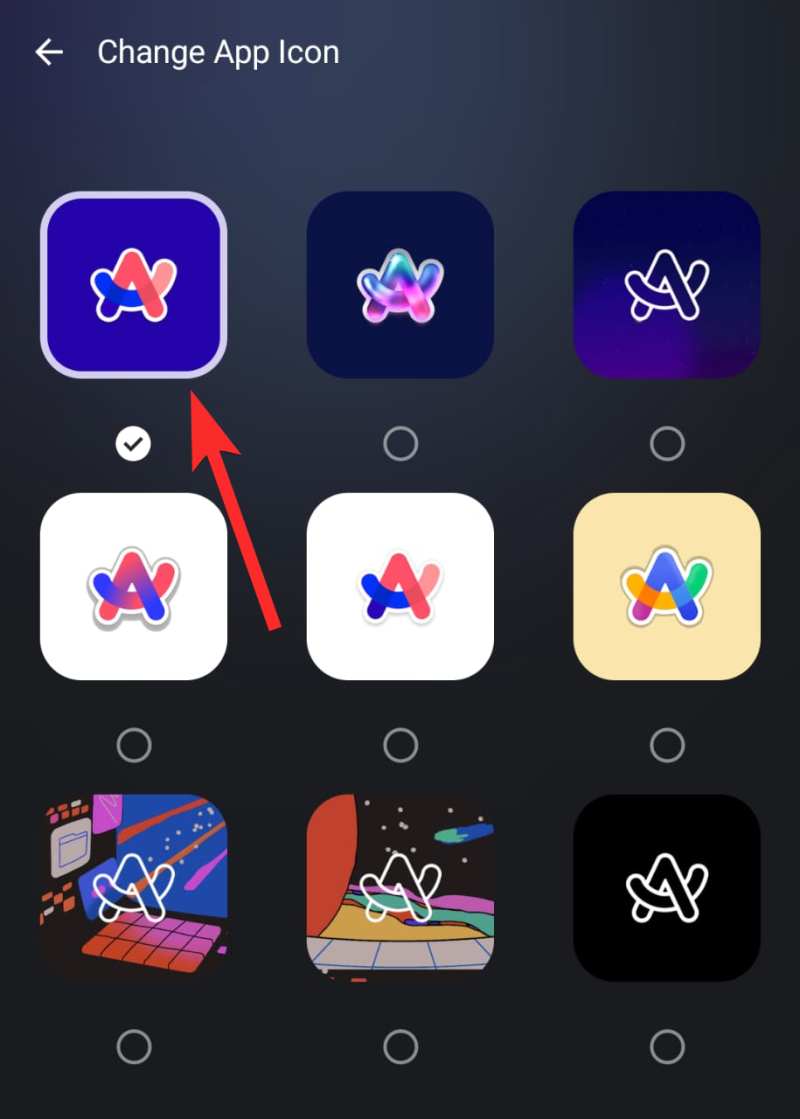
If you ever want to return to the original Arc Search app icon:
Video Guide:
Step-by-step guide with screenshots:
Conclusion
The ability to change the app icon for Arc Search on Android is a simple yet powerful feature that brings more personalization to your device. Whether you prefer a minimalist design or something bold and colorful, this customization option allows you to make the app your own.
Follow the steps in this guide to refresh the look of Arc Search on your Android device and enjoy a more personalized home screen experience!
FAQs
Can I upload my own icon image?
Ans: Currently, Arc Search only allows users to select from a predefined set of icons.
Is the feature available on all Android versions?
Ans: The custom icon feature is available on devices running the latest version of the Arc Search app.
Can I switch icons as often as I want?
Ans: Yes, you can change the app icon anytime by following the steps in this guide.