

If you want to change your Paralives character’s appearance after beginning your save file, Paralives gives you a couple of easy ways to reopen the character customization menu. Whether you want to completely redesign your character or simply adjust hairstyles, outfits, facial features, or accessories, the process only takes a few seconds.
| Feature | Details |
|---|---|
| Main Method | Cheat Console Command |
| Alternate Method | Character Portrait Menu |
| Console Shortcut | Ctrl + Shift + C |
| Command Needed | edit character |
| What You Can Change | Face, body, hair, clothing, accessories, and more |
| Works After Starting Game | Yes |
| Easier Than Shop Customization | Yes |
How to edit your character using the console command
The fastest way to access full character customization is through the built-in cheat console. This method immediately opens the advanced editing interface and gives you access to almost every appearance option available in the game.
Step 1
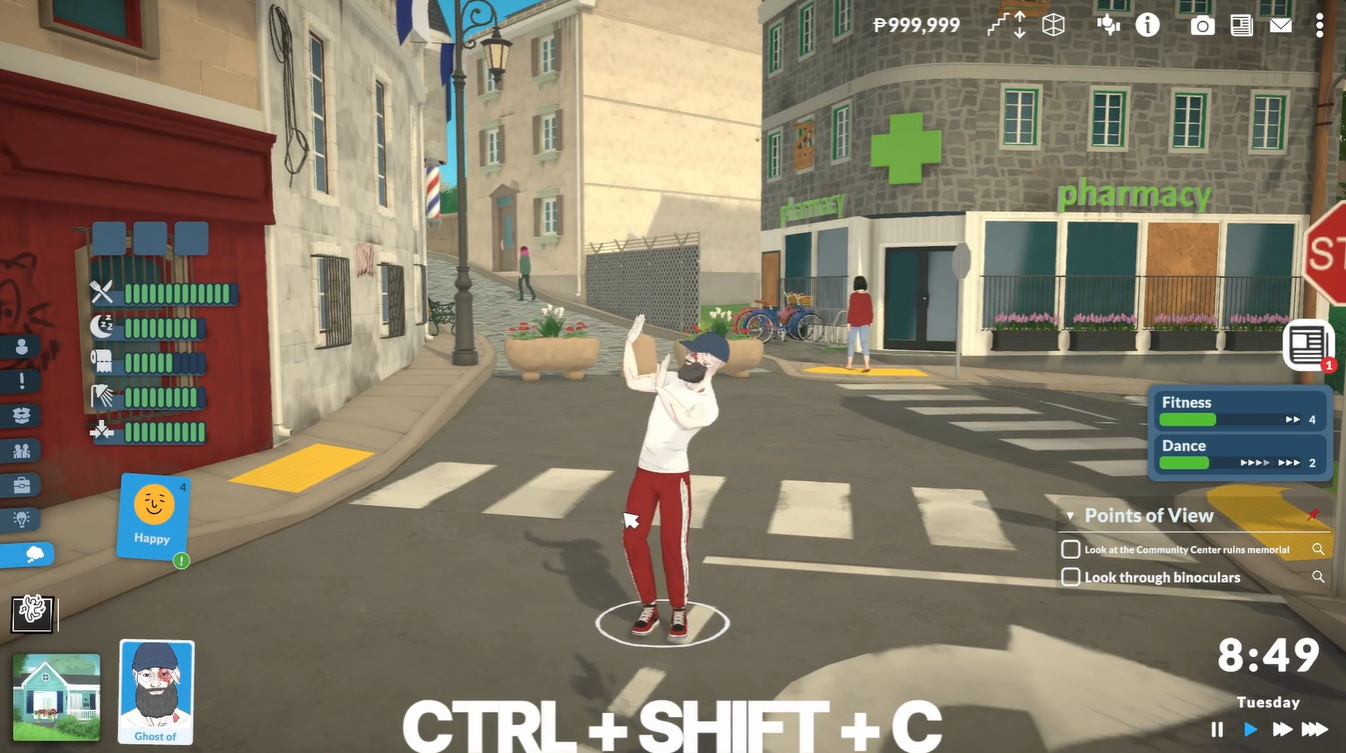
Press Ctrl + Shift + C on your keyboard while in gameplay. This opens the cheat command window.
Step 2
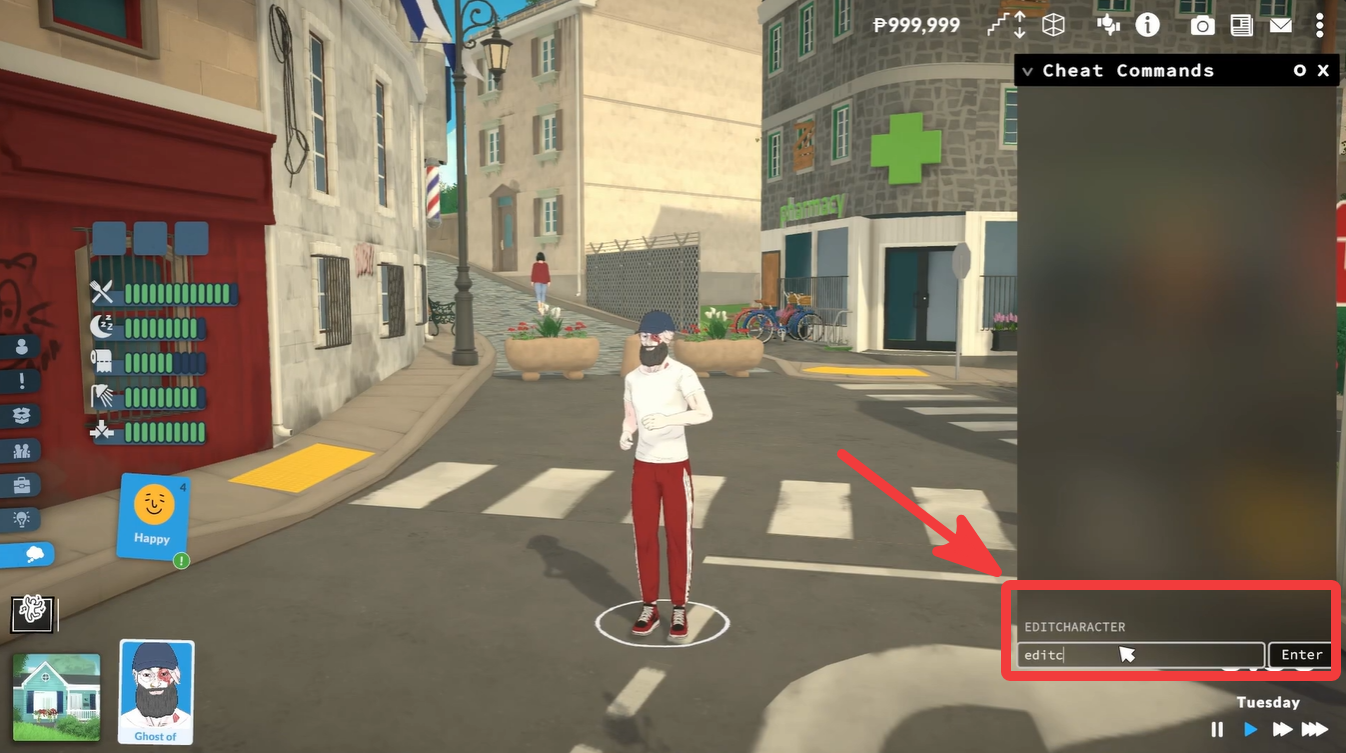
Type the following command exactly as shown:
edit character
Step 3
Press Enter. The game will immediately load the character customization screen.
Step 4
Edit your character however you want. You can adjust facial features, hairstyles, clothing, accessories, body shape, and other appearance details.
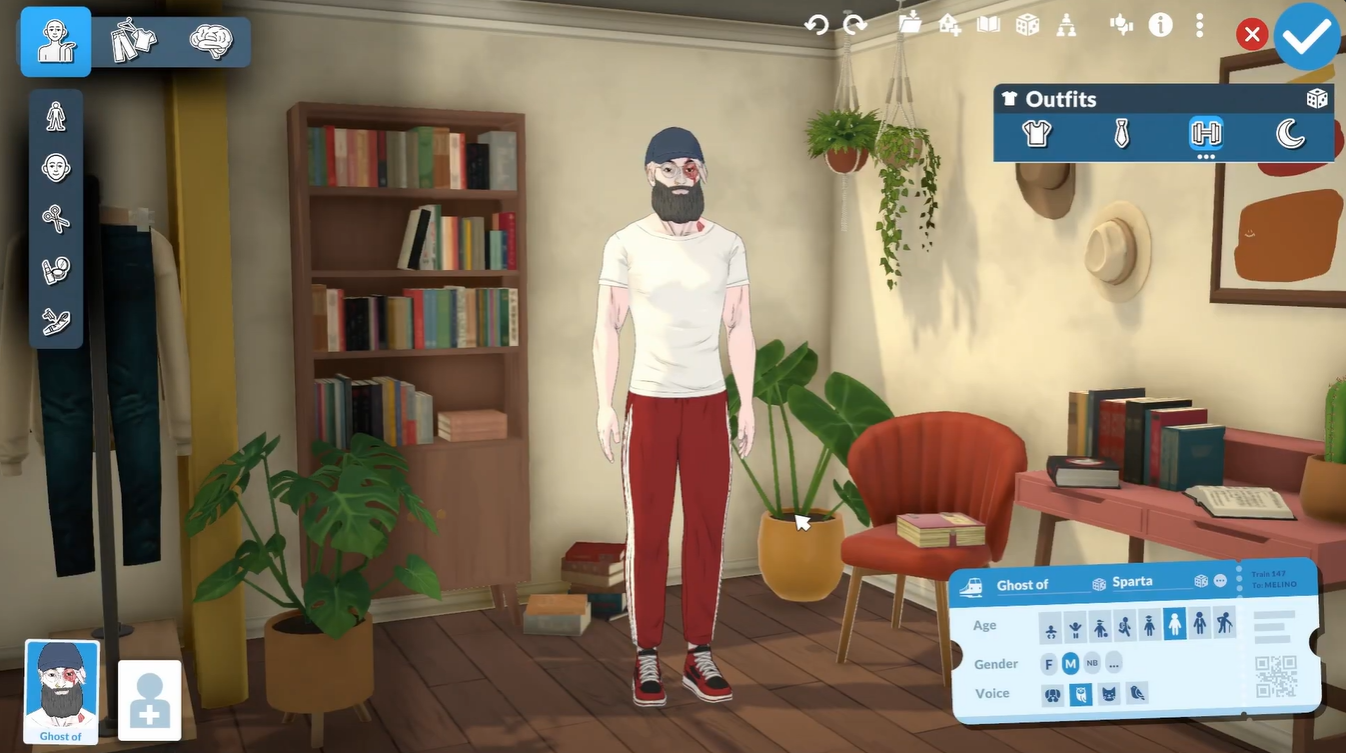
Paralives also includes a simpler method that does not require using console commands. Look at the bottom-left corner of the screen during gameplay.
Click on your character’s portrait or photo. This opens the character menu and customization interface.
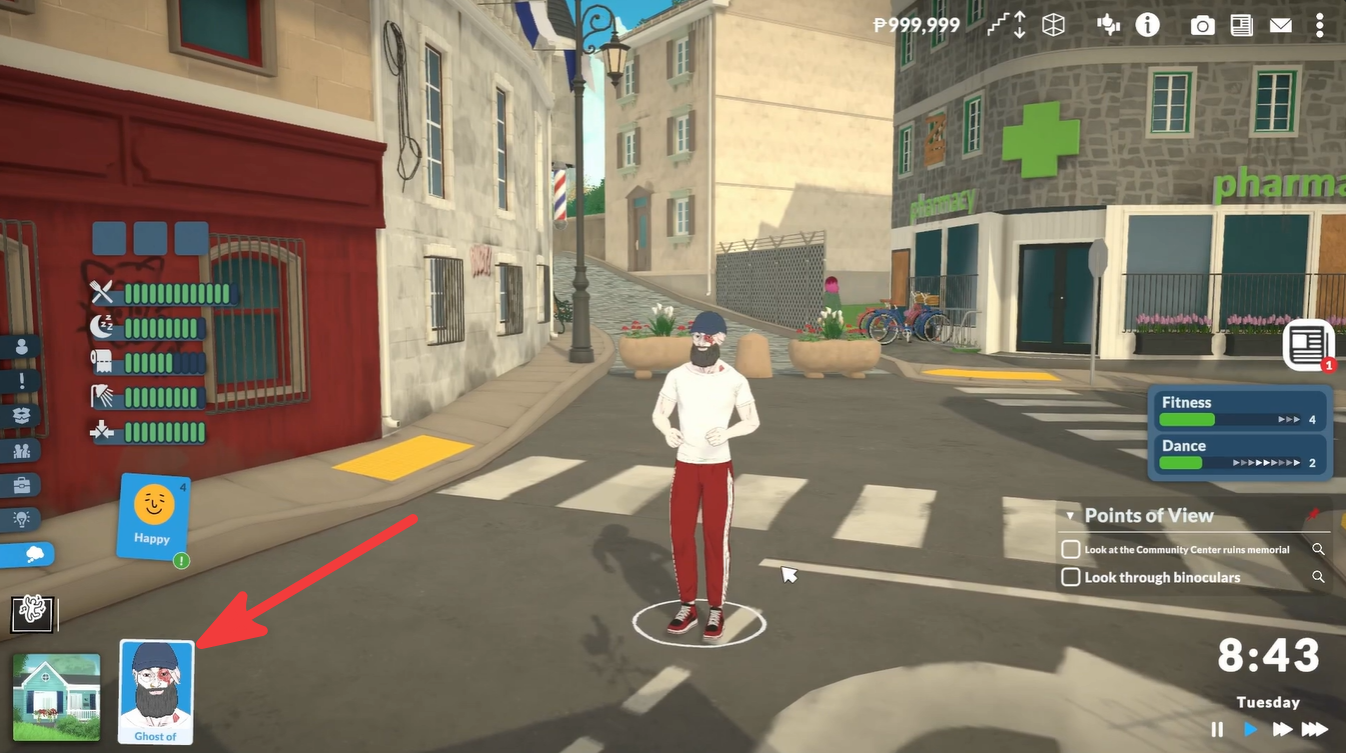
From here, you can modify your Para’s appearance and update different cosmetic options.
This method is especially useful if you prefer avoiding cheats or keyboard commands.
Full appearance customization options in Paralives
In Paralives, the Paramaker character creator is extremely detailed, and you can edit far more than just clothes or hairstyles. Based on current gameplay previews, developer showcases, and Early Access footage, here’s what you can customize in a character’s appearance.
| Category | What You Can Edit |
|---|---|
| Body Shape | Height, weight, hips, chest, waist, shoulders, buttocks, proportions |
| Face Shape | Jawline, cheeks, chin, forehead, facial structure |
| Eyes | Shape, size, color, heterochromia, eyelashes |
| Eyebrows | Shape, thickness, angle, color |
| Hair | Hairstyle, roots, tips, streaks, full color wheel |
| Skin | Skin tone, texture, freckles, birthmarks |
| Facial Hair | Beards, mustaches, combinations of facial hair |
| Body Hair | Arm, leg, torso, facial body hair presets |
| Clothing | Tops, bottoms, shoes, accessories, layered outfits |
| Accessories | Glasses, jewelry, hats, and more |
| Tattoos & Marks | Placement and customization |
| Gender Presentation | Fully unrestricted clothing/body customization |
| Colors & Patterns | Color wheel and pattern customization for many items |
Differences between shops and full character editing
| Customization Type | Shop Changes | Full Character Edit |
|---|---|---|
| Clothing | Yes | Yes |
| Hairstyles | Yes | Yes |
| Facial Features | No | Yes |
| Body Shape | No | Yes |
| Accessories | Limited | Full Access |
| Complete Makeover | No | Yes |
Avoid these mistakes while editing characters
Some players accidentally open the wrong console or enter the command incorrectly. Make sure you type the command exactly as:
edit character
Also ensure you are using the correct keyboard shortcut for the console:
Ctrl + Shift + C
If the menu does not open immediately, try closing and reopening the console before entering the command again.
Editing your character in Paralives is quick and extremely flexible. Whether you use the console command or the portrait menu shortcut, both methods let you fully customize your Para long after starting your save. The full editor provides much more freedom than regular in-game shops, making it the best option for complete makeovers and detailed customization.
Leave a Reply