

If it’s funny sharing conversation between friends or showing them what’s on your smartphone screen, the fastest way to do so is take a screenshot. And just like on any another Android smartphone, you can get this done on the Moto G5 and Moto G5 Plus too.
Screenshots are convenient and quick. Suppose you have a slow network and want to download an image, it’s easier to just view the image on your browser and take a screenshot from there. The only issue with screenshots is that you’re left with a picture that has the same resolution of your device and not anything higher than that.
How to take a Screenshot on the Moto G5 and G5 Plus
-
- Open the screen you want to capture on your Moto G5.
- Press & hold both the Power and Volume Down buttons together for a couple of seconds.
- If you hear a capture sound and animation on screen, that means screenshot has been taken and saved to your phone’s gallery.
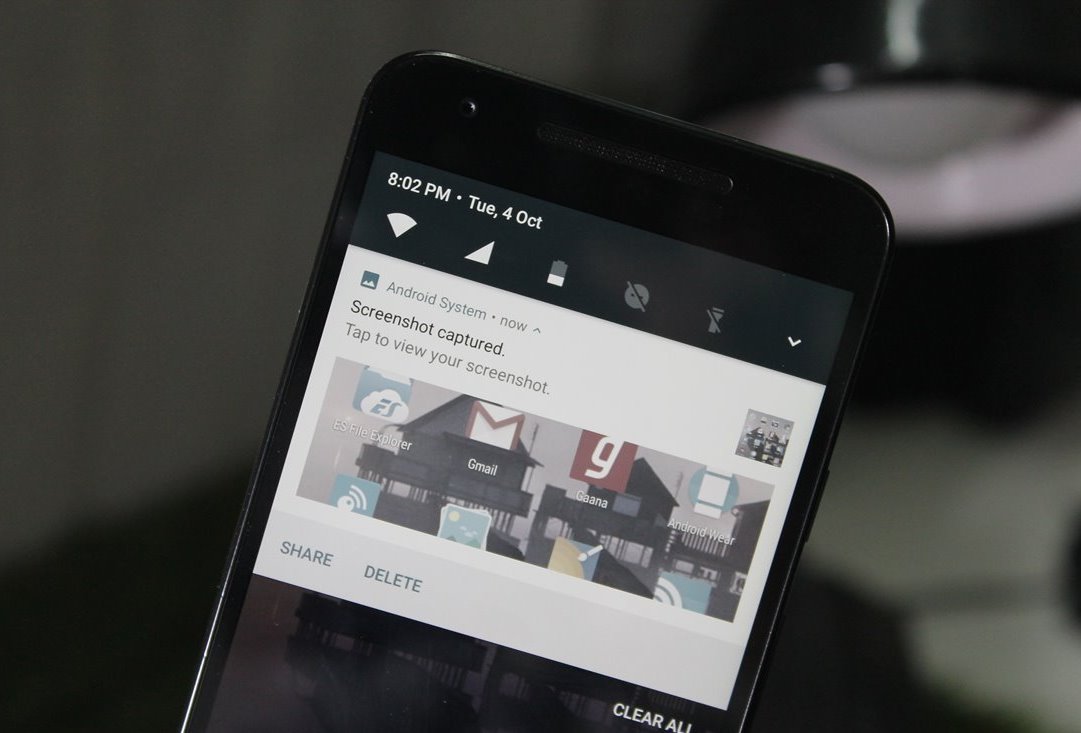
- If you want to access the screenshot quickly, pull down the notification bar and you’ll see the captured screenshot there.
Read: How to take scrolling screenshot on Android
That’s it. Hope you find it easier to take screenshots on Moto G5 and G5 Plus.



10 responses to “How to take a Screenshot on Moto G5 and G5 Plus”
Not working !!! Nothing happen when I press power button and volume down button together
Correct. Nothing is happening! Do you have a solution already?
Erm that does not work??
Edit: Well, Power + Volume down for three seconds should do it.
Which app are you trying this one? Some apps disable it, like Snapchat.
I’m not using an app just want to take photo of something on Google? I have managed to do it now but it doesn’t work consistently unfortunately ?…. Nevermind thankyou for your help!
Doesnt work, nice how they write the articles but ignore comments
Worked for me , thx
Power button + volume down button… Works for me on my moto g5 plus…
didn’t work…..another way??
power+volume down not working? It’s simple. Is Volume down or Power button broken?