

- What to know
- Subnautica 2 voice chat details
- Setting up your microphone before launching the game
- How to configure voice chat settings in Subnautica 2
- How to fix teammates not hearing your voice
- Disabling unused microphones may solve conflicts
- Firewall and antivirus software may block communication
- Why Discord is still the preferred option for co-op sessions
What to know
- Subnautica 2 voice chat requires correct system and in-game audio settings to work properly.
- Most microphone issues are caused by wrong input devices or outdated audio drivers.
- Restarting the game after reconnecting a headset often fixes detection problems.
- Discord remains the most reliable alternative while Subnautica 2 voice chat is still evolving in early access.
Voice communication can make co-op exploration in Subnautica 2 far easier, especially when coordinating during deep-sea expeditions or dangerous encounters. Since the game is currently in early access, voice chat functionality may occasionally behave inconsistently. Fortunately, most problems can be fixed with a few quick setup adjustments and troubleshooting steps.
Subnautica 2 voice chat details
| Feature | Details |
|---|---|
| Voice Chat Availability | Limited early access support |
| Platform Support | PC and supported console systems |
| Required Hardware | Microphone or gaming headset |
| Common Issues | Mic not detected, teammates cannot hear you |
| Recommended Alternative | Discord voice channels |
| Main Fix | Correct default input/output device setup |
| Extra Troubleshooting | Driver updates and restarting the game |
Setting up your microphone before launching the game
Before opening Subnautica 2, make sure your microphone or headset is already connected to your system. The game may fail to recognize newly connected devices if they are plugged in after launch.
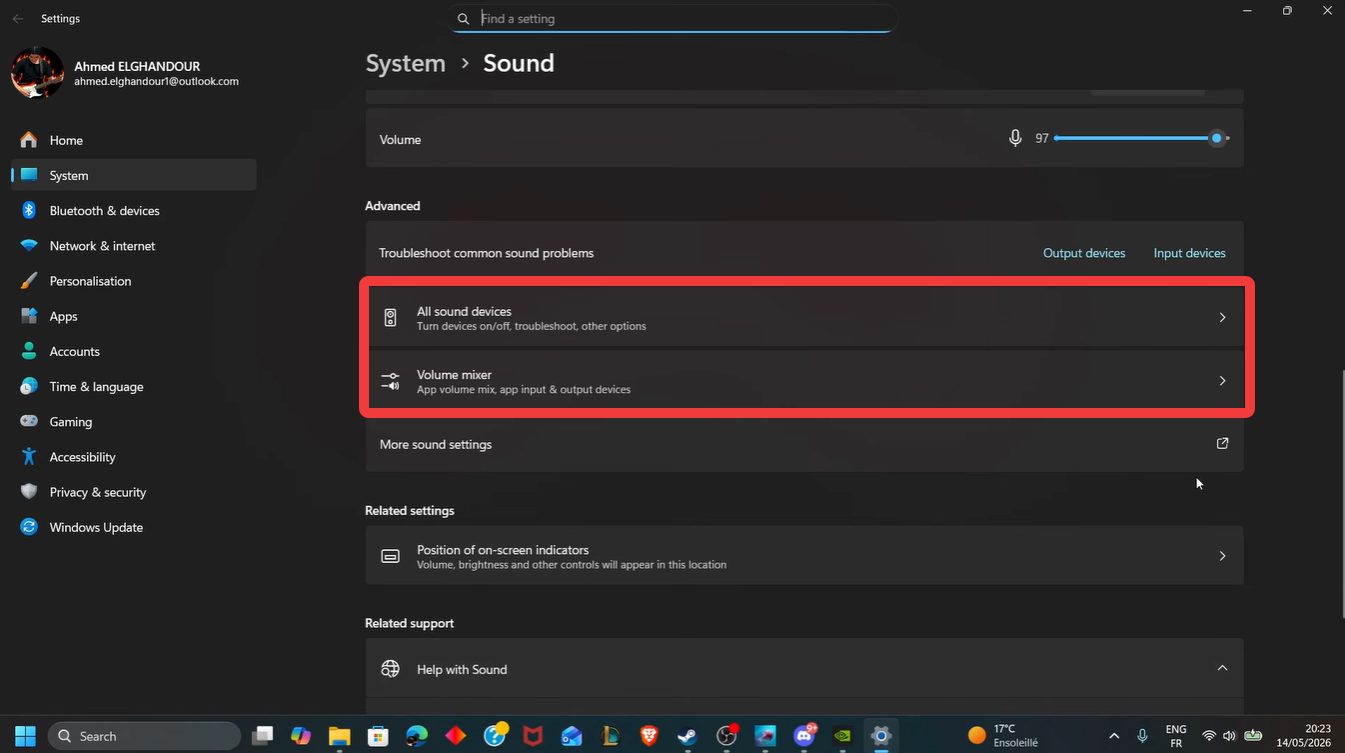
On PC, open your Windows sound settings and verify that your preferred microphone appears under the Input section. You should also confirm that your speakers or headset are selected under the Output section. Using the wrong default device is one of the most common reasons voice chat fails.
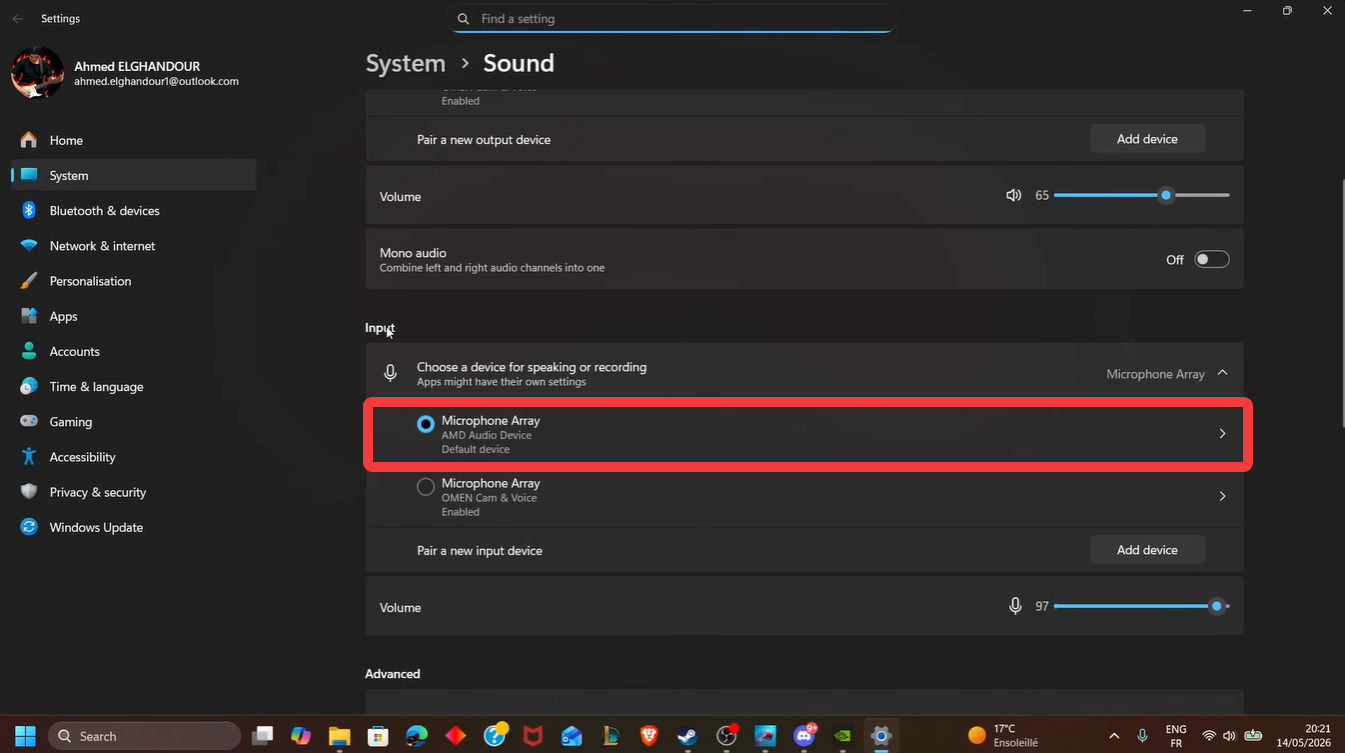
If you use a USB headset, wait a few seconds after plugging it in so Windows can fully initialize the hardware before launching the game.
How to configure voice chat settings in Subnautica 2
Once the game launches, open the audio or communication settings menu and check that the correct microphone is selected as the default input device.
Some systems automatically switch audio devices when multiple microphones are connected. For example, webcams, VR headsets, or capture devices may override your preferred headset mic. Disabling unused audio devices can prevent this issue.
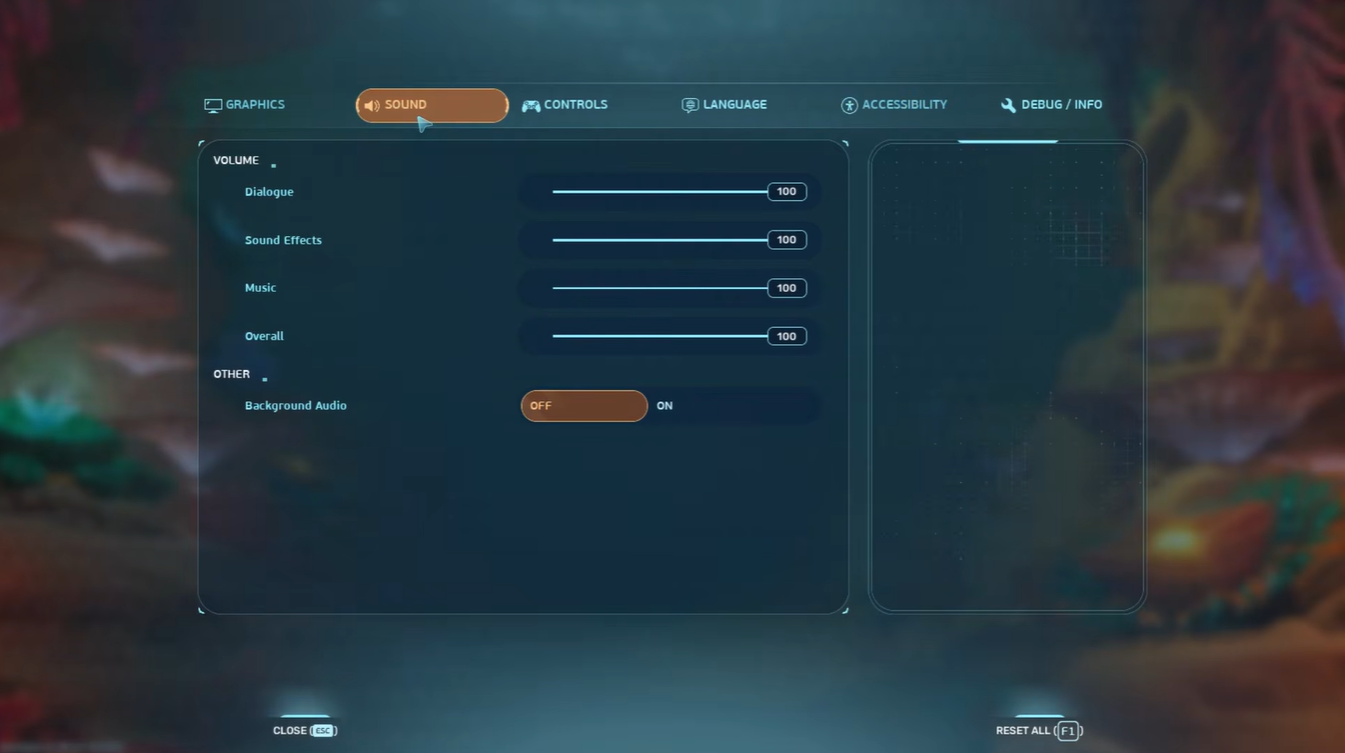
You should also test your microphone volume levels to ensure your teammates can hear you clearly without distortion.
How to fix teammates not hearing your voice
If your friends cannot hear you during multiplayer sessions, restarting the game is often the fastest solution. This is especially helpful if your headset disconnected or powered off during gameplay.
Restarting fixes voice chat
Subnautica 2 may fail to refresh audio hardware properly during active sessions. Restarting forces the game to re-detect all connected audio devices.
Verify your microphone is working
Before blaming the game, test your microphone in another application such as Discord, Windows Voice Recorder, or any communication app. If the mic does not work elsewhere, the issue is likely system-related rather than game-specific.
Updating drivers can improve voice stability
Outdated audio drivers frequently cause communication problems in multiplayer games. Updating your drivers can improve microphone detection, reduce static noise, and fix compatibility issues.
Here is how to update audio drivers on Windows:
- Open the Windows Start menu and search for Device Manager.
- Expand the Sound, Video and Game Controllers section.
- Right-click your audio device and select Update Driver.
- Choose the automatic search option and allow Windows to install available updates.
After updating, restart your computer before launching Subnautica 2 again.
Disabling unused microphones may solve conflicts
Many systems have multiple active recording devices running simultaneously. This can confuse games when selecting the correct microphone. Here is how to disable unused audio devices before playing Subnautica 2:
- Right-click the speaker icon in the Windows taskbar.
- Select Sound Settings.
- Open the Recording Devices or Input Devices section.
- Disable microphones you are not actively using, such as webcam mics or VR headset audio inputs.
This reduces the chances of the game selecting the wrong device automatically.
Firewall and antivirus software may block communication
Some firewall or antivirus applications incorrectly block multiplayer voice communication features. If you recently installed new security software, it may interfere with Subnautica 2 network functions.
Temporarily allowing the game through your firewall settings can resolve this issue. Make sure both the game executable and platform launcher are permitted through Windows Firewall.
Why Discord is still the preferred option for co-op sessions
Because Subnautica 2 is still evolving in early access, in-game voice systems may occasionally experience instability, connection issues, or missing features. Many players currently prefer using Discord for more reliable communication during multiplayer gameplay.
Discord typically offers better audio quality, push-to-talk customization, noise suppression, and stronger connection stability compared to early access in-game systems.
If your group regularly plays co-op sessions, using Discord alongside Subnautica 2 can provide a smoother overall experience.
It is important to remember that some voice communication systems are still under development. Temporary bugs, device compatibility problems, or inconsistent microphone detection may improve significantly in future updates.
Developers commonly prioritize gameplay stability and multiplayer networking first before polishing integrated voice systems during early access phases.





Leave a Reply