


Open the taskboard icon beside your cash bar, choose Progress, then use Badges for achievements and Stats for personal statistics.
Progress brings your achievements and personal statistics together in Sell Lemons. The November 14, 2026 update, named Reactor and Rebalancing, added personal statistics alongside Badges in this menu. This guide covers the menu route, its statistics categories, and badge purchase requirements.
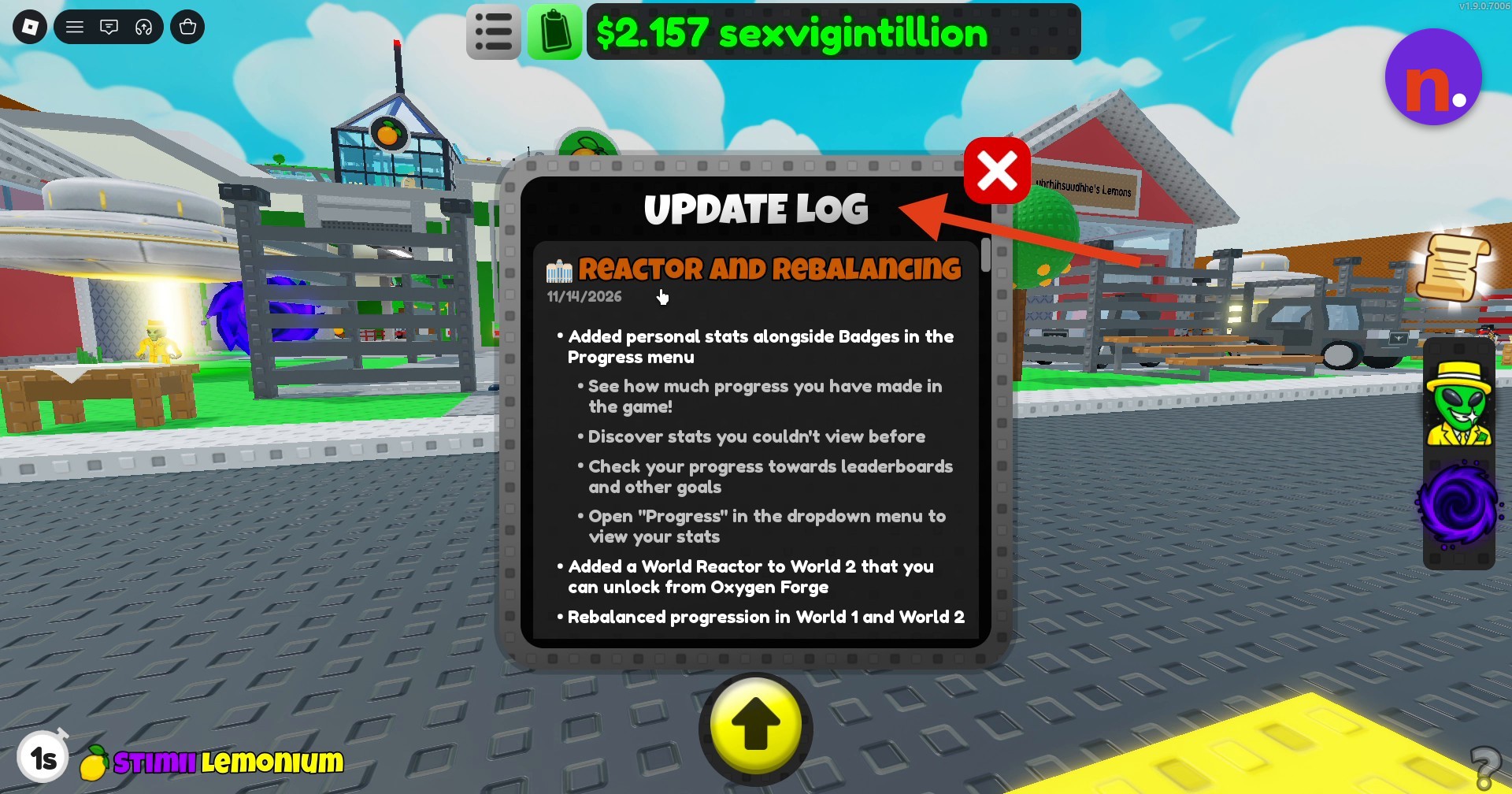
How to check progress for all activities in Sell Lemons
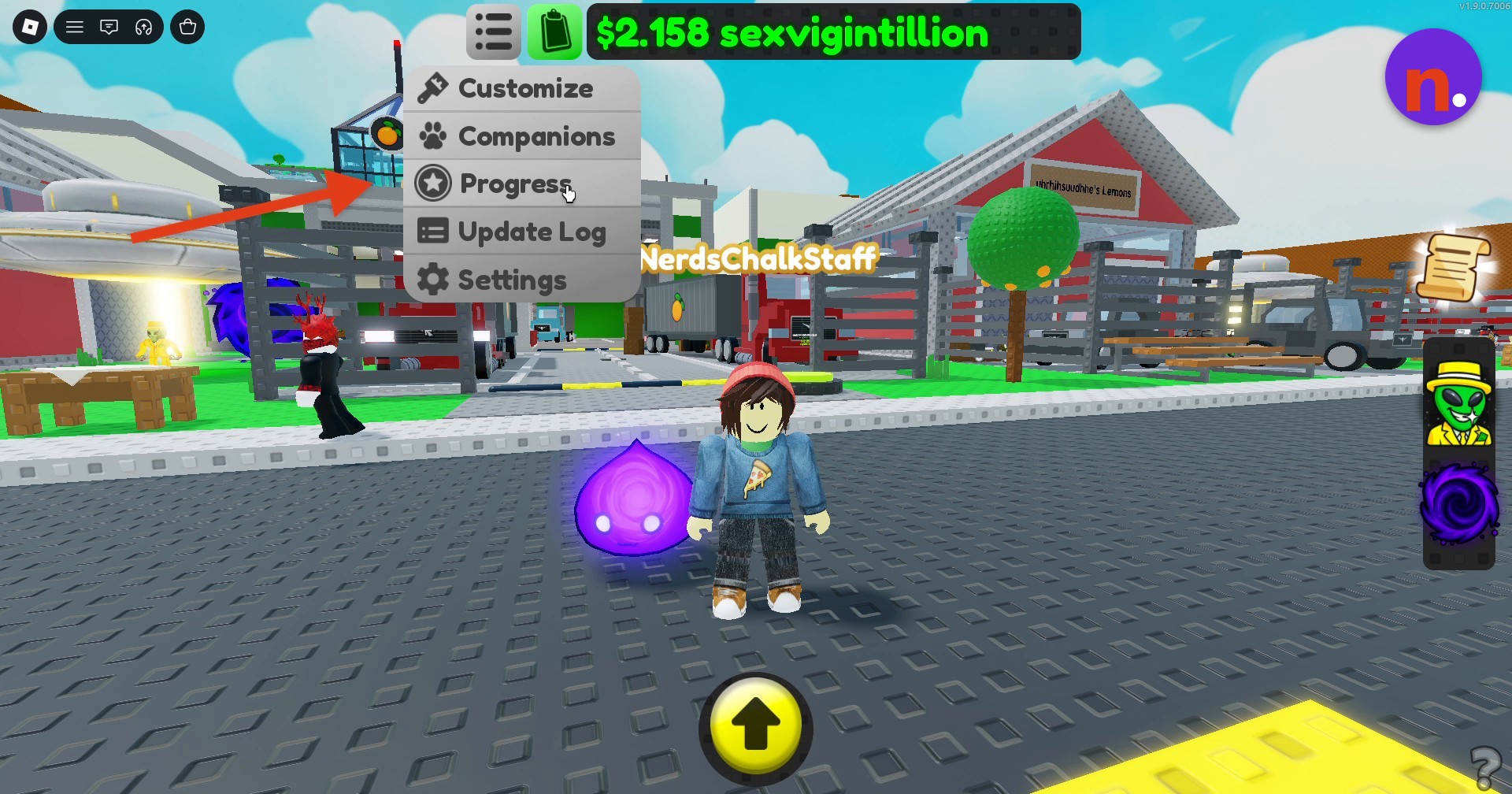
Open the dropdown
Click the taskboard list icon in the upper menu bar, immediately to the right of your cash bar, to expand the dropdown.
Select Progress
Click Progress in the dropdown to open your accomplishments.
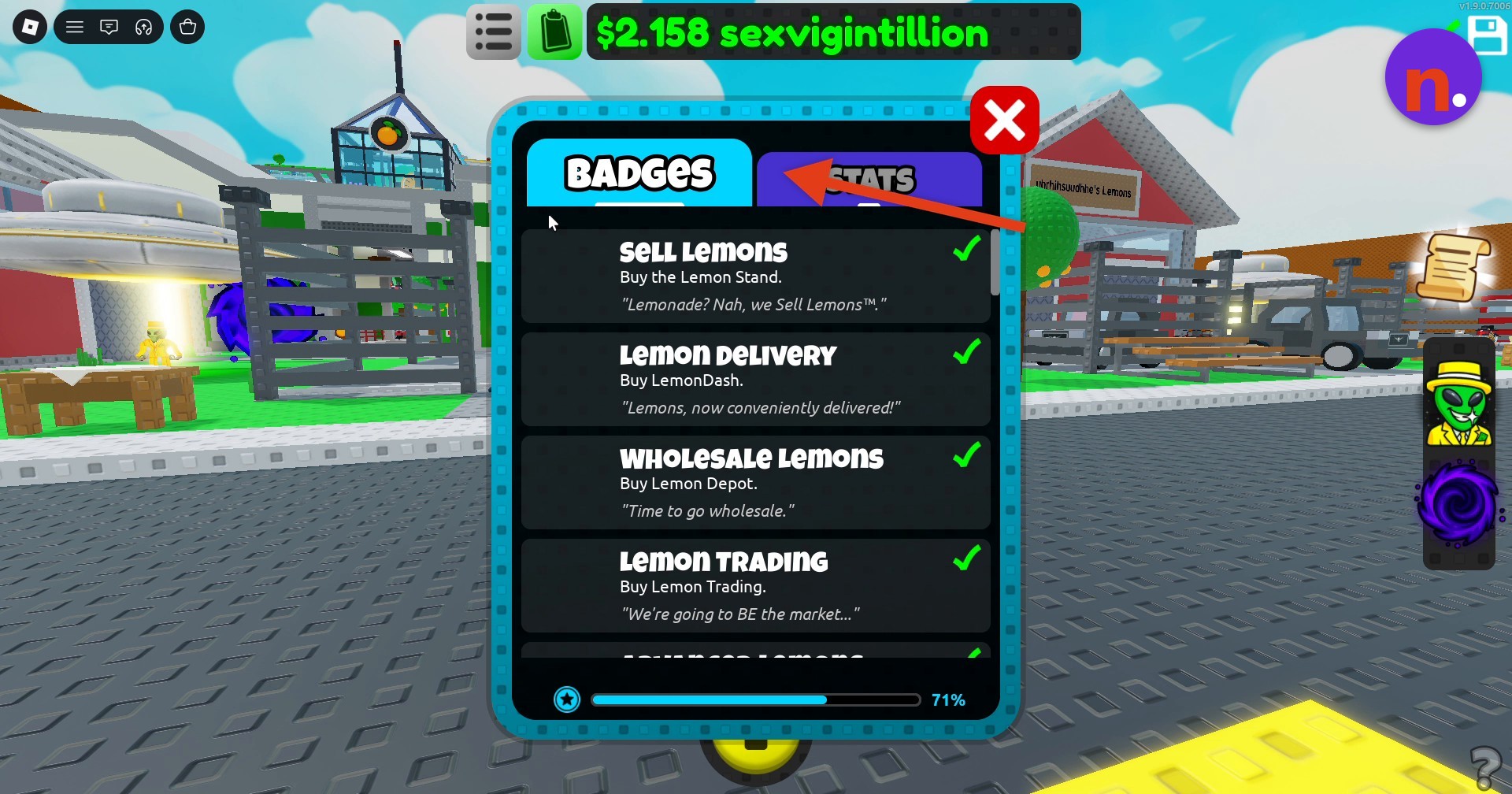
Review your badges
Progress opens on Badges, where you can review achievement completion across your tycoon and see the achievements you’ve unlocked.
Switch to Stats
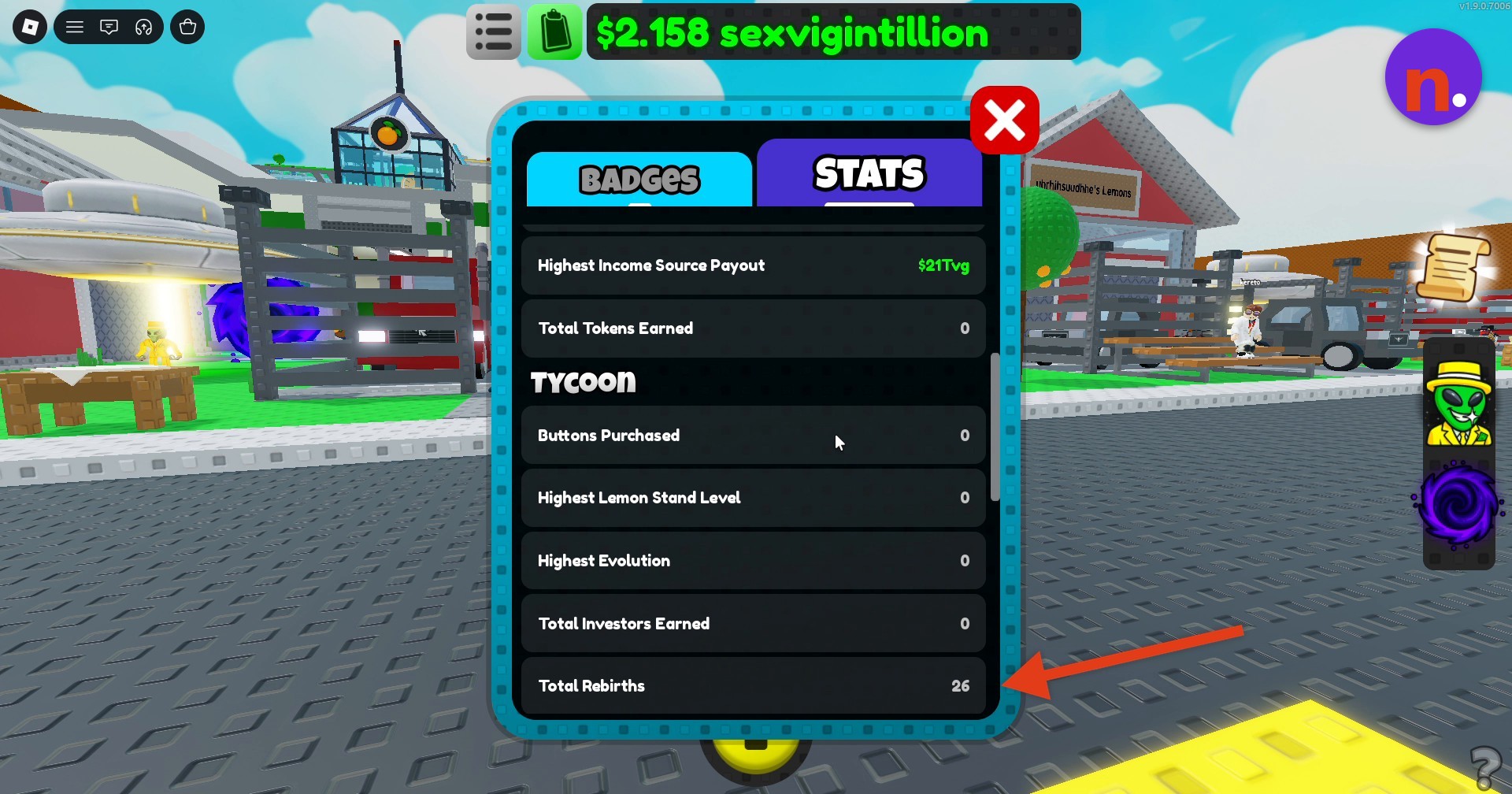
Click Stats beside Badges to view personal statistics across General, Earnings, Tycoon, Orchard, Activities, and Exploration.
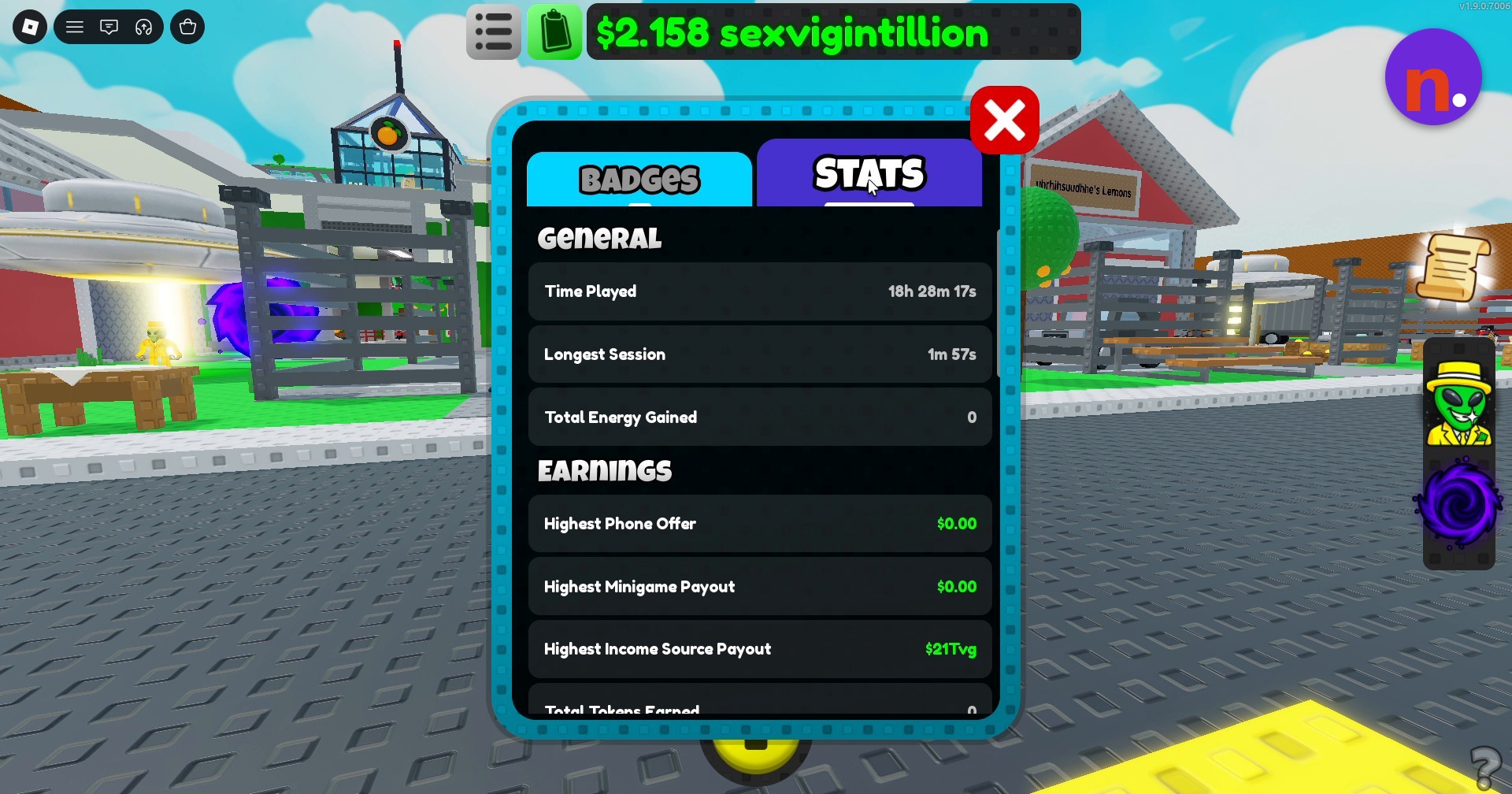
These records help you assess your progress toward leaderboards and other goals.
Your personal statistics include Daily Quests Completed and Total Distance Walked, alongside records grouped by category.
The Quests menu also tracks Daily and Weekly tasks. Its Daily buttons objective displays 0/400 with a reward of 10 minutes of cash, while the trees objective displays 0/3 with a reward of 5 minutes of cash. The Weekly objective displays 0.00/15Qtd.
General, Earnings, and Tycoon statistics
| Stats category | Statistics |
|---|---|
| General | Time Played, Longest Session, Total Energy Gained. |
| Earnings | Highest Phone Offer, Highest Minigame Payout, Highest Income Source Payout, Total Tokens Earned. |
| Tycoon | Buttons Purchased, Highest Lemon Stand Level, Highest Evolution, Total Investors Earned, Total Rebirths. |
Badges give you specific purchase goals to work toward. Among them are these four achievements, each with its own requirement.
Badge purchase requirements
| Badge | Requirement |
|---|---|
| Sell Lemons | Buy the Lemon Stand. |
| Lemon Delivery | Buy LemonDash. |
| Wholesale Lemons | Buy Lemon Depot. |
| Lemon Trading | Buy Lemon Trading. |
Related Sell Lemons guides





Leave a Reply