

For the best balance in Beast of Reincarnation, use DLSS/FSR Quality where available, force DLSS Preset K on RTX cards, set Post Processing to Low, Ray Tracing off, Shadow Resolution Medium, Lighting Medium, Mesh Quality High, and keep 8GB GPUs at Texture Quality 3/3 with VRAM Limit 1/2.
Beast of Reincarnation is an Unreal Engine 5 game, but its graphics menu is lean, so the biggest gains come from a handful of settings rather than from dropping everything to Low. The preset below targets a clean image, stable VRAM use, and the strongest performance return from the launch build, with the tested build labeled ver. 1.0.5.0; public notes do not list a separate launch patch identifier.
Optimized PC settings for Beast of Reincarnation
| Setting | Use |
|---|---|
| Upscaler | DLSS Quality on RTX, FSR Quality where suitable; use TSR if DLSS/FSR 4 is unavailable |
| DLSS preset | Preset K |
| Post Processing | Low |
| Ray Tracing | Off |
| Texture Quality | 3/3 on 8GB GPUs |
| VRAM Limit | 1/2 on 8GB GPUs |
| Mesh Quality | High |
| Shadow Resolution | Medium |
| Shadow Quality | High or Highest |
| Lighting | Medium |
KEY!This is the balanced preset to use before chasing individual tweaks. It keeps the visible upgrades that matter, cuts the expensive options with weak image-quality returns, and avoids the 8GB VRAM pressure that can make otherwise good settings feel worse than they are.
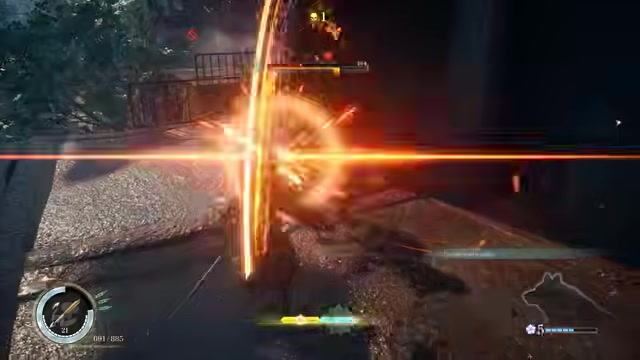
DLSS, FSR, and TSR choices
Beast of Reincarnation ships with DLSSV3 v3.7.20, and its default DLSS behavior uses the older Preset E. On RTX cards, forcing DLSS Preset K is the better move because it improves motion clarity without creating the extra Lumen instability seen with newer presets.
Do not force DLSS 4.5 Preset L or Preset M here just because they are newer. In this game, especially with Software Lumen already showing temporal noise in indirectly lit areas, those presets can make Lumen boiling more obvious.
If DLSS is not available and FSR 4 is not an option, use TSR as the fallback. It is slower than FSR 3, but it produces a sharper, more stable image; TSR Balanced and TAAU Balanced also sit close to the internal resolution used by DLSS/FSR Quality.

Graphics settings with real performance impact
| Setting | Performance impact |
|---|---|
| Ray Tracing | 2% in one scene, up to about 7% elsewhere, with little visual benefit |
| Mesh Quality | High costs about 3% over Low; Highest costs about 6% |
| Shadow Resolution | High costs about 8% in one scene and up to 14% in another |
| Shadow Quality | Little meaningful performance cost, so High or Highest is fine |
| Lighting | High costs about 6%; Highest costs up to 17% |
| Optimized preset | About 27-30% faster than the Highest preset in tested 1440p scenes |
The settings worth touching are the ones tied to ray tracing, geometry, shadows, lighting, post-processing, and VRAM allocation. The rest of the menu has limited scalability, which is why blindly lowering every option is less useful than cutting the few expensive settings that do not hold up visually.
Ray Tracing is the easiest cut. Shadows, reflections, and global illumination often look nearly the same with it enabled or disabled, and in one scene enabling it removes SSR without adding a convincing replacement.
Mesh Quality is worth leaving at High because it preserves better foliage and tree detail without paying the full cost of Highest. Shadow Resolution should drop to Medium, while Shadow Quality can stay high because it mainly changes shadow filtering rather than the expensive shadow resolution itself.
Lighting should be set to Medium. Low disables volumetric lighting, but Medium keeps it enabled, and the jump above Medium does not bring a clear enough visual upgrade to justify the cost.
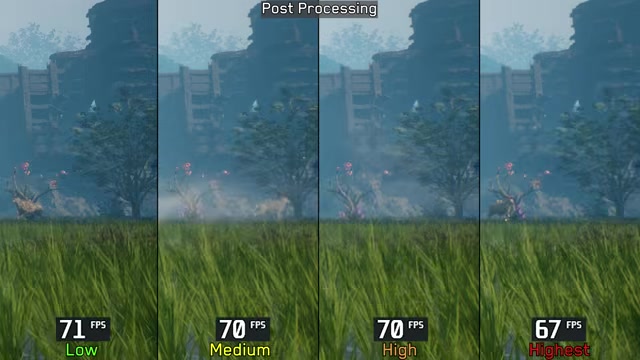
Cleaner image from Post Processing Low
Post Processing Low is not just a performance tweak. It disables the heavy film grain and chromatic aberration that make the image look softer than the actual render resolution.
The important part is that this does not require any INI editing. Setting Post Processing to Low in the menu gives a cleaner image and improves performance compared with the Highest option.
Set Post Processing to Low first if the game looks smeary or lower-resolution than expected; it removes film grain and chromatic aberration in one change.
Texture Quality and VRAM Limit by GPU memory
| GPU VRAM | Recommended texture setup |
|---|---|
| 8GB | Texture Quality 3/3 with VRAM Limit 1/2 |
| More than 8GB | Start from the optimized preset, then raise VRAM Limit only if memory headroom stays comfortable |
Texture Quality and VRAM Limit do different jobs. Texture Quality changes texture and asset quality, while VRAM Limit controls how much memory is assigned to texture streaming, which is why the VRAM Limit setting matters more for avoiding pressure on 8GB cards.
On an RTX 3060 Ti 8GB, VRAM Limit 1/2 was the better match. The 2/2 limit pushed usage close to the 8GB ceiling, which can turn into stutter when the game needs more breathing room.
Launch-build stutter behavior
Some hitching in Beast of Reincarnation is separate from the graphics preset. The game performs a brief shader compilation pass on first launch, does another one when loading a new level, and can compile shaders asynchronously during gameplay.
That background compilation caused CPU spikes and performance drops during the prologue, then became less intrusive afterward. Occasional hitching can still happen later, so do not treat every early stutter as proof that your optimized preset is wrong.
PC settings mistakes to avoid
Do not leave Ray Tracing on for this preset. Its cost can climb to around 7%, and its visual changes are too inconsistent to justify that loss.
Avoid running the Highest preset blindly, especially if you are on an 8GB GPU. Also avoid Post Processing High or Highest unless you specifically want more film grain and chromatic aberration, and do not push VRAM Limit 2/2 on 8GB cards just because the frame rate looks fine for a few minutes.
Finally, do not force the newest DLSS presets as a default rule. In this game, Preset K is the better RTX recommendation because newer L/M behavior can make Lumen noise and boiling worse.
Frequently Asked Questions
Should Ray Tracing be on or off in Beast of Reincarnation?
Use Ray Tracing Off. The setting can add small reflection detail in some spots, but it can also remove SSR in others, so the trade is not worth the performance cost.
What is the best DLSS preset for Beast of Reincarnation?
DLSS Preset K is the best pick on RTX cards because it improves motion clarity over the game’s default Preset E.
Does Post Processing Low make the game look worse?
No. Post Processing Low makes the image cleaner by removing the aggressive film grain and chromatic aberration that make the game look softer.
What VRAM Limit should 8GB GPUs use?
Use VRAM Limit 1/2 on 8GB GPUs. Pair it with Texture Quality 3/3 to keep good asset quality without pushing texture streaming too close to the memory ceiling.
How much faster are optimized settings than the Highest preset?
The optimized preset is about 27-30% faster than the Highest preset in tested 1440p scenes with DLSS Preset K.
More questions⤵
Is TSR better than FSR 3 if DLSS is unavailable?
TSR is slower than FSR 3, but it gives a sharper and more stable image, making it the better fallback when DLSS and FSR 4 are unavailable.
Video help



Leave a Reply