
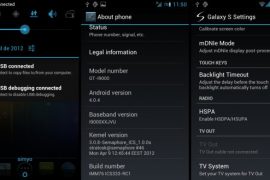
ICS333 ROM is an Ice Cream Sandwich Android 4.0.4 based custom ROM for the Galaxy S i9000, a device that refuses to recede into the background, with new ROMs coming out for it regularly. ICS333 ROM is built from the latest Google sources, and also takes a few functionality from CM9 and AOKP ROM and throws them into the mix for an improved ICS experience.
Here’s a look at the features of the ROM:
- Built from Android sources (IMM76D)
- Notification bar toggles and numeric battery indicator
- Brightness control in status and notifications bars
- Extended power menu with reboot, recovery and screenshot.
- TV-Out
- Video face effects working
- Application killing with long press on back button
- Removed “R” roaming indicator for national roaming
- Kernel Semaphore 1.0.0s (387 MB RAM)
- BigMem patch for 720p video
- Pre-installed apps: OI File Manager, Barcode Scanner
- APN’s predefined huge list
- Modified hosts file to remove ads in applications.
So, let’s take a look at how you can install ICS333 ROM on your Galaxy S i9000.
Compatibility
This ROM and the guide below are compatible only and only with the Samsung Galaxy S, model number i9000. It’s not compatible with any other device and may render an incompatible device unusable. Check your device model in Settings » About phone.
Warning!
The methods and procedures discussed here are considered risky and you should not attempt anything if you don’t know exactly what you are doing. If any damage occurs to your device, we won’t be held liable.
ROM Info
Developer → el_navajita/3xtr3m3 Team
Known Issues:
- Can’t store device backup in Google’s servers
- In certain situations, mobile data and silent toggles icons can be not properly updated.
How to Install ICS333 ROM on Galaxy S i9000
Important Note, Please Read: If you are already on an Ice Cream Sandwich Android 4.0 ROM, you can skip steps 3 and 4 and skip to step 5 after the 2nd step. If unsure of what ROM you are on, follow all the steps.
- This procedure will wipe all your apps, data and settings (but it will NOT touch your SD cards, so don’t worry about those). Backup your Apps and important data — bookmarks, contacts, SMS, APNs (internet settings), etc. This Android backup guide would help you.
Important! Don’t forget to at least make a backup of your APN settings, which you can restore later if your data connection does not work after installing the ROM. Use the backup guide to find out how. - Remove sim card lock, if you have set it earlier. Go here: Settings » Location and Security » Sim card lock » checkbox should be clear (not selected).
- Flash the stock XXJW4 firmware by using → this guide.
- Root XXJW4 to obtain Clockworkmod recovery (CWM) by using → this guide.
- Download the latest version of the ROM from the official development page.
- Download the Google Apps package. This will install apps like Market, Gmail, etc. which are not present in the ROM.
Download Link | Filename: gapps-ics-20120317-signed.zip - Transfer the downloaded zip files from step 5 and step 6 to the root of the internal SD card (not the micro SD).
- Turn off your Galaxy S and wait for complete shutdown (wait for vibration and check capacitive button lights).
- Then, boot into CWM recovery. To do so, press and hold these 3 buttons together: Volume Up, Home, and the Power button till the screen turns on, then let go of the buttons. In recovery, use Volume keys to scroll up and down and power key to select an option.
- Select wipe data/factory reset, then select Yes on next screen to confirm. Wait a while till the data wipe is complete.
- Now select install zip from sdcard, then select choose zip from sdcard. Scroll to the ROM file on the sdcard and select it.
- Confirm installation by selecting Yes – Install _____.zip on the next screen. The ROM will start installing.
- The phone will reboot into recovery in the middle of installation and then continue installing the ROM. However, if it simply reboots but doesn’t continue installation, repeat step 11 and 12.
- After the ROM finishes installing, select go back to go back to the main recovery menu.
- Now repeat step 11, but this time select the Google apps package file you downloaded in step 6 to install the Google apps package. Confirm installation by selecting Yes on the next screen.
- After the installation is complete, select go back and then select reboot system now to reboot your phone.
Wait for around 5 minutes for the first boot, then enjoy using ICS333 ROM based on Ice Cream Sandwich Android 4.0.4 on your Galaxy S. Visit the original development page to get more info and to get the latest updates on the ROM. Share your thoughts on the ROM in the comments below.





166 responses to “Android 4.0.4 ICS for Galaxy S i9000”
Hi man…THANX!!!..It was simple to upgrade from ICS 4.0.3 and although I had 1460mhz on my old version and only have 1000mhz max on ICS 4.0.4 it is MUCH Faster and more responsive.
BIG THUMBS UP AND THANX!!!
Just one problem though, when I do TV out, The picture on my Panasonic Plasma and my friends old Tube telly is as though its not quite tuned in.
I see some movement when I operate the phone but the picture is `zig-zaggy` and a funny sound too..
Might be the lead but its brand new. (although cheap off ebay)
Any workarounds???
Apps perhaps or some kind of update??
Any help will be sooo soundly Appreciated as TV-Out is why I upgraded!! lol
Thanks again for a Sweet Rom
PS…. How can I extend the cpu frequency back up to 1460mhz cos it ran it fine..(gaming with the back cover off!!! LOL)
>;-{*}
Heya,
Been following a lot of tutorials off this site – AWESOME STUFF. Everything has worked perfectly so far.
Right now i’m stuck with the fact that the download link to gapps-ics-20120317-signed.zip seems to have vanished..
Anyone know of an alternative download location?
Can anyone confirm that this is the right file –
http://www66.zippyshare.com/v/2759431/file.html
Cheers!
Regarding this tutorial
I’ve reached step 4 – installed 2.3.6 and installed CWM. Everything is working except that my phone appears to not recognize SIM…
Is there another modification I need to get this working? Or a setting? Or is this something specific to my mobile carrier?
Settings show GT-I9000, 2.3.6, I9000XXJW4 if it helps
hello kapil…I previously had official 2.3.3..then i upgraded firmware to 2.3.6 xxjvu(in which mobile data stopped working) and then to the official 2.3.6 xxjw4(with the hope that mobile data bug gets fixed)…but unfortunately the mobile data still doesn’t work….now i don’t know if rooting xxjw4 and upgrading to 4.0.4 as mentioned in this site would help my mobile recover from the mobile data bug?reply soon..thank you 🙂
just search on google download
gapps-ics-20120317-signed.zip
and u will find many alters
Heya,
Been following a lot of tutorials off this site – AWESOME STUFF. Everything has worked perfectly so far.
Right now i’m stuck with the fact that the download link to gapps-ics-20120317-signed.zip seems to have vanished..
Anyone know of an alternative download location?
Can anyone confirm that this is the right file –
http://www66.zippyshare.com/v/2759431/file.html
Cheers!
hello kapil…I previously had official 2.3.3..then i upgraded firmware to 2.3.6 xxjvu(in which mobile data stopped working) and then to the official 2.3.6 xxjw4(with the hope that mobile data bug gets fixed)…but unfortunately the mobile data still doesn’t work….now i don’t know if rooting xxjw4 and upgrading to 4.0.4 as mentioned in this site would help my mobile recover from the mobile data bug?reply soon..thank you 🙂
Regarding this tutorial
I’ve reached step 4 – installed 2.3.6 and installed CWM. Everything is working except that my phone appears to not recognize SIM…
Is there another modification I need to get this working? Or a setting? Or is this something specific to my mobile carrier?
Settings show GT-I9000, 2.3.6, I9000XXJW4 if it helps
just search on google download
gapps-ics-20120317-signed.zip
and u will find many alters
everything goes fine except when the phone ones…it says encryption unsuccessful and asks for the phone for factory reset..I do that and the S logo and kernel logo never go off …please help?
everything goes fine except when the phone ones…it says encryption unsuccessful and asks for the phone for factory reset..I do that and the S logo and kernel logo never go off …please help?
This is fake, it’s just XXJVU + theme and stuff + extra features and shit
This is fake, it’s just XXJVU + theme and stuff + extra features and shit
hello kapil i want to run ICS in my samsung glaxy s i9003 plz help me what should i do
hello kapil i want to run ICS in my samsung glaxy s i9003 plz help me what should i do
how can you put your sim contacts in the contact list in the phone itself? it didnt ask if i wanted to do this when i inserted the sim card.. help? :
how can you put your sim contacts in the contact list in the phone itself? it didnt ask if i wanted to do this when i inserted the sim card.. help? :
its like having new phone with this rom, super fast, but keeps force closing all the apps, did dalvik cache and fix permissions, factory reset, flashed again and force closing still appears…. please help, love the rom
After installation everything works fine, but I can’t make calls. Everytime shows 19 secs of call duration and then calling ends. What’s the problem? I installed and tried to fix it twice.
its like having new phone with this rom, super fast, but keeps force closing all the apps, did dalvik cache and fix permissions, factory reset, flashed again and force closing still appears…. please help, love the rom
After installation everything works fine, but I can’t make calls. Everytime shows 19 secs of call duration and then calling ends. What’s the problem? I installed and tried to fix it twice.
everything works, but wifi not detecting.:(
everything works, but wifi not detecting.:(
y it doesnt work/.
y it doesnt work/.
All went well until step 11.
After I select the
ICS333-2.0.1-signed.zip file from the root of my internal SD card I am getting the message:
“E:signature verification failed
Installation aborted”
I have tried to download it again but I keep getting this error message.
Does someone know what to do?
THX!!!
All went well until step 11.
After I select the
ICS333-2.0.1-signed.zip file from the root of my internal SD card I am getting the message:
“E:signature verification failed
Installation aborted”
I have tried to download it again but I keep getting this error message.
Does someone know what to do?
THX!!!
shows kernel semaphore on my screen, no progress, what to do ?
shows kernel semaphore on my screen, no progress, what to do ?
Installs fine but …
* Refuses to save APN … As a result, can’t use the mobile as a phone or networking (except via WiFi). SIM works in other mobiles and tablets. Other SIMs doesn’t work in this mobile … Restoring APN from backup don’t work and generate an error (possibly because of being unable to save) …
* After ca one minute of inactivity, the screen turns black and nothing works (home key, power …), except for a Norwegian Reset (remove battery …)
* Reinstalling XXJW4 (2.3.6) at this stage causes multiple errors and a never ending boot loop. Error messages relates to “wipe data/factory reset” not working properly. Reinstalling ICS at this point results in boot process stoping at Semaphore screen … Basically bricked … Nice!
Installs fine but …
* Refuses to save APN … As a result, can’t use the mobile as a phone or networking (except via WiFi). SIM works in other mobiles and tablets. Other SIMs doesn’t work in this mobile … Restoring APN from backup don’t work and generate an error (possibly because of being unable to save) …
* After ca one minute of inactivity, the screen turns black and nothing works (home key, power …), except for a Norwegian Reset (remove battery …)
* Reinstalling XXJW4 (2.3.6) at this stage causes multiple errors and a never ending boot loop. Error messages relates to “wipe data/factory reset” not working properly. Reinstalling ICS at this point results in boot process stoping at Semaphore screen … Basically bricked … Nice!
Manage to unbrick it by installing 2.3.4 together with .pit file …
Manage to unbrick it by installing 2.3.4 together with .pit file …
I dont like its look. Original camera of Eclair is good. There are more options in Eclair’s camera. . and It does not show kies connection option..
I dont like its look. Original camera of Eclair is good. There are more options in Eclair’s camera. . and It does not show kies connection option..
ITs working absolutly fine..Thnx alot
ITs working absolutly fine..Thnx alot
It´ awesome but, this is old android,anof android camera and mp3 player are sucks…this is only theme of android 4.0.4
i´m disappointed and back to 2.3.6
It´ awesome but, this is old android,anof android camera and mp3 player are sucks…this is only theme of android 4.0.4
i´m disappointed and back to 2.3.6
Hello i did everything what was told to do, but when reaching the 12th step it all went wrong 🙁
Whenever i click on the .zip file to install it looks like its going to work but then it says: Installation aborted: and i didnt even touched the phone,,, its really frustrating, please help!
Hello i did everything what was told to do, but when reaching the 12th step it all went wrong 🙁
Whenever i click on the .zip file to install it looks like its going to work but then it says: Installation aborted: and i didnt even touched the phone,,, its really frustrating, please help!
you say wait 5 min,i waiting 1 days already,also cannot.why?
you say wait 5 min,i waiting 1 days already,also cannot.why?
Hey my version is I9000DDJV7 root file was working in my phone
Hey my version is I9000DDJV7 root file was working in my phone