Crimson Desert Update 1.09 introduced one of the most requested accessibility and quality-of-life features: full controller remapping. Whether you prefer Souls-like controls, action-adventure layouts, or simply want a more comfortable setup, the new Input Customization system allows you to tailor the controls to your preferences.
| Feature | Details |
|---|---|
| Feature Added | Controller Remapping |
| Update Version | Patch 1.09 |
| Release Date | May 29 |
| Platform Demonstrated | PS5 |
| Menu Location | Options → Settings → Input |
| Customization Type | Individual Button Remapping |
| Save Requirement | Must Apply Changes |
| Best Use Case | Personalized Controls and Accessibility |
What controller remapping does in Crimson Desert
The controller remapping system allows you to reassign actions to different buttons instead of relying on the default control scheme. This gives players more freedom to create layouts that feel natural and comfortable.

For many players, especially those coming from action RPGs or Souls-like games, muscle memory can significantly affect performance during combat. Being able to place frequently used actions on preferred buttons reduces mistakes and improves reaction times.
The feature is also useful for accessibility purposes, allowing players to create layouts that better suit their physical comfort and playstyle.
To access the controller remapping menu, open the Options menu and go to Settings, then select the Input tab and choose Input Customization. Press the Square button on a PlayStation controller to start editing controls, select the action you want to modify, and assign a new button.
Options Menu → Settings → Input → Input Customization → Press Square (PlayStation) → Select the action to remap → Assign a new button → Apply changes
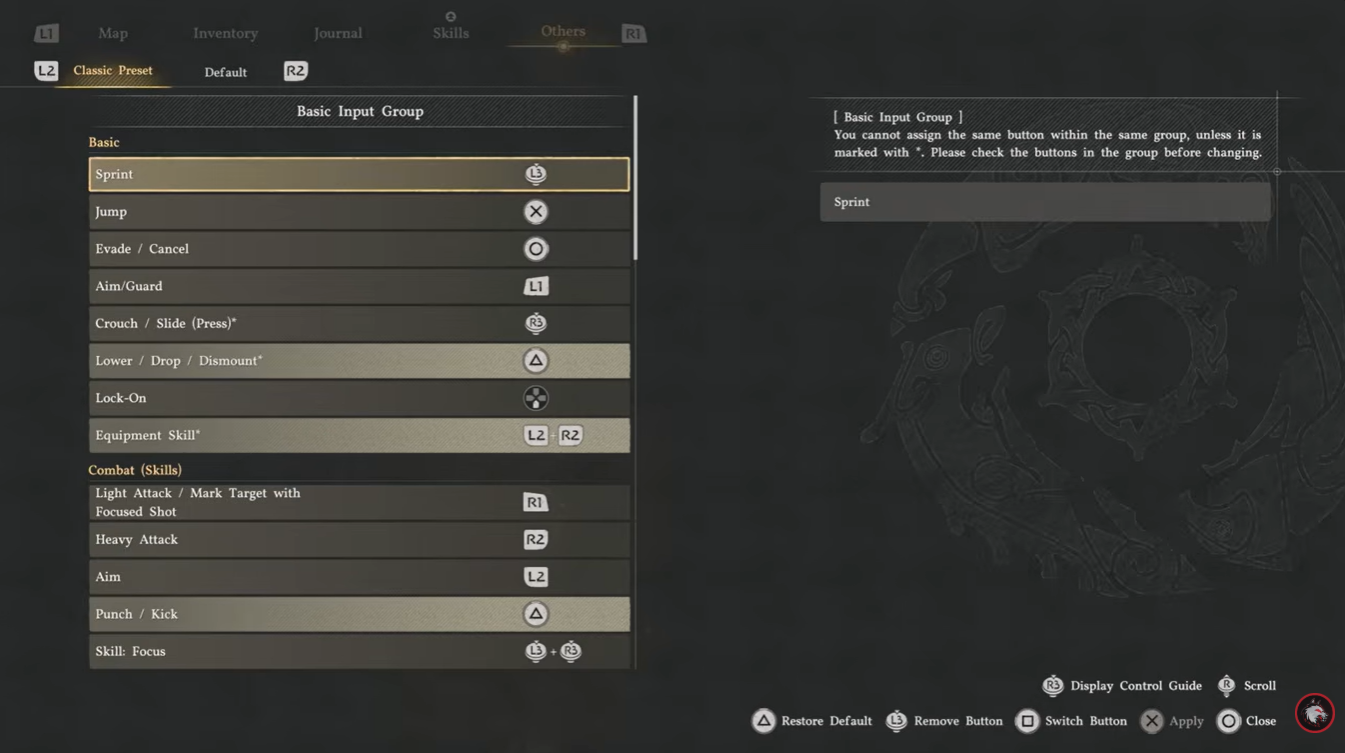
Once you’re done, be sure to apply your changes before exiting the menu, as leaving without applying may cause your new button assignments to be lost.
Example controller layout to try out
One controller mapped layout you can try:
| Action | Remapped Button |
|---|---|
| Sprint | Left Thumb Stick (L3) |
| Jump | X Button |
| Crouch | Right Thumb Stick (R3) |
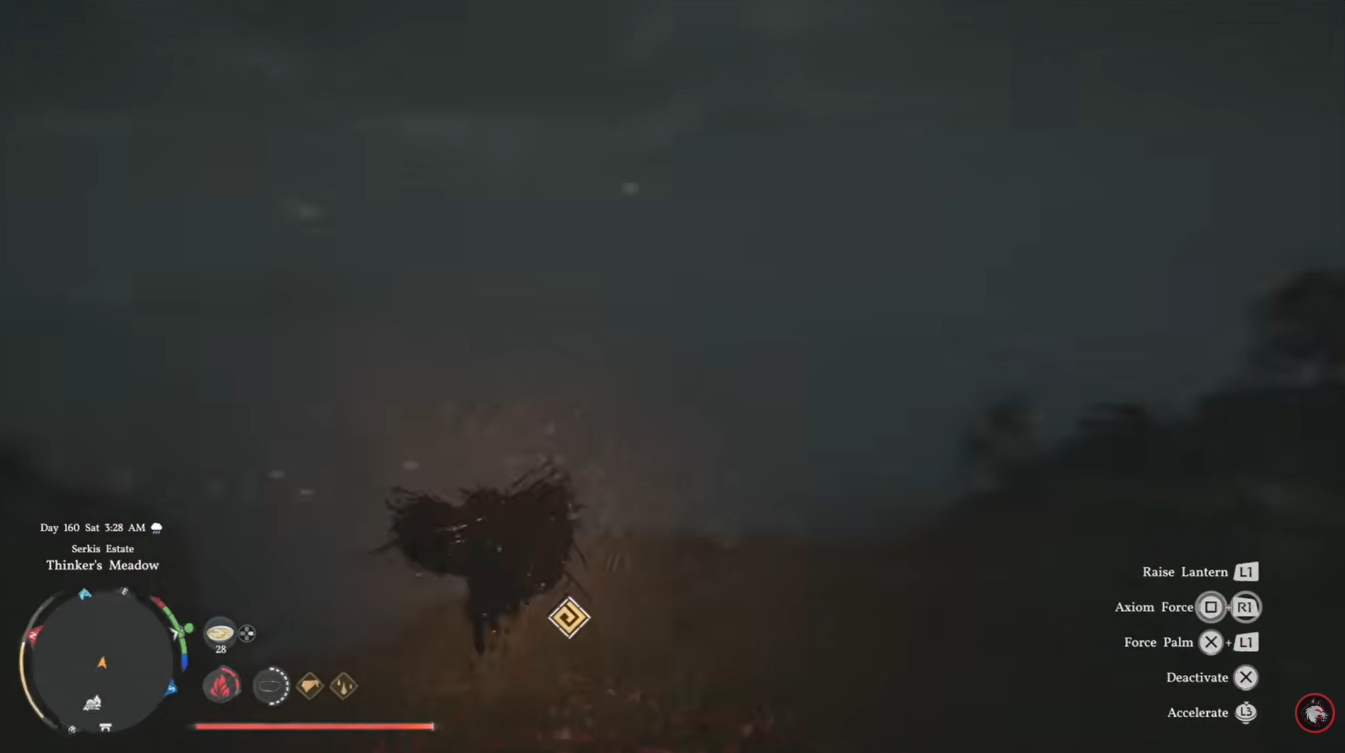
| Forest Palm | L1 + X |
| Axium Force | R1 + Square |
This setup is only an example and should be treated as a starting point rather than an optimal configuration for everyone.
Why remapping can improve gameplay
Controller layouts are highly personal. A button arrangement that feels perfect for one player may feel awkward for another.
Moving sprint to L3, for example, allows easier camera control while running. Placing jump on X follows conventions used by many modern action games, reducing the adjustment period for new players.
Combat-focused players may prefer to place abilities closer to shoulder buttons for faster activation, while exploration-focused players may prioritize movement controls.
The main benefit of the new system is flexibility. Instead of adapting to a fixed layout, you can adapt the game to your own habits.
Tips for creating your ideal control scheme
When experimenting with layouts, focus on actions you use most frequently. Movement, dodging, sprinting, jumping, and commonly used abilities should generally be assigned to buttons that feel comfortable during long play sessions.
After making changes, spend some time fighting enemies and exploring the world before deciding whether a layout works. Muscle memory takes time to develop, and a configuration that initially feels strange may become more effective after several hours of gameplay.
Avoid changing too many important controls at once. Making small adjustments and testing them individually often leads to better results than completely redesigning the entire control scheme in one session.
Common reasons to remap controls
| Reason | Benefit |
|---|---|
| Souls-like Experience | Familiar button layout |
| Faster Combat | Quicker access to abilities |
| Better Movement | Easier sprinting and jumping |
| Accessibility | Increased comfort |
| Personal Preference | Matches individual habits |
| Reduced Hand Strain | More ergonomic setup |
The most effective controller setup is ultimately the one that becomes second nature. While recommended layouts can provide a useful starting point, there is no universally perfect configuration.
The goal is to create a scheme where actions occur instinctively without requiring conscious thought. As you continue playing, don’t hesitate to revisit the Input Customization menu and make adjustments until everything feels natural.
Controller remapping in Crimson Desert is one of the standout additions of Update 1.09, giving players far greater control over how the game feels. By visiting the Input Customization menu, you can reassign buttons, create a layout that matches your preferred genre experience, and improve both comfort and performance. Whether you’re aiming for a Souls-like setup or simply want a more ergonomic control scheme, the new feature makes it easy to tailor the game to your playstyle.