What to know
-
AirVPN uses remote port forwarding, not automatic UPnP, so you must manually reserve a port in your account.
-
You can reserve up to 5 ports at once, and they stay tied to your account as long as your subscription is active.
-
Ports must be 2048 or higher; lower numbers are reserved.
-
Avoid forwarding the same port on your router while using AirVPN, as this can break the tunnel and expose real‑world traffic.
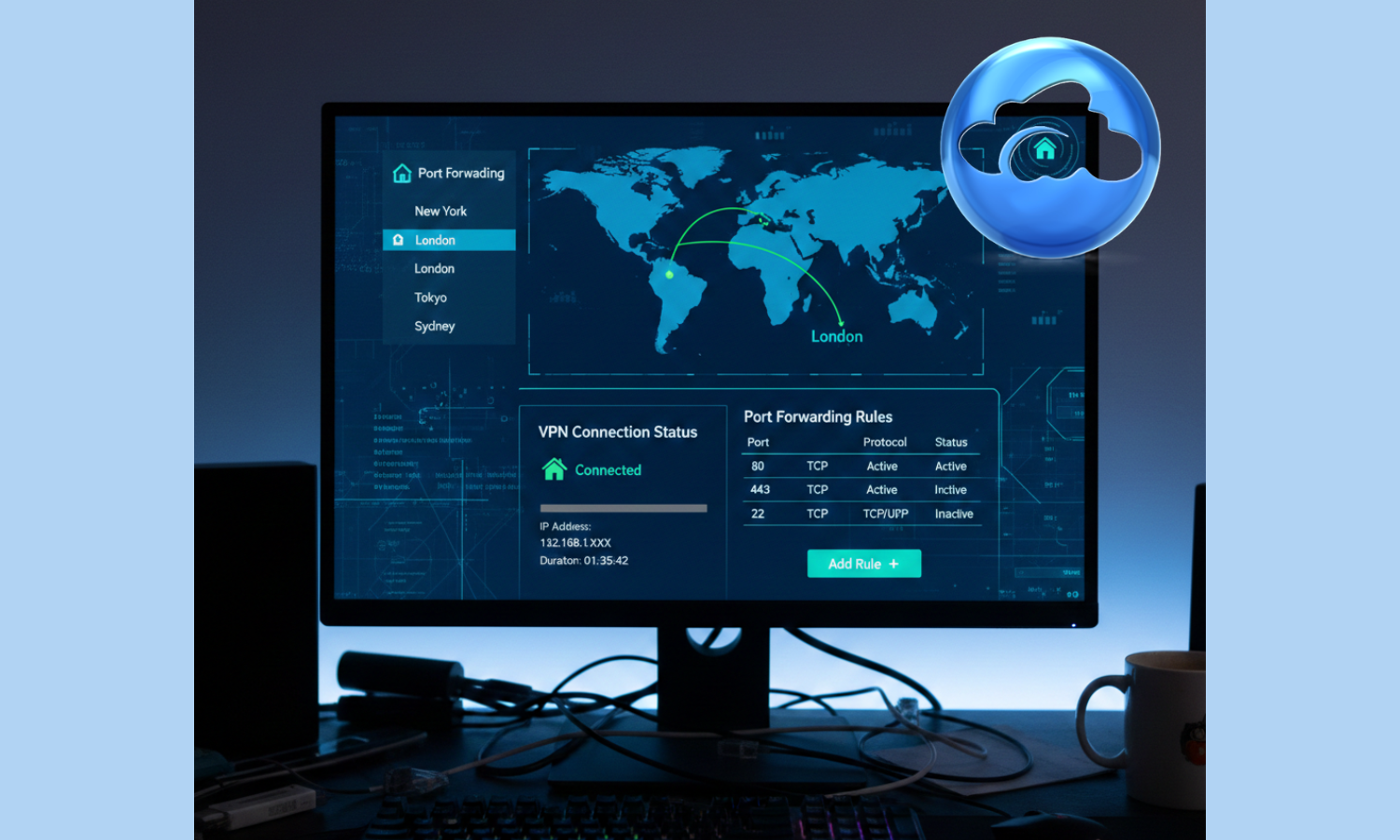
Port forwarding with AirVPN is really about reserving a remote port on the VPN server and then telling your local app (like a torrent client) to use that port. The VPN server then forwards incoming traffic on that port to your computer’s local port over the encrypted tunnel.
This setup is useful if you want better P2P performance in BitTorrent clients, or if you’re hosting any TCP/UDP service behind the VPN (for example, a small web server or a gaming server). The key is understanding that the forward sits between the VPN server’s exit IP and your local application port.
Log in and open the client area
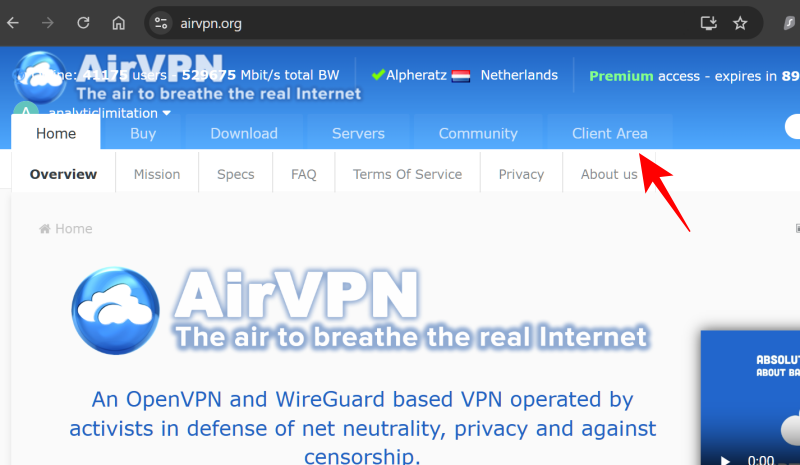
Start by going to the AirVPN website and logging in with your account. From the top menu, open Client Area as this is where port‑forwarding is configured.
Once inside the client area, look for the Ports section. Click on “Manage” below it.
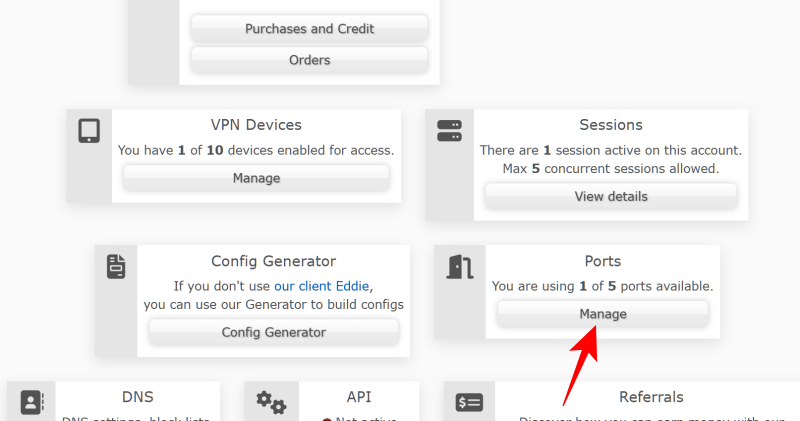
This is where you manage the inbound ports that the VPN server will accept from the Internet and then relay to your machine.
Reserve a remote port
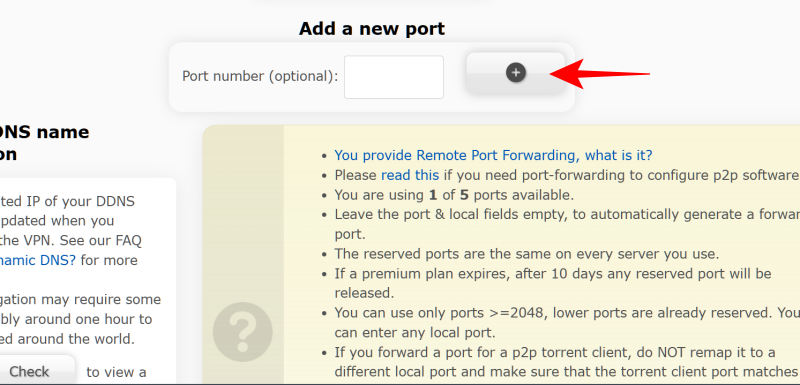
On the ports page, click on + to Add a new port.
You will see fields for Local Port, along with options for TCP/UDP and the device to which the port is assigned.
-
Choose a Local Port ≥ 2048 (for example, 40000–60000).
-
Decide whether you need TCP, UDP, or both depending on your app’s requirements.
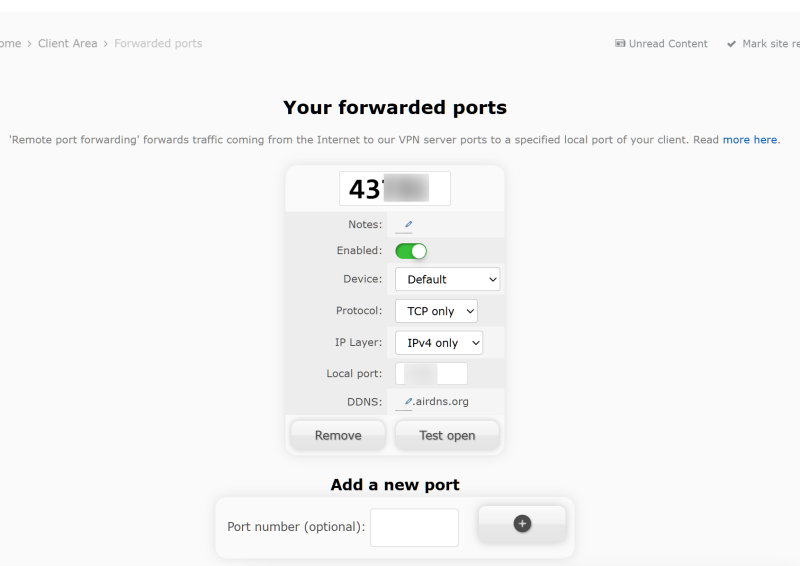
If you want packets arriving on the remote port to land on the same number on your machine, leave the Local Port field empty. If your app listens on a different port (for example, 8080), enter that number there.
Link the port to a device
If you use multiple devices (different computers or routers) under the same AirVPN account, you can assign the port to a specific Device from the dropdown.
-
Select All Devices if you only use one active machine over the VPN.
-
Choose a specific device label if you want the port to consistently route to one PC or router.
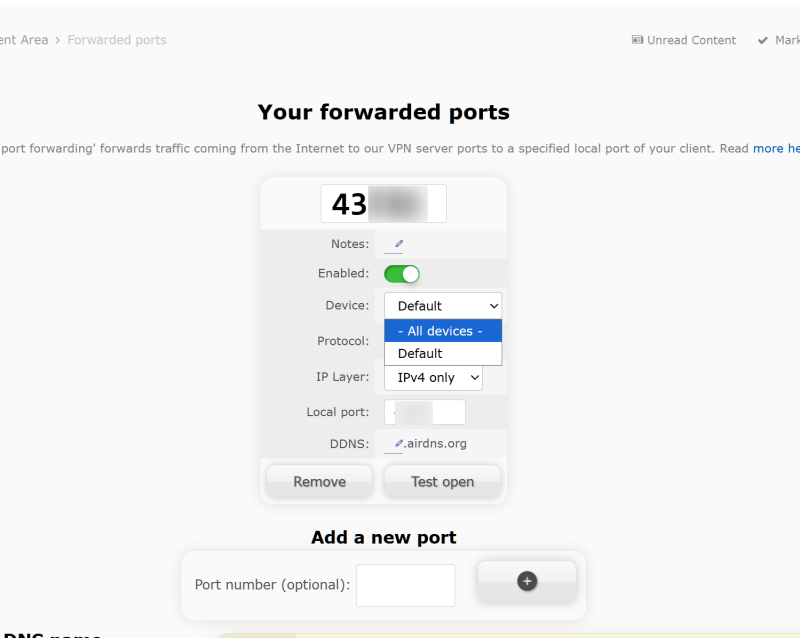
This ensures that when you connect that device to the VPN, the reserved port will be forwarded correctly to it.
Configure your local application
Once the port is reserved, open the application that needs the forwarded port (for example, qBittorrent, Transmission, or a web server).
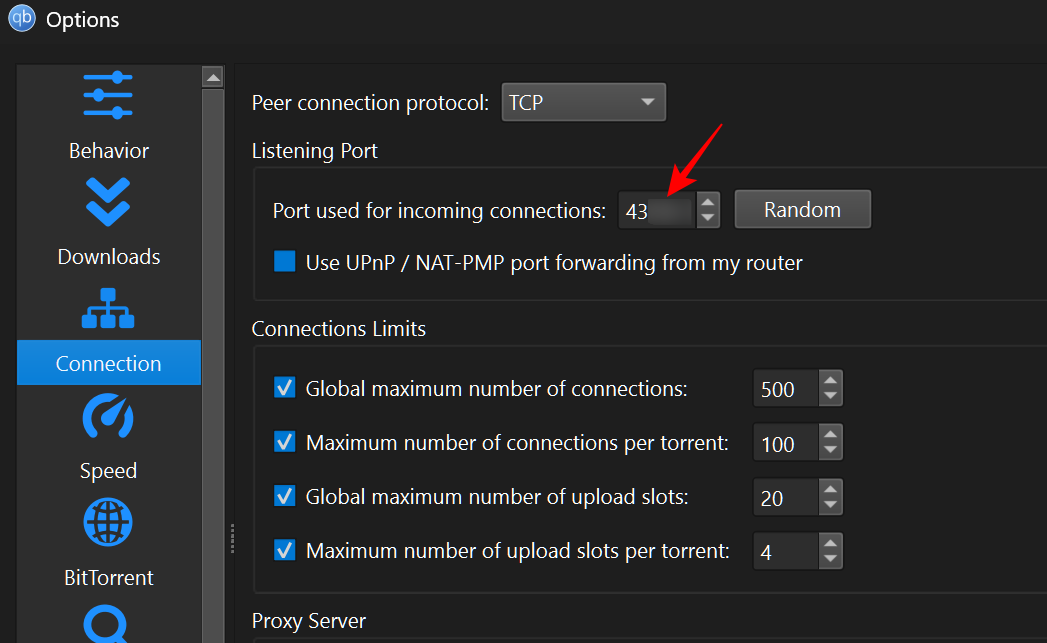
In the app’s settings, set its listening port to the port number you chose in the Client Area (or the local port if you mapped them differently). For instance, in qBittorrent under Options → Connection → Port used for incoming connections, enter the AirVPN‑assigned port and disable UPnP to avoid conflicts.
Test that the port is open
To confirm everything works, use an online port‑checking tool such as YouGetSignal or a similar service. Enter the VPN server’s public IP and the remote port number you reserved.
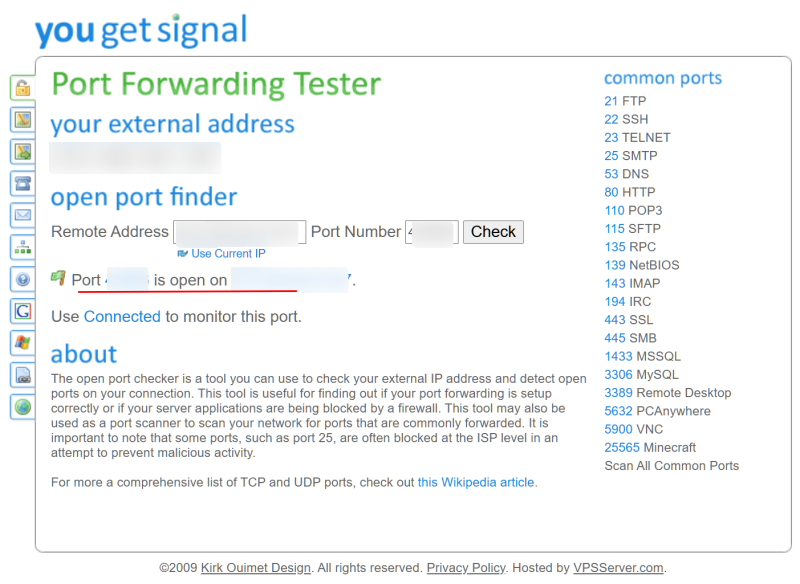
If the port shows as open, your application should be reachable from the Internet through the VPN tunnel. If it shows as closed, verify that:
-
The AirVPN port is actually reserved and active in your Client Area.
-
Your local firewall or antivirus is not blocking the port on the machine.
-
The app is bound to the correct port and not using a different one.
AirVPN explicitly warns not to forward the same port on your home router while the VPN is active. Doing so can route traffic outside the tunnel, exposing your real IP and creating security and correlation risks.
When to use port forwarding
Remote port forwarding makes sense when you:
-
Run a BitTorrent client and want more incoming peers for better speeds.
-
Host a small web or game server behind the VPN and need external access.
-
Need certain ports open for NAT‑restricted online games or services.
On the other hand, skip port forwarding if you only browse the web or stream media, because the added listening surface is unnecessary for those use cases.
How to keep port forwarding working reliably
To minimize instability, pick a stable remote port and avoid changing it unless required. Since the port stays reserved as long as your subscription is valid, you can keep the same port in your torrent client or web server configuration indefinitely.
Periodically re‑check the port status with a test site when you switch servers or notice a drop in incoming connections, as different VPN servers may handle NAT rules slightly differently.