If you’ve ever wanted media control players in your taskbar so you can control playback with a single click, well, now is the chance to get it. TaskbarMediaControls – a GitHub project – is a lightweight Windows 11 application that lets you control media playback directly from the system tray.
TaskbarMediaControls adds three buttons – Previous, Play/Pause, and Next – to the taskbar as individual tray icons. It’s simply, quick, and most importantly, doesn’t get in the way of other UI elements.

Install TaskbarMediaControls
To get TaskbarMediaControls, visit its GitHub release page.
Click on TaskbarMediaControlsSetup.exe under ‘Assets’.
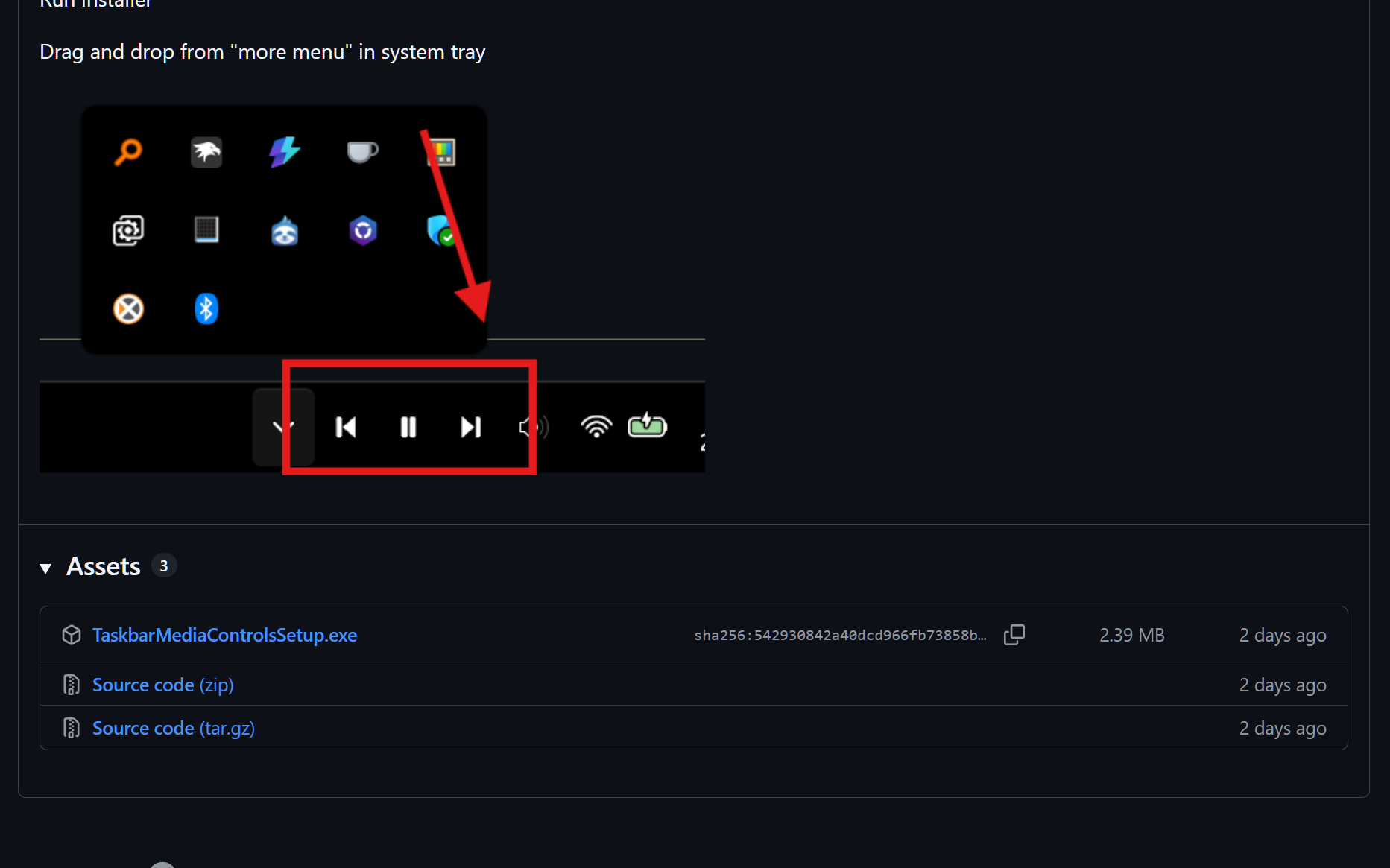
Download and install it.
Once installed, you’ll see the three media controls appear in the system tray (hidden).
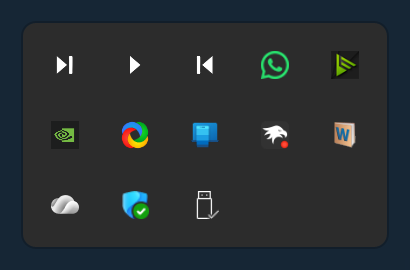
Simply drag each one next to the other icons in the system tray. You will see the Pin icon appear highlighting the same.
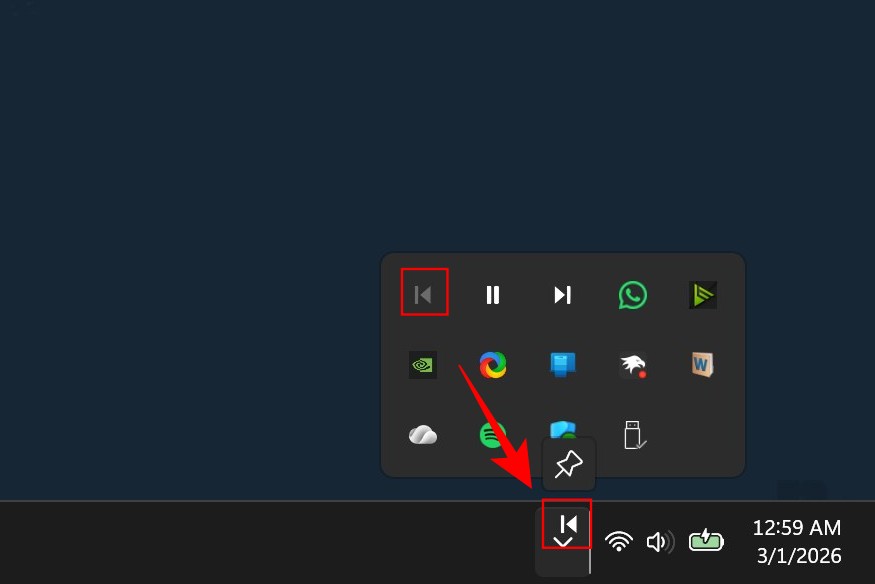
And that’s it! You now have media controls in the taskbar.
TaskbarMediaControls compatibility
TaskbarMediaControls supports just about every media player out there. All except VLC. So if you use VLC mainly, unfortunately, you’re out of luck. But if you use Spotify, Foobar2000, or any other media player, it works just fine. There’s also support for Windows light mode.
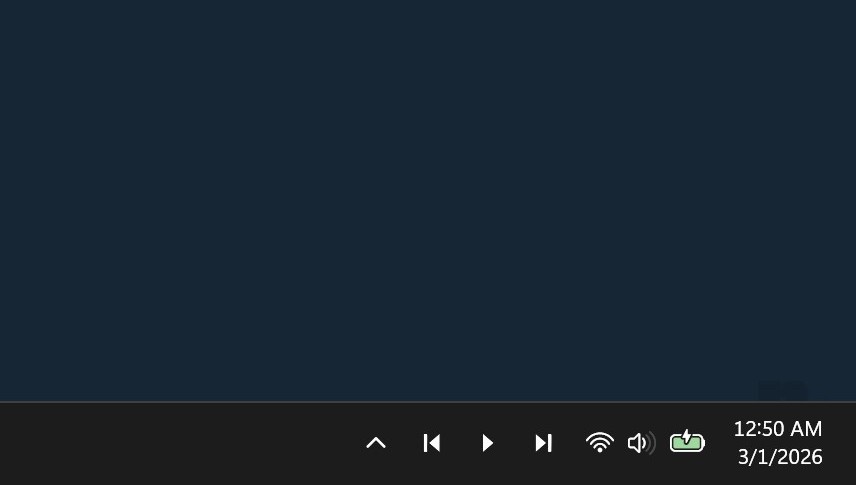
It works quite well even if you have multiple media players going, prioritizing the app that is active or the app that played music first.
By default, TaskbarMediaControls is slated to launch at startup, because it is a install-and-forget type of an app. But if you don’t like that fact, simply right-click on one of the taskbar icons and disable that.