What to know
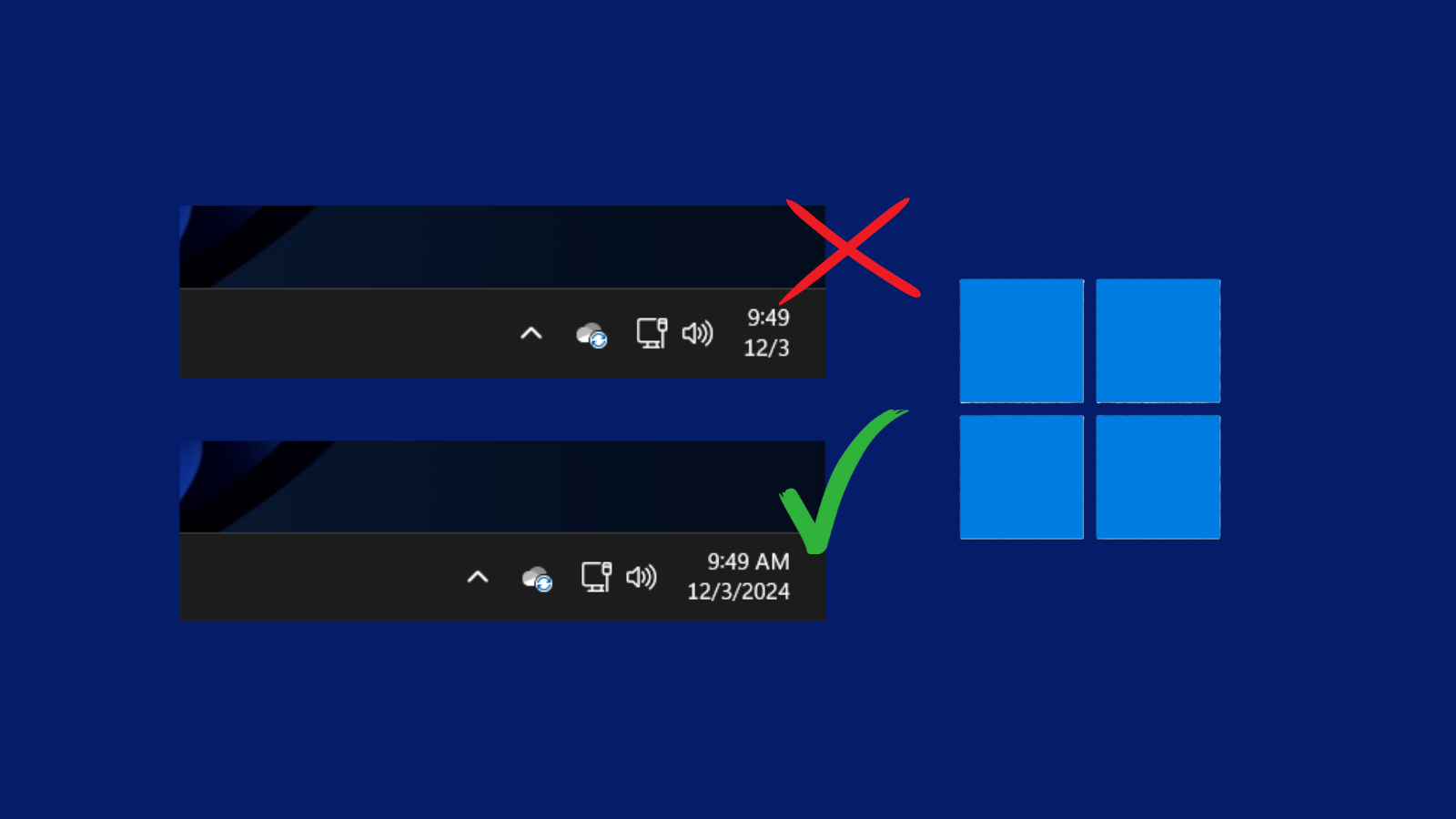
- A new Windows 11 update has shortened the date and time in the taskbar. The abbreviated format removes AM/PM and the year from view. But this can be changed easily.
- Go to Settings app > Time & language > Date & time > Show time and date in the System tray > uncheck Show abbreviated time and date.
- Open Registry Editor, go to HKEY_CURRENT_USERSoftwareMicrosoftWindowsCurrentVersionExplorerAdvanced, double-click ShowShortenedDateTime, change Value data to 0 and click OK.
- Open Local Group Policy Editor, navigate to User Configuration > Administrative Templates > Start Menu and Taskbar. Double-click the policy Turn off abbreviated time and date format, set it to Enabled, and click Apply > OK. Restart PC or Windows Explorer.
Windows 11’s recent update has shortened the date and time in the taskbar. This abbreviated view of the date and time removes the AM/PM from the time and the year from the date.

This can be quite frustrating, especially since the shortened date-time view is activated by default. Fortunately, there are a few ways to disable this truncated view and get back to the full date and time format that we’re all used to seeing in the taskbar.
3 Ways to disable abbreviated time and date in Windows 11 taskbar
There are a few ways to disable the shortened view and get the full date and time format in Windows 11 taskbar.
Method 1: From the Settings page

Alternatively, open the Settings app and go to Time & language > Date & time.


And that’s it! You should now see the full date and time in the taskbar (as it should be).

Method 2: Using the Registry Editor
Another way to disable abbreviated date and time in the taskbar is by changing its registry value. Here’s how to go about it:
Win+R) and use the regedit command.
HKEY_CURRENT_USERSoftwareMicrosoftWindowsCurrentVersionExplorerAdvanced


The changes will take place instantly and you should get back the full date and time in the taskbar again.
Method 3: Using Group Policy Editor
Windows 11 Pro users can also use the Local Group Policy Editor to turn off the abbreviated time and date format. Here’s how:
Win+R) using the command gpedit.msc.


The changes will now take place and you’ll get back the full date and time format that shows AM/PM as well as the year.
The abbreviated date and time format is already live on Windows Insiders Canary, Release Preview, and Dev builds. We didn’t find it on the Beta build or the stable build yet. Microsoft mentions in its Windows Insiders blog page:
“We’re trying out a more simplified system tray to highlight the date/time in a shortened form”.
It looks like Microsoft is going ahead with the new ‘simplified system tray’ even though it’s not being received well by the Windows community. Fortunately, the methods given above will let you revert to the full date and time format without any issues.