Spotify lets you play local files on your PC by turning on the Show Local Files option from Spotify’s settings. But if you want those local files to show up on your smartphone so you can play them on your phone separately, there is a specific set of steps you have to take. Here’s everything you need to know to get going.
Requirements
You will need the following to make this work:
- Songs on your PC
- Spotify Premium.
Make sure the songs are in a format that is supported by Spotify like MP3, M4P, and MP4.
Use Spotify to play local files on phone
Firstly, on Spotify’s desktop app, go to Settings and enable Show Local Files.
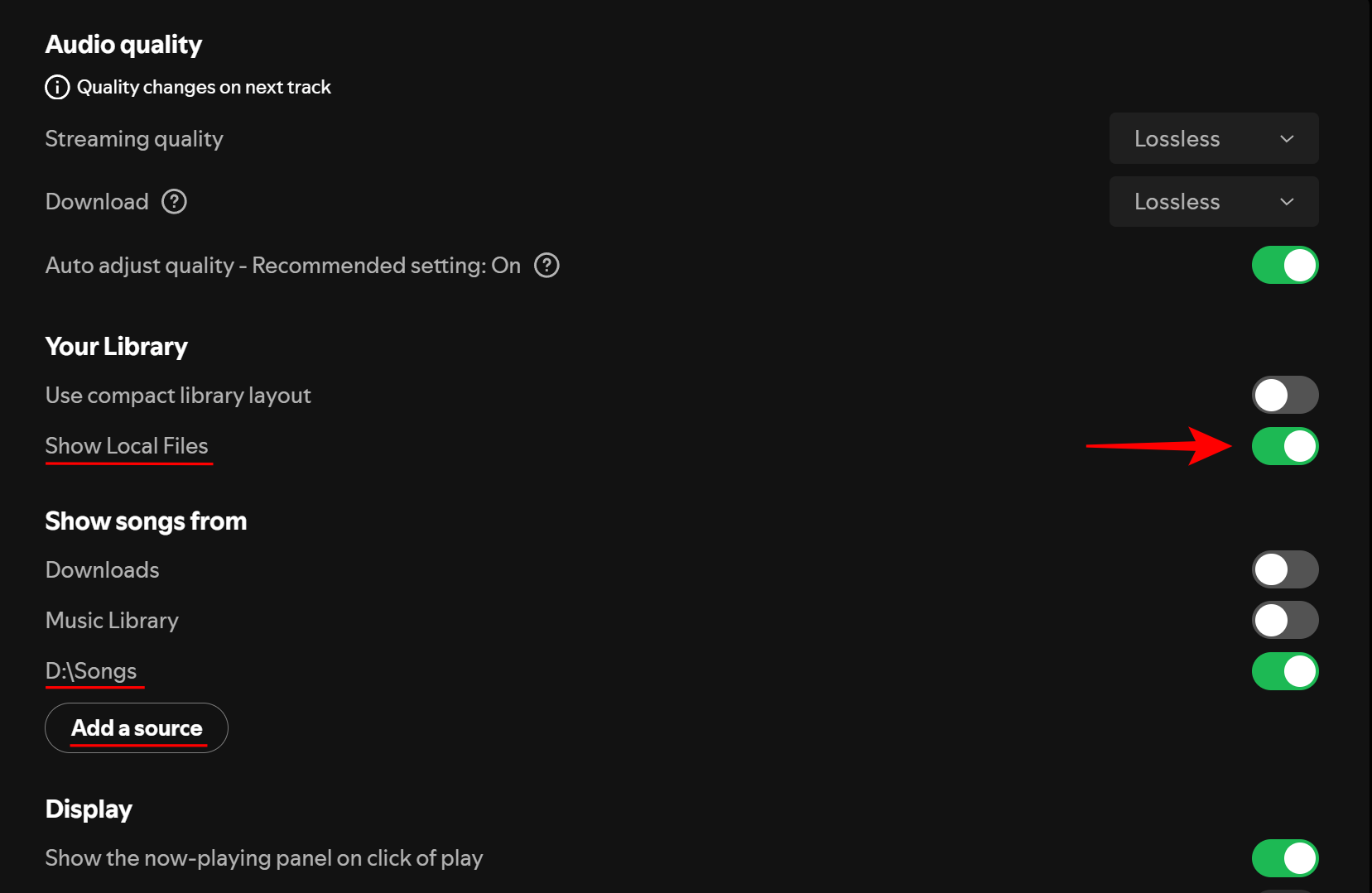
Make sure the directory is pointing to where your songs are. To add a different folder, do so from Add a source.
Your local files will appear in the Local Files folder.
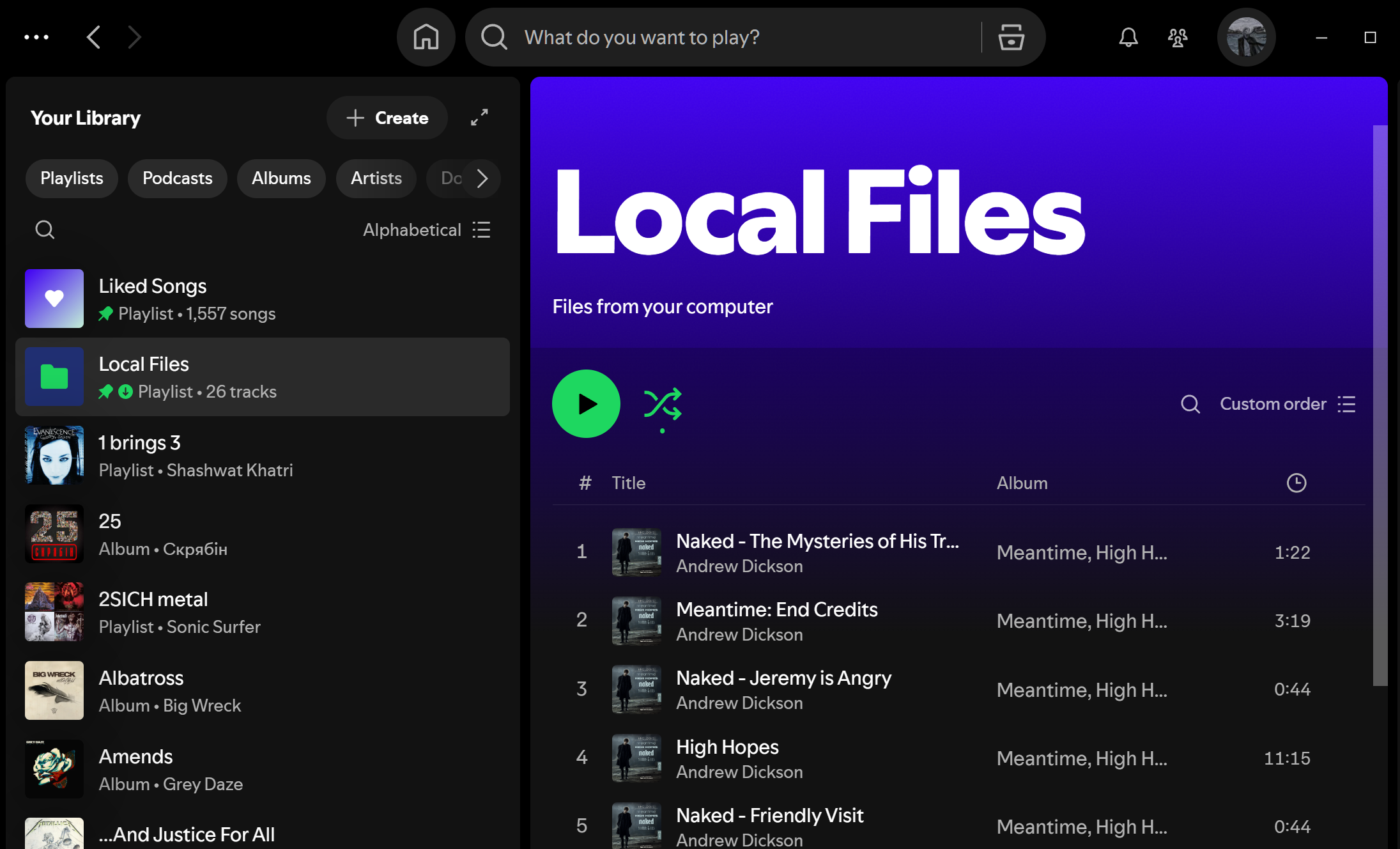
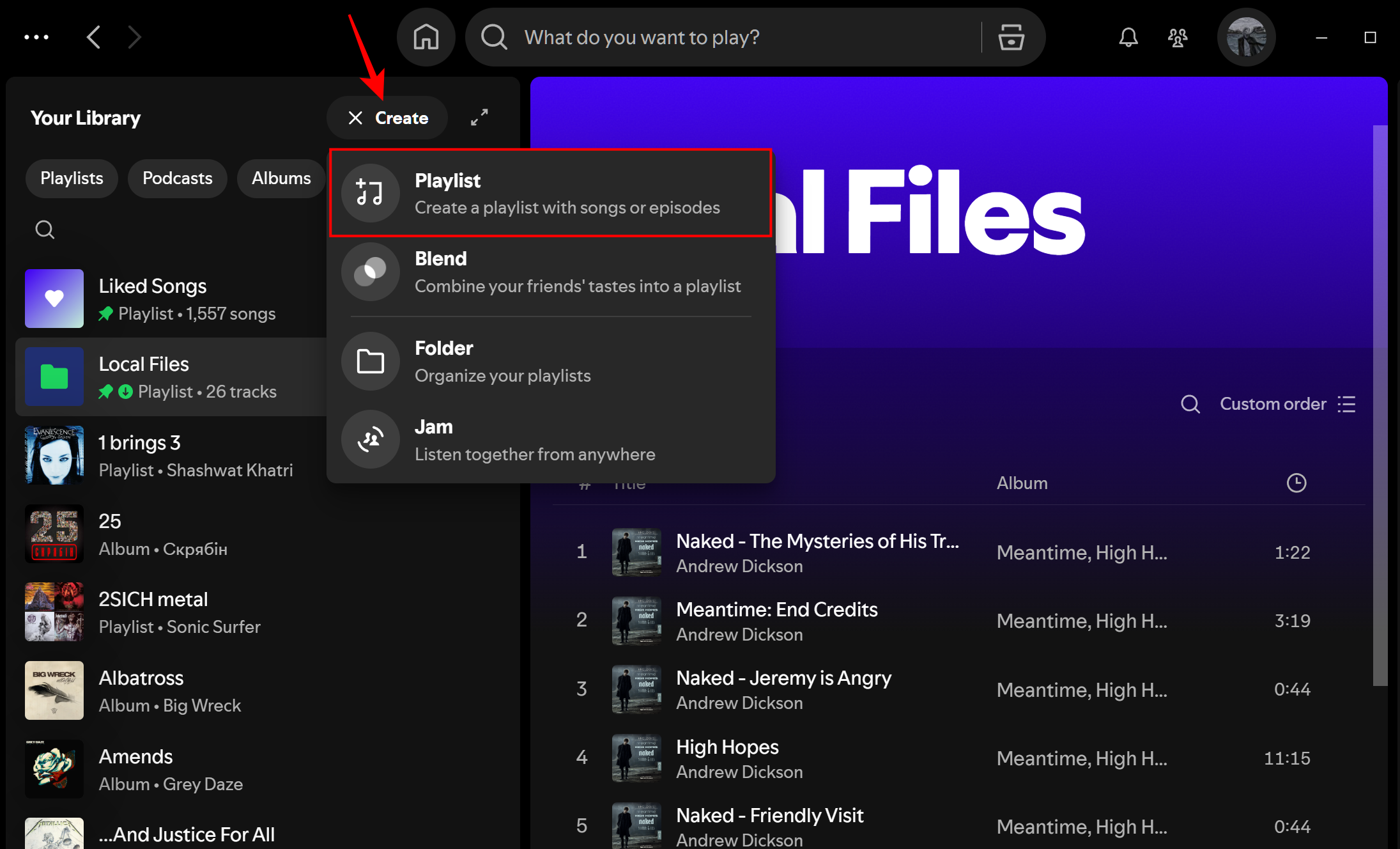
Next, create a new playlist.
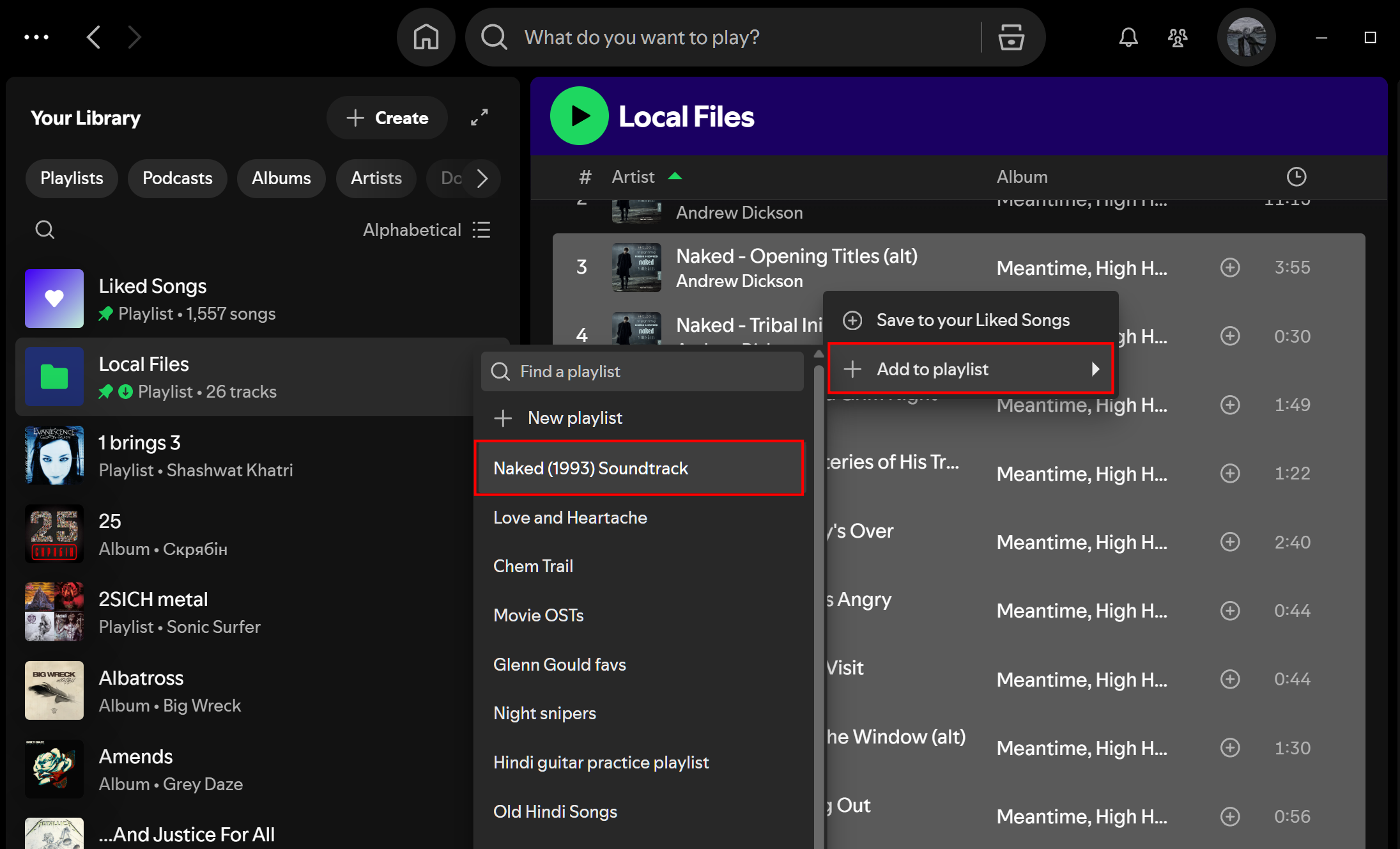
Then add your local files to this playlist.
Next, open Spotify on your phone. Make sure your phone is on the same WiFi network as your PC.
Go to the playlist and download the songs. Don’t worry if they’re greyed out.
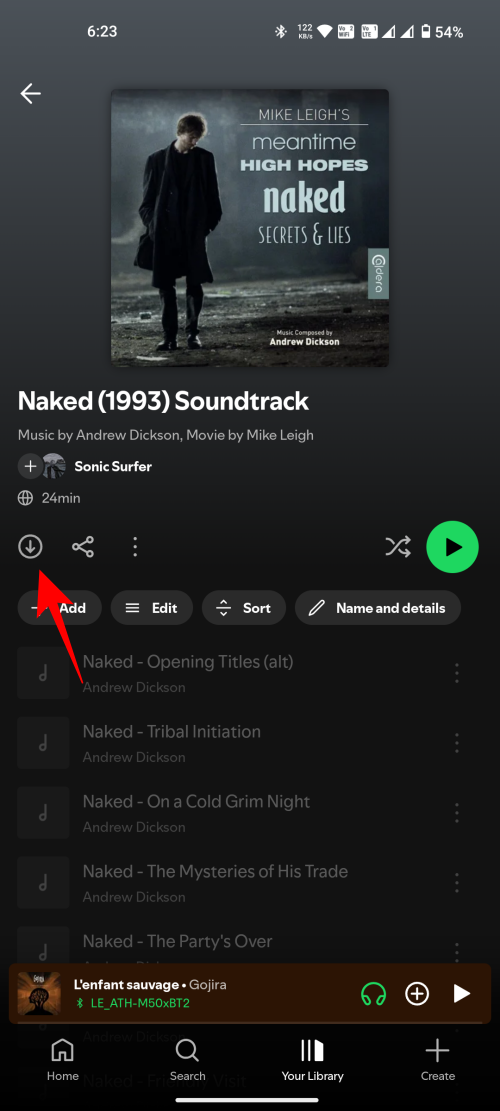
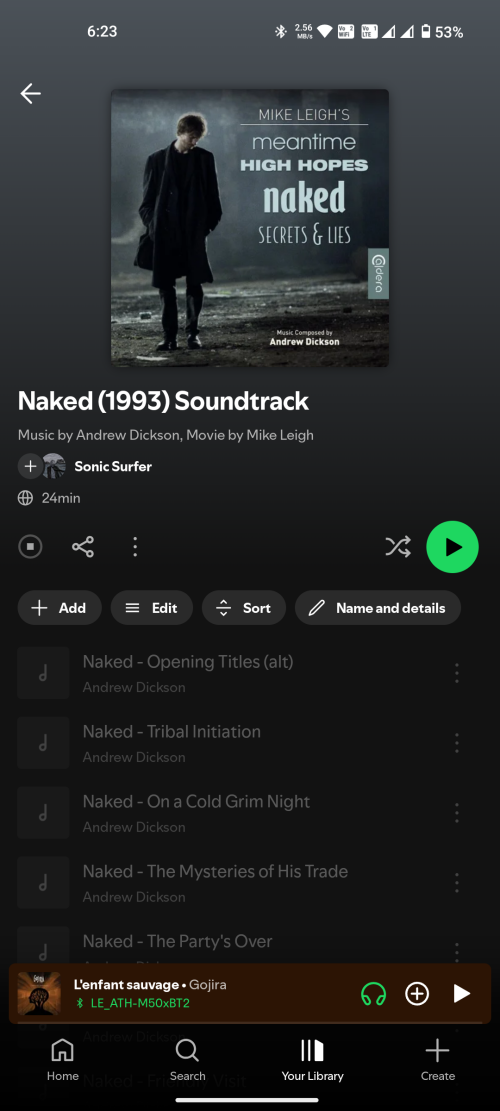
Now, play a song from the playlist from Spotify’s Desktop app (not the phone).
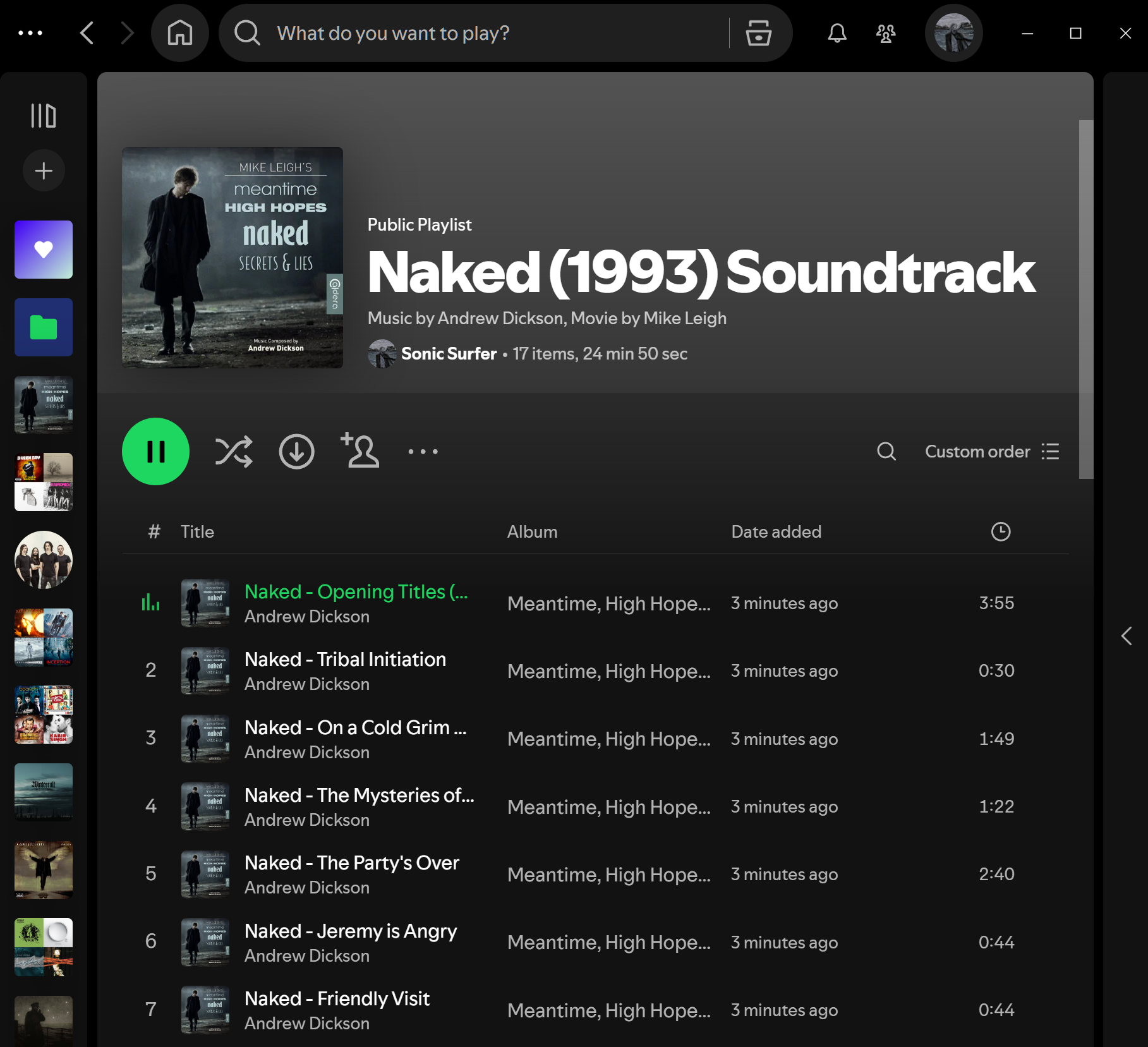
While the song is playing on your PC, go to Spotify settings on your phone.
Go to Apps and device. And enable Local audio files.
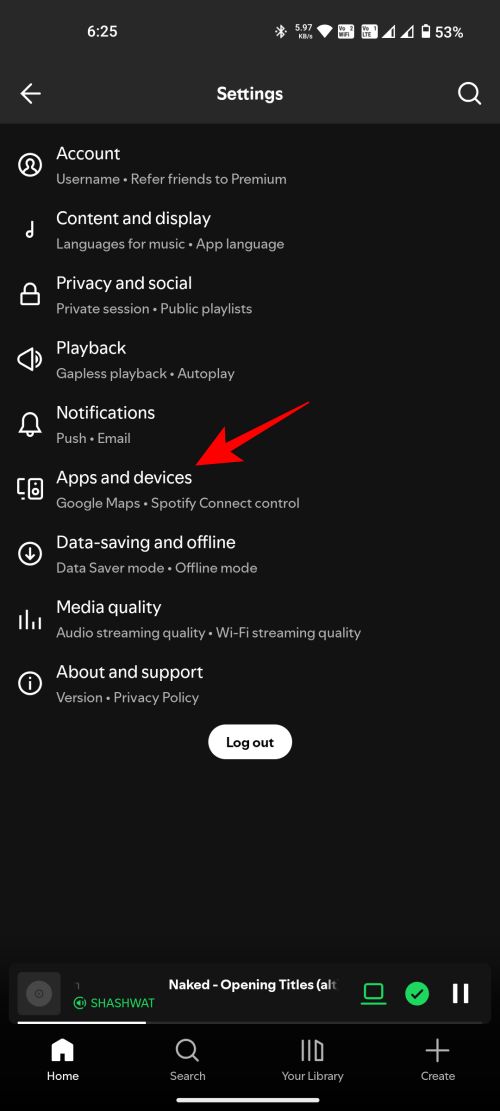
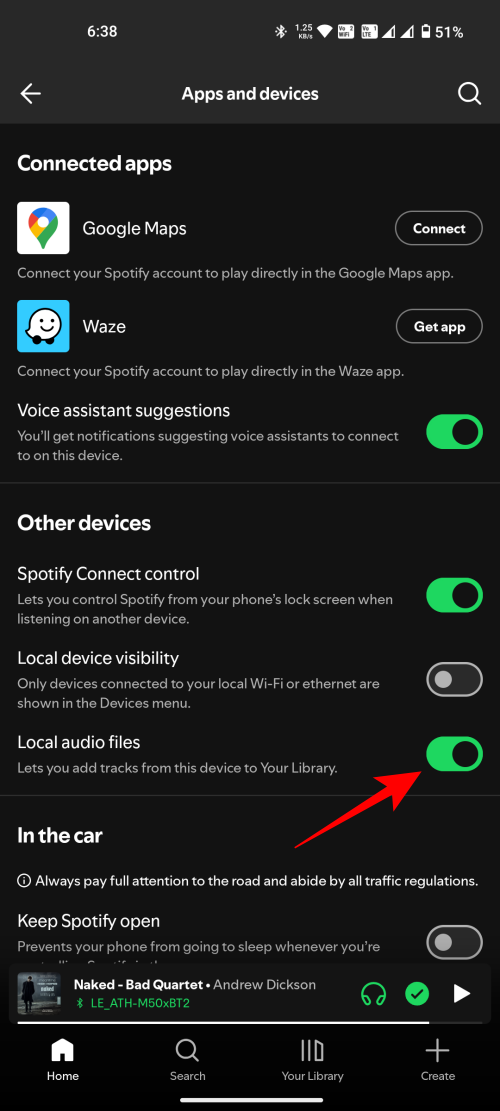
If it’s already enabled, disable and then re-enable it. Now return to the playlist. The songs should start downloading.
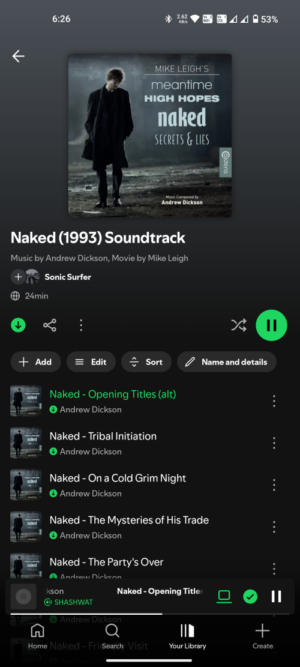
And that’s it! Now you can listen to these local songs separately on your phone, without having to connect to PC.
Troubleshooting
If the songs are greyed out and don’t download right away, try the following:
- Wait a few seconds or minutes.
- Disable then re-enable local files on Spotify’s phone app.
- Close the Spotify phone app. Then open it again.
- Undo and redo the steps above.
While setting this up the first time, we too experienced some trouble. But after relaunching the Spotify app and waiting a few seconds, the songs appeared in the playlist and were downloaded on the app.
We hope this guide helped you get your local songs on Spotify on your phone. If you have any issues, do let us know in the comments below. We’ll be happy to help. Until next time!