

Now that the Android 5.1 update for T-Mobile One M9 is out, you could be in desperate need of a way to go back to stock on your device. Well, we’ve got you covered here, and that too without getting the data wipes off of your device, by restoring the untouched TWRP backup of system partition.
Sure, there are other ways too to go back to stock, like installing the RUU using its .exe or zip file, but that would mean you will lose all data on T-Mobile One M9. Big thank to Rydah805 for the TWRP backup file, you rock!
How to go Back to Stock on HTC One M9 at T-Mobile
We are gonna see various methods for this. We’re listing them down once below, and then we will see each one of them in detail.
Because the problem with OTA update fail can be directly associated with installation of TWRP recovery, using which you system was mounted as read-write, and hence the problem and OTA fail. So, we have two options, first, restore the TWRP backup, and second, install the whole of firmware using either HTC’s own RUU.exe file or firmware zip.
Let’s talk which method wipes off data, meaning everything on your phone gets deleted.
- Restoring TWRP backup: This can help you get OTA update without deleting your data. Your apps, games, their data and internal storage will not be deleted.
- Restoring using HTC firmware: Your data will be deleted. You apps, games, app settings, game progress, pics, music and videos files and everything on internal storage will be removed. You will need to relock bootloader of your device, which in itself deletes everything, to get firmware to install. You must have unlocked bootloader of your device when you installed TWRP recovery, in order to root your One M9.
→ We have not covered the method 2 here. Only first method, that uses TWRP recovery has been used as it’s not hard as it looks and preserve your data. If you want guides for installing firmware using HTC’s RUU, do let us know, we will get you that.
Method 1: Restore untouched Stock System of TWRP
What you will do in this method is download the stock untouched TWRP backup from the link provided below, and then use it to flash system partition. And then restore the TWRP backup using recovery. Let’s see how.
- Download Stock untouched TWRP recovery BACKUP — Link | File: 1.32.531.33_Untouched_Uncompressed.zip (1.9 GB)
- Download stock recovery — Link | File: recovery.img (32.1 MB)
- Install ADB and fastboot driver.
- Disconnect it from PC if connected, and then Power off your device. Wait for 5-10 seconds after screen goes off.
- Press and hold Power and Volume down together until phone vibrates a little. You will reach download/fastboot mode. It should be black screen, not white.
- boot.emmc.win
- system.emmc.win
- recovery.log
Now, this folder is important where you have all these files.
- Open the folder first, and then left click on empty white space in the folder.
- Now, while holding shift key, right click on empty white space to get a pop-up as shown below.
- Now choose Open command window here option from that.
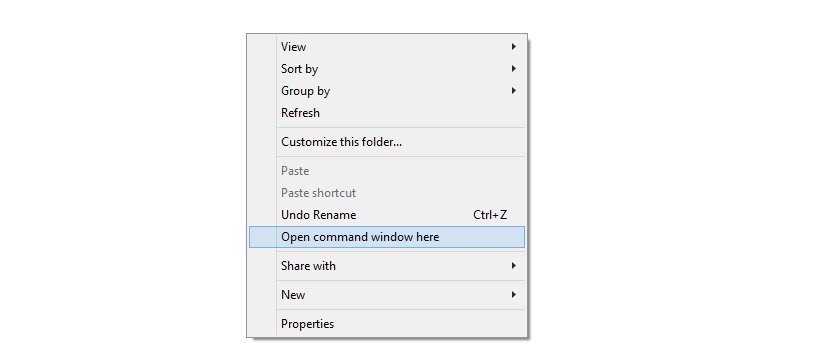
You will see a command window open up, with location directed to folder where you have the twrp recovery file.
→ Upon this, you should get a serial no. with fastboot written after it. If you don’t get fastboot written on cmd window, then it means you need to reinstall adb and fastboot drivers, or change restart PC, or use original USB cable.
fastboot devices
fastboot flash system system.emmc.win
The flashing will take time. So wait patiently for it to finish. You should get the output FIXING CODE in command window.
- While in download mode, select the option ‘reboot to bootloader’.
- When in bootloader mode, select the option ‘boot to recovery mode’. That’s it, you shall see TWRP recovery soon.
Once in TWRP recovery, tap on Mount menu. You should not be seeing System listed there, which means System is not mounted as read-write — exactly what we wanted.
- Disconnect it from PC if connected, and then Power off your device. Wait for 5-10 seconds after screen goes off.
- Press and hold Power + Volume down + Volume up together until phone vibrates a little. You will reach bootloader mode, with white background.
- Select the option ‘boot to recovery mode’. That’s it, you shall see TWRP recovery soon.
- Go to folder where you have the stock recovery file (recovery.img), and then open command window into that folder (as we did in step 5 above).
- Boot your One M9 into fastboot mode (see step 3 above for help).
- Connect One M9 to PC now, and run the following command
fastboot flash recovery recovery.img
- Stock recovery will be flashed, and TWRP recovery removed. Reboot your device now. Select the reboot option in fastboot mode for this.
That’s it. We are done. Fully back to stock.
→ Go to Settings > About device > Software Updates, and check for update now. You should get Android 5.1 OTA update notification and it shall install alright on your T-Mobile One M9.
Feedback us!
Do let us know how did it all go for you? And if you face any problems, be sure to ask us using comments section below. We will try to help you for sure.


21 responses to “T-Mobile HTC One M9 Back to Stock: Firmware and recovery (version 1.32.531.33)”
Thanks for this guide. It was very helpful.
Glad, so glad! Thanks for the feedback!
Thanks for this guide. It was very helpful.
Glad, so glad! Thanks for the feedback!
Thanks for this guide. It was very helpful.
Glad, so glad! Thanks for the feedback!
I hope it works!!!!!!
Hi,
I really want to update my phone to Lollipop, and I need to do this in order to get ther. However, I’m quite new at this so I’ve lots of questions but the most important one is, I have an unlocked HTC M9 and I was wondering, if I do this, will it lock it again? Thanks for your help!
Hi,
I really want to update my phone to Lollipop, and I need to do this in order to get ther. However, I’m quite new at this so I’ve lots of questions but the most important one is, I have an unlocked HTC M9 and I was wondering, if I do this, will it lock it again? Thanks for your help!
Awesome tutorial. Thank you so much for this.
Awesome tutorial. Thank you so much for this.
Perfect, thanx!
Perfect, thanx!
this Link is not working for Mega: Download stock recovery — Link | File: recovery.img (32.1 MB)
help I need Stock Recovery
this Link is not working for Mega: Download stock recovery — Link | File: recovery.img (32.1 MB)
help I need Stock Recovery
Thanks for this, Krishna. Great tutorial.
Thanks for this, Krishna. Great tutorial.
we need a new recovery
we need a new recovery
can you do an updated one for the marshmallow version of the tmobile htc one m9. plz plz plz response asap i am in need of help
can you do an updated one for the marshmallow version of the tmobile htc one m9. plz plz plz response asap i am in need of help