What to know
-
Do not disturb is the Windows 11 mode that silences notification pop-ups while still collecting them in Notification Center.
-
Notification Center opens with the ‘Win + N’ shortcut, and the bell button in that panel is the fastest built-in toggle. Use Tab to highlight the Bell icon and press Space or Enter to toggle it on or off.
-
The same toggle also lives in Settings under System > Notifications for when deeper control is needed.
Windows 11 hides the fastest Do not disturb switch in a place most people already visit: Notification Center. This area makes it easy to get to the DND bell icon quickly, tap it once, and get back to work. Here’s how:
How to quickly toggle Do not disturb from Notification Center
Step 1
Press Win + N to open Notification Center.
Step 2
Look at the top-right of that panel for the bell icon (this is the Do not disturb toggle).
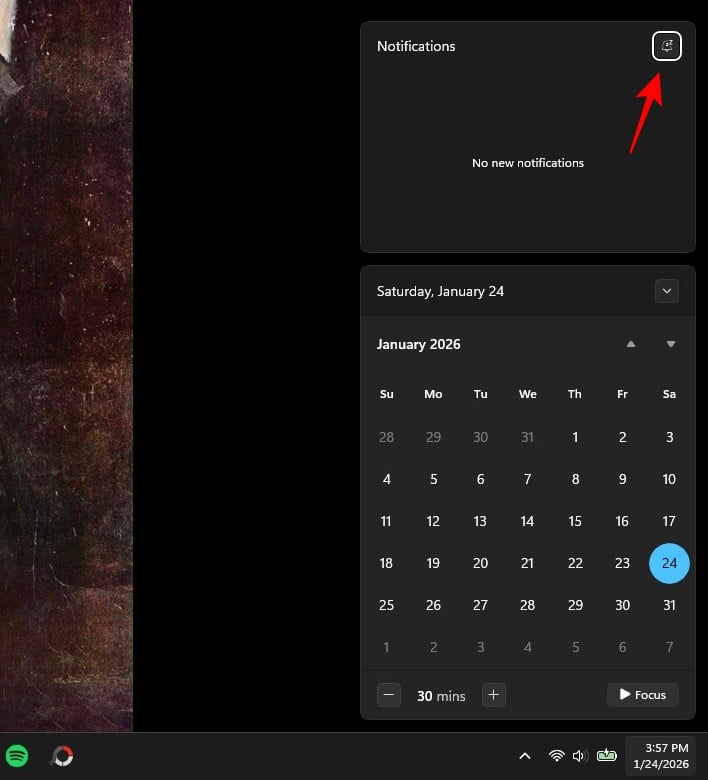
Step 3
It should be highlighted automatically. If not, use the Tab key to reach it. Then hit Space or Enter or click on it to turn Do not disturb on or off.
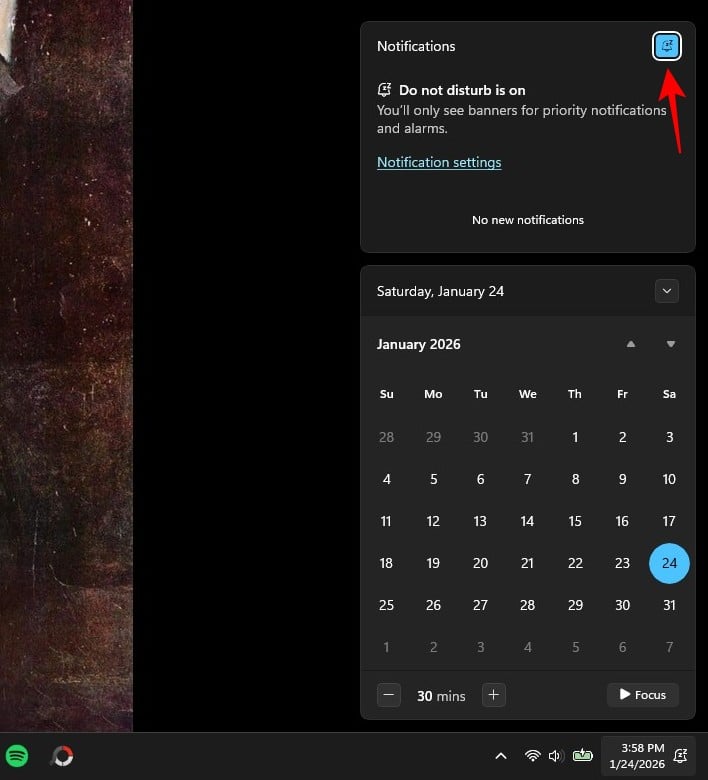
Getting Do not disturb right in Windows 11 is mostly about using the Notification Center bell toggle instead of digging through menus. Once Win + N becomes automatic, flipping DND on for meetings (and back off after) takes seconds.