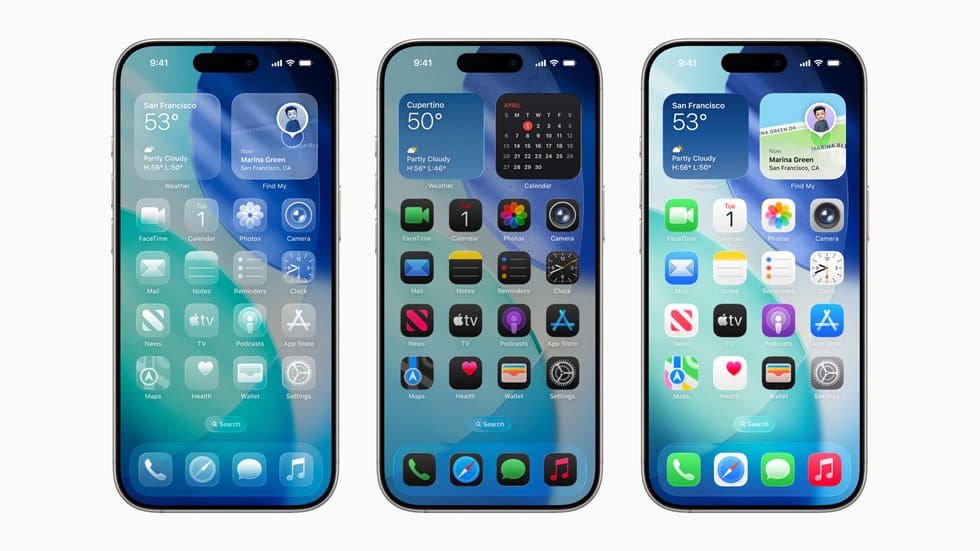
Turning off the Liquid Glass effect in iOS 26 can improve readability on your iPhone.
- What to know
- How to reduce the Liquid Glass effect using accessibility settings
- How to adjust Liquid Glass effect on the Lock Screen or App Icons
- Accessibility options summary
- Understanding Liquid Glass in iOS 26
- Why you might want to adjust the glassy effects
- You can also customize your Home Screen to minimize glassy icons on it
- Wish Apple provided a toggle to turn glass mode off
- A personalized iOS 26 experience beckons!
What to know
- Go to Settings > Accessibility > Display & Text Size to change the look of Liquid Glass.
- Turning on “Reduce Transparency” removes most of the Liquid Glass background effect.
- Enabling “Increase Contrast” further sharpens UI elements and reduces transparency.
- On the Lock Screen, you can choose a “Solid” mode to disable the glass clock effect.
If you’ve updated to iOS 26, you might notice the new Liquid Glass design right away—it’s Apple’s fresh take on the user interface, bringing a translucent, fluid aesthetic inspired by real glass to elements across your iPhone. This includes frosted effects on notifications, app icons, the Control Center, and more, aiming to make interactions feel more dynamic and focused. While many users appreciate the visual polish, others find the transparency distracting or hard on the eyes, especially when it blurs background content. Fortunately, Apple has built in accessibility options to tone it down, helping you customize your device for better comfort without losing the overall iOS 26 vibe.
How to reduce the Liquid Glass effect using accessibility settings
Apple’s primary tool for dialing back Liquid Glass is the Reduce Transparency option, which isn’t a complete off switch but significantly mutes the glassy blur across the system. This works system-wide, affecting everything from the Home Screen to in-app menus. Here’s a detailed step-by-step guide to enable it, based on the latest iOS 26 stable release.
Step 1: Open the Settings app
Launch Settings from your Home Screen—it’s the gray gear icon. If Liquid Glass is active, you’ll see its translucent effects immediately on the app’s navigation bar. Swipe down from the top of the screen and type “Accessibility” in the search bar at the top for quicker access, or scroll manually to find it under the main menu.
Step 2: Navigate to Display & Text Size
Tap Accessibility, then scroll down to the Vision section and select Display & Text Size. This menu handles visual customizations, including options for larger text, bold fonts, and motion reductions. In iOS 26, this area has been updated to better address Liquid Glass feedback from betas, offering more pronounced opacity changes than in earlier versions.
Step 3: Enable Reduce Transparency
Locate the Reduce Transparency toggle—it’s usually near the top, below options like Bold Text. Switch it on (it will turn green). You’ll notice an immediate change: UI elements like the menu background become more solid and less blurred. This doesn’t remove all translucency—areas like Control Center or widgets retain some for the design’s integrity—but it makes the overall interface feel more grounded and easier to read. Test it by opening the Notification Center or an app like Settings to see the difference.
Step 4: Fine-tune with Increase Contrast for extra clarity
While still in Display & Text Size, scroll to Increase Contrast and toggle it on. This adds borders to floating elements, like the Search field in Settings, and darkens notifications for better definition. It pairs well with Reduce Transparency, reducing the “liquid” distortion further. If you use Dark Mode, combine this with a wallpaper tweak: Go to Settings > Wallpaper > Customize, and turn off Blur to prevent additional softening behind icons.
Step 5: Verify and restart if needed
Pull down your Notification Center or long-press the Home Screen to check the changes. If the effect doesn’t apply everywhere (due to beta-like inconsistencies in some apps), restart your iPhone by holding the side button and a volume button until the power slider appears—note that this slider might not fully show Liquid Glass yet, per user reports. Updates like iOS 26.1, expected soon, may refine this further.
How to adjust Liquid Glass effect on the Lock Screen or App Icons
Step 1
On the Lock Screen, long press to enter customization.
Step 2
Select the clock and choose the “Solid” style instead of “Glass” to return to a more traditional appearance.
Step 3
For icons, in edit mode, check for a “Clear” or “Mode” setting and change it back to a less transparent option if available.
Accessibility options summary
| Setting | Effect on Glass Mode | Path to enable |
|---|---|---|
| Reduce Transparency | Removes most background transparency | Settings > Accessibility > Display & Text Size |
| Increase Contrast | Adds sharper, more defined UI outlines | Settings > Accessibility > Display & Text Size |
| Lock Screen “Solid” clock | Removes glass effect for the on-screen clock | Long press Lock Screen > Customize > Clock |
Understanding Liquid Glass in iOS 26
Liquid Glass rolled out with iOS 26 on September 15, 2025, marking the biggest design shift since iOS 7. It applies a semi-transparent, refractive layer to UI components, making them appear as if they’re made of liquid-like glass that reflects and adapts to your wallpaper or content underneath. This shows up on the Lock Screen clock, Home Screen widgets, app folders, and even in apps like Camera and Messages, where buttons and menus get a subtle sheen. The goal is to separate controls from content for a more immersive feel, but it can sometimes distort text or make notifications less legible, particularly in bright environments or for users with visual sensitivities.
Apple emphasizes that Liquid Glass enhances expressiveness while staying familiar, extending across iOS 26, iPadOS 26, and other platforms for consistency. It’s available on iPhone 11 and later models, with full effects on newer devices like the iPhone 17 series. Early betas faced criticism for inconsistent application—some screens, like the power-off slider accessed via Control Center, lacked the full glassy treatment—but the stable release refines this for broader harmony.
Why you might want to adjust the glassy effects
The translucent nature of Liquid Glass can create a “jumbled” look when overlapping elements, such as notifications over your wallpaper, leading to readability challenges. For instance, the frosted blur might make small text harder to parse, especially if you’re pulling down the Notification Center quickly. Users on forums like Reddit have noted inconsistencies, like certain power-off screens not matching the design, which adds to the haphazard feel during the transition. If you prefer a crisper, more solid interface reminiscent of iOS 18, these adjustments help without requiring a downgrade. Apple positions these as accessibility features, available since the first beta, and they’ve been updated in recent releases for even better opacity control.
| Aspect | Default Liquid Glass | With Reductions Applied |
|---|---|---|
| Notifications | Translucent overlay with blur | More opaque, solid background for clearer text |
| App Icons & Widgets | Layered glass effect adapting to wallpaper | Reduced transparency, closer to solid colors |
| Control Center | Frosted sliders and buttons | Less reflective, easier to distinguish elements |
| Readability Impact | Potential distortion from refraction | Improved contrast and legibility, especially in low light |
You can also customize your Home Screen to minimize glassy icons on it
For the Home Screen specifically, iOS 26 lets you adjust icon styles to reduce the layered glass look. Long-press an empty area until icons jiggle, then tap Edit in the top-left corner and select Customize. Choose options like Tinted or Default instead of Clear (which amps up the transparency in Light or Dark variants). This keeps some Liquid Glass essence but makes icons more solid, improving visibility against busy wallpapers. You can apply this per page for targeted control.
Wish Apple provided a toggle to turn glass mode off
While these steps help, Liquid Glass remains a core part of iOS 26—Apple hasn’t provided a full disable option, viewing it as essential for the platform’s harmony. Some elements, like the Camera app’s mode switcher, stay glassy by design. If issues persist, check for updates in Settings > General > Software Update, as Apple has tweaked transparency in betas based on feedback. For developers building apps, SwiftUI APIs now support custom Liquid Glass reductions, but for everyday users, the accessibility menu is your best bet.
A personalized iOS 26 experience beckons!
Tweaking Liquid Glass in iOS 26 lets you balance Apple’s innovative design with your comfort needs, ensuring your iPhone feels approachable and clear. Whether you go full opaque or keep a subtle sheen, these changes make daily use smoother—experiment to find what suits you best as you explore the update’s other features like enhanced Messages polls or spatial photos.