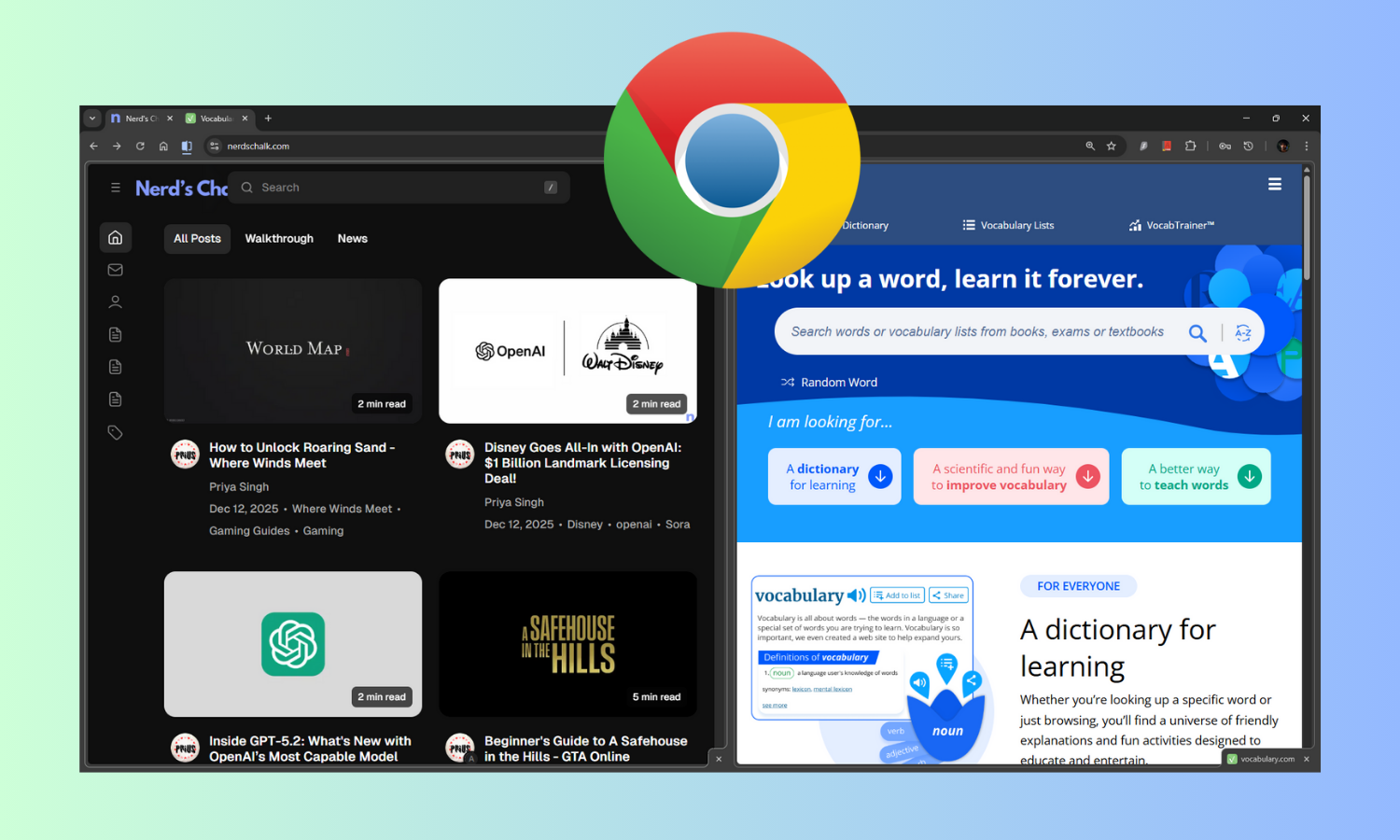
Learn how to use Chrome’s Split View to have two webpages open side by side at the same time, how reverse them, swap them with other tabs, and more!
What to know
- Google Chrome now has the Split View feature that lets you view two tabs open simultaneously, side by side.
- Right-click on a tab and select ‘Add tab to new split view’. This will open the current webpage in a split view on the left. You can then open another webpage on the right.
- You can resize the two webpages in split view, swap other tabs with those in split view, as well as reverse the webpages from left to right (and vice versa). You can also have as many split views as you like.
- Viewing two webpages within the same Chrome tab in split view is an intelligent productivity feature. Available on Chrome version 143 and above.
Chrome now offers Split View – a productivity feature that lets you have two tabs open side by side at the same time. It basically lets you divide a tab in two, so you can have two websites open together – one on the left, one on the right.
Previously, in order to have two tabs appear side by side you had to open them in two different windows and snap them together using Windows Snap. But Chrome’s Split View simplifies things and lets you create split view split groups within a single window. Here’s how Chrome’s Split View works.
How to split view in Chrome?
Step 1
Open Chrome. Then open the webpage that you want to see in Split View.
Step 2
Right-click on your tab and select Add tab to new split view.

This will open the current tab in split view and open a new tab next to it.

You can now open another webpage in split view.

If you have multiple tabs open and you go into split view mode, you’ll get the option to open from one of the other tabs in the split view itself.

Alternatively, when you have multiple tabs already open, right-click on a tab, and select New split view with current tab.

Similarly, whenever you come across a link, you can right-click on it and select Open link in split view.

This works just like opening a new webpage in another tab. Regardless of which option you choose, the tab on the left will always be on the left side of the split view, and the tab on the right on the right.
Step 3
Browse the two pages side by side. Notice that the two tabs share a single address bar. Whichever tab is active will have its web address displayed in the address bar. Click anywhere on either tab to make it the active tab.

You can have as many Split Views in a single Chrome window as you like. That means every tab can be split into two to basically view two websites at any given time.
How to use Split View in Chrome
Split view has several little hacks that can take your productivity to the next level. Here’s how to use it:
Resize webpages in Split View
In Split View, you can resize the webpages by dragging the middle divider left or right.

Reverse Views
To reverse the views, click on the Split View icon to the left of the address bar and select Reverse Views.

Alternatively, right-click on the split view tab, select Arrange split view, and select Reverse views.

Now the left webpage will on the right, and the right webpage on the left.

Swap an open tab with one in the Split View
If you want to bring an open tab to your split view, you can swap it with one of the two webpages in the group.
To do this, first make sure you are in Split View mode. Then right-click on the tab you want to bring to split view, select Move tab into split view, and choose whether you want to Swap with left view or Swap with right view.

That tab will swap with your chosen webpage in split view.

Pin Split View to easily switch from regular to split view
You can make going into Split View mode faster. Here’s how:
Go into Split View as shown above. Then right-click the Split View icon (left of address bar) and select Pin.

This will ensure the Split View icon remains on the toolbar at all times. Now, whenever you want to activate split view in Chrome, simply click on its icon.
How to close split view in Chrome
There are many ways to close split view:
You can click on the Split View icon and select Separate Views.

Or you can right-click the Split View tab, select Arrange split view and then select Separate Views.

Note: If you click on the ‘X’ next to the webpage in the split view tab or the ‘X’ in the bottom right corner of the webpage, it will close the webpage and exit split view.
How does split view in Chrome help?
Split view in Chrome works like a charm for those who need to keep two webpages next to each other. For writers and editors, it’s a blessing as it lets them make changes in one document while referring to another document or webpage.
Before Chrome’s split view, you had to open two Chrome windows and snap them together. But it quickly became a hassle when one of the webpages had to be expanded and then snapped back together again.
Furthermore, Windows has a peculiar problem with its snapped group layouts. In the taskbar preview of the snapped group, you will sometimes see the left window preview on the right, and the right one on the left, with no way to reverse them. Fortunately, Split View at least lets you reverse the Chrome tabs easily. To reverse other windows in the snap groups layout in the toolbar, you will have to use a tool like Windhawk (Taskbar Thumbnail Reorder).
Split View had been in the works a long time and could previously be activated using Chrome Flags only. Fortunately, now it’s part of the stable build. We found it on Chrome Build 143 but some users have reported seeing it in Build 142 as well. In any case, make sure to update Chrome. You’re bound to find the feature active.