
Muting words on X (formerly Twitter) is a useful feature that allows you to customize your feed by filtering out unwanted content. Whether it’s spoilers, political discussions, or specific topics you’d rather not see, muting words ensures a cleaner and more enjoyable browsing experience. Here’s a detailed guide to help you mute words on both PC and mobile devices.
What happens when you mute words on X?
When you mute a word or phrase, it will be hidden from:
- Your Home Timeline (including posts, reposts, and replies containing the muted words).
- Your Notifications (mentions or replies containing the muted words).
- Search Results, if specified.
Muted words can be customized to apply for a specific duration or indefinitely.
PC Guides ?️
How to mute words on X on PC
Video Guide:
Step-by-step guide with screenshots:
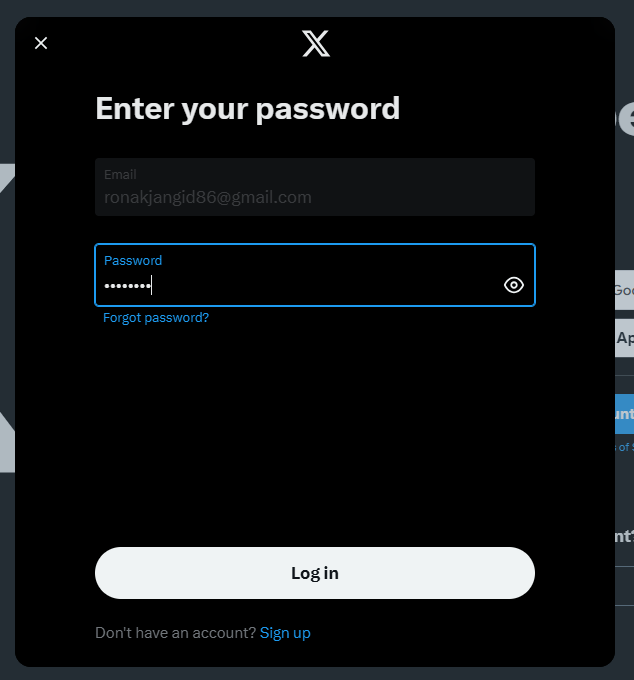
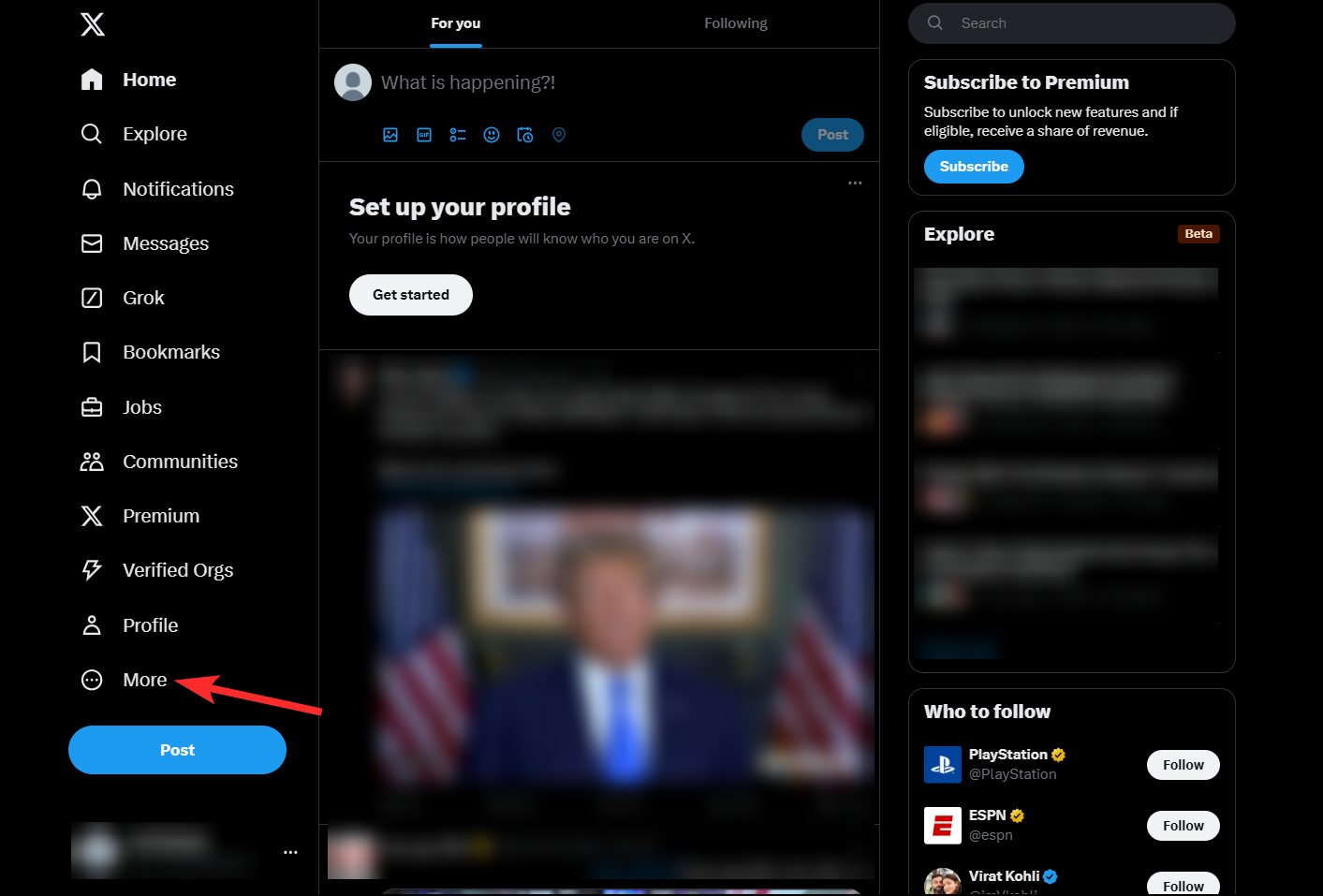
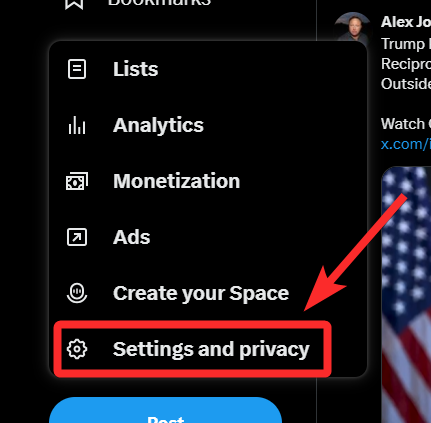
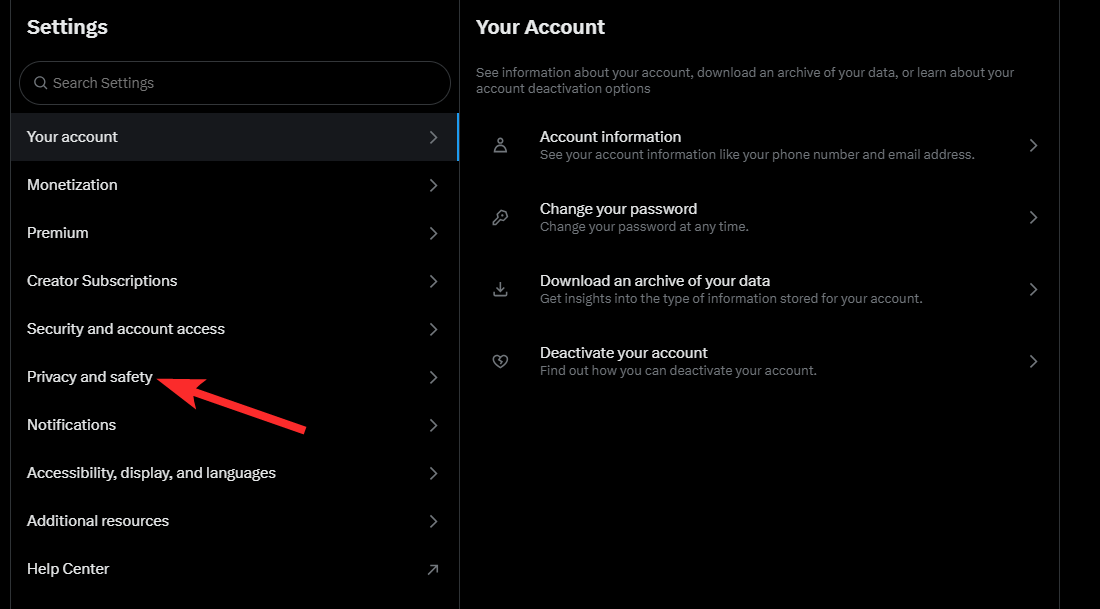
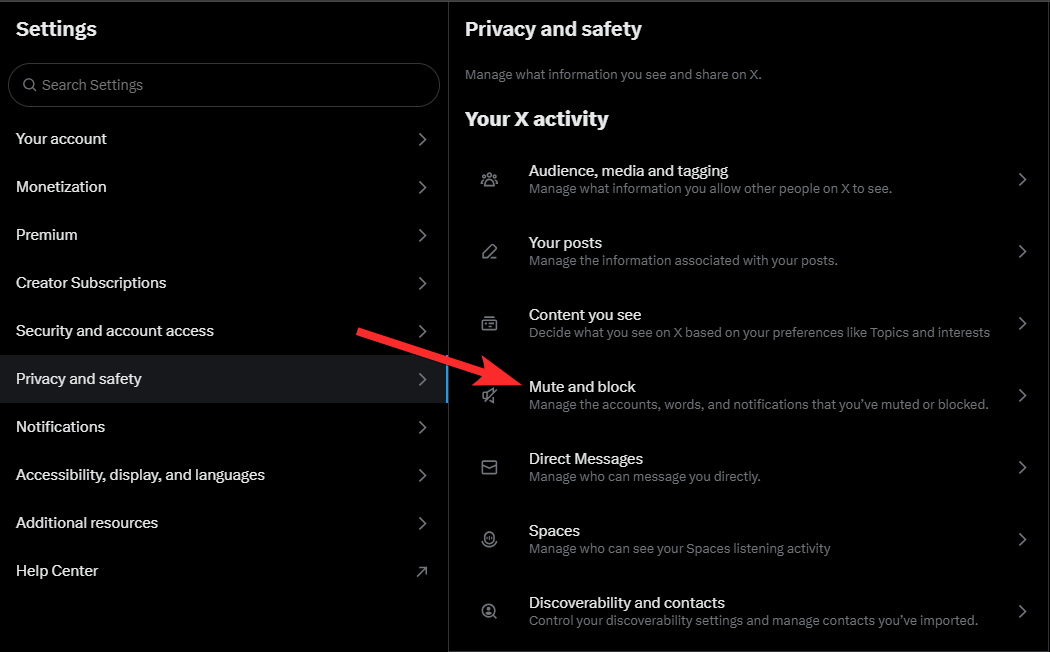
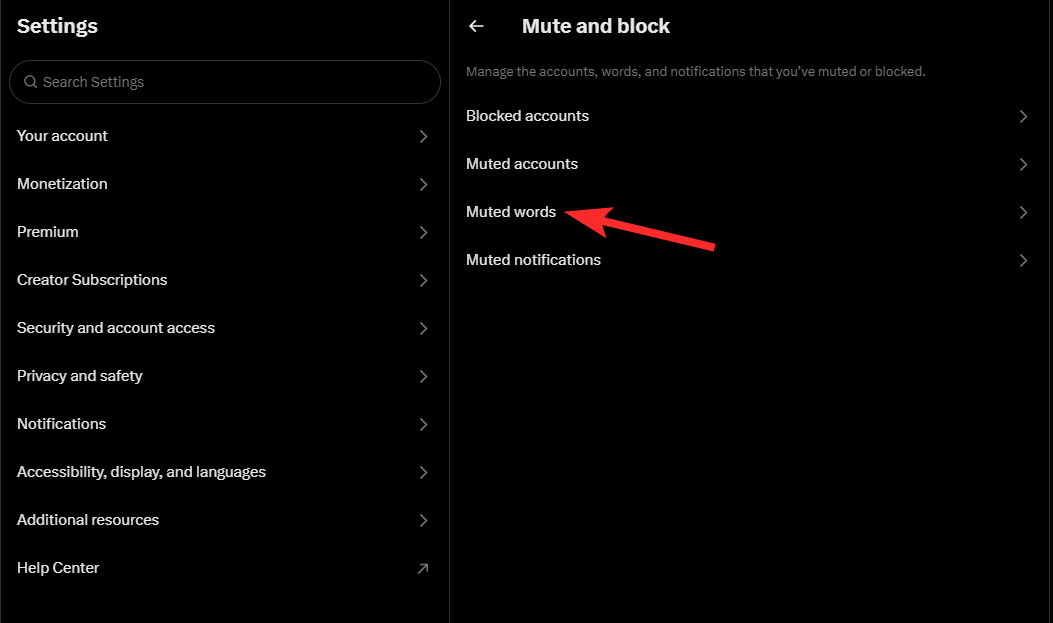


- Example:
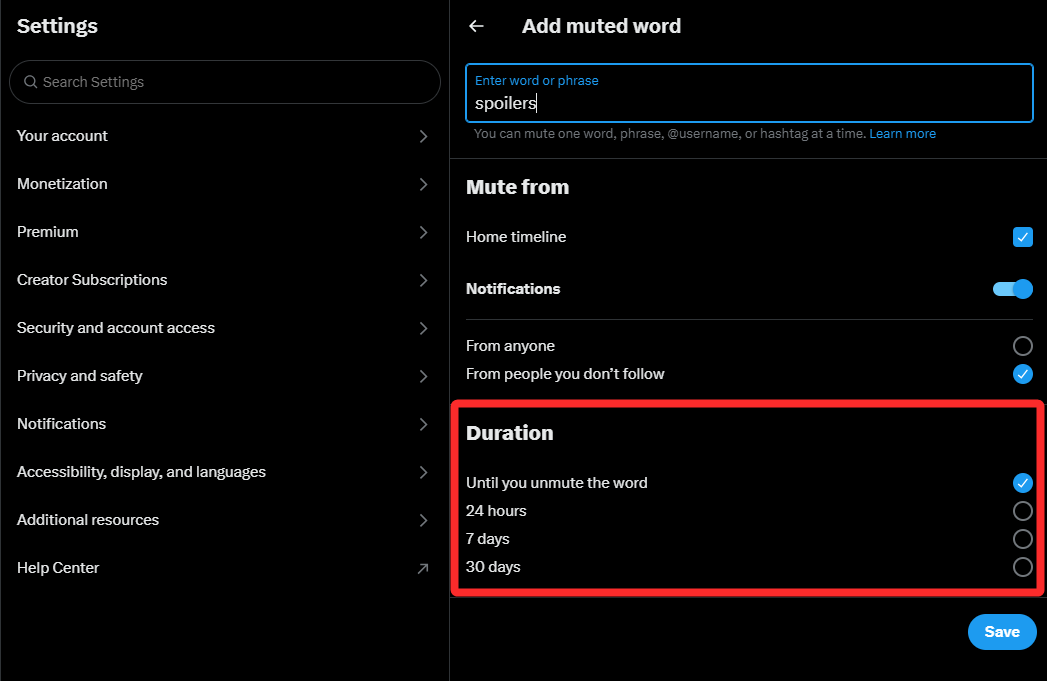
spoilers,#politics, or any other text.
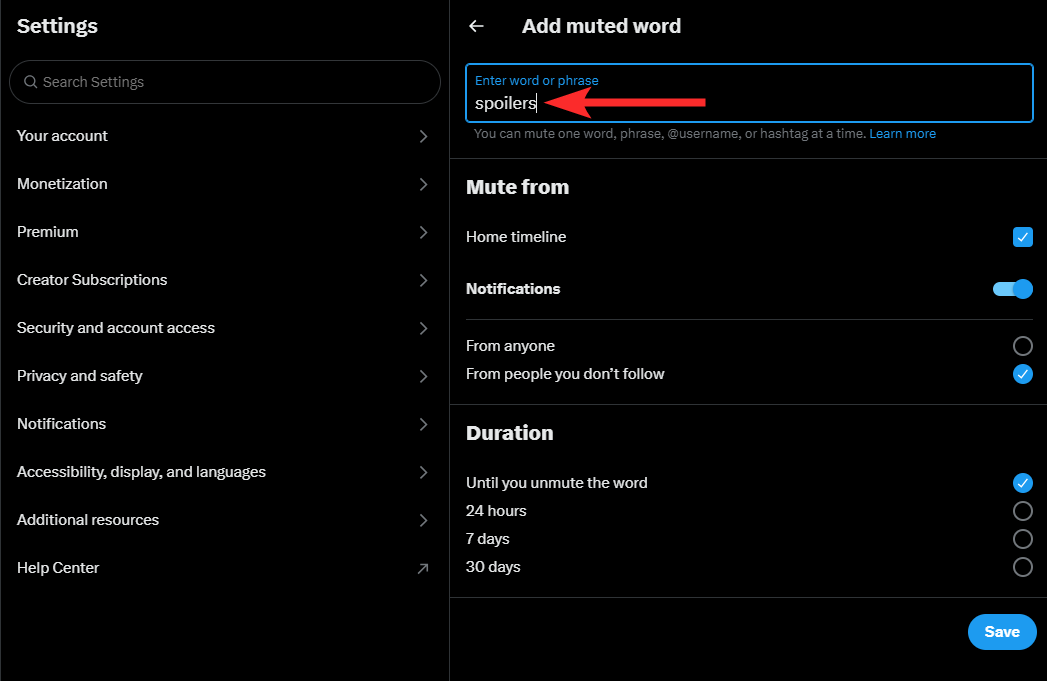
- Timeline: Prevent tweets with the word from appearing.
- Notifications: Block mentions or replies with the word.
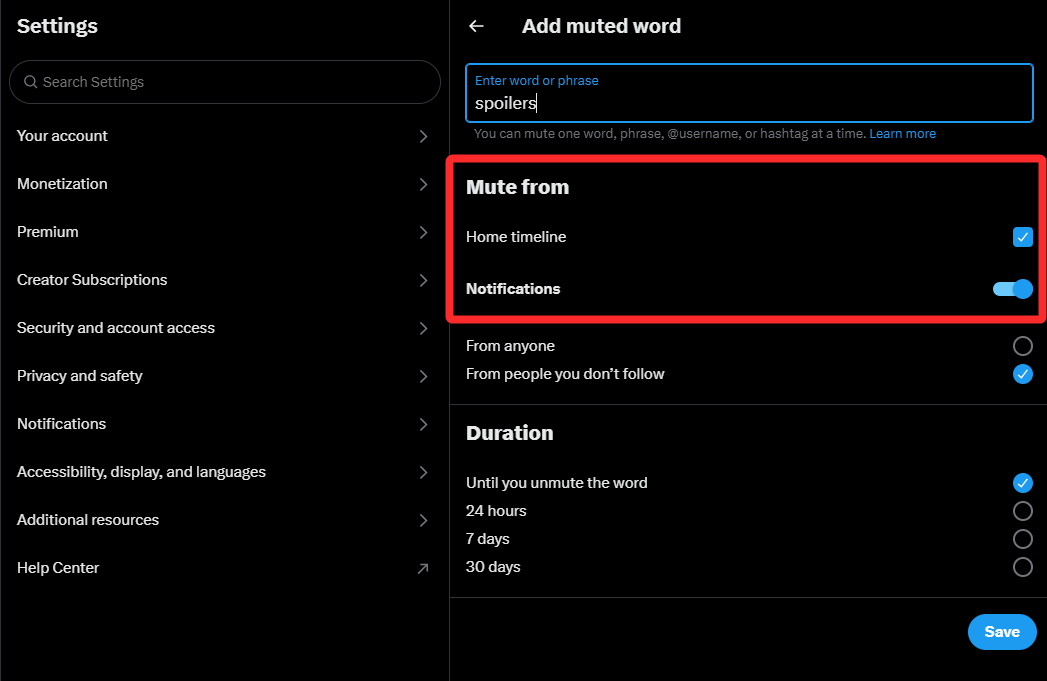
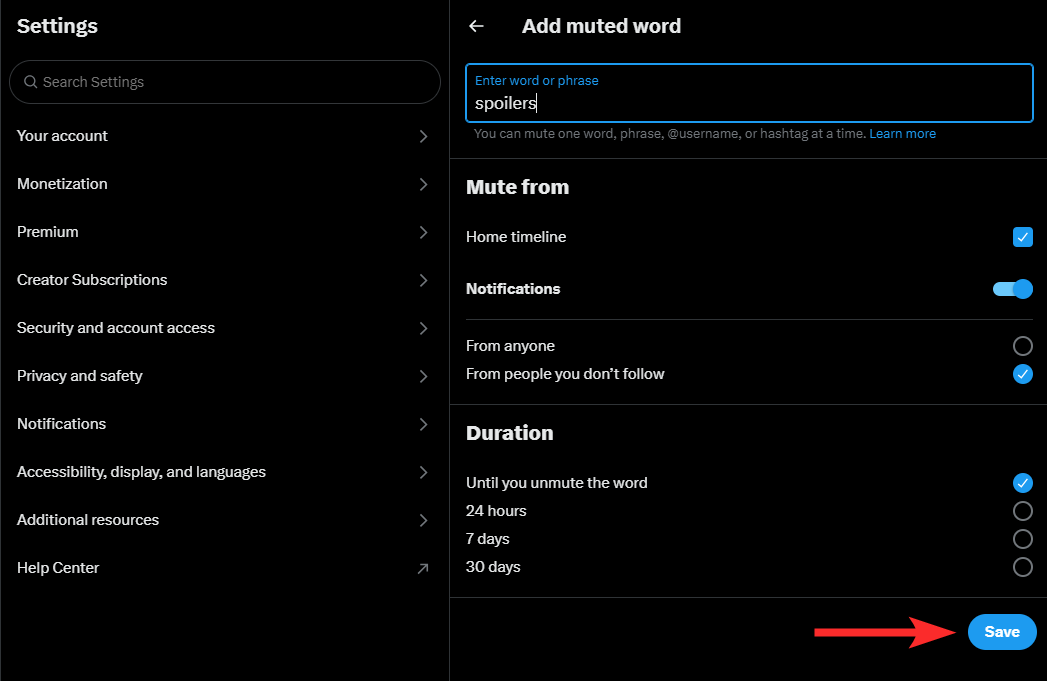
- Set a duration (forever, 24 hours, 7 days, or 30 days).
How to manage or unmute words on PC
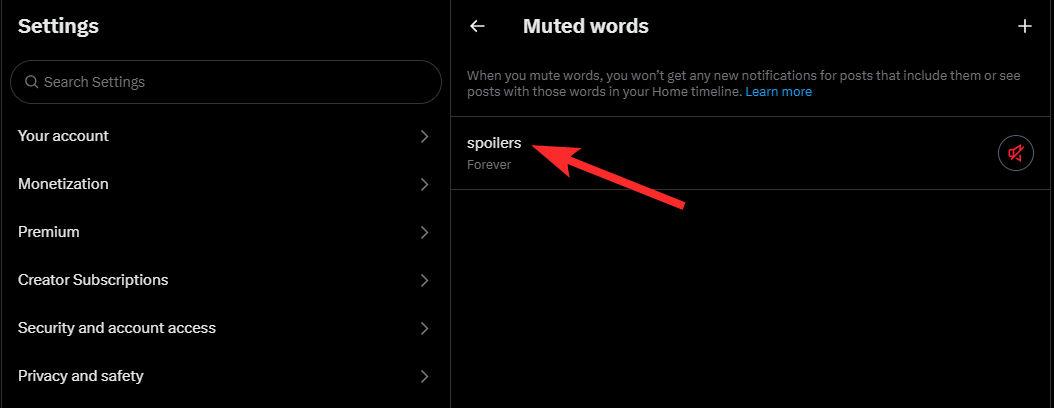
If you need to edit or remove muted words:
Video Guide:
Step-by-step guide with screenshots:
Phone Guides ?
How to mute words on X on iPhone or Android
Video Guide:
Step-by-step guide with screenshots:
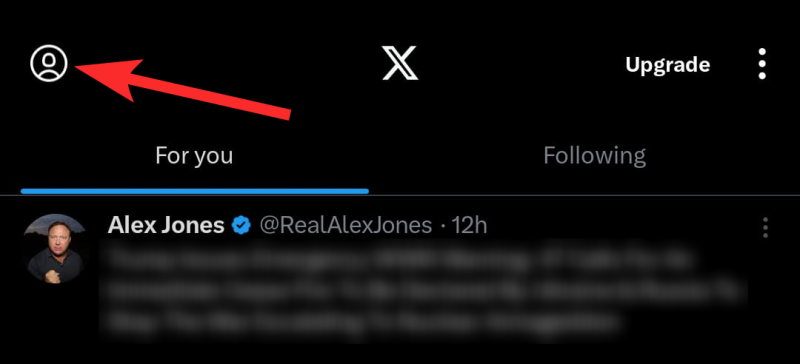
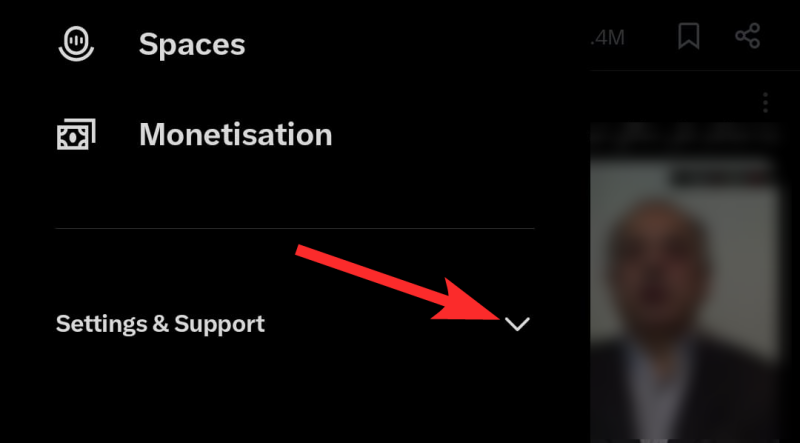
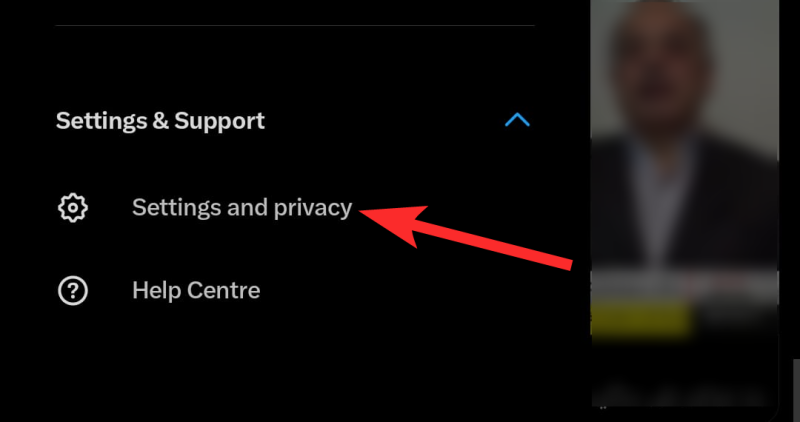
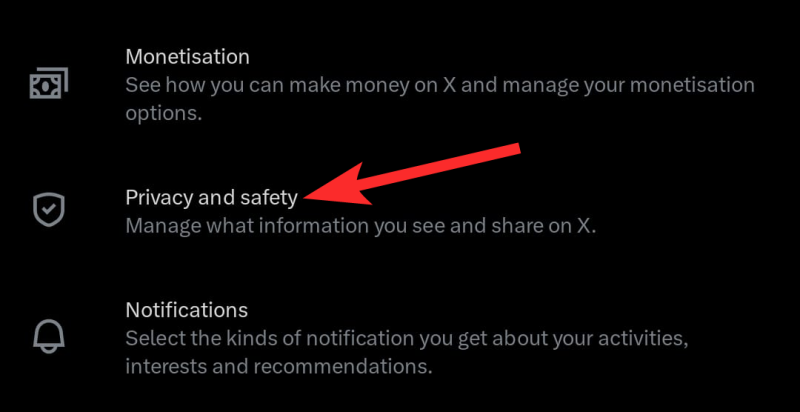
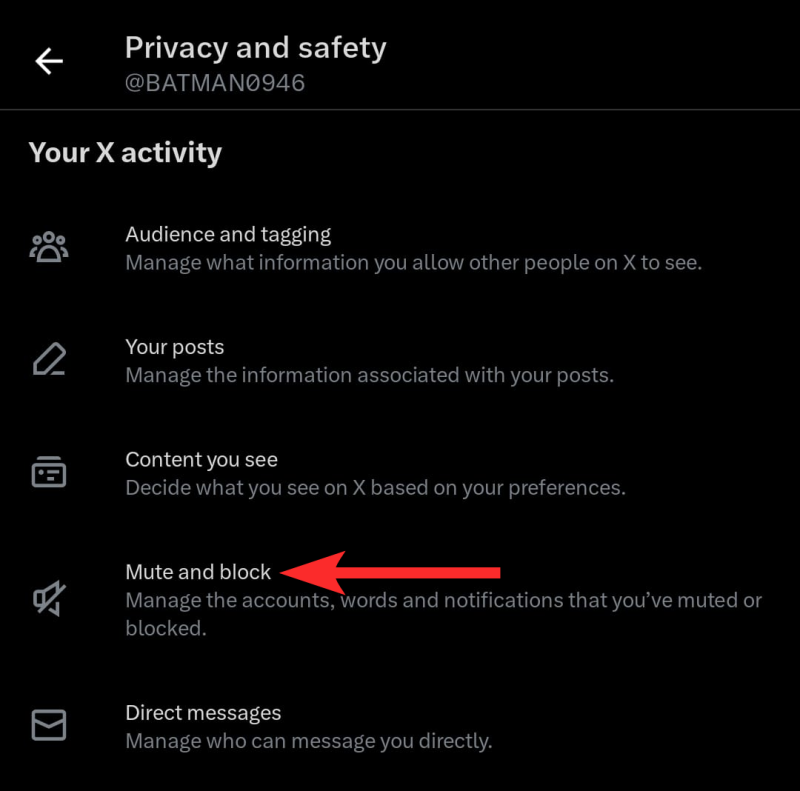
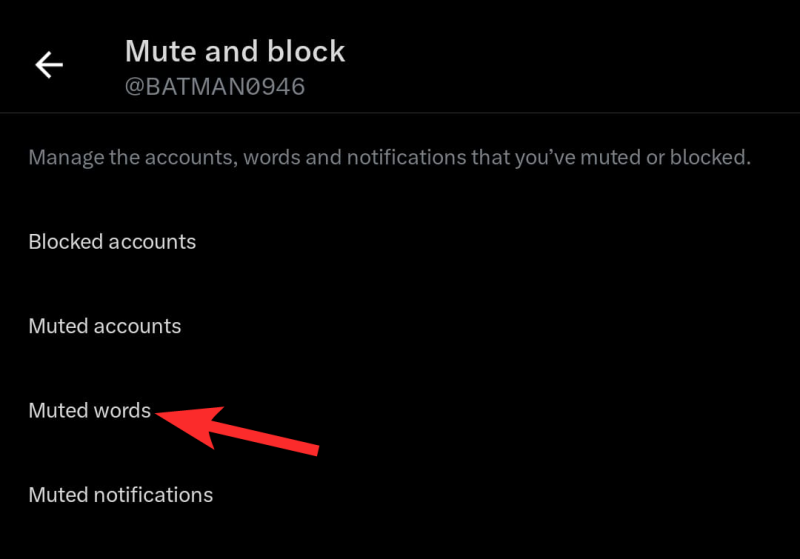

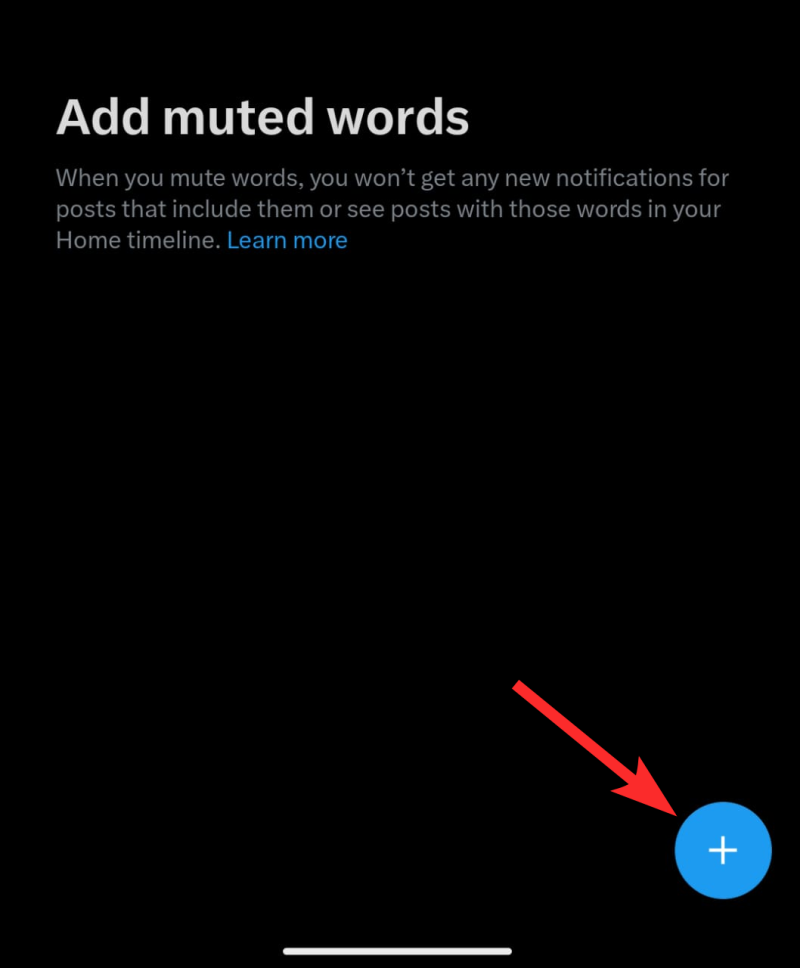
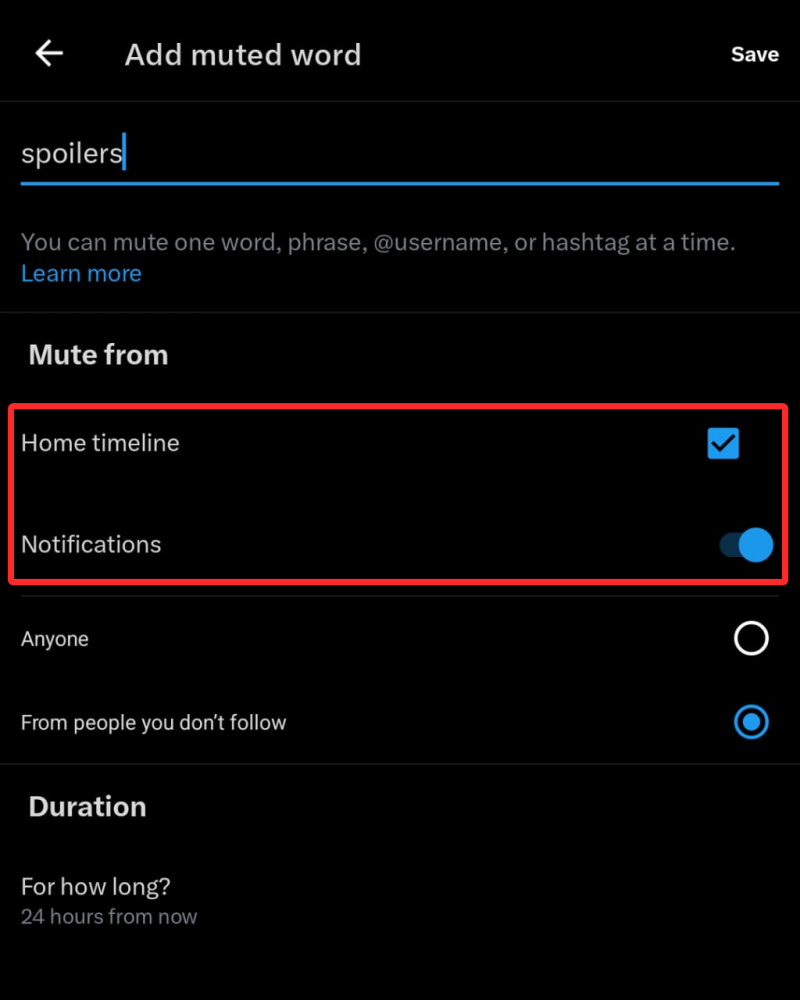
- Example:
spoilers,#politics, or any other text.
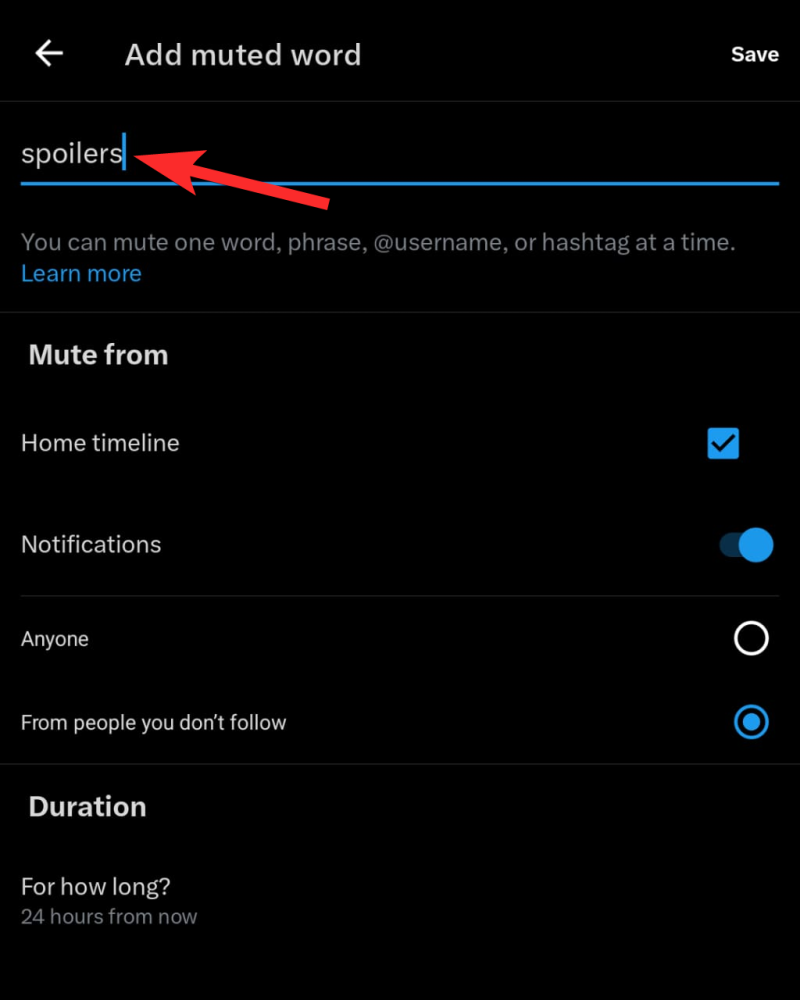
- Timeline: Prevent tweets with the word from appearing.
- Notifications: Block mentions or replies with the word.
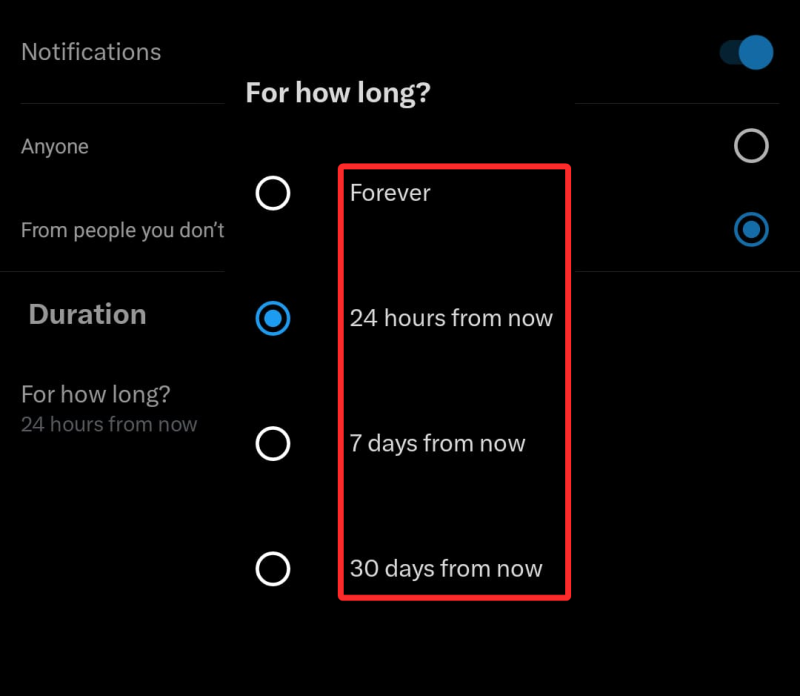
- Forever (default setting).
- 24 hours from now.
- 7 days from now.
- 30 days from now.
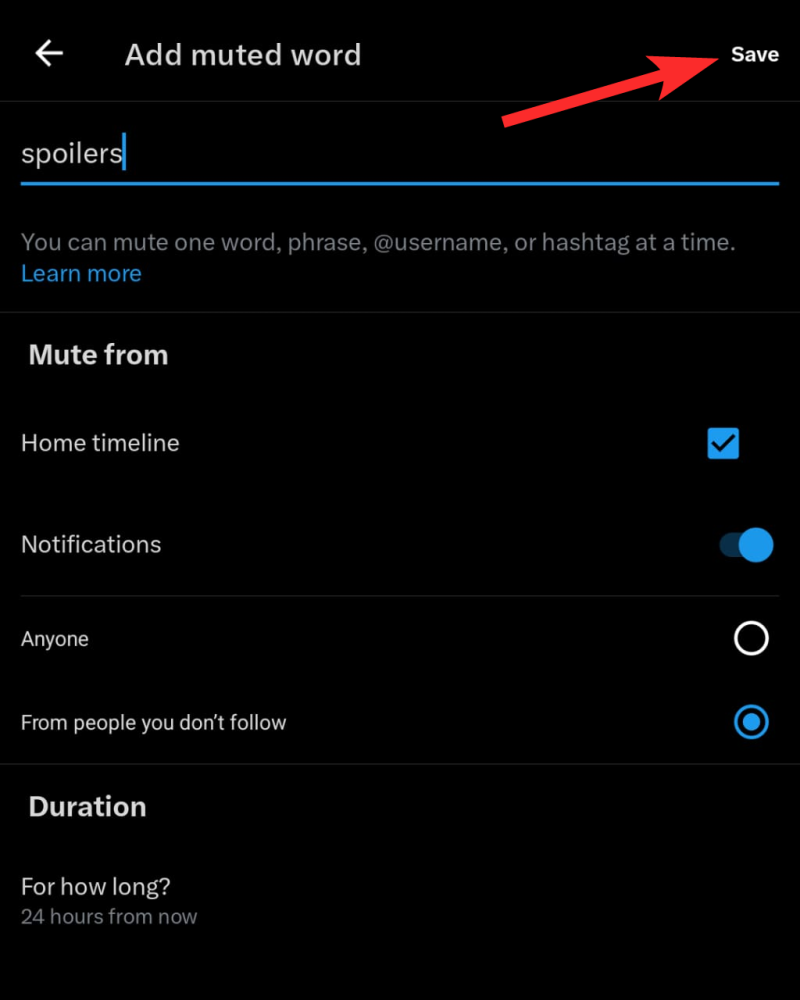
How to manage or unmute words on iPhone or Android
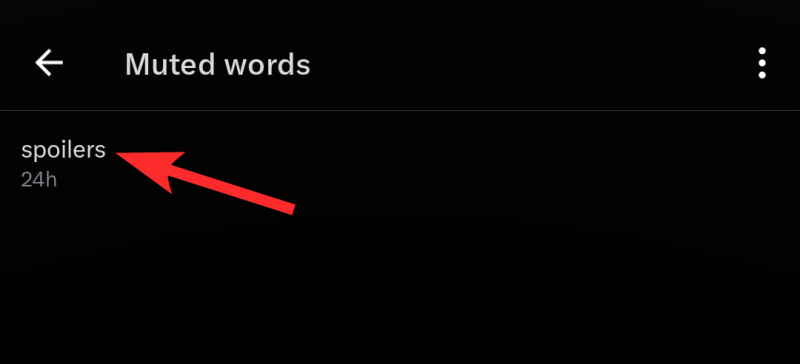
If you need to edit or remove muted words:
Video Guide:
Step-by-step guide with screenshots:
Tips for using muted words effectively
- Be Specific: If you’re muting spoilers, include common variations of the word (e.g., “spoiler,” “#spoilers,” and “Spoilers”).
- Monitor for Effectiveness: Occasionally review and update your muted words list to ensure it’s still relevant.
- Mute in Bulk: You can mute multiple words or hashtags by adding them one at a time.
Limitations of the muted words feature
- Applies to Your Account Only: Muted words won’t affect other users’ views or interactions.
- Case-Insensitive: Words are muted regardless of capitalization.
- No Retroactive Effect: Muting applies to future posts and notifications, not past ones.
Get peace with Mute
Muting words on X (formerly twitter) empowers you to control the content you see and interact with. By following these steps for mobile and desktop, you can create a more personalized, clutter-free experience tailored to your preferences. Whether it’s avoiding spoilers, skipping over heated debates, or keeping your timeline focused, muting words is an invaluable tool for a more enjoyable X (formerly twitter) journey.