

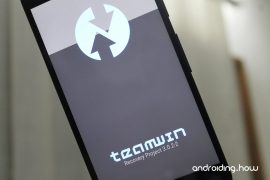
Odin is a PC software used internally at all Samsung service centers for updating/flashing Firmware to Samsung devices. This software was never meant to go public but thanks to the growing world of Samsung’s Galaxy devices, Odin is now used by general users for all sorts of things like flashing stock Samsung ROMs, custom kernels and custom recoveries like TWRP.
For the unknown, TWRP recovery is a custom recovery developed and maintained by the folks over at TeamWin. Using TWRP, you can take full device (nandroid) backups, plus install/flash rooting scripts like SuperSU, Custom ROMs/MODs and other similar stuff.
TWRP recovery is available as both official and unofficial builds because it’s an open source project and anyone with knowledge can compile the recovery for any Android device.
You can download TWRP recovery for your device from TeamWin’s official repository for the recovery. And in case you don’t find your device listed there, do a search for it on our website once. We cover both official and unofficial TWRP builds from various Android community forums such as XDA on a regular basis. So you might find an unofficial TWRP build for your device on our site.
[ecko_button target=”blank” size=”6″ radius=”3″ style=”ghost” background=”#a161bf” color=”#333333″ url=”https://twrp.me/Devices/”][icon name=”download” class=”” unprefixed_class=””] Download TWRP Recovery [/ecko_button]
Note: Make sure to get the .tar file of TWRP recovery for your Samsung device to be able to flash/install using Odin.
How to Flash TWRP recovery using Odin
[ecko_button target=”blank” size=”6″ radius=”3″ style=”ghost” background=”#a161bf” color=”#333333″ url=”http://downloadmirror.co/1Kup/Odin_v3.12.3.zip”][icon name=”cloud-download” class=”” unprefixed_class=””] Download Odin 3.12.3[/ecko_button]
- Unzip the Odin 3.12.3 .zip file and run/open Odin3 v3.12.3.exe file from the extracted files on your PC.
- Make sure you’ve downloaded a Odin flashable TWRP recovery .tar file compatible for your device.
- (If applicable) Enable OEM unlock:
- Go to Settings » About phone » and tap Build number seven times to enable Developer options.
- Go back to main Settings page, scroll to bottom and select Developer options from there.
- Under Developer options, look for Enable OEM unlock checkbox/toggle and enable it.
- Boot your device into Download mode:
- Switch off your device.
- Press and hold “Home + Power + Volume down” buttons for a few seconds until you see a warning screen.
- Press Volume Up on the warning screen to accept it and boot into Download mode.
- Once your device is in download mode, connect it to the PC with a USB cable. The Odin window on PC should detect the device and show an “Added!!” message.
- Now click on the AP tab on Odin window and select the TWRP recovery .tar file that you downloaded for your device.
└ Note: DON’T play with any other options on the screen. You’re only required to connect your device and select the TWRP recovery .tar file in the AP tab. - Click the Start button on Odin and wait for it to finish the process. Once it has finished successfully, you’ll see a pass message on the Odin screen.
- Your device will automatically reboot when Odin is done flashing. You can then disconnect your device.
How to boot into TWRP recovery on a Samsung Galaxy device
- Switch off your device.
- Press and hold “Home + Power + Volume Up” buttons for a few seconds and as soon as you see your device’ logo on-screen, release three buttons altogether. Your device will boot into TWRP recovery.
Happy Androiding!




89 responses to “How to Install TWRP Recovery using Odin on Samsung Android devices”
my odin screen is stuck on setupconnection.. any help?
my odin screen is stuck on setupconnection.. any help?
I followed the steps above, but every time I try to boot into TWRP recovery mode, the phone boots into regular mode. Problem maybe that I have Android 6.0.1 via Resurrection Remix on my phone (Galaxy S4 GT i9505). What can I do to make TWRP work on that phone?
I followed the steps above, but every time I try to boot into TWRP recovery mode, the phone boots into regular mode. Problem maybe that I have Android 6.0.1 via Resurrection Remix on my phone (Galaxy S4 GT i9505). What can I do to make TWRP work on that phone?
I have samsung galaxy j5 2015-sm-j500f and i do everything but phone boots into regular mode. 🙁
I have samsung galaxy j5 2015-sm-j500f and i do everything but phone boots into regular mode. 🙁
can i have twrp for samsung j2 j210f, i’s not in the list
can i have twrp for samsung j2 j210f, i’s not in the list
well when i clikc on odin start i have everything okey but it get stuck in setup connection and never moves
I am using Ubuntu and because of that the software will not detect the device, please make a tutorial for Linux users.
tnx a lot boss
when i download the twrp recovery image…where should i save it……when i search for it where i stored it on desktop….file search doesn’t recognize or see it……and what if recovery says its corrupted?
I’m trying to do this, but it keeps failing, saying, “ Complete(Write) operation failed.” I’ve tried different USB cables, restarted both the PC and phone, and even used different versions of Odin, but nothing works. I’ve enabled USB Debugging in addition to the OEM mentioned in the instructions. Any ideas?
On your phone, go into Settings – Developer Options – OEM Unlock and enable that.
It already is.
When I am attempting to flash my Samsung Galaxy Tab A, Odin says the flash failed and my tablet says “ODIN : Binary size is too large : recovery.” What is the issue here and how can I fix it?
Important point: When you start the flash process make sure to hold down the VOLUME UP and HOME keys until the flash process is done and your phone reboots. If you don’t your newly installed recovery will be wiped out and replaced with the original recovery when your phone reboots into stock Android.
great advice! thank you!
VERY VERY IMPORTANT!!! Your phone will automatically overwrite the TWRP with stock recovery until you do this during install. You can also uncheck the reboot option in Odin and once Odin says “RES OK!”, unplug usb, hold power and home key until screen goes black, quickly add holding vol up key until you see small blue and yellow text in the top left corner of the boot screen.
[…] Jika anda mahu membaca cara pemasangan TWRP versi mudah anda boleh rujuk di sini […]