
The early excitement of Hytale’s launch day has been slightly dulled by errors and bugs. This is understandable for a game that is still in early access. Several players are experiencing an ‘Invalid or Expired Identity Token’ error, while others are seeing a ‘Failed to Connect to Server’ error that’s spoiling the fun. Fortunately, there are a couple of fixes for these.
Fix 1: Toggle ‘Set time automatically’ Off/On on Windows 11
Step 1
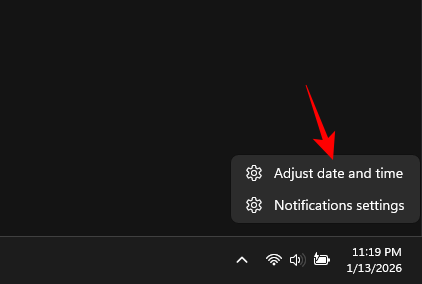
Right-click the date and time on the taskbar and select Adjust date and time.
Step 2
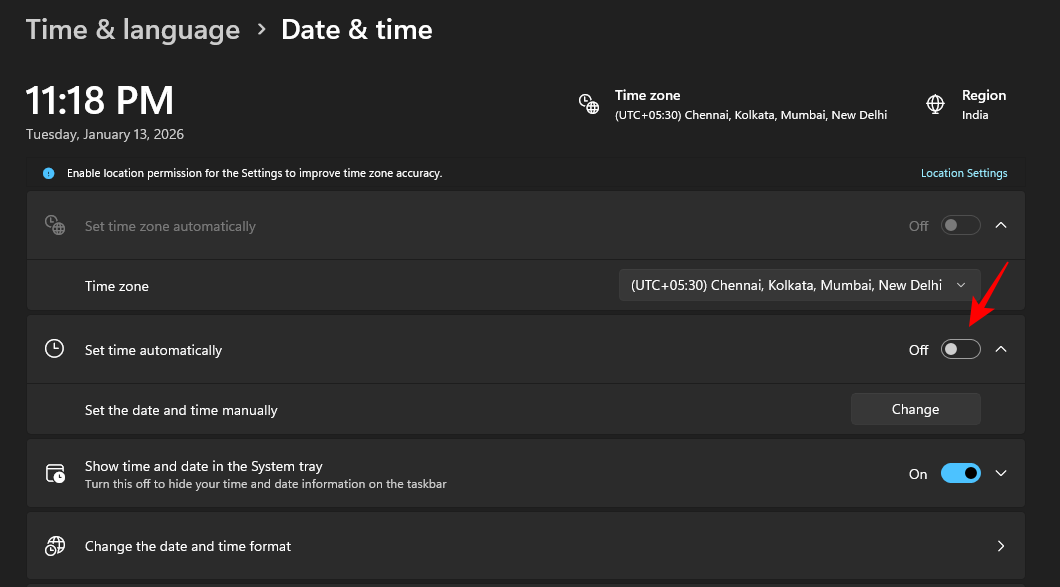
Disable Set time automatically.
Step 3
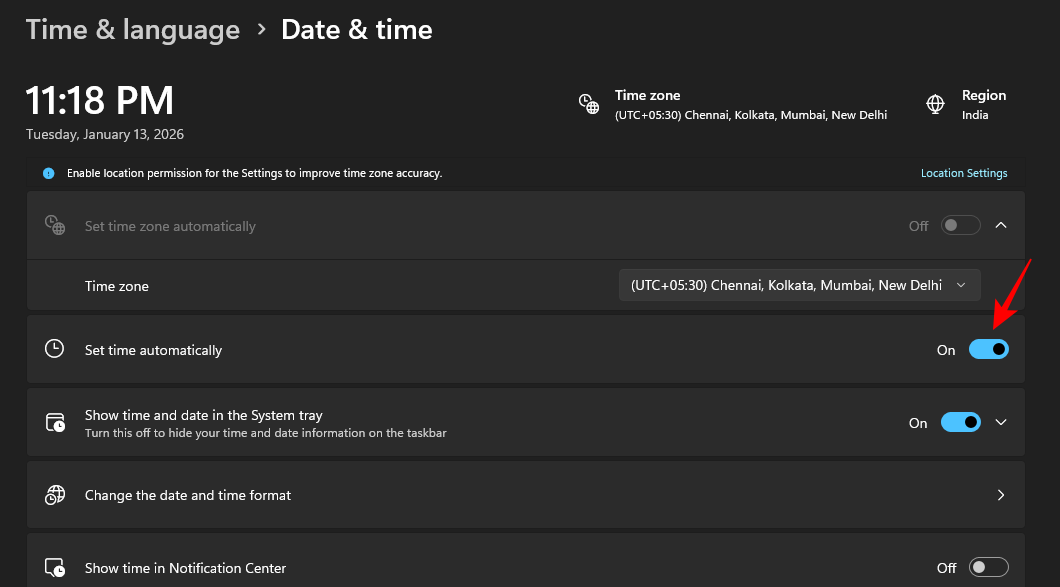
Wait a few seconds. Then enable Set time automatically again.
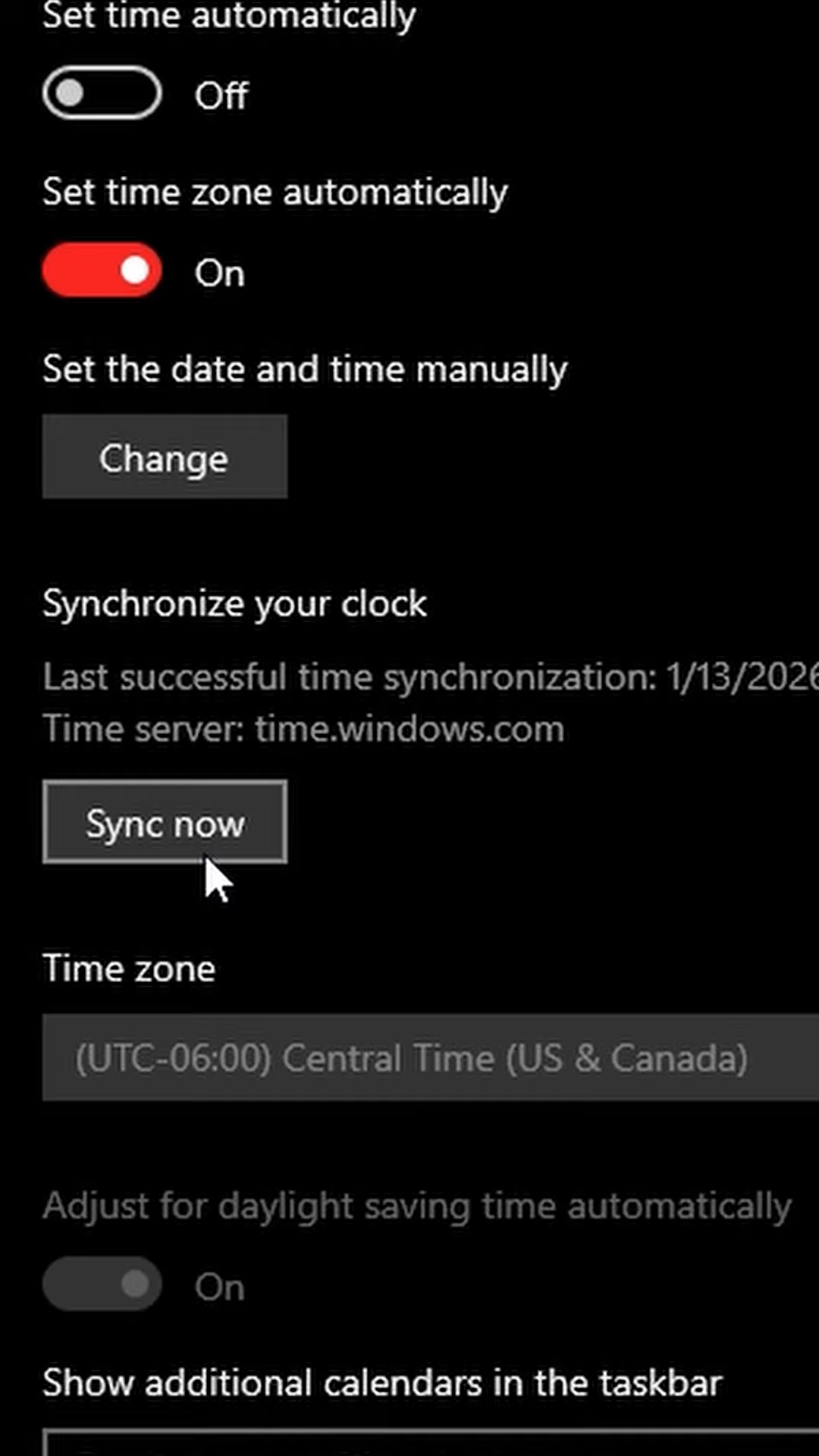
If you’re on Windows 10, go to the Data and time Settings page and select Sync Now.
Fix 2: Disable the Internet
Another simple fix is to simply turn off the internet. This could be disconnecting the Wi-Fi or disabling the adapter or simply going to Airplane Mode. Whatever option you choose, simply go offline. That should fix the error(s).