

You know, without even going for root — or even TWRP — you can enable tethering on your Nexus 5X if it has been disabled by default by the carrier. What you need are proper drivers installed on your PC, and the guide we have below.
By enabling tethering, you will able to share the mobile data from your Nexus 5X to your PC, or to other devices as Wi-Fi hotspot.
You will still need to unlock bootloader of your Nexus 5X for this, which you should know voids warranty.
How To
Required: Make sure you have unlocked bootloader of Nexus 5X. This will delete data, and until you have done this, you cannot root your device.
- Go to Settings > About device, and tap on build no. around 7 times or until you get ‘You’re now a developer’ message.
- Go back to Settings, and into Developer options. Use the toggle button to enable USB debugging. Then tap on OK button to accept warning.
- Power off the device. Then wait for 4-5 seconds after screen goes off.
- Press and hold Volume down + Power button together to enter bootloader mode. You will see FASTBOOT written at top.
This screen should be displaying the bootloader status as Unlocked, at the bottom of the screen. If it says Locked, then you need to unlock bootloader fo your Nexus 5X first, and for that see the link right above step 1 above.
- Open that nexus5xroot folder and then left click on empty white space in the folder.
- Now, while holding shift key, right click on empty white space to get a pop-up as shown below.
- Now choose Open command window here option from that.

You will see a command window open up, with location directed to 5xtether folder.
fastboot devices
→ Upon this, you should get a serial no. with fastboot written after it. If you don’t get fastboot written on cmd window, then it means you need to reinstall adb and fastboot drivers, or change restart PC, or use original USB cable.
fastboot boot twrp.img
→ Once you are in TWRP, allow it to mount system as read/write.
Once you boot into TWRP, allow for System as read/write. And anyway, to make sure that is the case, in TWRP, tap on Mount menu, and then make sure System partition is selected.
adb pull /system/build.prop
It won’t take time, and you will have a build.prop file in your 5xtether folder.
net.tethering.noprovisioning=true
The above line enables tethering to the device. Now, save the file on PC. We will now push the file back to device, and will have to set proper permission, otherwise device will go into bootloop.
adb push build.prop /system/
adb shell chmod 644 /system/build.prop
adb shell settings put global tether_dun_required 0
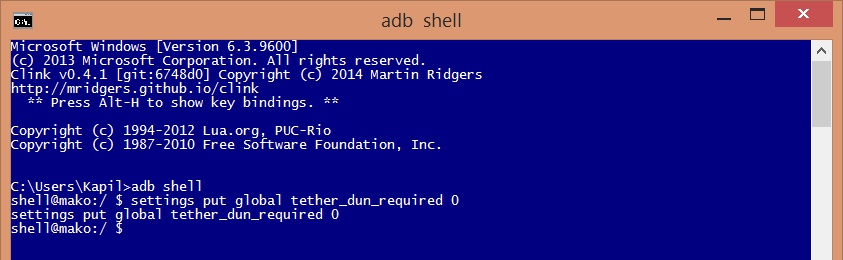
adb reboot
That’s it.
Need help?
Let us know via comments below if need any assistance with this.
Alternative trick:
Open the SIM tray of your device, but don’t actually take it out. Insert it back in. After 4 seconds or so, quickly look into Settings > More. You should be able to spot tethering option. Enable it. You have to do this before SIM card is registered because once that is done, the option will be gone.
We can’t confirm it to work, but if it does for you, do let us know. Of course, this is temporary arrangement, and if you want to enabled tethering for life, do the above guide.



2 responses to “How to enable tethering on Nexus 5X or Nexus 6P”
This is a great tutorial, except that I updated to 6.0.1 and I get an error “aborted” when I run “adb shell settings put global tether_dun_required 0”
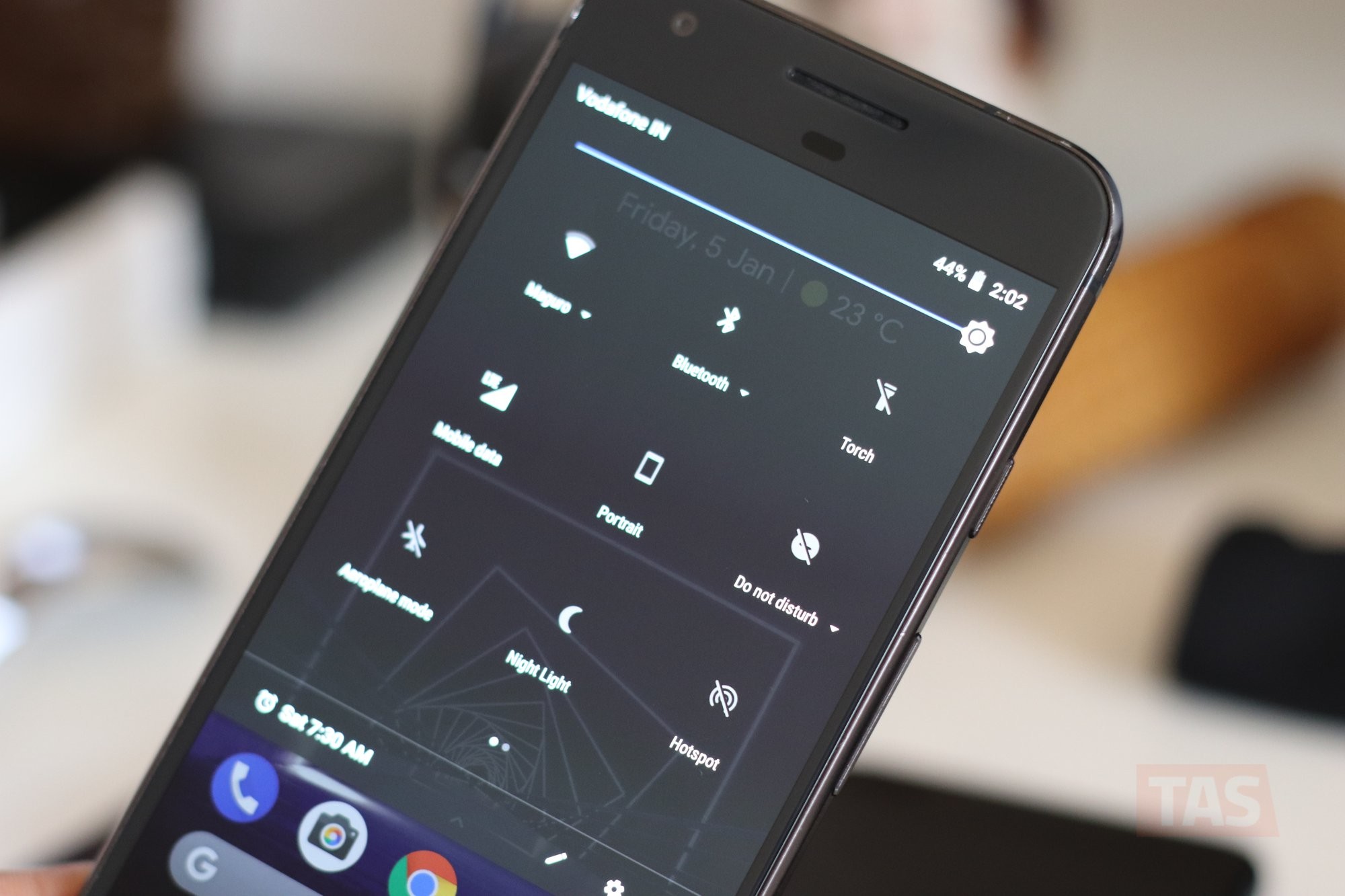
This works like a hot knife through butter on Marshmallow 6.0.0, but on 6.0.1 on Nexus 5X, it does not. Every step in the guide seems to work except the final one. “adb shell settings put global tether_dun_required 0” produces “error while accessing settings provider”, and the HotSpot does not appear in the drop-down curtain of shortcuts. I checked the file, using ES File Exlorer, and the file is altered, but without effect.