
So you downloaded and installed VMware Workstation Pro for free. Now, the only thing left to do is to create a virtual machine so you can use it as a sandbox for testing complex systems, software, games, etc. Here’s everything you need to know to create a virtual machine with VMware Workstation Pro.
How to create a new virtual machine on VMware Workstation on Windows
Here are all the steps you need to follow to create a virtual machine on VMware Workstation Pro.
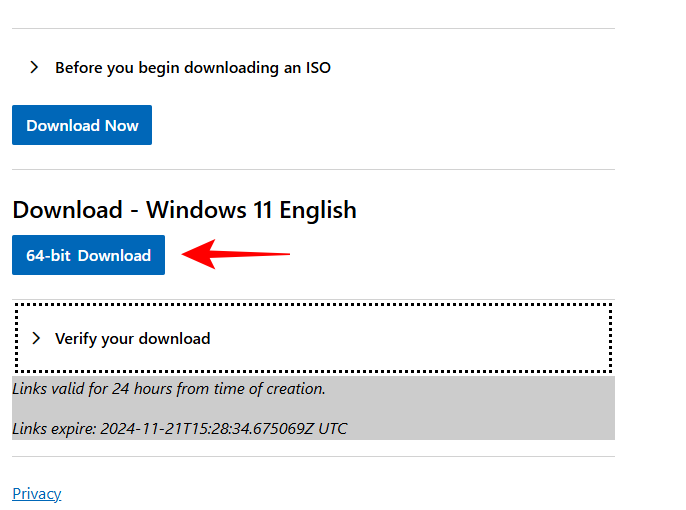
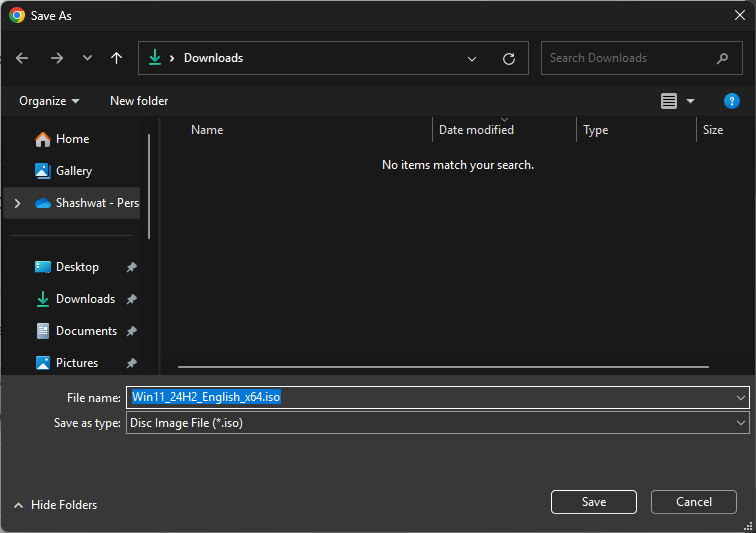
Get Windows 11 ISO
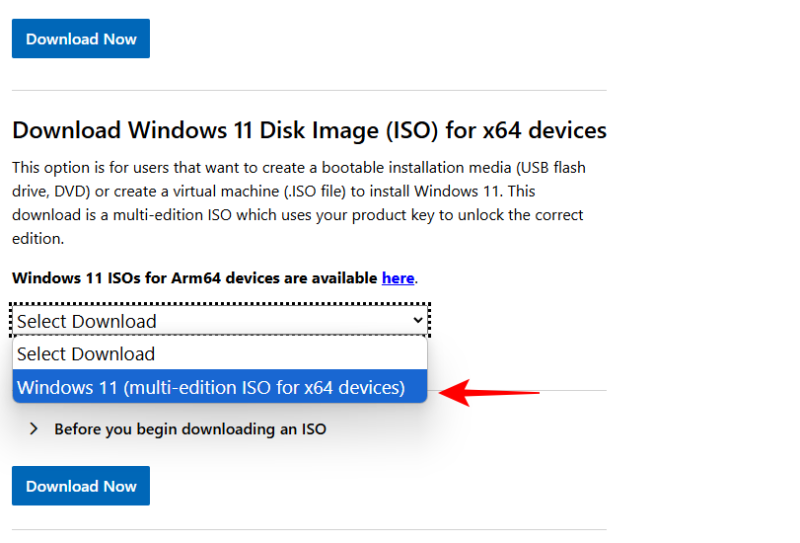
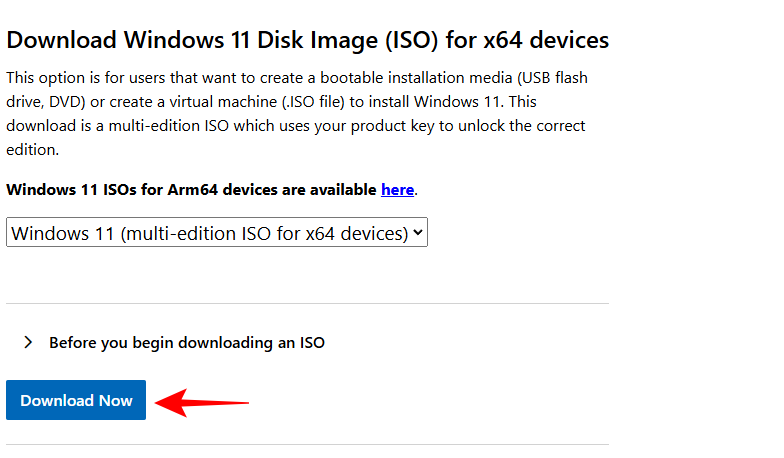
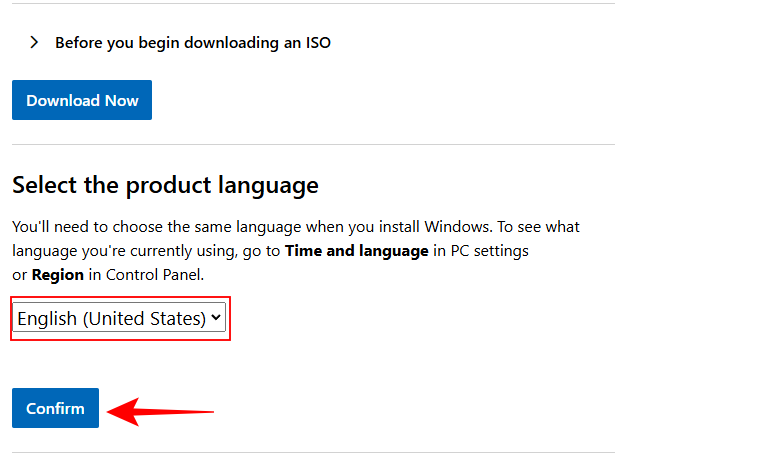
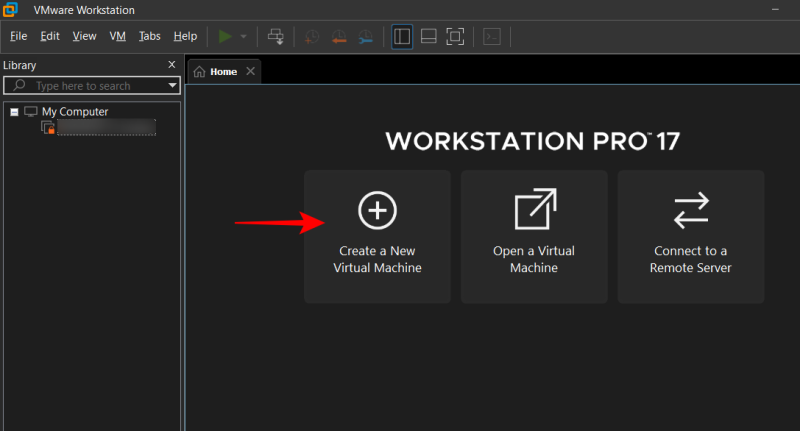
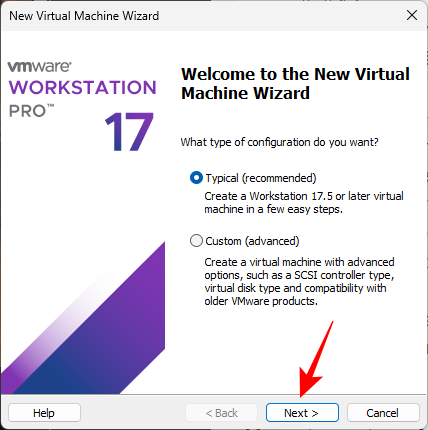
Set up a new VMware workstation
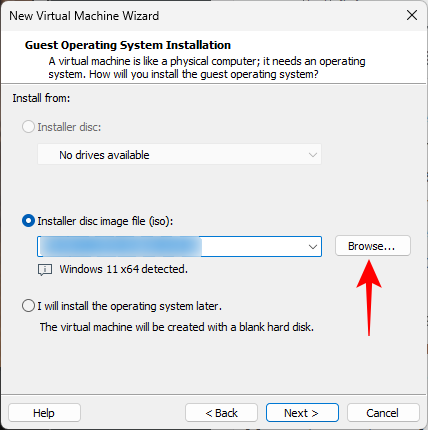
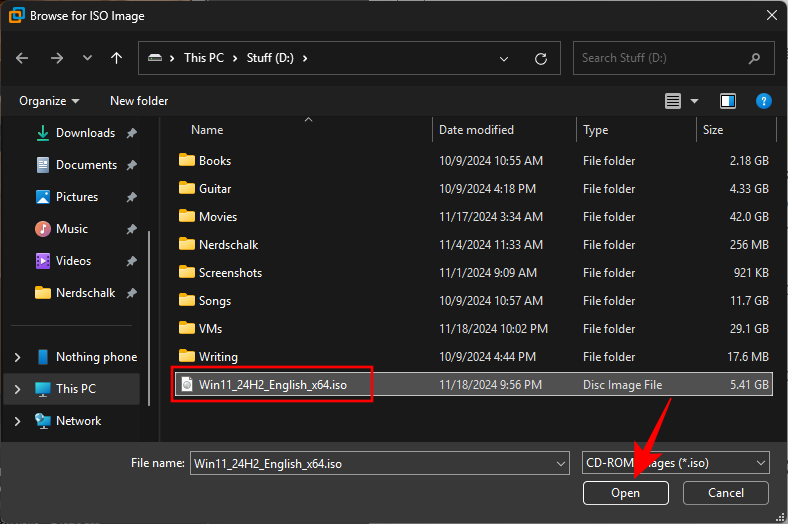
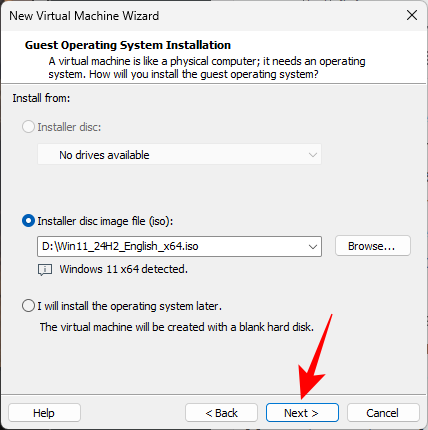
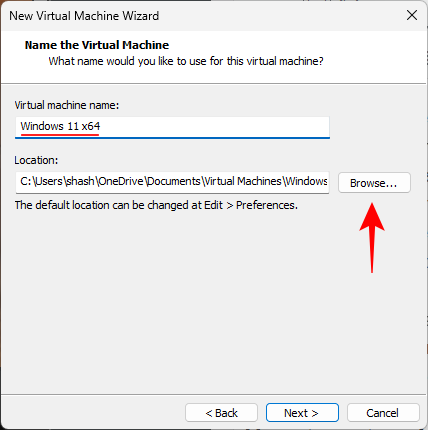
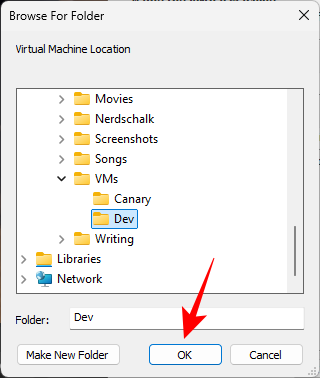
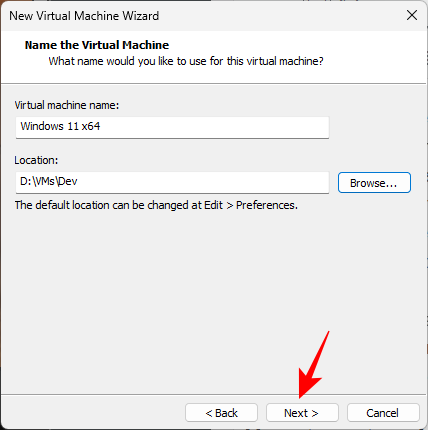
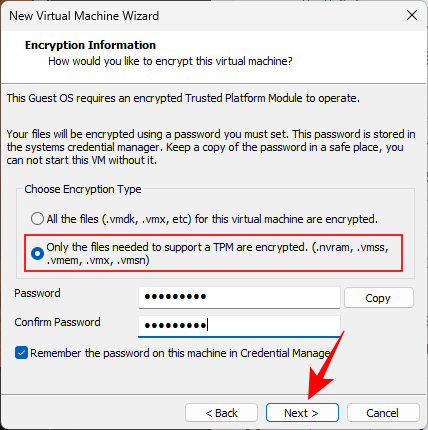
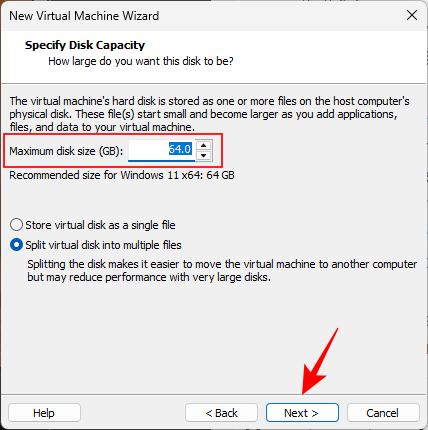
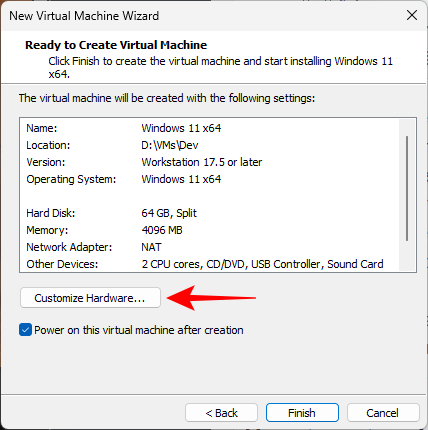
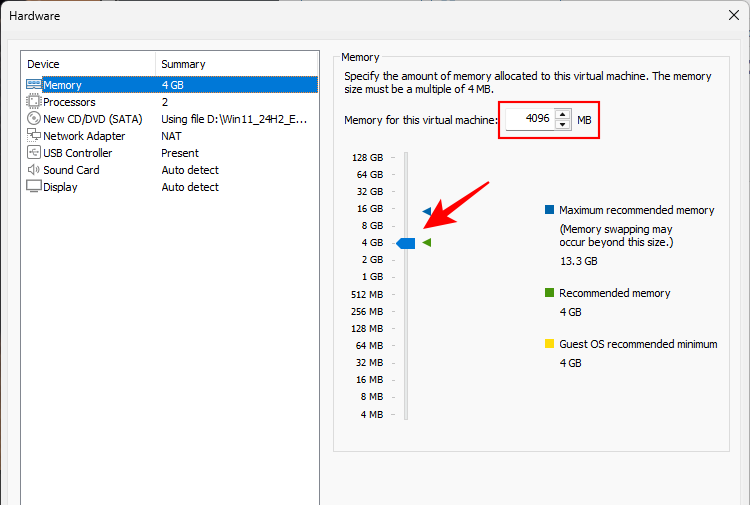
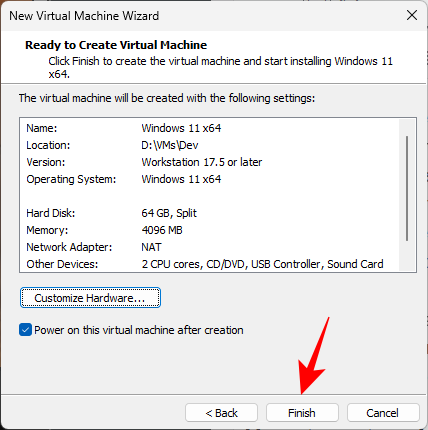
Install Windows
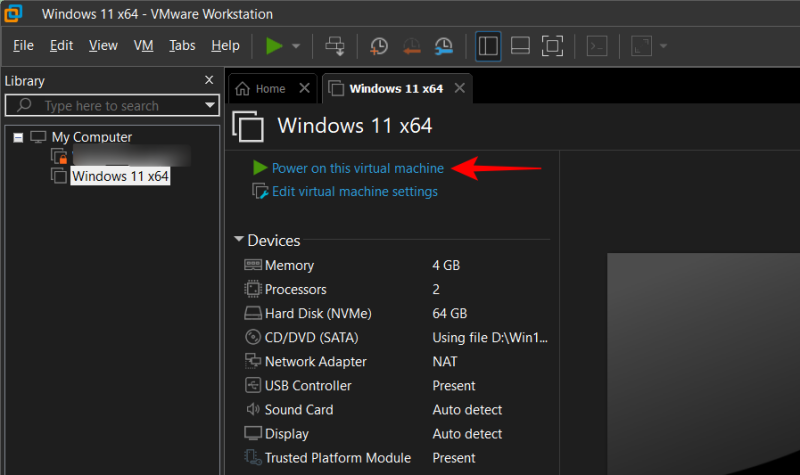
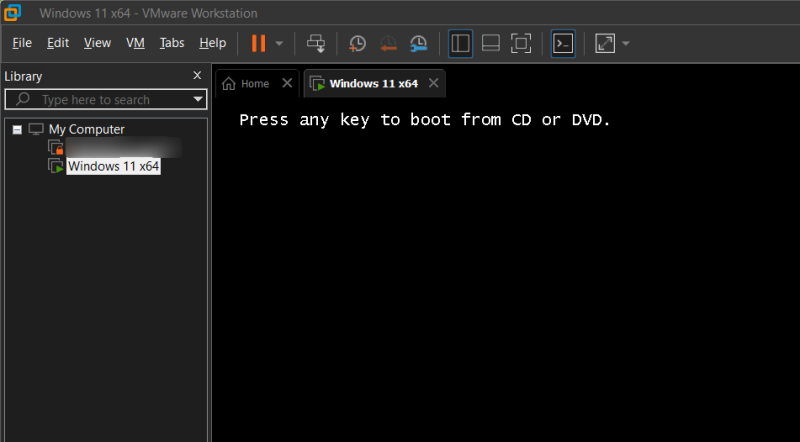
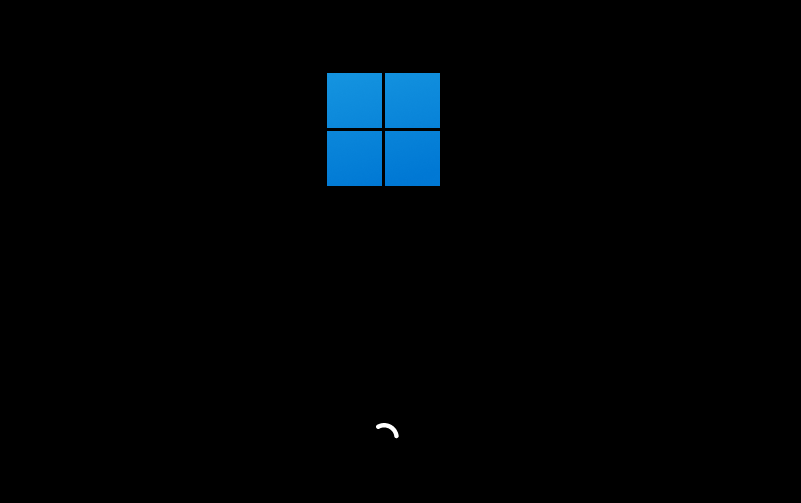
Once you create your virtual machine, it should launch automatically. Follow the steps below to overcome any difficulties you come across while installing Windows.
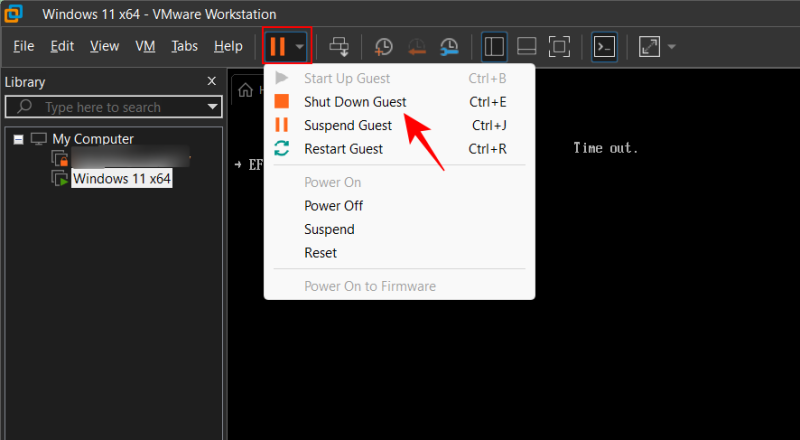
Edit virtual machine preferences, hide VMware toolbar and tips
There are a few things you may want to adjust before you can start using your virtual machine like a proper Windows machine.
Change screen resolution and go full screen
When you first start using your virtual machine, you may notice that the screen resolution is quite low. Change this from Settings > System > Display > Display resolution.
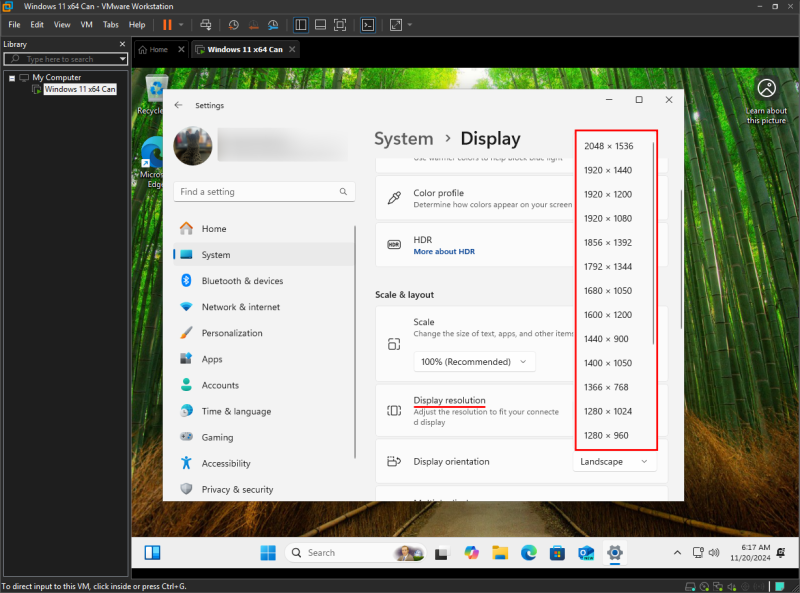
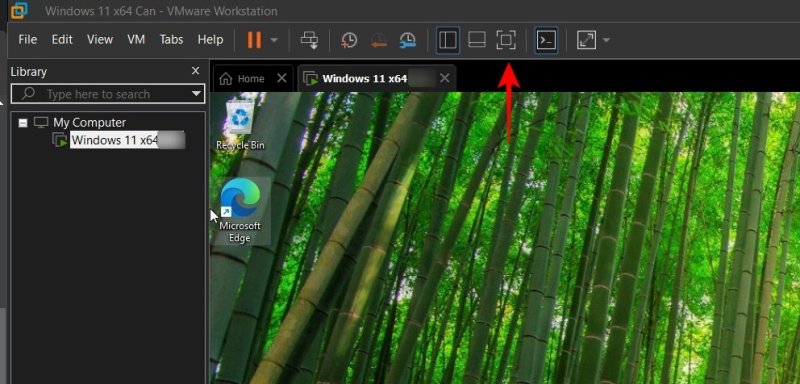
To go full screen, click on the full screen icon in the VMware Workstation toolbar.
Hide VMware top toolbar
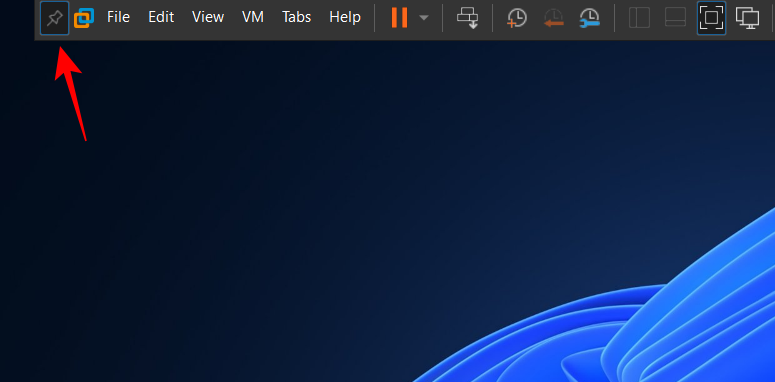
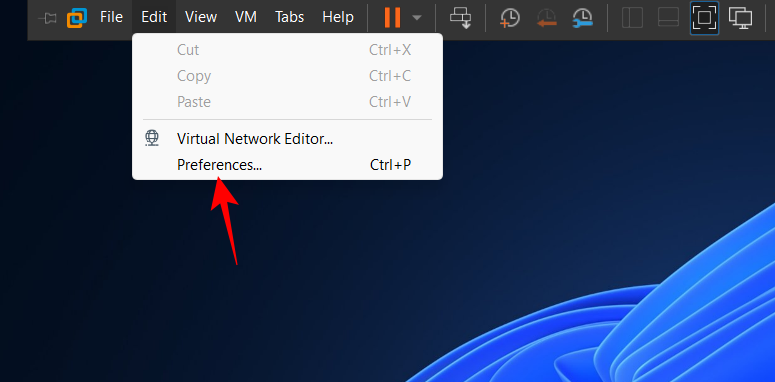
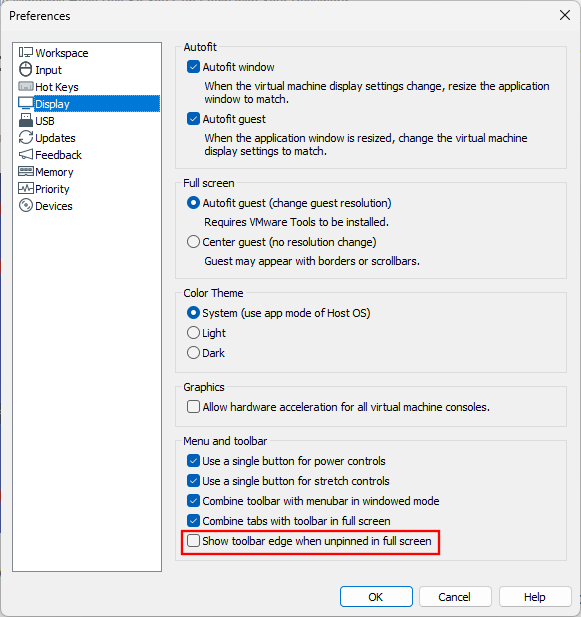
If you see the VMware toolbar on top, here’s how you can hide it for good.
Hide VMware hints
You may see a few hints at the top, reminding you that ‘To release input, press Ctrl+Alt’. Though good to know at first, these can get annoying after a while because they never seem to go away. Fortunately, these are hidden as soon as you install VM Tools. Here’s how to do so:
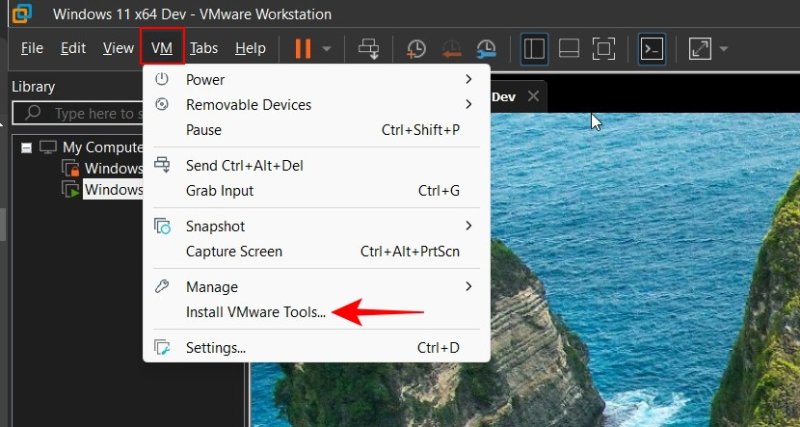
This will mount the VMware tools image.
Win+R and open the RUN box. Then type D:\setup.exe (where D: is the drive where VMware Tools is mounted) and hit Enter.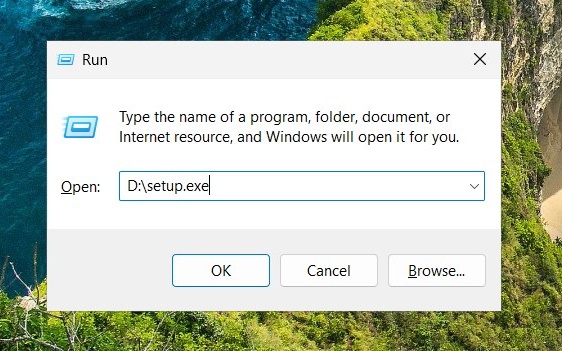
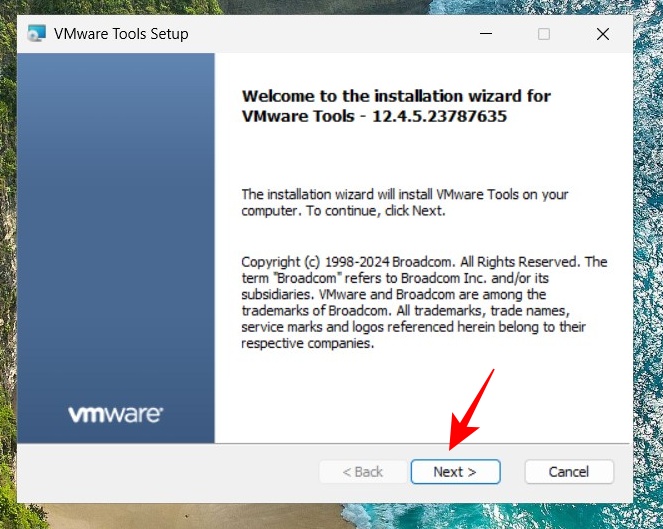
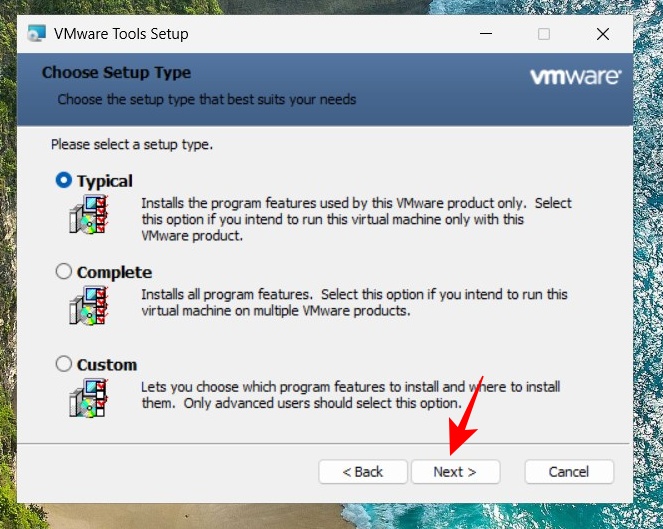
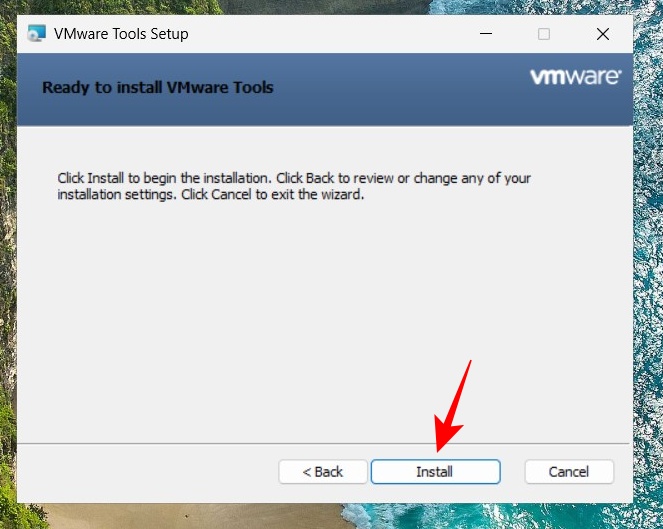
You’ll be asked to restart the virtual machine. Once you do so, you should stop seeing these annoying VMware toolbar hints and tips.
Fix ‘Could not create anonymous paging file’ error
While turning on your virtual machine, you may sometimes receive the error “Could not create anonymous paging file for MB: Insufficient system resources exist to complete the requested service”.
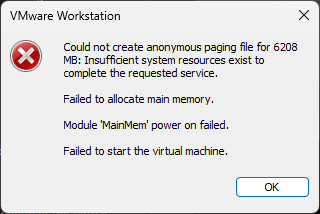
Here’s how you can fix it:
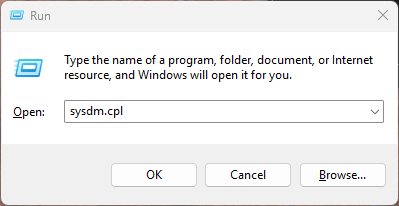
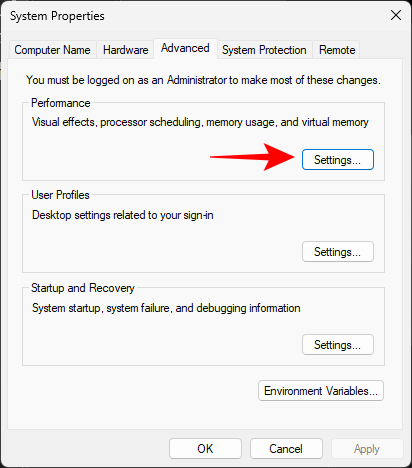
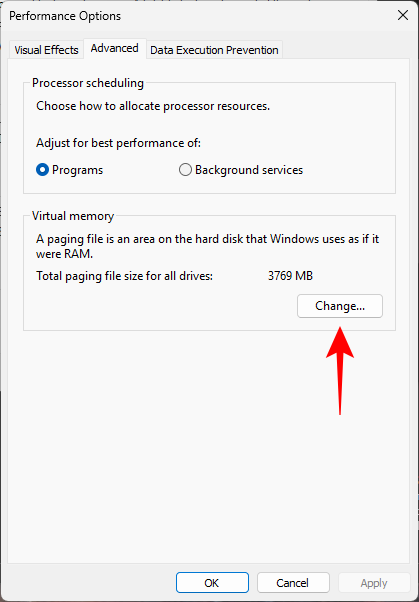
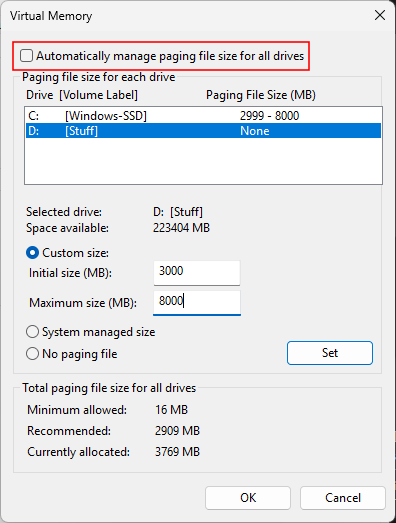
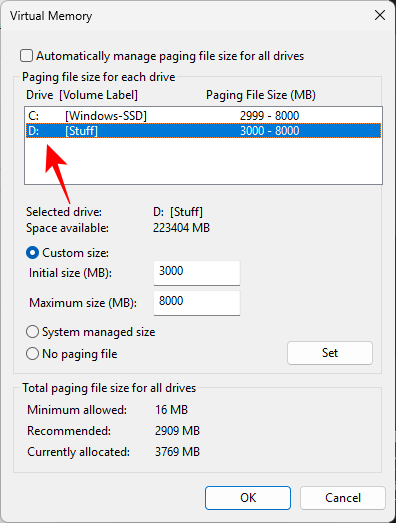
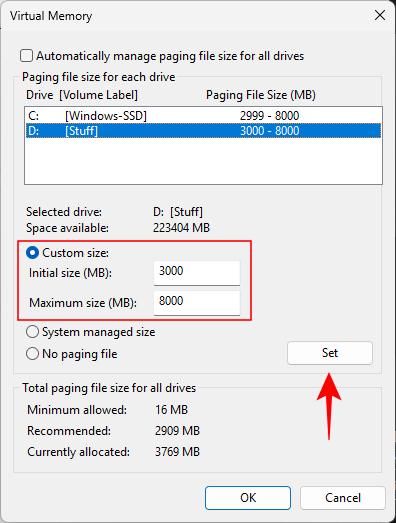
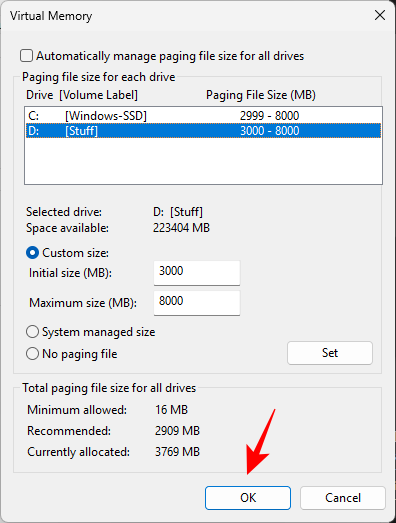
You should now be able to run your VM workstation without any hiccups.
We hope you were able to create a virtual machine on VMware Workstation Pro, install Windows on it, as well as configure it to remove all annoying barriers that break the illusion of using Windows on a virtual machine.