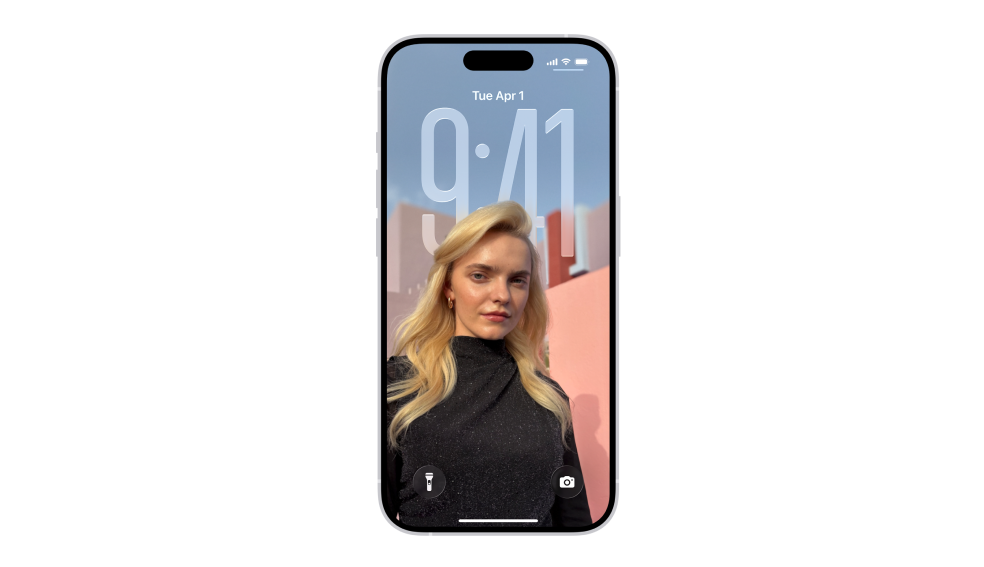
Customize your iPhone’s Lock Screen clock size effortlessly in iOS 26.
What to know
- iOS 26 introduces resizable Lock Screen clocks via a drag handle, but only for specific fonts like the default Arabic Western script.
- You can’t shrink the clock below its default size, though you can expand it to nearly half the screen for better visibility.
- This feature ties into the new Liquid Glass design, allowing font, color, and glass effects alongside sizing.
- Compatibility starts with iPhone 11 models; older devices may not support the full update.
If you’ve just updated to iOS 26 or are exploring its fresh design elements, adjusting the Lock Screen clock size offers a simple way to personalize your iPhone’s appearance. Released on September 15, 2025, iOS 26 shifts Apple’s naming convention to year-based (skipping iOS 19), bringing the Liquid Glass aesthetic that makes UI elements like the clock feel more dynamic and translucent.
You can make the clock larger for easier reading from afar or to create visual impact against your wallpaper, but keep in mind that not all font styles support resizing—stick to the default for the best results. This customization builds on iOS 18’s options, adding more flexibility without needing third-party apps.
How does clock size work in iOS 26
The Lock Screen clock in iOS 26 isn’t just functional; it’s a centerpiece of the new Liquid Glass theme, where the time can appear with a frosted, glassy effect for depth. Unlike previous versions where size was fixed or limited to font choices, iOS 26 lets you manually resize it during customization.
This works on iPhones from the iPhone 11 onward, as confirmed in Apple’s official compatibility list.
The clock automatically adapts during media playback, shrinking to a miniature version when you expand album art, but you control its base size. Widgets below the clock may shift downward if you enlarge it significantly, optimizing space without overlapping.
If you’re coming from iOS 18, you’ll notice enhancements like better integration with depth effects in wallpapers, where the clock can subtly blend behind photo subjects for an illusion of layering.
However, resizing requires entering edit mode, and it won’t apply to all clock styles—Apple limits it to avoid visual inconsistencies across languages and fonts.
Requirements for resizing the Clock on iOS 26
Before diving in, ensure your iPhone runs the latest iOS 26 build (version 26.0 or higher, as of September 16, 2025). Head to Settings > General > Software Update to check. You’ll need:
- A compatible device: iPhone 11, 12, 13, 14, 15, 16, or 17 series.
- The default clock font: Specifically, the Arabic Western script and the first font option in the style menu.
- Access to the Lock Screen: No jailbreak or additional apps required; it’s built-in.
If the resize handle doesn’t appear, it’s likely due to a non-supported font. Switching back resolves this without losing other customizations.
How to resize the Lock Screen Clock with iOS 26
Follow these detailed steps to adjust your clock size. The process takes under a minute once you’re familiar with it.
Step 1
Lock your iPhone by pressing the side button (or pressing the side button and a volume button on models without a Home button). Then, press the side button again briefly to wake the screen without unlocking it. This displays your Lock Screen.
Step 2
On the Lock Screen, tap and hold an empty area (away from widgets or the clock) until the customization options appear at the bottom. Tap “Customize” to enter edit mode. You’ll see two options: Lock Screen (left) and Home Screen (right)—select the Lock Screen side.
Step 3
Tap directly on the clock area at the top of the screen. This opens the clock customization panel, showing options for font style, color, and effects like Glass for the Liquid Glass look.
Step 4
If the resize handle isn’t visible, tap the globe icon (usually on the left) to cycle through scripts until you reach Arabic Western. Then, select the default font—the very first option in the list (often a clean, sans-serif style). This enables the bottom-right corner handle, a small pull tab or bracket.
Step 5
Locate the pull tab at the bottom-right corner of the clock’s frame. Drag it downward to increase the size—pull as far as it goes for maximum expansion (nearly half the screen), or stop midway for a moderate boost. The clock updates in real-time; you can’t drag upward beyond the default to make it smaller.
Step 6
Preview the changes against your wallpaper. If it interacts with widgets or the wallpaper’s depth (e.g., behind a photo subject), adjust as needed. Tap “Done” in the top-right corner to save and exit. Your new clock size applies immediately.
To revert, repeat the steps and drag the tab back up to the default position. Note that during media playback, like music or videos, the clock temporarily minimizes regardless of your settings.
Additional Clock customizations in iOS 26
Beyond size, iOS 26 expands clock options. After entering the customization panel (as in Step 3 above), you can:
- Choose fonts and styles: Swipe left/right for up to 20+ options, including bold weights or numeral variations (e.g., Roman or Arabic numerals).
- Select colors: Tap the color swatch for single hues, rainbow effects (from iOS 18 carryover), or auto-matching to your wallpaper. The Glass effect adds translucency for the Liquid Glass vibe.
- Integrate with themes: Pair with new wallpaper types like Spatial Scenes or animated album art, where the clock resizes dynamically based on notifications or interactions.
For a full overview, these tweaks don’t affect the Home Screen clock (which isn’t displayed) but enhance accessibility—larger sizes help with visibility for all users.
| Customization Option | Description | Supported in iOS 26? | Limitations |
|---|---|---|---|
| Size Adjustment | Drag handle to enlarge up to ~50% of screen | Yes, via pull tab | Default size minimum; font-specific |
| Font Styles | 20+ options including bold and script variations | Yes | Resizing only on default Arabic Western |
| Color Choices | Single, rainbow, or wallpaper-matched | Yes | Widgets may not match rainbow |
| Glass Effect | Translucent overlay for depth | Yes | Best with light/dark mode toggles |
| Dynamic Adaptation | Auto-shrink during media playback | Yes | No user control over mini size |
Resizing your Lock Screen clock in iOS 26 gives you that personal touch, making your iPhone feel truly yours amid the Liquid Glass redesign. Whether for practicality or style, these steps keep things simple and reversible—experiment freely to find what suits your daily glance.