
- What to know
- Fix 1: Restart Steam and PC first
- Fix 2: Run Steam and game as administrator
- Fix 3: Verify game file integrity
- Fix 4: Add game folder to antivirus exclusions
- Fix 5: Update graphics drivers cleanly
- Fix 6: Install or repair DirectX and Visual C++
- Fix 7: Disable overlays and background apps
- Fix 8: Adjust virtual memory if low RAM
- Fix 9: Check Windows services and updates
What to know
- This is a common crash triggered by corrupted files, antivirus blocks, outdated drivers, or permission issues.
- Focus on verifying files, admin rights, exclusions, and system updates to fix it.
- Works for Steam PC users on Windows 10/11 with NVIDIA/AMD/Intel GPUs.
- Test one method at a time, restart PC after each.
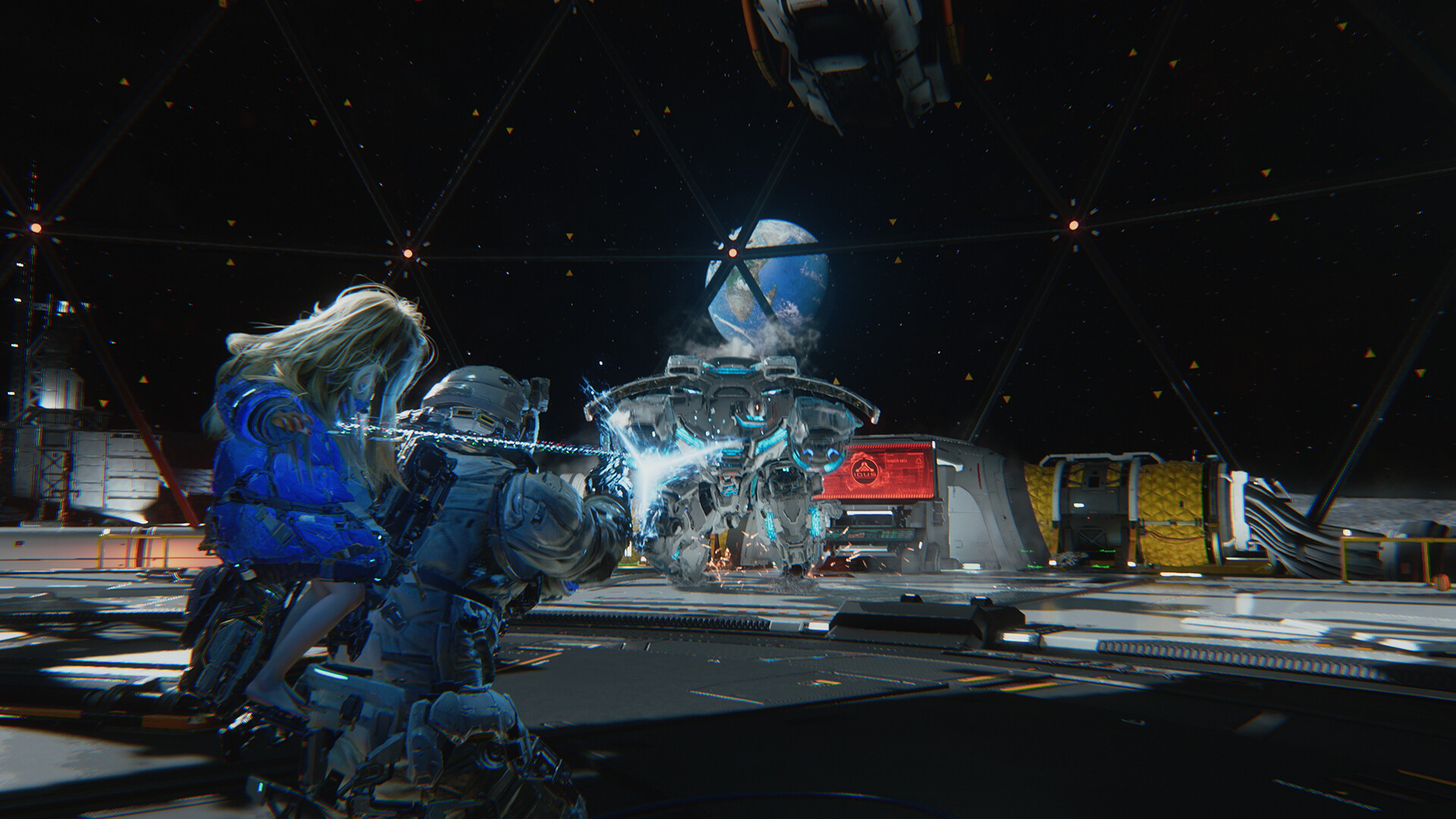
PRAGMATA‘s “Exit code: 0” crash can hit right at launch, often due to file corruption, security software interference, or missing dependencies.
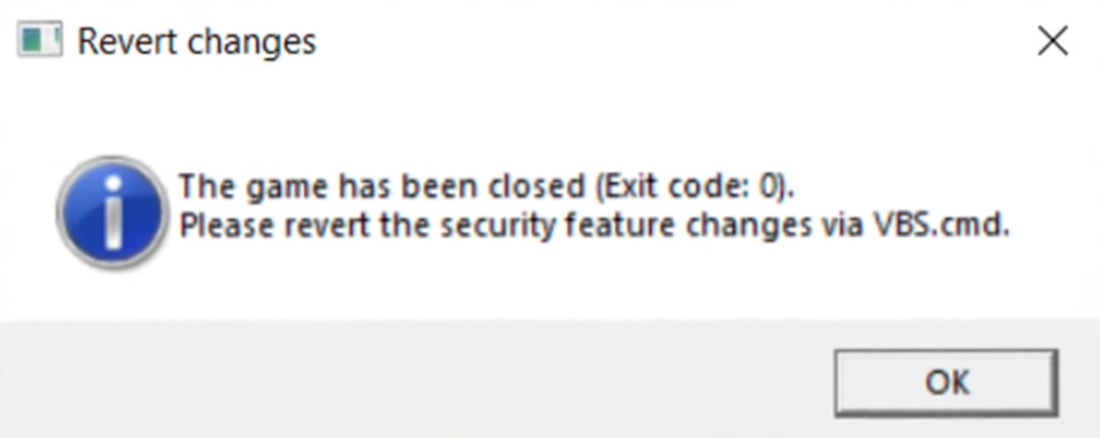
This guide details proven steps to fix the error.
| Issue Aspect | Key Causes | Quick Checks |
|---|---|---|
| Launch Failure | Corrupted files, antivirus false positives | Verify integrity, add exclusions |
| Exit Code 0 Specific | Permission blocks, service issues | Run as admin, restart services |
| Hardware Related | Outdated GPU drivers, low virtual memory | Update drivers, adjust paging file |
| System Dependencies | Missing DirectX/Visual C++ | Reinstall runtimes |
Fix 1: Restart Steam and PC first
Close Steam fully via Task Manager (end all Steam processes). Restart your PC, then relaunch Steam. This clears temporary glitches causing the exit code 0 error.
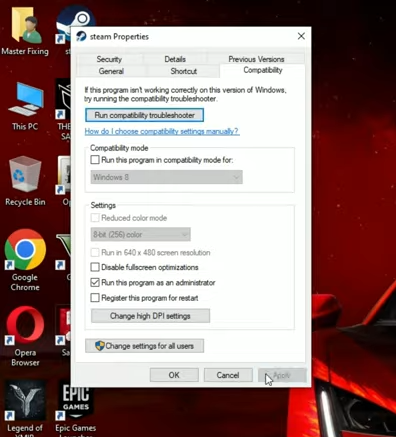
Fix 2: Run Steam and game as administrator
Right-click Steam.exe file > Properties > Compatibility > Check “Run this program as an administrator.” Do the same for PRAGMATA.exe in its install folder (usually Steam\steamapps\common\PRAGMATA). Apply changes and launch.
Fix 3: Verify game file integrity
Open Steam > Library > Right-click PRAGMATA > Properties > Installed Files > Verify integrity of game files.
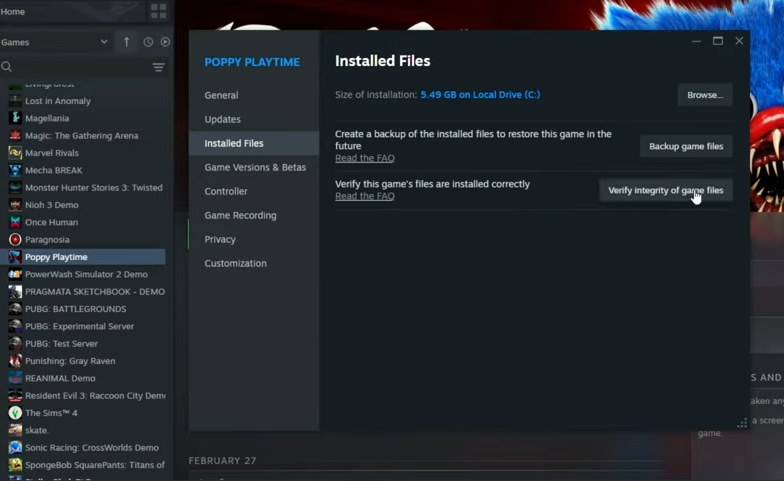
Steam scans and repairs corrupted files, a top fix for exit code 0 crashes. Wait for completion (5-15 minutes), then relaunch.
Fix 4: Add game folder to antivirus exclusions
Window Security and antivirus apps sometimes flag PRAGMATA.exe as false positive, causing exit code 0.
To fix this, open your antivirus (e.g., Windows Defender, Norton).
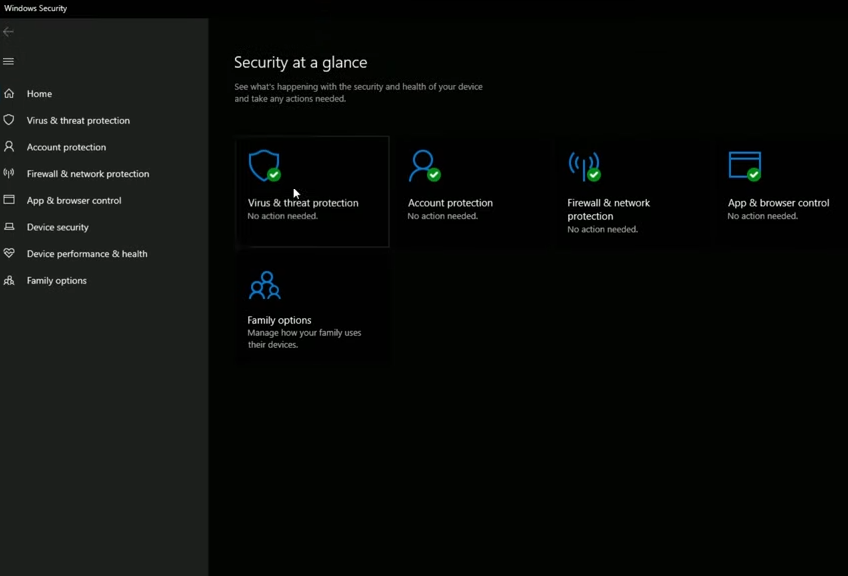
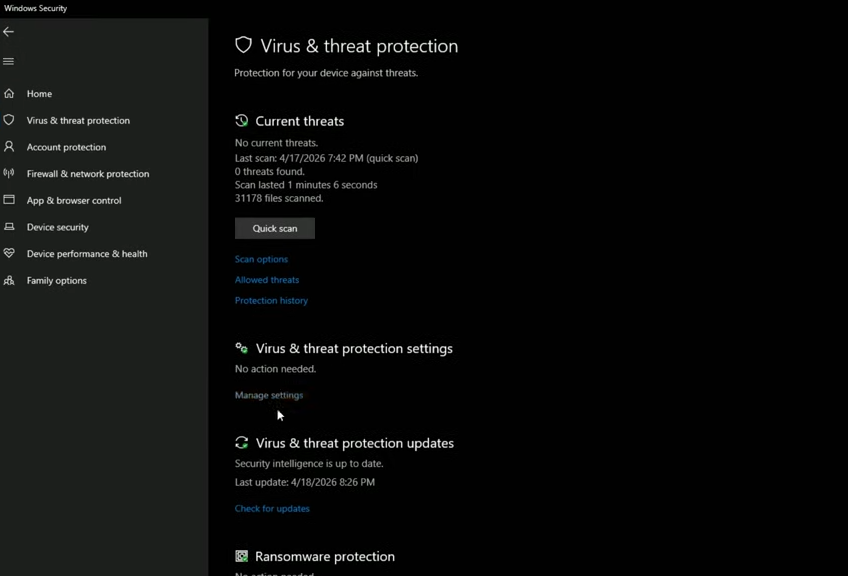
Go to Manage Settings under ‘Virus & threat protection settings.
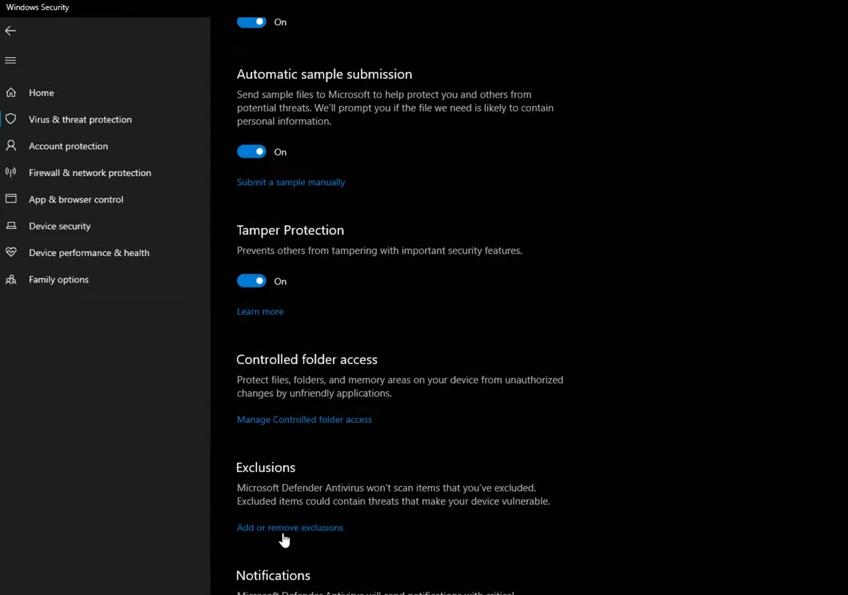
Under Exclusions, click Add or remove exclusions.
Click + Add an exclusion and select Folder.
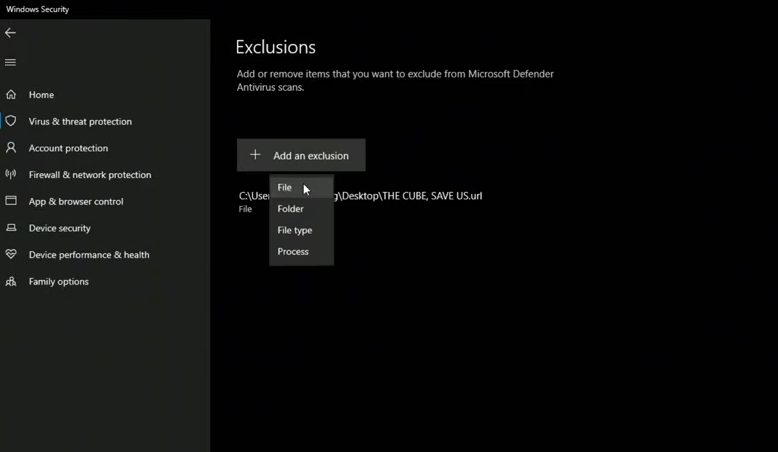
Then add the folder that’s present here – Steam\steamapps\common\PRAGMATA. Include PRAGMATA.exe, all .dll files, and subfolders.
You can also temporarily disable real-time protection during first launch.
Fix 5: Update graphics drivers cleanly
Outdated drivers trigger crashes. Download NVIDIA App, AMD Software, or Intel Arc Control. Use Display Driver Uninstaller (DDU) in Safe Mode: Boot to Safe Mode > Run DDU > Select GPU > Clean install. Install latest drivers, restart, launch game.
Step 1
Download DDU from official site.
Step 2
Restart PC in Safe Mode (hold Shift during restart > Troubleshoot > Advanced > Startup Settings > Restart > Option 4).
Step 3
Run DDU > Select GPU type > Clean and restart.
Step 4
Install fresh drivers from NVIDIA/AMD/Intel site.
Fix 6: Install or repair DirectX and Visual C++
Missing runtimes cause silent closes.
- Download DirectX End-User Runtime from Microsoft.
- Run installer; accept license; finish.
- Download Visual C++ Redistributables (x64 and x86, 2015-2022).
- Install all; restart PC.
Fix 7: Disable overlays and background apps
Overlays can sometimes conflict with the game: To fix this, close all overlays, be they in Discord, GeForce Experience, or MSI Afterburner.
To do so in Steam, go to Library > PRAGMATA > Properties > General > Uncheck “Enable Steam Overlay.”
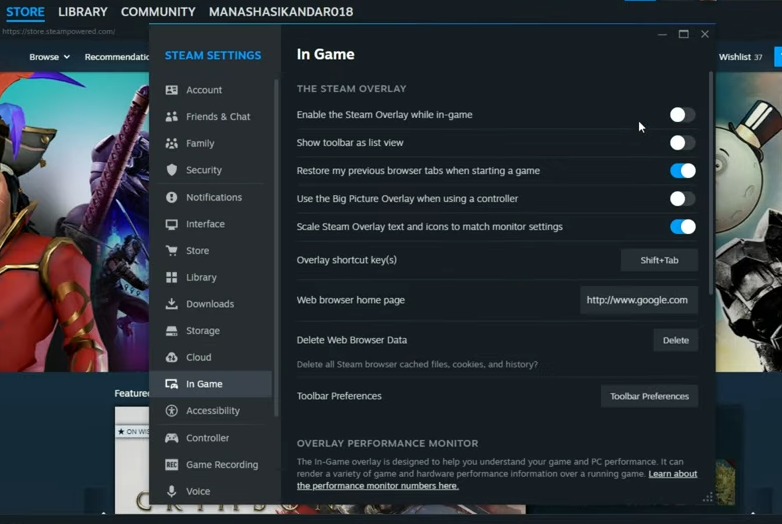
In Discord, go to Settings > Game Overlay > Disable.
Fix 8: Adjust virtual memory if low RAM
Right-click “This PC”. Then go to Properties > Advanced system settings > Performance Settings > Advanced > Virtual memory Change > Uncheck automatic > Custom size (Initial: 1.5x RAM, Max: 3x RAM) > Set > OK. Restart.
Fix 9: Check Windows services and updates
Press Win+R > services.msc.
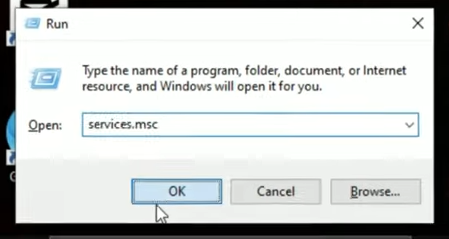
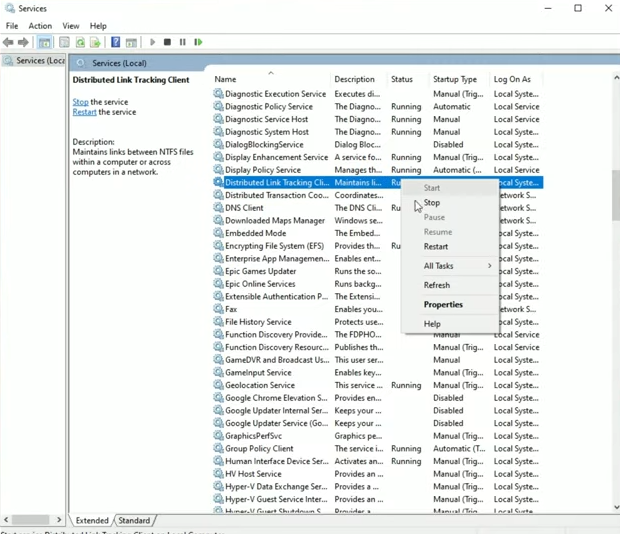
Ensure “Windows Update” and “Background Intelligent Transfer Service” run automatically. Also, make sure to Stop and Restart ‘Distributed Link Tracking Client‘.
Run Windows Update > Check for updates.
You can also run an SFC scan. Go to Command Prompt as admin. Then type and enter: sfc /scannow.
Once complete, restart your system.
| Fix Method | Expected Time | Success Rate (Reports) |
|---|---|---|
| Verify Files | 5-10 min | High |
| Admin Run | 1 min | Medium |
| Antivirus Exclude | 3 min | High |
| Driver Update | 15-30 min | Very High |
| DirectX/VC++ | 10 min | Medium |
| Overlays Off | 2 min | Medium |
| Virtual Memory | 5 min | Low (RAM-specific) |
Follow these sequentially for 90% success; if persists, check hardware temps or reinstall via Steam. Game runs optimally on updated systems now.


Leave a Reply