
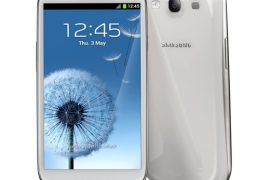
The Galaxy S3 is the latest Samsung flagship Android device and is no doubt getting much custom development attention, with custom ROMs and kernels sure to come out by a handful in the coming days. If your Galaxy S3 has somehow stopped working or booting up after flashing a custom ROM, kernel or any other modification, or if you would simply like to restore it to the stock firmware that it came with when you bought it, this guide will help you do just that, with step-by-step instructions.
The guide will help you flash the XXLAF2 firmware, which will restore it completely to stock and your Galaxy S3 will be the way it came in the box, though your SD cards data will still be there.
Read on to find out how you can flash the XXLAF2 firmware on your Galaxy S3 to restore it to stock.
Compatibility
This hack and the guide below are compatible only and only with Galaxy S3, model number i9300. It’s not compatible with the US variants or other devices. Check your device’s model number in: Settings » About phone.
Warning!
The methods and procedures discussed here are considered risky and you should not attempt anything if you don’t know completely what it is. If any damage occurs to your device, we won’t be held liable.
How to Restore Galaxy S3 with XXLAF2 Firmware
- This procedure will wipe all your apps, data and settings (but it will NOT touch your SD cards, so don’t worry about those). Backup your Apps and important data — bookmarks, contacts, SMS, APNs (internet settings), etc. This Android backup guide would help you.
Important! Don’t forget to at least make a backup of your APN settings, which you can restore later if your data connection does not work after installing the ROM. Use the backup guide to find out how. - Download and install the software Kies on your computer, which will install the necessary drivers for the phone.
Download Kies
You can also download the drivers directly — download from here: 32 bit (x86) Windows | 64-bit (x64) Windows - Download the firmware.
Download Link | Alternate Link | Filename: I9300XXALF2_I9300ODDALF1_INU.zip - Extract the I9300XXALF2_I9300ODDALF1_INU.zip file on the computer to obtain a file named I9300XXALF2_I9300ODDALF1_I9300DDLEA_HOME.tar.md5.
- Download the Odin PC software. If you are new to this, Odin is what is used to flash stuff – firmwares, kernels, etc. – on Samsung phones. We’ll use Odin to flash the firmware file obtained in step 4.
Download Odin3 v3.04 | Filename: Odin3_v3.04.zip - Extract the contents of the Odin3_v3.04.zip file to a folder on your computer.
- Now, turn off your Galaxy S3 and wait for it to shut down completely.
- Then, put the phone into download mode. To do so, press and hold these keys together: Volume Down + Home + Power till the screen turns on. Then press Volume Up to enter download mode.
- Open Odin by double-clicking on the Odin3 v3.04.exe file obtained in step 6 after extracting Odin3_v3.04.zip.
- Important! Connect your phone to PC now. You should get the message “Added !!” under Odin’s message box in the bottom left.
If you don’t get this message, make sure you installed drivers correctly (using Kies or directly) as given in step 1. If it still doesn’t work, try changing to another USB port on the computer and also use the USB ports on the back if you have a desktop PC. - Click on the PDA button in Odin, then browse to and select the I9300XXALF2_I9300ODDALF1_I9300DDLEA_HOME.tar.md5 file obtained in step 4 above.
- Important! Do not make any other changes in Odin except selecting the required files as given in step 11. Leave all other options as they are. And make sure Re-Partition check box is not selected.
Your Odin screen should look like this after the above steps (the COM# in the ID:COM box may be different, which is normal):

- Now, click the Start button to start flashing the firmware on your phone. When the flashing is complete and is successful, you’ll get a PASS message (with green background) in the left-most box at the very top of the Odin, and the phone will automatically reboot. When you see the Samsung logo, you can safely unplug the cable. What do if Odin gets stuck or doesn’t do anything: If ODIN gets stuck on setup connection or at any stage of this process after you’ve hit the Start button, and doesn’t seem to be doing anything, or if upon completion of the process you get a FAIL message (with red background) in ODIN, do this: disconnect the phone from the PC, close ODIN, remove battery for 4-5 seconds, re-insert it, turn phone on in Download mode again, and do the procedure again from Step 9.
- After you’ve got the PASS message, it’s possible — and okay — that phone might get stuck at the Samsung logo, and not boot up completely. It’s okay, just follow the steps 14.1 to 14.4, and you will be fine. And, if it boots up fine, without getting stuck, you’re fine. The Android 4.0 installation has been done successfully. So, do the following if your i9300 doesn’t move beyond the Samsung logo when booting up after getting PASS in Odin (make sure you wait some good 10-15 mins to confirm that it’s stuck):
- Boot to recovery mode — for which, first power off phone (by removing battery and reinserting it), wait for 5-6 seconds, and then press and hold Home + Volume Up + Power keys together till the screen turns on, then let them go to boot into recovery. Once you are in recovery mode, use volume keys to move the selection up and down and power or home key to select the option.
- Go to Wipe data/Factory Reset and select it. Select Yes on next screen.
- Now, go to Wipe Cache and select it. Confirm Yes on next screen.
- Then, select reboot system now to reboot the phone, which will now boot properly.
- If you run into any roadblocks while flashing the firmware, let us know and we’ll help you out.

That’s it, the XXALF2 firmware has been flashed on your phone, restoring it to a new and refreshed state. Do let us know how it works for you, in the comments.



62 responses to “Easy Guide to Restore International Galaxy S3 i9300”
is this is like unroot…………….
reply fast please
yes this will un-root your phone u will need to use latest version of triangle away to reset the flash counter if going for warranty work hope this helped
is this is like unroot…………….
reply fast please
yes this will un-root your phone u will need to use latest version of triangle away to reset the flash counter if going for warranty work hope this helped
is this is like unroot…………….
reply fast please
yes this will un-root your phone u will need to use latest version of triangle away to reset the flash counter if going for warranty work hope this helped
Hi guy, the final steps 14.1 to 14.4 works for me.
However in order to get to recovery mode i had hold the Home + Volume Up + Power keys until the recovery options came up which might take a few loading.
Thanks guys for the post.
Cheers.
Hi guy, the final steps 14.1 to 14.4 works for me.
However in order to get to recovery mode i had hold the Home + Volume Up + Power keys until the recovery options came up which might take a few loading.
Thanks guys for the post.
Cheers.
my phone never turns off… every time i tried, it turns off but then the galaxy s3 logo comes up again and starts up again…
my phone never turns off… every time i tried, it turns off but then the galaxy s3 logo comes up again and starts up again…
my phone never turns off… every time i tried, it turns off but then the galaxy s3 logo comes up again and starts up again…
Thank you so much Bro! It helped me so dear! God bless you Abhijeet
Thank you so much Bro! It helped me so dear! God bless you Abhijeet
Thank you so much Bro! It helped me so dear! God bless you Abhijeet
Thank you for this guide. Keep it up.
Thank you for this guide. Keep it up.
Thank you for this guide. Keep it up.
Thanks it helped me a lot … But is this for UK ?
Thanks it helped me a lot … But is this for UK ?
Thanks it helped me a lot … But is this for UK ?
thx it worked perfectly
thx it worked perfectly
thx it worked perfectly
this works in mac?
this works in mac?
this works in mac?
Man!!! Thanks a lot….
Man!!! Thanks a lot….
Man!!! Thanks a lot….
i am stock in galaxy s3 logo and recovery mode aint working….. pls help
i am stock in galaxy s3 logo and recovery mode aint working….. pls help
i am stock in galaxy s3 logo and recovery mode aint working….. pls help
I’m having a partition problem… this will solve it!???????
I’m having a partition problem… this will solve it!???????
I’m having a partition problem… this will solve it!???????
Thanks a lot. I’ve got a problem with a warning ” Unfortunately, Touch-wiz has stopped” on the main Menu. But I did exactly the 14.1 – 14.4 steps and it is solved.
Thanks a lot. I’ve got a problem with a warning ” Unfortunately, Touch-wiz has stopped” on the main Menu. But I did exactly the 14.1 – 14.4 steps and it is solved.
Thanks a lot. I’ve got a problem with a warning ” Unfortunately, Touch-wiz has stopped” on the main Menu. But I did exactly the 14.1 – 14.4 steps and it is solved.
I updated my GS3 to 4.1.1 . Now i want to wait for the update to come in my country . Thanks for the help . Is this unroot right? And will this also make my warranty valid ?
reply fast
and my flash counter show 0 times .
I updated my GS3 to 4.1.1 . Now i want to wait for the update to come in my country . Thanks for the help . Is this unroot right? And will this also make my warranty valid ?
reply fast
and my flash counter show 0 times .
I updated my GS3 to 4.1.1 . Now i want to wait for the update to come in my country . Thanks for the help . Is this unroot right? And will this also make my warranty valid ?
reply fast
and my flash counter show 0 times .
will my warranty be voided ? please answer
will my warranty be voided ? please answer
will my warranty be voided ? please answer
Works just fine. In case you don’t have 15 minutes to wait for the Samsung logo to pass; just go ahead and follow steps as the author mentioned. Worked fine for me. Thanks!
Works just fine. In case you don’t have 15 minutes to wait for the Samsung logo to pass; just go ahead and follow steps as the author mentioned. Worked fine for me. Thanks!
Works just fine. In case you don’t have 15 minutes to wait for the Samsung logo to pass; just go ahead and follow steps as the author mentioned. Worked fine for me. Thanks!
still stuck on boot screen after doing all steps, even rest and wipe of cache
same here
still stuck on boot screen after doing all steps, even rest and wipe of cache
same here
still stuck on boot screen after doing all steps, even rest and wipe of cache
same here