
To reboot into Galaxy A9 recovery mode, there are several ways. The easiest one — and very reliable one — is the hardware method, provided first below.
You usually need to boot into recovery mode of the device to do a factory reset of the device. Or, if you have custom recovery like TWRP installed, you can use it to access TWRP, which is pretty useful tool that helps you to install Custom ROMs take nandroid backups.
You can also use Galaxy A9 recovery Mode to install OTA updates, for which you first to find and download the update and transfer it to device.
Other tips: Galaxy A9 download mode | Force shutdown Galaxy A9
Let’s have a look at various methods to boot into Galaxy A9 recovery mode.
Here’s a video overview of how to enter recovery mode using device’s hardware. This video was made using Galaxy S6 Edge, but is fully applicable on your device too.
This method is a fail-proof method that’ll always work for you, unless you’ve broken one of the hardware keys on your Galaxy A9 2016. In such a case, use the other two methods.
Method 2: Boot Into Recovery Mode via ADB
ADB stands for Android Debug Bridge, a tool used to send terminal commands to an Android device via a PC command line. ADB requires a bit of setup, but it gets the job done with much lesser effort than hardware buttons, so pretty useful in cases when you’ve to boot in recovery mode frequently. Also, if (for some reason), your hardware buttons aren’t working, then ADB is a very good alternative to boot into recovery mode.
- Enable developer options: Go to your phone’s Settings » select About phone » Scroll to the bottom and tap on ‘Build number’ seven times to enable developer options.
- Enable USB Debugging: Open phone’s Settings » select Developer options » Tick the ‘USB debugging’ checkbox (under Debugging section).
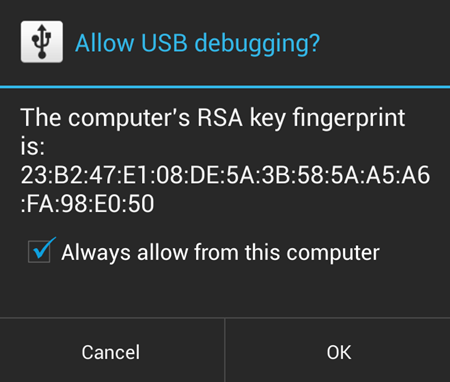
Step 5. Now open a command window on your PC. And issue the following command:
adb reboot recovery
Method 3: Using an app
Yes! There’s an app for rebooting your phone into recovery mode, and it’s more easier than the methods we discussed above. But it won’t work unless you’ve root access on your device, and since not everyone roots their device, we’ve put this as the last method here.
ROOT ACCESS REQUIRED!
That’s all.
Need help?
Give us a shout via comments section below if you are facing any issues about booting into recovery mode of your Galaxy A9 2016.